As an Amazon Associate, we earn from qualifying purchases. Some links on this site are affiliate links at no extra cost to you. Our recommendations are based on thorough research and editorial judgment.


Clean Clamshell Docking Layouts for MacBook

To create a clean clamshell docking layout for your MacBook, we should prioritize both functionality and aesthetics. Begin by using external keyboards and monitors that complement your workspace. Effective cooling solutions like the SVALT Cooling Dock MxDW or Cooling Stand MxS-hi enhance thermal management while providing ergonomic airflow. These products help keep your MacBook cool during demanding tasks. With the right setup, we can optimize our workspace effectively, allowing us to explore further enhancements.
Key Takeaways
- Use a stable, flat surface to place the cooling dock for optimal ergonomics and functionality.
- Connect external displays, keyboards, and mice for an efficient clamshell setup with your MacBook.
- Activate clamshell mode by closing the MacBook lid after connecting to power via the original Apple adapter.
- Select a cooling product, like the SVALT Cooling Dock, to enhance airflow and manage heat effectively during operation.
- Incorporate designs with mesh platforms to improve airflow and reduce noise levels during high-performance tasks.
What Is Clamshell Mode
Clamshell mode offers a convenient way to use our MacBooks as desktop setups while keeping the laptop closed. In this mode, we can connect our devices to external monitors, keyboards, and mice. This transforms our MacBook into a more ergonomic workstation, as it lets us position the screen at eye level and use a full-sized keyboard.
When we engage clamshell mode, the internal display, keyboard, and trackpad are disabled. This optimizes performance by focusing on the external peripherals we’re using. Newer MacBook Pro models automatically activate clamshell mode when connected to power, giving us a hassle-free experience. We can easily return to regular usage by sleeping or shutting down our MacBook whenever we want. Many users pair clamshell setups with external monitors to achieve improved productivity and screen real estate.
Why Is Cooling Important in Clamshell Mode

When we use our MacBooks in clamshell mode, effective cooling becomes crucial to prevent overheating and maintain performance. Operating this way increases thermal strain on our devices, especially when we use high-resolution external monitors. Here’s why cooling solutions matter:
- Limited Airflow: Clamshell mode disables the internal keyboard and trackpad, reducing airflow, which can lead to heat buildup.
- High Demands: Intensive tasks can raise processing demands, requiring improved thermal management for peak performance.
- Longevity: Efficient cooling guarantees our MacBooks stay within proper operational temperatures, preventing performance degradation and extending lifespan.
Using products like the SVALT Cooling Dock can appreciably improve cooling efficiency, making them worth considering for any clamshell setup. With good cooling, we can maximize our real estate while keeping our devices running smoothly. Additional USB-powered accessories like energy-efficient lights can help minimize overall heat output from peripherals.
How to Set Up and Operate in Clamshell Mode

Setting up our MacBook in clamshell mode can enhance our productivity considerably, especially when paired with external displays. To do this effectively, we must:
- Connect external displays and peripherals, including a keyboard and mouse.
- Use the original Apple power adapter to provide the best performance.
- Close the MacBook’s lid to enable clamshell mode, which may require waking the device with the power button on older models.
- Make sure to monitor cooling by using specialized docks or cooling stands, like the SVALT Cooling Dock series, to prevent overheating.
When we want to exit clamshell mode, simply reopen the MacBook, put it to sleep, or shut it down, making it easy to return to laptop mode. For best network performance during clamshell use, consider a Gigabit Ethernet adapter for stable wired connections 1Gbps Ethernet.
Featured Products

For those looking to optimize their MacBook experience in clamshell mode, we have some excellent product options to evaluate. Here’s a wide variety of choices that can fill the space available on your desk while enhancing cooling performance:
- SVALT Cooling Dock MxDW – $309.00: Designed for effective cooling in clamshell mode.
- SVALT Cooling Dock MxD – $409.00: Offers enhanced stability and superior cooling features.
- SVALT Cooling Stand MxSW-hi – $319.00: Provides an ergonomic vertical design for better airflow.
- Cooling Stand MxS-hi – $419.00: Ideal for users needing robust cooling under demanding conditions.
- Other options like MxSW-lo and MxS-lo start at $299.00, and all products focus on model compatibility and peak performance.
Oxygen-free copper conductors and braided shielding are features commonly recommended for reducing interference and ensuring clear signal integrity in audio setups.
Recommended Products

【Triple Displays Up to 6K@60Hz】Only the Mac series with M1/M2/M3/M4 Max chips supports Triple extended displays(Dual 6K@60Hz+Single 4K@60Hz). The Mac series with M4/M5 base chips or M1/M2/M3/M4 Pro chips only supports dual 6K@60Hz displays. The Mac series with M1/M2/M3 base chips only supports a single 6K@60Hz extended display

Retro Mac mini Dock with Modern Performance:Classic Macintosh-inspired design combined with today’s technology. More than just a Mac mini dock – it’s a powerful productivity hub that transforms your desktop. Equipped with USB-C host connected to the Thunderbolt interface of Mac mini M4, 80Gbps M.2 NVMe SSD Enclosure with Cooling Fan, Compatible with Thunderbolt 5/4/3/USB 4, 5’inch HD Display, SD/Micro SD Reader 4.0, 8K@60Hz Displayport output, 4*USB-A + 2*USB-C 10Gbps, 3.5mm Earphone Jack. A true multifunction hub that simplifies connectivity.

【Multiple 6K@60Hz Displays for Macbook】Quad 6K@60Hz for M5 Max; Triple 6K@60Hz for M5 Pro; Dual 6K@60Hz for MacBooks with M4/M5 Base, M1/M2/M3/M4 Pro, and M1/M2/M3/M4 Max chipsets; Single 8K@60Hz for M4/M5 Base; Single 6K@60Hz for M1/M2/M3 Base chipsets. Note: If your monitor lacks a Type-C port, you will need to use a Type-C to DisplayPort or HDMI adapter.
Cooling Dock MxDW

The SVALT Cooling Dock MxDW stands out as an ideal choice for those of us using our MacBooks in clamshell mode, primarily because it addresses the specific cooling challenges that arise during heavy usage. Priced at $309.00 USD, this dock features:
- A vertical configuration for enhanced stability and usability.
- Easy access to power buttons and screens.
Its advanced design effectively manages thermal strain, preventing overheating during intense tasks. User testimonials highlight significant improvements in temperature management and reduced fan noise, further solidifying its reputation among us users. Plus, compatibility listings guarantee we can select the best MxDW dock for our specific MacBook models. Overall, it’s an excellent solution for anyone prioritizing efficient cooling in a clamshell setup. The dock’s design complements other cooling strategies like multi-fan pads and adjustable stands to maximize thermal performance multi-fan cooling.
Recommended Products

MODEL COMPATIBILITY: The variant you are viewing is designed exclusively for all MacBook Pro 14" (2021 & after). This variant is NOT compatible with all MacBook Air models, and all MacBook Pro 16". Select other variations which support those models

𝟏𝟖-𝐢𝐧-𝟐 𝐀𝐥𝐥-𝐢𝐧-𝐎𝐧𝐞 𝐋𝐚𝐩𝐭𝐨𝐩 𝐃𝐨𝐜𝐤𝐢𝐧𝐠 𝐒𝐭𝐚𝐭𝐢𝐨𝐧: This dual monitor docking station is made just for MacBook users—perfect for office pros and remote workers who hate juggling multiple adapters! It’s packed with everything you need: 2 HDMI, 4K USB-C video port, 150W DC power, 7 USB C/A ports (up to 10Gbps for fast file transfers), PD 30W, 2.5G Ethernet, SD/TF 4.0 card slot, and 3.5mm Audio. Connect your external monitors, high-speed SSD, printer, and mouse all at once—cut the cable clutter and keep your home office or desk neat and organized.

Connectivity for All Your Devices: The UDS040M macbook docking station dual monitor provides a comprehensive suite of connectivity options with 2 HDMI, DP, 8 USB C/A, 2.5G Ethernet, SD/TF 4.0, HOST, DC and 2 audio ports. Designed for office professionals and remote workers, it also features a device holder slot for putting your laptop, tablet or phone on. USB C port NOT support display
Cooling Dock MxD
When it comes to selecting a cooling dock that effectively supports clamshell mode, the Cooling Dock MxD presents a compelling option.
– Design and Functionality
Priced at $409.00, this dock features a vertical configuration, enhancing stability without obstructing laptop access.
– Thermal Management
It specializes in managing thermal strain, offering efficiency improvements during demanding tasks. Users have reported noticeable temperature management improvements, considerably reducing overheating risks.
– Compatibility and Ergonomics
The MxD works well with various MacBook models, maximizing user experience. Plus, its ergonomic benefits make it suitable for prolonged use.
Incorporating the Cooling Dock MxD into your workspace will elevate your setup, ensuring performance and comfort in clamshell mode operations. The MxD also leverages multiple quiet fans to improve heat dissipation while maintaining low noise levels.
Recommended Products

【M1/M2 CHIP NOTE】Due to inherent limitations in the 2020 M1/2022 M2, MacBook models featuring these chips are not capable of supporting dual displays
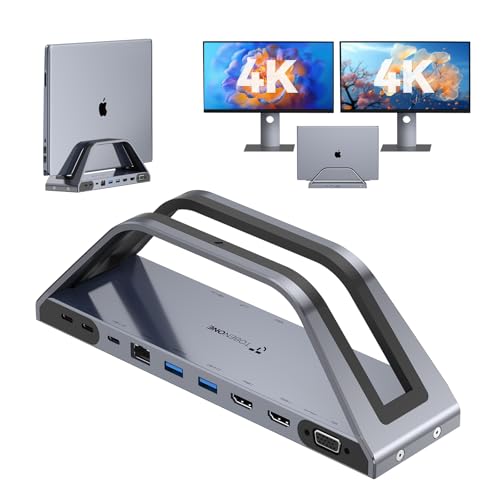
14-in-1 All-in-One MacBook Docking Station Stand: This 14-in-1 USB C dock is a game-changer for your desk—2 HDMI, VGA, 2×5Gbps USB-C/A 3.0, 2×USB 2.0, Gigabit Ethernet, SD/Micro SD, 3.5mm audio, and 65W USB-C power included! Sturdier, more stable, and better at heat dissipation than basic Mac docks, with a 9×2×3” vertical stand that saves space and holds most laptops. Note: Install the lastest Instantview SM76X driver first for full functionality

15-IN-2 Dock Designed for Your MacBook: TobenONE MacBook Pro docking station is desktop workstation hub features with 2x HDMI, 4x USB 3.0, 1x USB-C, USB C PD 3.0, 2x USB 2.0, 3.5mm Audio/Mic, SD/TF and Gigabit Ethernet. Not for Windows laptop and MacBook with M1/M2/M3 chip (non-Pro/Max) can only extend one external monitor. Exclusive design for MacBook Air 13" (2018-2020, Intel chip), MacBook Air 13"/15" (2025, M4 chip); 14/16" (2021, 2023, 2024 M1 M2 M3 M4 pro/max chip), MacBook Pro 13"(2016-2020, Intel chip), MacBook Pro 15"(2016-2019, Intel chip), MacBook Pro 16" (2019, Intel chip)
Cooling Stand MxSW-hi
After exploring the Cooling Dock MxD, it’s natural to reflect on alternative solutions for maintaining perfect performance in clamshell mode. The Cooling Stand MxSW-hi stands out with its essential design features aimed at improving airflow.
Key Features:
- Ergonomic Design: Elevates your MacBook for better visibility and comfort.
- Cooling Efficiency: Its enhanced thermal management minimizes overheating, perfect for intensive tasks.
- Quiet Operation: Reduces noise levels, enhancing user experience.
Setup Tips:
- Confirm proper positioning for ideal cooling.
- Make use of port access without hindrance.
At $319.00, the MxSW-hi is a worthy investment for various MacBook models, supporting better productivity while maintaining long-lasting durability. Its elevated design also helps reduce heat-related strain on components by improving airflow and ventilation around the laptop.
Recommended Products

[Exclusive Magnetic Detachable 6-in-1 Hub]- Revolutionize your desk setup with our Intelligent Magnetic System (iMS). The integrated USB-C hub snaps securely onto the stand for a clean workspace or detaches instantly for portable use. It also features a built-in cellphone stand, offering unparalleled versatility for home, office, or travel.

Free Standing Tripod Base Laptop Holder

SMART COOLING — From idle to full load, keep the laptop running smoothly with our first laptop cooling pad that changes fan speeds automatically to manage system temperatures based on the settings
Cooling Stand MxS-hi
For anyone using their MacBook in clamshell mode, the Cooling Stand MxS-hi presents a smart solution for temperature management. This stand is specifically designed for clamshell operation, improving thermal management during intensive tasks.
Key Features:
- Vertical Layout: Promotes airflow, ensuring efficient cooling and preventing overheating.
- Compatibility: Works with various MacBook models to maintain peak performance.
- Stability & Usability: Offers easy access to the power button, enhancing ergonomics.
Installation Tips: Make sure the stand is placed on a flat, stable surface for best results.
User feedback consistently highlights performance benefits, noting reduced temperatures and lower operating noise levels. Ultimately, the MxS-hi greatly enhances the user experience during prolonged usage. Research shows that adequate cooling can prevent thermal throttling and help maintain consistent performance over long sessions.
Recommended Products

Ergonomic Carrying System: Integrated back padding + adjustable shoulder straps for optimal ventilation. Widened shoulder straps reduce strain during long periods of wear. Ergonomic weight distribution for stability – ideal for travelers and photographers

24L Tech-Ready Storage: Spacious 24L capacity with a clamshell main compartment that fully opens flat for easy and full access to your goods, and allows you to pack and access gear without digging or rummaging through layers. Dedicated padded laptop/tablet sleeve that fits devices up to 16-inches.

Customized Storage: The Module Pro storage system consists of customizable dividers for your different needs. Front, rear and side pockets are dedicated to storing more gadgets. You can put your clothes, DSLR, Mirrorless, tripod, laptop, drone and other travel goods easily with each in this camera bag
Cooling Stand MxSW-lo
The Cooling Stand MxSW-lo offers an innovative solution for those of us using MacBooks in clamshell mode. This stand is designed with key features that enhance user compatibility across various MacBook models. Priced at $299.00, it provides an affordable option for effective thermal management.
Key Design Features:
- Airflow Efficiency: The stand incorporates an efficient airflow system, preventing overheating during intensive tasks.
- Vertical Configuration: Allows easy access to essential ports and the power button, improving usability with external peripherals.
- User Reviews: Many users praise its ability to lower temperatures and reduce noise levels, showcasing its performance. Many users also appreciate its compatibility with various MacBook sizes and its efficient cooling performance.
Product Selection Guides
Choosing the right docking solution for clamshell mode can greatly enhance our MacBook experience, especially regarding performance and usability. When considering options, we recommend evaluating SVALT’s Cooling Dock series, including the MxDW at $309.00 and MxD at $409.00. These docks excel in thermal management, ideal for demanding tasks.
Alternatively, we might consider the Cooling Stand MxSW-hi for $319.00 or MxS-hi for $419.00, depending on user preferences for stability and ergonomics. Each product is optimized for different MacBook models, ensuring compatibility and peak performance.
To make an informed choice, let’s focus on product comparison and performance metrics, considering our typical workloads to determine the best fit for our clamshell setup.
User Support and Feedback
How can we guarantee we’re maximizing our experience with SVALT products? Engaging with user feedback analysis is essential. By reviewing customer testimonials, we’ve noted significant thermal management improvements while using SVALT Cooling Dock series products, especially in clamshell mode. Additionally, users appreciate reduced noise levels at lower fan settings, enhancing our overall user experience improvement.
Here are key insights from users:
- Installation Guides: Extensive guides simplify setup, emphasizing modularity and right-to-repair principles.
- Performance Stability: Users report better thermal performance during intensive tasks.
- Sustainability: Feedback reflects satisfaction with product sustainability and quality, ensuring they fit well with our clamshell docking layouts.
Staying connected with user feedback helps us make informed choices for enhancing our setups. Recent reviews also highlight the benefits of temperature regulation provided by mesh platforms and improved airflow in several docking designs.
Frequently Asked Questions
How to Tidy Dock on Mac?
Did you know that 60% of Mac users struggle with dock clutter? We can tidy our dock by organizing app icons neatly, minimizing dock clutter, and following simple dock organization tips for a streamlined experience.
Is It Okay to Use a Macbook in Clamshell Mode?
Yes, we can use a MacBook in clamshell mode. Its advantages include efficient power management and a streamlined external display setup, but we should guarantee proper cooling and monitor temperature for ideal performance.
How to Clean up a Dock on a Macbook?
To clean up our Dock, let’s use dock organization tips like removing unused apps and arranging favorites on the left. This will help us create a minimalist interface through effective app management strategies.
How to Reset Dock Layout on Mac?
To reset our Dock layout on Mac, we can open Terminal, type `defaults delete com.apple.dock; killall Dock`, and hit enter. This clears our dock preferences, restoring the user interface to original Mac settings.


