As an Amazon Associate, we earn from qualifying purchases. Some links on this site are affiliate links at no extra cost to you. Our recommendations are based on thorough research and editorial judgment.


Laptop Ergonomics: Eye Height, Wrist Angle, Chair Setup

To set up our laptop ergonomically, we should focus on three key areas: eye height, wrist angle, and chair setup. For eye safety, the screen top should be at or just below eye level, maintaining a 15-20 degree downward gaze. Our wrists should stay neutral by ensuring the keyboard is at elbow height and using a mouse on the same surface. Finally, an adjustable chair with lumbar support keeps our spine aligned. More tips are available if we stay informed.
Key Takeaways
- Position the laptop screen top at or slightly below eye level to maintain a neutral neck posture.
- Keep your eyes looking slightly downward at the middle of the screen, ideally 15 to 20 degrees.
- Maintain a 90-degree arm angle by ensuring the keyboard height aligns with your elbow height.
- Use an adjustable chair that supports your spine’s natural curve, allowing feet to rest flat on the floor.
- Take scheduled breaks every 30 minutes to prevent discomfort from prolonged sitting.
Understanding the Importance of Laptop Ergonomics
You may be interested



When we think about the time we spend on laptops, have we considered how our setup affects our bodies? Proper laptop ergonomics play an essential role in reducing neck strain and back pain. Here’s how to optimize our work environment:
- Screen Height: Position the screen at eye level, allowing for a neutral head position.
- Chair Height: Adjust chairs to support the spine’s natural curve, enabling full contact with the back.
- Wrist Angle: Maintain wrists at or just below elbow height while typing to prevent strain.
- Ergonomic Adjustments: Implementing these changes can greatly enhance comfort and productivity.
- Consider using a sit-stand converter to vary positions throughout the day and reduce prolonged sitting sit-stand converters.
Recommended Products

Ergonomic Posture Correction: Designed to elevate your laptop to the perfect eye level, this adjustable laptop stand significantly reduces neck, shoulder, and spinal fatigue. Transform your desk into a healthier workstation, ideal for long hours of typing, Zoom meetings, or gaming.

[Healthy Use Habits] - Ergonomic laptop stand with wrist support, it can raise your laptop to a perfect 2.6-inch height, flush with your eyes, correcting your sitting posture helps reduce hunchback, and the humanized design increases wrist support. Ergonomic laptop stand black reduces the pressure on your wrist when typing, provides a rest for your wrist, is very comfortable to use, makes typing easier, and allows you to be healthy and happy.

Broad Compatibility: Besign LS10 Laptop Stand for Desk is compatible with all laptops from 10''-14'', such as Air 13, Pro 13 / 15 / 2018 / 2017 / 2016, Lenovo ThinkPad, Dell, HP, ASUS, Chromebook, and other notebooks.
Proper Screen Height for Eye Safety
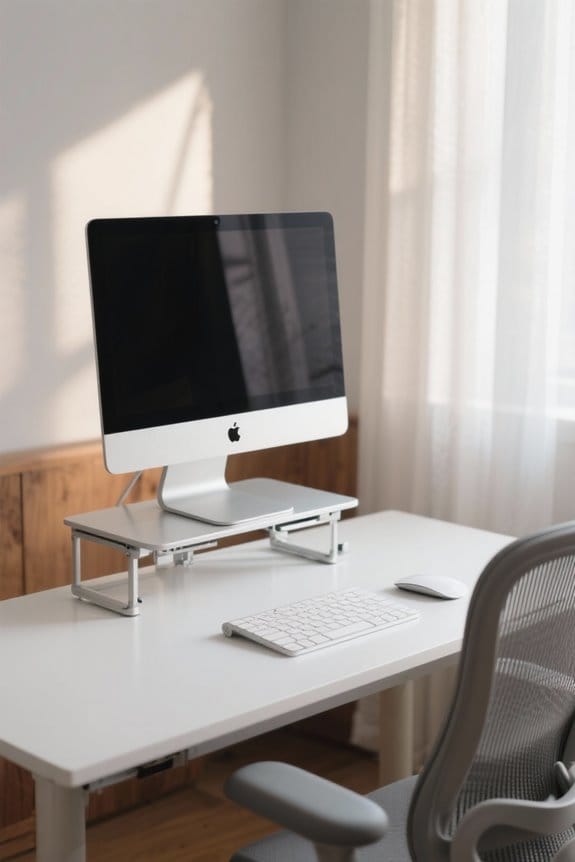
Optimizing our screen height is a key component of maintaining eye safety while using laptops. Here are some guidelines to follow:
- Screen Height: Position the top of our screen at or just below eye level to promote a neutral neck posture, reducing strain on our neck and back.
- Viewing Angle: Our eyes should look slightly downward at the middle of the screen, ideally 15 to 20 degrees below the horizontal line.
- Distance: Maintaining a viewing distance of 20 to 30 inches helps reduce the risk of digital eye strain.
- Tilt Angle: Tilting the monitor back at a 10° to 20° angle can improve visual comfort and minimize glare.
- For Bifocal Users: Lower the screen an additional 1-2 inches for ideal eye alignment while reading.
Screens with privacy and blue light filtering can also improve eye comfort and reduce strain when working in shared spaces, especially those with blue light protection.
Recommended Products

Design: The monitor stand for the desk has a large 14.6 x 9.3 inches plastic shelf that fits most flat screen displays, laptops, and printers, with a maximum support weight of up to 44 lbs (20kg). Rubber pads prevent slipping or damage to your work surface

Design: The monitor stand for the desk has a large 14.6 x 9.3 inches metal shelf that fits most flat screen displays, laptops, and printers, with a maximum support weight of up to 44 lbs (20kg). Rubber pads prevent slipping or damage to your work surface

Clear Dimensions with Tapered Design: Top surface measures approx. 11.6 inches x 11 inches (W at center), with slightly narrower sides due to the tapered structure. Please review dimensions carefully to ensure compatibility with your device.
Maintaining a Neutral Wrist Angle

Maintaining a neutral wrist angle is essential for preventing discomfort and injury while typing on our laptops. To achieve this, we should consider the following recommendations:
- Keyboard Height: Position the keyboard at elbow height, allowing our arms to form a 90-degree angle for ideal posture.
- Negative Tilt: Use a keyboard with a slight negative tilt (around 10°) to keep our wrists flat and reduce extension during typing.
- Mouse Placement: Verify the mouse is on the same surface as the keyboard. This minimizes reaching and helps maintain a neutral wrist angle for both activities.
- Regular Checks: Regularly assess our wrist positioning to avoid discomfort and promote productivity.
High-density memory foam lumbar support can help maintain overall posture so wrist alignment is less likely to be compromised.
Recommended Products

【Softer and More Comfortable】Vaydeer wrist rest has unique diamond pattern, which is the combination of softness and aesthetics. The materials of wrist rest are improved into higher quality memory foam and covered with silky smooth lycra. The computer wrist rest makes you as comfortable and cushiony as like rest your wrists on clouds.

Ergonomic Design: Ergonomically designed to keep wrists aligned with the keyboard and mouse, helping reduce wrist pain, fatigue, and strain during long hours of typing, gaming, or office work. Provides stable, comfortable support for everyday computer use.

[All-in-One Keyboard Stand Pad and Wrist Rest] This wrist rest for keyboard offers two tilt options (7° & 13.3°) for optimal ergonomic comfort. The angled design reduces strain on your wrists, forearms and elbows, helps treat and prevent carpal tunnel syndrome—perfect for long work or gaming sessions
Choosing the Right Chair for Comfort
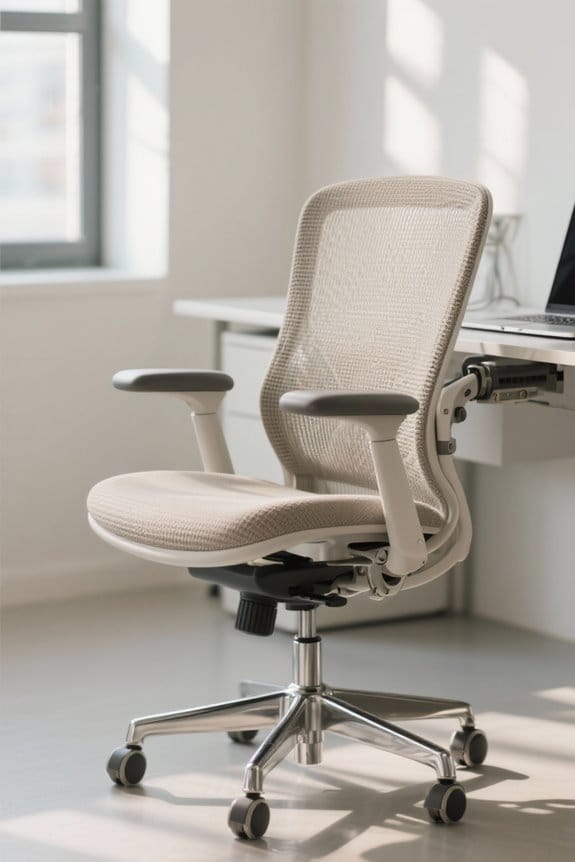
How can we guarantee our seating supports comfort and productivity during long hours of laptop use? Choosing the right chair is essential. Here are some key features to take into account:
- Adjustable Height: Ascertain your chair allows feet to rest flat on the floor, keeping your knees parallel for ideal posture.
- Lumbar Support: Look for chairs that maintain the natural curve of your spine to prevent lower back pain.
- Seat Depth: There should be 2-4 inches between the back of your knees and the edge to promote blood circulation.
- Armrests: Adjustable armrests help position your elbows close to your body, reducing neck pain and keeping your wrist angle neutral.
- Comfortable Material: Choose breathable fabric with adequate cushioning for long-term use without discomfort. Many ergonomic setups also benefit from considering overall device weight and balance, especially when pairing chairs with peripheral gear like lightweight mice to reduce reach strain.
Recommended Products
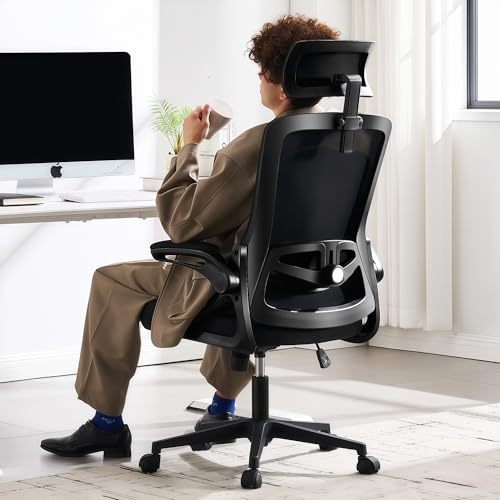
Ergonomic Office Chair: Our ergonomic office chair provides total comfort and support for your head, back, hips and arms. Suitable for people who are approximately 5' 4" to 6' 3" tall. Easily adjust the seat height, headrest, backrest and reversible armrests to meet different needs and provide comfortable support even during long periods of sitting

Fully Adjustable Office Chair: Customized chairs, featuring with an adjustable 2D headrest, backrest with 90° to 120° recline, and 3D adjustable armrests for multiple work postures at will and discover unparalleled comfort throughout the workday.

All-Day Ease – Breathable mesh backrest provides targeted lower back support, encouraging healthy posture and lasting comfort through long hours of sitting.
Tips for Sustaining Good Posture
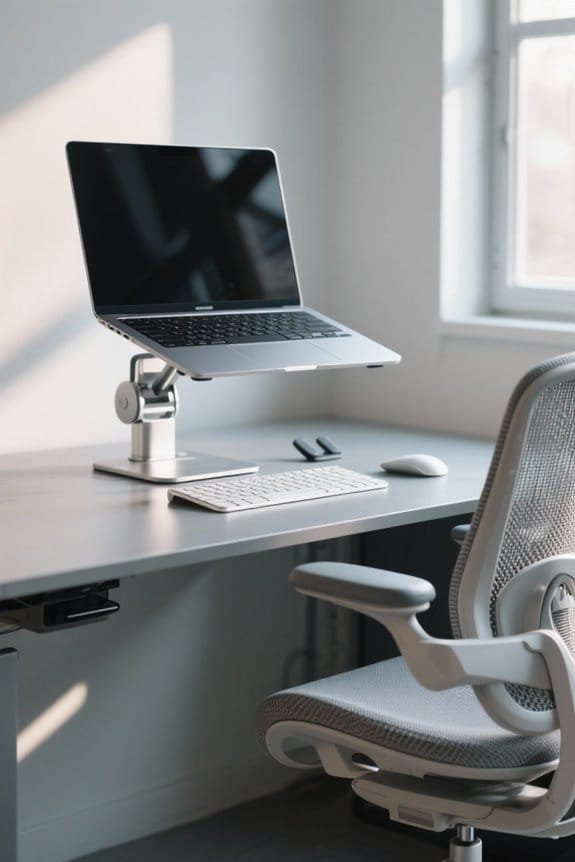
Good posture is essential for comfort and efficiency during long hours of laptop use. Here are some tips for maintaining it:
- Monitor Position: Adjust the laptop stand so the top of the screen is at or slightly below eye level to keep our neck neutral.
- Keyboard Setup: Use an external keyboard, ensuring our wrists remain straight and elbows at a 90-degree angle while typing.
- Chair Support: Select an adjustable chair that supports our lower back’s natural curve, with feet flat on the floor or a footrest.
- Scheduled Breaks: We should take a break every 30 minutes to stretch and move, which helps prevent health problems from prolonged sitting.
Consider using a laptop cooling pad with adjustable height to help maintain ergonomic screen positioning and reduce heat-related discomfort.
Recommended Products

Wide Compatibility: The laptop stand for desk is compatible with all laptops from 10" up to 17.3", including popular models like MacBook, MacBook Air, MacBook Pro, Surface Laptop, Dell XPS, Google Pixelbook, HP, ASUS, Acer, Chromebook, Alienware, etc.

【Adjustable & Ergonomic】:This laptop stand can be adjusted to a comfortable height and angle according to your actual needs, letting you fix posture and reduce your neck fatigue, back pain and eye strain. Very comfortable for working in home, office and outdoor.

【Adjustable & Ergonomic】:This laptop stand can be adjusted to a comfortable height and angle according to your actual needs, letting you fix posture and reduce your neck fatigue, back pain and eye strain. Very comfortable for working in home, office and outdoor.
Frequently Asked Questions
How Often Should I Adjust My Laptop Setup?
We should routinely adjust our laptop setup for proper posture and visual comfort. Regular alignment checks, work breaks, and mindful tech positioning enhance desk organization and promote mobility moves—keeping us comfortable and productive throughout the day.
What Accessories Can Improve Laptop Ergonomics?
We can enhance our laptop ergonomics using accessories like laptop stands, ergonomic keyboards, wrist supports, monitor extenders, adjustable desks, footrests, screen filters, cable management, and posture reminders to promote comfort and efficiency during our work.
Can Using a Standing Desk Help?
Using a standing desk can indeed help us improve posture, boost energy levels, and reduce muscle fatigue. With workspace flexibility, it promotes productivity, enhances cognitive function, and may minimize health risks associated with prolonged sitting.
Are There Specific Exercises for Laptop Users?
Yes, there’re specific exercises for us laptop users! Incorporating screen breaks, stretching routines, eye exercises, and mindfulness breathing can enhance flexibility. We should also focus on neck stretches, back strengthening, wrist mobility, and core engagement for better posture.
How Do I Know if My Chair Is the Right Height?
To guarantee our chair’s perfect height, we must check leg position, cushion quality, and foot placement. Good back alignment and arm support enhance chair comfort, while adjustable features provide essential ergonomic support for ideal seating posture.


