As an Amazon Associate, we earn from qualifying purchases. Some links on this site are affiliate links at no extra cost to you. Our recommendations are based on thorough research and editorial judgment.

Color Calibrate on Macos: Accurate Display Setup

To color calibrate our Mac for an accurate display setup, we should follow these steps: Access System Settings and select Displays, then start the calibration process through the Color profile menu. We’ll need to match brightness with the Apple logo and adjust gamma settings. True Tone, while useful, can affect color accuracy, so we recommend disabling it for precise work. For professionals, consider hardware tools like Datacolor SpyderX for enhanced calibration results. Let’s explore more ways to guarantee peak display performance together.
Key Takeaways
- Access System Settings, select Displays, and initiate calibration using “Calibrate Display” in the Color profile menu for precise adjustments.
- Follow guided steps to match the Apple logo with background colors and adjust brightness accordingly for accurate calibration.
- Choose preferred gamma and white point settings to fine-tune the display, ensuring it meets your visual requirements.
- Disable True Tone and Night Shift to maintain consistent color accuracy, especially for professional tasks requiring precision.
- Regularly calibrate your display, ideally monthly, to adapt to software changes and ambient light variations for optimal performance.
Importance of Color Calibration
Color calibration is indispensable for anyone working with visual content, especially in fields like photography and graphic design. It guarantees color accuracy by aligning the display with expected standards. Regularly engaging in the calibration process is imperative, as displays can lose precision over time, affecting our critical work.
To achieve accurate colors, we need a controlled environment, minimizing the impact of ambient light. Display calibration adjusts essential settings like white point and luminance, creating a more harmonious viewing experience.
Utilizing hardware calibration tools, like the Datacolor SpyderX or X-Rite i1Display Pro, enhances color profiles far beyond basic software methods. By carefully managing these color profiles within our system settings, we guarantee our visuals consistently meet professional standards. Many professionals also prefer devices with long battery life and durable build materials when choosing peripheral equipment for extended calibration sessions.
Steps to Calibrate Your Mac Display
To achieve ideal color accuracy on our Mac displays, it’s important to follow a straightforward calibration process. Here’s how we can do it:
- Access Calibration
- Open System Settings from the Apple menu.
- Select Displays from the sidebar, then click the pop-up menu next to “Color profile.”
- Choose “Calibrate Display” to open the Display Calibrator Assistant.
- Follow the prompts to adjust the brightness to a comfortable level.
- Match the Apple logo with the background colors.
- Select your preferred gamma and white point settings for a tailored display output.
- After calibration, check the new profile against the old to evaluate color accuracy improvements.
- Key Tools: Devices such as Datacolor SpyderX and X-Rite i1Display Pro connect via USB and adjust color profiling based on ambient light conditions.
- Performance: These calibration devices guarantee color fidelity tailored to our displays like the Pro Display XDR.
- Compatibility: The latest Calibrite software supports macOS Ventura and newer M2 MacBook Pros for ideal results.
- External Options: Consider external calibration monitors from brands like Dell for even finer calibration features beyond what’s available in Apple displays.
- Disable True Tone and Night Shift: This guarantees we create a color profile that’s consistent.
- Use macOS built-in calibrator: Apple offers tools through the Display Calibrator Assistant, making it accessible for everyone.
- Adjust brightness and settings: Fine-tuning these can help us achieve more accurate color representation.
- Display Calibrator Assistant: Found in System Settings, it offers a step-by-step calibration guide.
- Calibration Tools: Consider using tools like the Apple Pro Display XDR for professional-grade results.
- Fine-Tune Calibration: This option allows for visual fine-tuning based on your individual preferences.
- Ambient Lighting: Account for changes in lighting for more accurate color representation.
- Mac User Guide: This guide provides detailed instructions on calibration processes and available color profiles, helping us optimize our display settings effectively.
For longer sessions or outdoor work, consider a portable power solution like the Bailibatt 300W for reliable portable power when you need extended display use.
Recommended Products

【Oversized Canvas】Boasting 4K(3840x2160) resolution with a big 27-inch screen, the studio-grade Kamvas Pro 27 delivers a refreshing and delightful viewing and drawing experience

[Oversized Canvas] With a stunning 4K(3840x1260) display on an expansive 27-inch screen, Kamvas pro 27 brings every brushstroke, texture, and color gradient to life with breathtaking clarity. Without constant zooming and panning, you can stay focused on the big picture whether you're concepting characters, or editing high-res images.
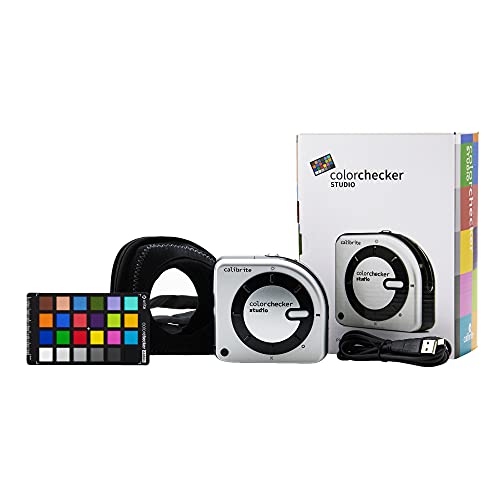
SPECIFICATIONS: All in one spectrophotometer for camera to print color control, supports monitor display and projector profiling plus printer paper and scanner profiling with Calibrite PROFILER software, includes ColorChecker Classic Mini target for camera profiling, includes USB cable and monitor profiling holder pouch.
About True Tone Technology
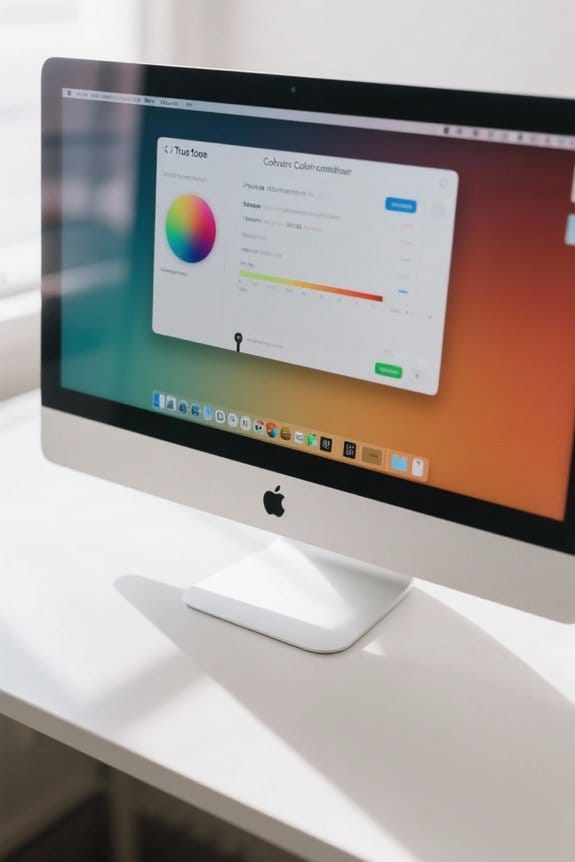
When working on our devices, we often benefit from features that enhance our viewing experience. True Tone technology is one such feature, automatically adjusting the display’s white balance and colors based on the ambient light around us. This guarantees our screens look more natural, making images appear consistent throughout the day.
While True Tone enhances comfort, it is crucial to recognize that it can impact color accuracy during professional tasks like photo editing. For those scenarios, we recommend disabling True Tone in the settings to preserve precise color representation. Available on select Apple devices, including MacBooks, iPhones, and iPads, True Tone offers a seamless visual experience—just make sure to calibrate your display according to your needs. Additionally, consider using an external colorimeter to perform a full hardware calibration for accurate color tracking if you require professional-level precision.
Recommended Products

SPECIFICATIONS; Includes Calibrite Display Plus HL colorimeter measuring up to 10,000 nits plus ColorChecker Passport Video 2 for capture reference, designed for monitor calibration, white balance setup, exposure control, camera matching, and consistent color workflow.

SPECIFICATIONS: 140 patch ColorChecker Digital SG target with protective storage sleeve, includes expanded color space coverage with additional skin tone references and grayscale steps, supports white balance, profiling, and detailed color analysis, chart size 8 x 11.5 inch for professional workflows.

𝗘𝗡𝗦𝗨𝗥𝗘 𝗔𝗖𝗖𝗨𝗥𝗔𝗧𝗘 𝗖𝗢𝗟𝗢𝗥: Groundbreaking lens-based color engine provides a higher level of color accuracy for multiple monitors. Spyder X Pro features room-light monitoring, automatic profile changing and significantly more precise screen color, shadow detail and white balance.
Hardware Calibration Tools for Professionals
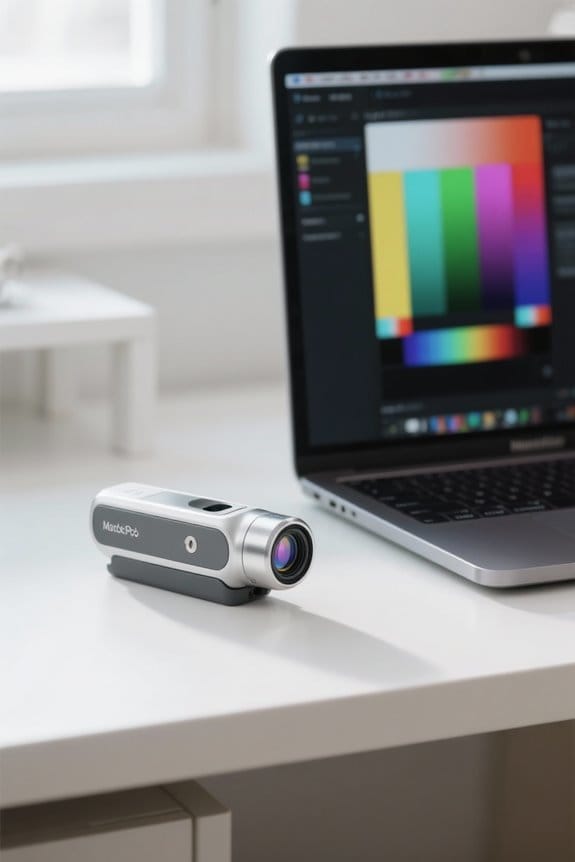
While True Tone technology helps improve our viewing experience, professionals often need more precise control over their displays. For us, hardware calibration tools are crucial for color accuracy, especially in fields like video editing.
Using these tools periodically can greatly enhance our color precision in professional projects. A compact, USB-C compatible interface like the 2i2 USB-C can streamline connections between calibration hardware and modern Macs.
Recommended Products

EinScan is Official Authorized Distributor of Shining 3D EinScan Products. This product comes with FREE Worldwide Global WARRANTY by Shining 3D.

Customizable Display: Graphics tablet features 8 ExpressKeys, adjustable on-screen menus, and improved multi-touch and pen gestures; ideal for creative professionals like graphic designers
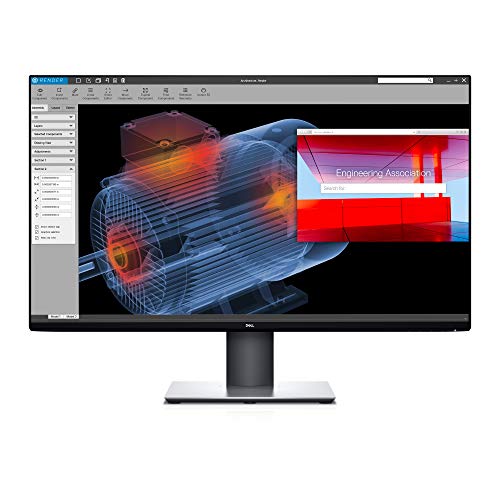
Experience four times more detail than Full HD with 3840x2160 Ultra HD 4K resolution.
Regular Calibration and Maintenance
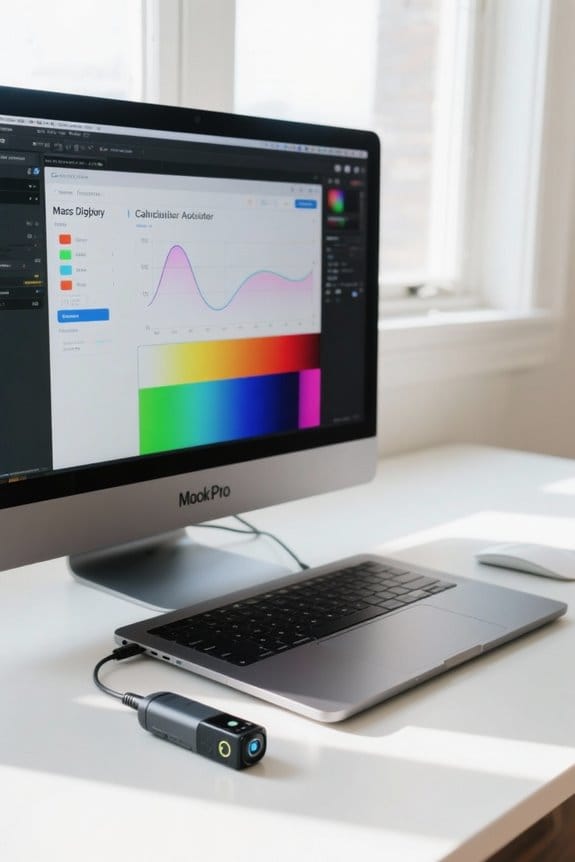
Regular calibration and maintenance of our Mac displays are vital for achieving consistent color accuracy. We recommend calibrating our displays every month to counteract changes from factors like software updates or varying ambient light.
Key steps for effective calibration include:
For professionals using MacBook Pro or similar devices, regular assessment of our display’s performance is essential to meet high standards in photography and video editing, ultimately enhancing user satisfaction. Many users also rely on 1Gbps Ethernet connectivity to transfer large media files quickly when working between devices.
Recommended Products

Powerful and easy to use with ccProfiler (or i1Profiler) software

【EASY TO USE】Sound level calibrator has only 3 buttons: 94dB, 114dB and a power on/off button. Simply power on the calibrator, select either the 94dB or 114dB option, and you're ready to go

SIMPLE OPERATION : With only 3 buttons: 94dB, 114dB and Power On/Off Button. Simply power on the calibrator, select 94dB or 114dB level, and it's ready to go!
Resources for Further Learning
After we’ve established a routine for regular calibration and maintenance of our displays, it’s important to expand our knowledge with additional resources. Here are some valuable tools and guides:
Regularly checking these resources guarantees our displays remain accurately calibrated. For organizing calibration accessories and documents, consider using clear acrylic organizers to keep tools visible and accessible.
Frequently Asked Questions
How to Calibrate Monitor for Color Accuracy on Mac?
To calibrate our monitor for color accuracy on Mac, we’ll adjust monitor brightness, set color profiles, modify display gamma, utilize calibration software or hardware calibration tools, and reference color temperature for best results.
How to Make Display More Color Accurate?
To make our display more color accurate, we should set specific screen type settings, adjust brightness levels, fine-tune contrast, calibrate white balance, and utilize calibration tools for precise gamma adjustment and proper color profiles under ambient light.
Are Macs Color Calibrated?
Yes, Macs are factory-calibrated for basic color management, but we often use calibration tools and software options in system preferences to enhance visual consistency, ensuring accurate color profiles for printing and testing methods.
How Do I Fix the Color Distortion on My Mac?
Think of our displays like artists’ palettes. To fix color distortion, we adjust color profiles and gamma settings, calibrate brightness and contrast, and regularly recalibrate, especially for digital art and photo editing precision.