As an Amazon Associate, we earn from qualifying purchases. Some links on this site are affiliate links at no extra cost to you. Our recommendations are based on thorough research and editorial judgment.


External SSDs on Mac: File Systems, TRIM, Performance

When we use external SSDs on Macs, it’s crucial to take into account file systems, TRIM support, and performance. We recommend using the APFS file system, as it supports TRIM, enhancing write speeds and prolonging drive life. Note that Thunderbolt-connected SSDs typically offer better TRIM support compared to USB-connected ones. Regularly monitoring write speeds can help us maintain performance, and choosing reliable brands guarantees durability. Let’s explore more on optimizing our external SSD experience.
Key Takeaways
- Formatting external SSDs to APFS enables TRIM support, enhancing write speeds and overall performance on Macs.
- Thunderbolt-connected SSDs typically offer better TRIM support compared to USB 3.x, which often lacks this feature.
- Regularly monitor write speeds on external SSDs to identify potential performance degradation over time.
- External SSDs without TRIM may experience slower write speeds and reduced longevity due to inefficient data management.
- Utilize utilities like Mints to check TRIM support and assess external SSD performance metrics effectively.
Understanding TRIM and Its Importance for SSD Performance
You may be interested



When we discuss external SSDs, understanding the TRIM command is essential for grasping how it influences performance. TRIM plays a key role by notifying the SSD about unused data blocks, helping manage storage efficiently. This is especially important for external SSDs using USB connections, as they typically lack TRIM support.
Without TRIM, we may notice slower write speeds and reduced longevity due to poor data management. Filesystems on Mac can struggle without this command, particularly during high write or rewrite scenarios.
Implementing TRIM where possible enhances garbage collection processes, leading to faster write speeds and improved longevity. For those considering external SSDs, we recommend examining TRIM support to maximize performance and maintain efficiency over time. Enclosures with UASP support can help improve external SSD performance by reducing protocol overhead and enabling faster transfers.
Recommended Products
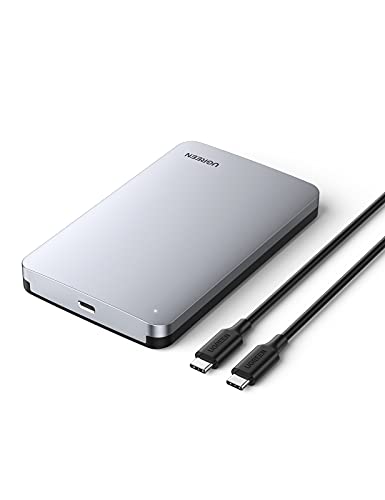
6Gbps High-Speed SSD Enclosure: UGREEN hard drive reader supports 6Gbps max transfer speed and UASP accelerated transmission protocol, 70% Faster than traditional USB 3.0. The USB-C port is standard USB 3.1 Gen 2 which supports 10Gbps and (7+15)Pin SATA III supports max 6Gbps. (USB-C to USB-C Cable included)

NVMe and SATA SSD Compatibility:This M.2 enclosure supports both PCIe NVMe and SATA NGFF SSDs up to 8TB in 2230, 2242, 2260, and 2280 sizes. It works seamlessly with Windows, macOS, Linux, Android, and iOS systems. Note: m-SATA is not supported
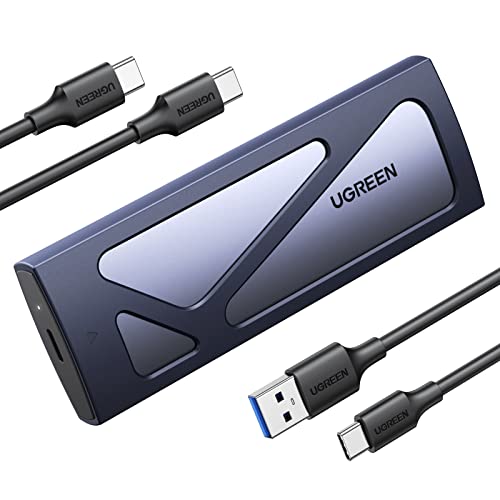
10Gbps NVMe Enclosure: With the latest USB 3.2 Gen2, this M.2 enclosure can achieve a data transfer rate of 10Gbps. Backward compatible with USB 3.1 and USB 3.0. Note: 10G speeds need to be matched with a USB C 3.2 GEN2 data cable
Exploring Compatibility of External SSDS With TRIM and SMART

Understanding TRIM’s importance sets the stage for discussing how external SSDs interact with this command and SMART technology.
- TRIM Support: Many external SSDs connected via USB 3.x do not support TRIM, leading to potential performance degradation over time.
- Thunderbolt Advantage: In contrast, Thunderbolt-connected external SSDs can support TRIM because they communicate directly with the hardware.
- SMART Data: Accessing SMART data is also limited by connection type. It’s available over FireWire and Thunderbolt, but not USB 3.x, complicating health monitoring.
- Compatibility Challenges: macOS sometimes inaccurately reports TRIM and SMART availability for external SSDs through USB connections.
- Utilities Like Mints: These can help identify TRIM support and assess performance metrics, which is essential for ensuring compatibility with macOS file systems.
- Consider using an external enclosure with USB 3.2 Gen2 or Thunderbolt support to maximize transfer speeds and compatibility.
Recommended Products
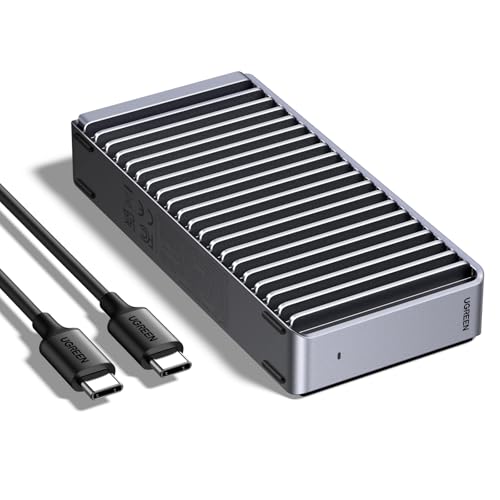
Transmission files in seconds: This product is equipped with the ASM2464PD chip, and the maximum speed can reach 3600MB/s; compatible with USB4/3.2/3.1/3.0/2.0 & Thunderbolt 3/4.NOTE: Thunderbolt 4 cables and devices are required to achieve 3600MB/s speed

Blazing-Fast USB4 Performance: Transfer files at up to 3,900 MB/s with USB4 or 2,700 MB/s with Thunderbolt 3/4. Backward compatible with USB-C 20Gbps/10Gbps/5Gbps ports for seamless high-speed performance across generations.

80G Lightning Transfer Speed: This 80G enclosure is equipped with JHL9480 chip, and the actual theoretical test speed is up to 7000MB/s when it is compatible with Thunderbolt 5. It is backward compatible with Thunderbolt 4/USB4/USB3.2/3./3.0 Note:Thunderbolt 5 speed requires Thunderbolt 5 cables and interfaces
Optimizing Performance Through APFS and File System Choices

To maximize the performance of external SSDs on Macs, we recommend using APFS (Apple File System) as it is specifically designed for flash storage. Here’s why:
- TRIM Support: APFS supports TRIM, maintaining ideal write speeds over time, enhancing reliability.
- Improved Performance: Formatting external SSDs to APFS improves data management and access speeds compared to older file systems.
- Longevity and Reliability: APFS handles fast data operations effectively, making it a better choice for prolonged use.
- Incompatibility of ExFAT: While ExFAT offers cross-compatibility, it lacks important features like journaling and can risk data corruption.
TESSAN adapters are compact and lightweight, making them a convenient choice for travelers who need multiple ports and low-weight gear, with a typical weight of 3.48 ounces that aids portability.
Recommended Products
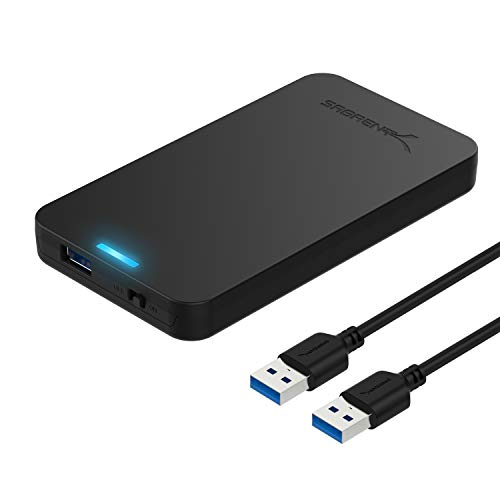
Tool free design, easy to install,Transfer Rates Up to 480 Mbps when connected to a USB 2.0 port,Transfer Rates Up to 5 Gbps when connected to a USB 3.0 port.

Feature - BENFEI Type-C/Type-A 2.5 inch Hard Drive Enclosure easily hook up your 2.5 inch SATA I/II/III hard drive to transfer files from one PC to another PC, laptop, PS4 or as a USB external hard drive.

Feature - BENFEI 2.5 inch Hard Drive Enclosure easily hook up your 2.5 inch SATA I/II/III hard drive to transfer files from one PC to another PC, laptop, PS4 or as a USB external hard drive. USB Type-C/Type-A 10Gbps cable is included in the package.
User Experiences: Performance Variability and Insights

User experiences with external SSDs on Macs reveal a wide spectrum of performance outcomes, particularly influenced by factors like connection type and file system choices.
- Connection Type: Thunderbolt SSDs typically show better TRIM support and sustained write performance compared to USB-connected drives.
- Crucial SSDs: Some users report performance drops after initial usage, likely due to TRIM support issues.
- File Systems: Many macOS users advocate for the APFS file system, as it reportedly enhances TRIM capabilities and performance over formats like HFS+ and exFAT.
- Performance Management: Users have noted the success of keeping USB drives functioning well by actively managing write workloads and understanding how garbage collection works.
- Additionally, choosing a drive with high-density memory foam—a durable construction material commonly praised in product reviews—can prolong reliable daily use.
Recommendations for Managing External SSDs on Mac

Managing external SSDs on a Mac effectively can greatly extend their performance and lifespan. Here are our recommendations:
- Use the APFS File System: Format your external SSDs with APFS for peak performance and TRIM support.
- Choose the Right Interface: Thunderbolt-connected SSDs may support TRIM, while most USB-connected drives do not. This impacts overall performance.
- Monitor Write Speeds: Regularly check the write speeds of your external SSDs, especially ones in heavy use, to detect potential degradation.
- Make Regular Backups: Always back up your data for enhanced data integrity, particularly if the SSD lacks TRIM or advanced error correction features.
UGREEN enclosures offer ultra-high-speed transfers with advanced cooling to help prevent thermal throttling during heavy use.
Recommended Products
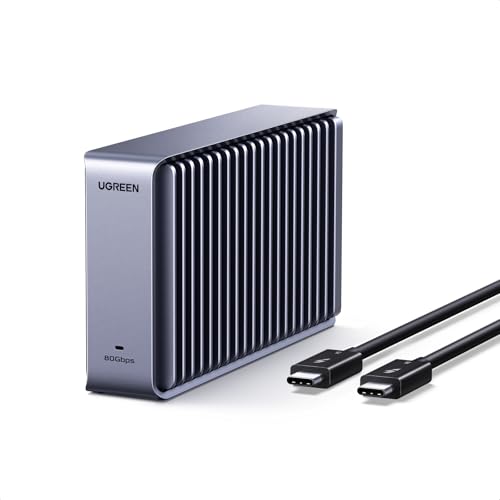
Dual-Chip Design:This enclosure features a dual-chip design with Intel JHL9480 Thunderbolt controller and JMicron JMS583 bridge controller, delivering speeds up to 7000 MB/s. This architecture ensures faster, more stable data transfer—moving a 6GB file in just one second.

USB C 2.5 External SSD Enclosure supports a 2.5" SATA SSD or HDD drive; portable external hard drive in a sturdy aluminum housing protects the SSD drive and assists with heat dissipation

【Always-On Ready for Mac mini M4】 Engineered for continuous 24/7 operation, supporting long-running background tasks, automation workflows, and local desktop setups with stable performance and optimized airflow.
Frequently Asked Questions
Why Is My External SSD so Slow on My Mac?
Our external SSD’s slow speed on our Mac likely stems from USB connection limitations, file system choices, and compatibility issues. We should consider firmware updates, cache memory influence, and heat management to improve performance effectively.
Should I Enable Trim for SSD?
We should definitely enable TRIM for our SSDs! It enhances performance, guarantees longevity, and optimizes the file system. User feedback shows improved SSD health and recovery options, minimizing macOS compatibility issues and boosting overall performance benchmarks.
How to Enable Trim on External SSD Mac?
When it comes to enabling TRIM on our external SSD, we can run the trim command in Terminal, ensuring ideal Mac compatibility. This boosts disk speed, aids storage management, and enhances drive longevity for file transfers.
Does an External SSD Affect Performance?
Yes, external SSDs affect performance. They can enhance data transfer speeds and read/write speeds, but they might strain system resources. Evaluating cache performance and application load is essential for optimizing SSD longevity and file access efficiency.