As an Amazon Associate, we earn from qualifying purchases. Some links on this site are affiliate links at no extra cost to you. Our recommendations are based on thorough research and editorial judgment.


Macos Clamshell Mode: Safe Thermal Use and Myths

Using clamshell mode can boost our workspace efficiency, but safe thermal practices are vital. We should place our MacBooks on hard surfaces to enhance airflow and consider using a laptop stand. Monitoring temperatures with tools like iStat Menus is essential to prevent overheating. It’s a myth that MacBooks are at high risk; built-in thermal protections exist. Effective use can prolong our devices’ life, and there’s more to explore about ideal setups and accessories.
Key Takeaways
- Clamshell mode is generally safe for MacBooks when used responsibly, particularly with proper cooling measures in place.
- Elevated stands improve airflow and reduce overheating risks while using the MacBook in clamshell mode.
- Intel MacBook Pro models may experience more thermal challenges than Apple Silicon models, which have better cooling efficiency.
- Regular temperature monitoring and using tools like iStat Menus can help maintain optimal performance and battery health.
- Misconceptions about thermal safety often stem from individual usage patterns rather than inherent design flaws in MacBooks.
Understanding Clamshell Mode
You may be interested



When we close our Mac’s lid, it can still function effectively, thanks to clamshell mode. This feature allows our Mac to operate with an external display, while we use an external keyboard and mouse. It effectively transforms our laptop into a desktop, enhancing our workspace organization.
To guarantee optimal heat dissipation in clamshell mode, we should keep a few things in mind:
- Use a sturdy stand: This helps maintain airflow and prevents overheating.
- Avoid soft surfaces: Placing our Mac on soft fabrics can block ventilation.
- Monitor temperatures: Being aware of our Mac’s temperature is vital for prolonging its lifespan.
With these practices, we can enjoy the benefits of clamshell mode while safeguarding our Mac’s safety and efficiency. A good option to help organize your workspace is a bamboo desk organizer to keep accessories tidy and accessible, promoting a neater and more efficient setup with minimalist aesthetics.
The Importance of Heat Management

Heat management is essential in clamshell mode to guarantee our Mac operates smoothly and efficiently. When we use our devices in this mode, airflow can be restricted, leading to higher internal temperatures. Here are some key points to take into account:
- Fan Noise and Throttling: Users of Intel MacBook Pros may notice increased fan noise and performance throttling due to heat buildup.
- Cooling Efficiency: Apple Silicon Macs demonstrate improved cooling efficiency, reducing the risk of overheating compared to Intel models.
- Avoiding Damage: Prolonged use without proper cooling can result in battery expansion and internal component damage.
To enhance heat management, we should monitor temperatures regularly and contemplate using laptop stands to improve airflow while using clamshell mode.
Using a well-ventilated setup or an external cooling pad can significantly lower operating temperatures and improve long-term device performance.
Recommended Products

Whisper-Quiet Operation: Enjoy a noise-free and interference-free environment with super quiet fans, allowing you to focus on your work or entertainment without distractions.
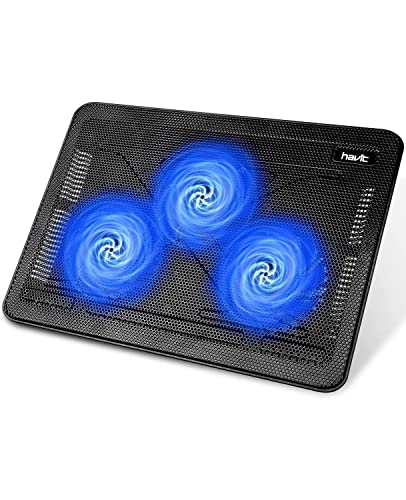
Ultra-Portable: Slim, portable, and light weight allowing you to protect your investment wherever you go
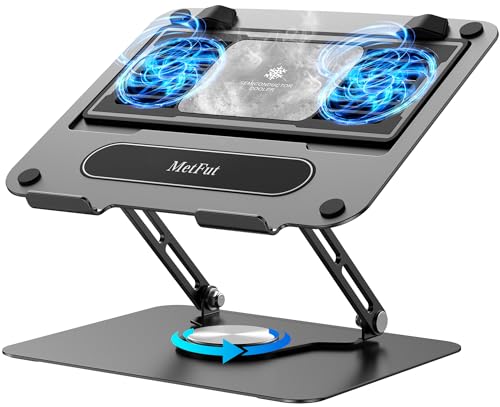
【Literally Temperature Dropping—Advanced Laptop Cooling Pad】 Unlike traditional fan coolers, the METFUT laptop cooling pad utilizes thermoelectric cooling technology (Peltier effect) for rapid temperature reduction. Equipped with a semiconductor panel and two ultra-quiet fans, delivering efficient cooling for your device.Note: High humidity in the air or idling of the cooler may generate mist on the surface of the cooling panel.
Common Misconceptions About Thermal Safety

While many users worry that operating a Mac in clamshell mode might damage the internal screen, these concerns are often unfounded. Here are some key points to help clarify misconceptions about thermal safety:
- Thermal Safeguards: MacBooks are designed with built-in thermal protections that prevent overheating.
- Usage Patterns Matter: Most overheating issues in closed-clamshell mode occur due to specific usage patterns rather than design flaws.
- Plugged In for Performance: To guarantee peak performance while using clamshell mode, it’s best to keep your MacBook plugged in. Running on battery may lead to reduced functionality.
- Monitor Temperatures: We should always keep an eye on temperature levels to maintain the longevity of our devices.
Using clamshell mode effectively requires awareness and care, but it’s quite safe for our Macs. Dual USB-C ports fast charging can help maintain performance for connected peripherals and reduce power-related thermal strain.
Recommended Cooling Solutions

To guarantee peak performance in clamshell mode, we recommend implementing several effective cooling solutions.
- Elevating Your MacBook: Use a stand to elevate your device. This enhances airflow around the MacBook, helping to dissipate heat efficiently.
- Choose Hard Surfaces: Always place your MacBook on hard, flat surfaces. Soft surfaces like beds trap heat and can lead to overheating.
- Cooling Pads: Consider active cooling pads with fans, especially during prolonged usage. These can provide additional cooling to maintain ideal temperature levels.
- Regular Cleaning: Keep your internal components clean. Dust accumulation obstructs airflow, reducing cooling efficiency.
Many users also find that using a lightweight, portable lap desk with a ventilated surface can improve comfort and airflow when a hard surface isn’t available, so consider models with ventilated surfaces for better heat dissipation.
Recommended Products

MONITOR STAND WITH HOLE DESIGN: Made of power coated steel with perforated holes, this laptop ventilation stand performs well for air flow and keeps your laptops/printers cool.
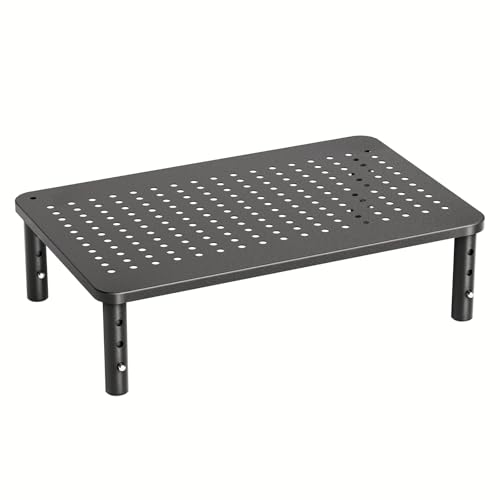
ERGONOMIC HEIGHT ADJUSTMENT: This monitor stand features 3 height settings at 3.94”, 4.72”, and 5.51” tall. Choose the most comfortable and ergonomic viewing height by pressing the buttons on the legs to adjust the stand.

【Adjustable & Ergonomic】:The laptop holder elevates your notebook from 2.78” to 6.5” height (7 level height) for a perfect eye level, letting you fix posture and reduce your neck fatigue, back pain and eye strain. Very comfortable for working in home, office and outdoor.
Monitoring Temperature and Performance

Maintaining ideal performance in clamshell mode requires attention to temperature management. Regularly monitoring temperature is essential since we need to keep CPU temperatures under 100°C. Exceeding this limit can lead to performance throttling or thermal shutdowns.
Using tools like iStat Menus helps us track real-time temperature readings for effective thermal management. Apple Silicon Macs generally handle heat better than Intel models, often resulting in quieter operation under load.
To further enhance cooling, we recommend using laptop stands that boost airflow and reduce heat buildup. Poor airflow in clamshell mode can elevate temperatures, ultimately impacting performance. By actively monitoring and managing temperatures, we can guarantee our MacBook performs at peak efficiency in this mode. Additionally, using accessories such as ergonomic wrist rests can improve comfort during extended sessions and reduce wrist fatigue.
Recommended Products

【9 Fans for 360° All-Around Cooling】This laptop cooler has 9 high-performance fans with stepless speed control up to 2600 RPM. Its 360° surround airflow quickly dissipates heat to avoid overheating and lag, keeping your laptop stable during long work and gaming sessions. The LED brightness automatically syncs with fan speed, delivering strong cooling while letting you check the operating status at a glance.
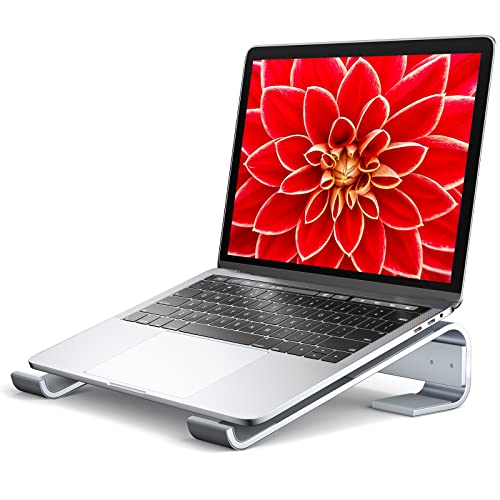
【 Neck & Shoulder Pain Go Away】 - The slim compact notebook stand elevates your laptop by 2.6’’ to a perfect eye-level and helps reduce awkward postures, which relieves neck and shoulder stiffness. It alleviates pressure on your wrist by elevating it at an ergonomic angle for long-term laptop use.

AICHESON S035 laptop cooler is special designed to cool down up to 17.3 inch laptop. Wave metal mesh, 1000-1500RPM 1 large computer fan and 2600-3000RPM 4 small fans, flip-up mat, 4 ergonomic stand height settings, 2 USB ports, adjustable air flow wind velocity
Battery Health Considerations
Battery health is a significant consideration for anyone using a MacBook in clamshell mode, since this setup requires a constant power connection. Here are some key points to keep in mind:
- Constant Charging: Keeping the MacBook plugged in can raise concerns about battery health, especially if it stays at 100% for extended periods.
- Apple Silicon Advantage: Users with Apple Silicon models often report fewer issues compared to Intel models, which have documented cases of battery expansion due to heat.
- Charge Management Tools: Some users turn to tools like AlDente for effective charge regulation.
- Optimized Battery Charging: This macOS feature attempts to slow chemical aging by limiting the time the battery stays at full capacity.
Using a high-quality 140W-capable USB‑C to MagSafe cable can help ensure safe power delivery and reduce risk when operating in clamshell mode with external power 140W power output.
The Impact of Usage Patterns
When considering how we use our MacBooks in clamshell mode, it’s clear that our usage patterns play a significant role in thermal performance and battery health.
- Heavy Tasks: Engaging in demanding applications generates more heat, necessitating vigilant monitoring to prevent overheating.
- Extended Use: Using clamshell mode for long periods can affect battery health depending on our charging habits and workloads.
- Temperature Management: Those with intermittent heavy workloads find clamshell mode helps organize workspaces but must manage temperatures carefully to avoid thermal throttling.
- Monitor Frequency: The frequency and intensity of external monitor use impact thermal considerations, with prolonged connections raising temperatures more than occasional use.
Kootek’s multi-fan designs can improve airflow in clamshell setups by reducing chassis temperatures more effectively than single-fan solutions, which may help prevent thermal throttling during sustained workloads multi-fan designs.
User Experiences With Clamshell Mode
As we’ve seen, usage patterns greatly affect the performance of MacBooks in clamshell mode. Users with the M1 Pro generally report minimal issues and improved battery health while using clamshell mode, especially when their MacBook is connected to an external display. In contrast, some Intel MacBook users have raised concerns about battery expansion and longevity, noting significant differences from Apple Silicon models.
Community feedback indicates mixed emotions—some find clamshell mode enhances organization and efficiency, while others worry about overheating or potential damage to the internal display during intensive tasks. Ultimately, user experiences vary widely based on individual habits and setups, with many noting acceptable battery conditions after prolonged use, providing a balanced perspective on using clamshell mode. Additionally, using protective accessories like a waterproof cover can help reduce dust and debris accumulation when a laptop is stored or used in constrained setups.
Software Tools for Optimal Performance
Many of us find that using the right software tools can greatly enhance performance when operating our MacBooks in clamshell mode. Here are some key tools to assess:
- AlDente: Manages battery charge levels effectively, promoting battery health by avoiding sustained charges at 100%.
- Amphetamine and Insomniac: Keep your Mac awake with the lid closed, ensuring smooth workflows and minimizing interruptions.
- CleanMyMac: Identifies and removes unnecessary files to maintain peak performance during intensive tasks.
- iStat Menus: Provides real-time temperature insights, helping us manage thermal output proactively.
- Turbo Boost Switcher: Balances power consumption, optimizing performance while operating in a closed state.
Utilizing these software tools can truly enhance our Mac experience in clamshell mode. Many presenters also rely on compact, ergonomic remotes with long battery life to control slides and avoid interruptions during closed-lid presentations.
Recommended Products

Presenter mode, built-in Class 2 red laser pointer for presentations, intuitive touch-keys for easy slideshow control. AAA batteries required (best with Polaroid AAA batteries)

【USB-A & USB-C Built-in Receiver – One for All Devices】No more dongles or adapter hunting. This presentation clicker features a receiver with both USB-A and USB-C connectors built right in. Whether you have a new Mac with Type C ports or an old PC with USB A, it works instantly – just plug and present. Perfect for presentation clicker usb c users.

【Amazing Ergonomic】Wireless presentation clicker for PowerPoint presentations has a cool ergonomic design that makes you more comfortable when you use it to switch PPT, Keynote or Google Slides. The dark gray buttons and black body convey the designer's philosophy of simplicity. CLIKBUTM PPT clicker can used in different occasions such as teaching, office, conference, speech, etc.
Maintenance Tips for Longevity
Maintaining our MacBooks in clamshell mode requires attention to detail to guarantee longevity and peak performance. Here are some essential maintenance tips:
- Regular Cleaning: Use compressed air to clean the interior, especially fans and vents, preventing dust buildup that can impact thermal performance.
- Monitor Temperatures: Tools like iStat Menus help us keep an eye on temperature sensors and adjust fan speeds, reducing overheating during demanding tasks.
- Elevate Your MacBook: Using a stand improves airflow, enhancing cooling efficiency while operating in clamshell mode.
- Check Thermal Compound: For older devices, replacing thermal compound can improve heat transfer efficiency, reducing operating temperatures considerably.
- Battery Management: Software like AlDente helps optimize charge levels, protecting battery health during long periods of use.
Larger fans generally provide better airflow and cooling efficiency, so consider using a stand or pad with larger fans when running intensive workloads.
Recommended Products

【Adjustable & Ergonomic】:The laptop holder elevates your notebook from 4.34” to 6.59” height (6 level height) for a perfect eye level, letting you fix posture and reduce your neck fatigue, back pain and eye strain. Very comfortable for working in home, office and outdoor.(Please Note: The two support bars must be inserted into the slots at the same level to ensure balance on both sides)
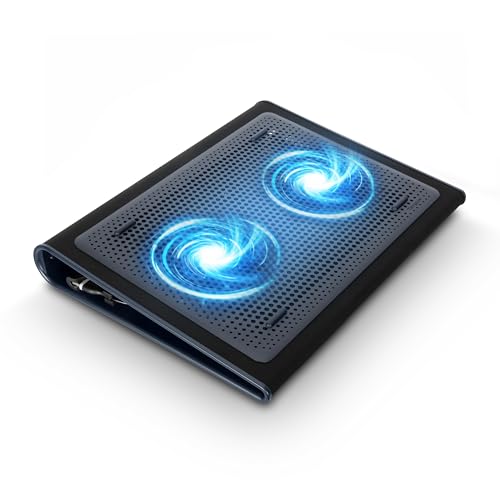
Keep Cool While Working: Targus 17" Dual Fan Chill Mat gives you a comfortable and ergonomic work surface that keeps both you and your laptop cool

Advanced Cooling with 2 Quiet Fans & RGB Lighting:The YICOSUN Laptop Cooling Stand features 2 ultra-quiet fans and advanced RGB lighting to help maintain optimal laptop temperature. With 3-speed adjustable cooling, it provides efficient airflow for devices like MacBook, Lenovo, ASUS, and Dell laptops (10-16 inches), making it suitable for gaming, DJ setups, and office tasks.
Frequently Asked Questions
Will the Macbook Air Overheat in Clamshell Mode?
The MacBook Air can operate safely in clamshell mode without overheating, especially with proper thermal management. By utilizing clamshell benefits, we can enhance device longevity and guarantee our laptops perform at their best during use.
Is It Safe to Use a Macbook Pro With the Lid Closed?
Sure, we could use our MacBook Pro with the lid closed, trusting its clever lid design and heat management. After all, it’s not like we’re cooking eggs on a hot battery, right? Battery longevity’s safe too!
Does Clamshell Mode Improve Performance?
Clamshell mode can offer performance benefits when using multiple external monitors, but we must be mindful of its limitations. The thermal impact can affect our Macs’ efficiency, especially under heavy workloads, so monitoring is essential.
Why Does My Macbook Keep Overheating When the Lid Is Closed?
When we’re burning the midnight oil, our MacBooks can overheat due to poor thermal management. Overworking the CPU leads to fan noise and excessive heat—monitoring usage helps us dodge this pitfall and keep our devices cool.


