As an Amazon Associate, we earn from qualifying purchases. Some links on this site are affiliate links at no extra cost to you. Our recommendations are based on thorough research and editorial judgment.

Macos + External Monitors: Scaling, HDR, Hidpi

When using macOS with external monitors, we can encounter challenges with HiDPI scaling and HDR support. HiDPI offers sharper visuals but may cause blurry text on certain displays, especially at 2560 x 1440 resolution. HDR functionality is limited, particularly for M1 Pro users. To improve our experience, tools like BetterDisplay assist with scaling and resolution adjustments. Additionally, specific adapters can optimize performance. Exploring more about these solutions can enhance our display setup considerably.
Key Takeaways
- HiDPI scaling improves image clarity on high-resolution displays, but may cause blurriness on monitors like the Dell U2719D lacking support.
- macOS 14.1 introduced HDR limitations, significantly impacting external monitors at 2560 x 1440 resolutions, especially for M1 Pro users.
- Use tools like BetterDisplay to enhance text clarity and resolve issues with HDR and resolution outside macOS’s native options.
- Proper adapters, such as those from Anker, are essential for ensuring full compatibility with external displays at desired resolutions and refresh rates.
- Future macOS updates are focused on improving support for external monitors, aiming for better scaling options and enhanced user experience with multi-display setups.
Understanding HiDPI Scaling
When it comes to external monitors, understanding HiDPI scaling is essential for achieving the best visual experience. HiDPI, or High Dots Per Inch, doubles the pixel density using a 2×2 grid. This leads to sharper images, especially on high-resolution displays like 5K.
However, not all external monitors fulfill these needs. For instance, a 2560 x 1440 resolution may fail to support HiDPI functionality due to insufficient pixel density. Sometimes, macOS users experience blurry text on certain monitors, like the Dell U2719D, even at native resolution.
To optimize our experience, we may need third-party tools such as Displayplacer or BetterDisplay to enable HiDPI scaling, ensuring smoother visuals and better graphics performance across applications. Many users also pair HiDPI setups with durable accessories like cable management boxes to keep their desktop tidy and safe.
Recommended Products

34" Full HD IPS LED Monitor (Diagonal) sRGB over 99%,Pixel Pitch (mm) 0.312 mm x 0.310 mm

Dual 14-inch High-Resolution Displays: Expand your workspace with two seamlessly connected 14-inch screens, each featuring a 2560 x 1600 2K resolution and a 16:10 aspect ratio, offering extra horizontal space for productivity and gaming with sharp, detailed visuals on a durable glass panel.
Performance Implications of Non-HiDPI
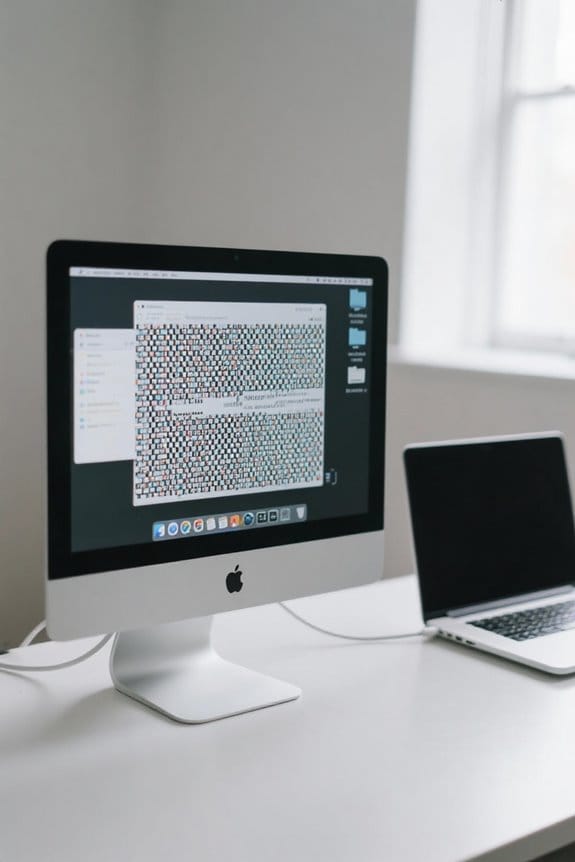
Adjusting your display settings to Non-HiDPI can surprisingly enhance performance, especially when using resource-intensive applications. Here’s how it works:
- Direct Rendering: Non-HiDPI allows for direct rendering without scaling, which improves graphics performance and responsiveness.
- Reduced Overhead: It considerably lowers processing demands, as the system avoids managing extra computations for scaling images and text.
- Improved Display Speed: We often notice a faster display speed and a more responsive experience during tasks like presentations.
- Visual Clarity: Non-HiDPI settings maintain acceptable visual clarity at lower resolutions, especially on monitors with lower pixel density.
- Optimization for Low-Demand Scenarios: While HiDPI offers sharper images, Non-HiDPI is more suitable for optimizing performance in less demanding situations.
- Many users who frequently move between setups also benefit from lightweight projectors and portable displays for easy transport and quick setup.
Navigating HDR Limitations on Macos
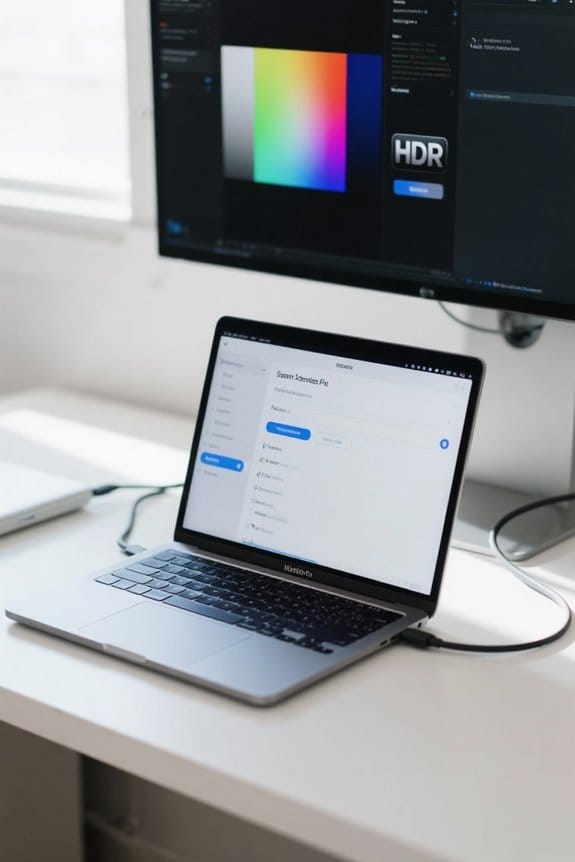
Traversing HDR limitations on macOS can be a challenge, especially when we consider the various configurations of external monitors. With the recent update to macOS 14.1, many users have noted restricted HDR functionality at resolutions like 2560 x 1440 and 3360 x 1890.
- M1 Pro users still face these ongoing HDR issues, while some M2 Max Studio users have found ways to restore HDR.
- Monitors such as the ASUS PG32UQ and Cooler Master GP27-FUS encounter similar problems, often linked to refresh rates.
To alleviate some of these limitations, tools like BetterDisplay can help us access certain resolutions, potentially allowing HDR to work better. Staying updated on Apple’s feedback requests may also lead to improved functionality in future builds. Many users also rely on portable, USB-powered monitors and accessories like portable desk fans to manage heat and comfort during extended troubleshooting sessions.
User Experiences With External Monitors
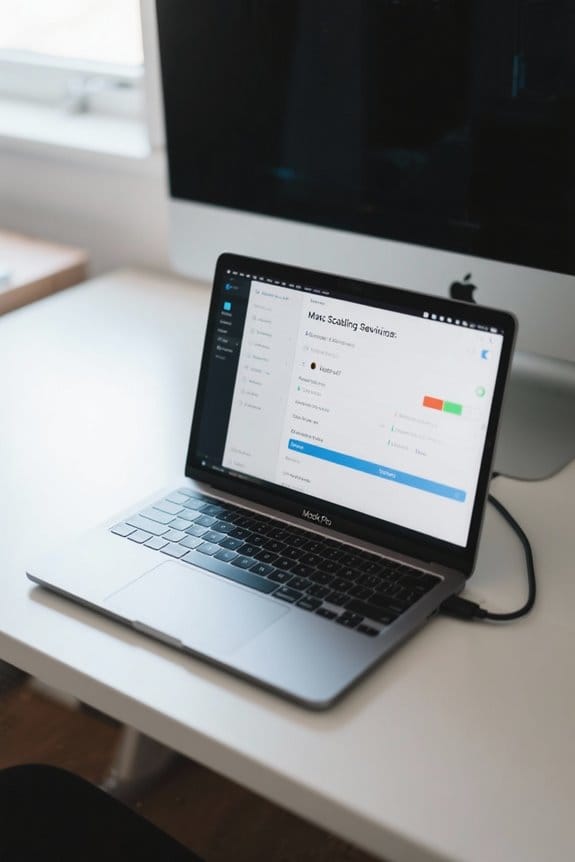
User experiences with external monitors on macOS often highlight a mix of satisfaction and frustration. Many users, for instance, report issues like blurry text when using displays such as the Dell U2719D, even at native resolutions. This often stems from pixel density limitations, which can render HiDPI scaling ineffective for some.
After the macOS 14.1 update, several users experienced a loss of HDR functionality, particularly at resolutions like 2560 x 1440. Opting for tools like BetterDisplay can help users access resolutions and adjust HiDPI settings for better text clarity and overall performance. Community discussions reveal a shared concern over poor text clarity and HDR limitations, prompting many to seek collaborative solutions for display issues. Choosing adapters and cables that support 40Gbps data transfer can also improve performance and compatibility when connecting high-resolution or HDR-capable external displays.
Tools and Solutions for Display Management
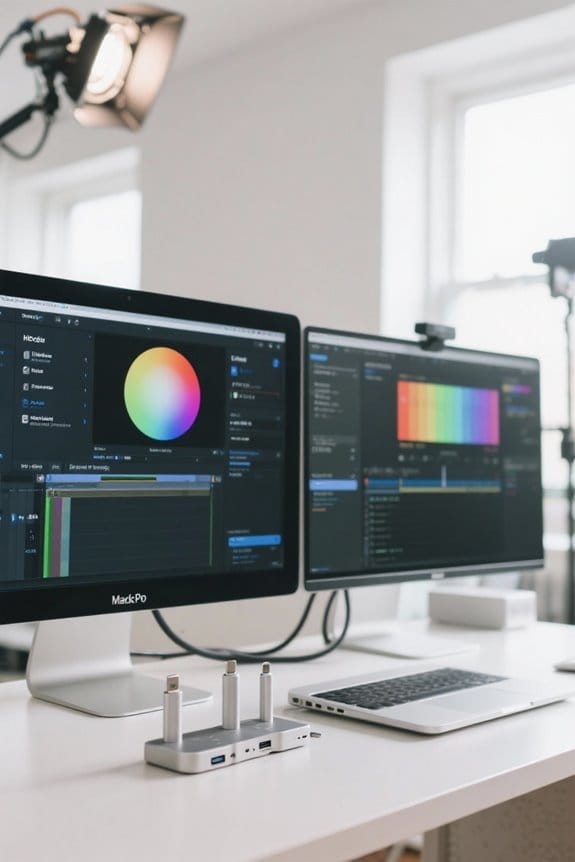
When managing external displays on macOS, having the right tools can make a considerable difference in performance and usability. One powerful option is BetterDisplay, which allows for efficient display management. Here’s how it can help us:
- HiDPI Scaling: It enhances visual clarity for better viewing experiences on external monitors.
- Customization: We can adjust HDR settings, color, and brightness right from the menu bar.
- Resolutions: BetterDisplay reveals custom resolutions, even for those not natively supported.
- Automation: With scripts and keyboard shortcuts, we can automate HDR settings and switch display modes easily. Anker adapters often support 4K@60Hz output, which many users rely on when connecting external monitors.
Recommended Products

UNIVERSAL CONNECTIVITY: Connect via USB-C to PC/Mac, XLR for professional mics, or Bluetooth for mobile devices. Note: This compact mixer requires 48V Phantom Power for condenser microphones—ensure "Phantom" is toggled on in the DLZ setup menu.
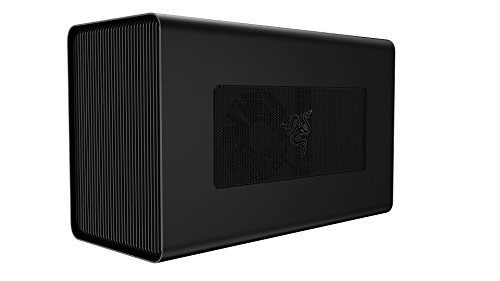
Desktop Grade Performance: Boosts Thunderbolt 3 laptop performance with support for up to 3 slot wide PCIe full sized desktop graphics cards

LAPTOP TO SERVER: USB crash cart adapter connects your laptop to a headless system, turning your laptop into a portable console for rack servers in your server room, PCs, ATMs, kiosks, etc
Community Contributions and Support
How can we enhance our experience with BetterDisplay through community contributions and support? Engaging with the BetterDisplay community allows us to share insights on external monitors and HDR issues. Here’s how we can get involved:
- User Feedback: By providing input on scaling and HiDPI, we help the developers understand our needs better.
- Collaboration on Discord: Join the BetterDisplay Discord Community to discuss common HDR limitations and share solutions.
- Localization Efforts: Participate in translation to make BetterDisplay accessible to more users.
- Problem-Solving Together: Use community suggestions for automatic HDR adjustments, which streamline our experience during macOS updates.
Together, we can maximize the potential of BetterDisplay through collaboration and shared knowledge, enhancing our overall display experience. Many community members also recommend using height-adjustable ergonomic setups and proper cooling to maintain laptop performance when driving external HiDPI displays.
Exploring Resolutions and Display Settings
Exploring resolutions and display settings can greatly enhance our experience with external monitors on macOS. While macOS doesn’t natively support HiDPI options for many devices, we can explore some possibilities for improvement.
- BetterDisplay: This third-party tool allows us to enable additional scaling options and resolutions, enhancing customization.
- Text Clarity: On monitors like the Dell U2719D, users may notice less sharp text at 2560 x 1440 due to pixel density issues.
- HiDPI Scaling: Achieving HiDPI is most effective on high pixel density displays, such as 5K monitors. It may be necessary to experiment with terminal commands for non-Retina displays.
- Many users choose thin, lightweight cases that still support Apple Pencil attachment and Magic Keyboard compatibility.
Recommended Products

PACK FLAT WITH STAND - This monitor's base stand seamlessly magnetizes onto the back of the screen when collapsed. With a folded unit thickness of just half an inch, packing and traveling have never been more convenient. Experience versatile usage as the monitor functions effortlessly as a stand-alone unit in both landscape and portrait modes, utilizing only the sleek kickstand. Elevate your on-the-go computing with this compact and adaptable monitor.
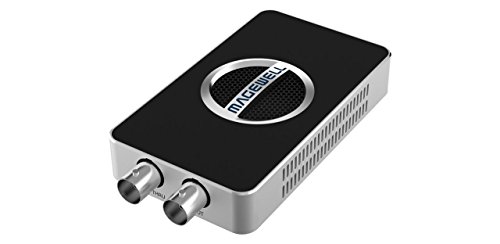
4K SDI Capture – Captures SD/HD/3G/2K/6G-SDI signals up to 4096×2160p30 or 1920x1080p90 for crystal-clear video quality.

VGA, DVI, HDMI (with audio) graphics and video capture up to 1080p at 60 fps
Future Directions for Display Technology on Macos
As we look ahead, future developments in display technology for macOS promise significant enhancements in our user experience. Key advancements might include:
- HiDPI Scaling: Improved capabilities for external monitors, offering sharper visuals and enhanced font readability.
- HDR Management: Integration of DisplayHDR will facilitate better management of HDR content across varying resolutions and refresh rates.
- Apple Silicon Firmware: Ongoing updates are expected to enhance HDR functionality, improving compatibility with higher resolution displays.
- Customization Options: Demand for tools like BetterDisplay may drive macOS to feature built-in customization for easier scaling and resolution adjustments.
- Multi-Monitor Setups: Future updates may prioritize seamless setups, enhancing synchronization and dynamic adjustments based on content type and user scenarios.
These improvements will certainly elevate our display experiences on macOS. A growing ecosystem of Thunderbolt 4 docks with multi‑display support and high power delivery will further enable advanced macOS external monitor setups.
Frequently Asked Questions
What Is Hidpi Scaling?
HiDPI scaling’s like watching a masterpiece come to life! It enhances text clarity and graphics with superior resolution, but can impact performance. We should weigh HiDPI’s benefits against its drawbacks for our workflows and display settings.
How Do I Enable HDR on My External Monitor Mac?
To enable HDR on our external monitor, let’s check monitor compatibility first. Then, we’ll open System Preferences, navigate to Display Preferences, and adjust HDR settings based on video output and cable requirements for ideal resolution.
What Is Hidpi Mode on a Mac?
HiDPI mode on a Mac enhances clarity with sharper visuals, offering benefits for creatives and gaming. However, it has drawbacks, impacting performance and compatibility. We should adjust settings for ideal resolution versus standard displays.
Does Macos Support Fractional Scaling?
macOS doesn’t natively support fractional scaling, but we can enhance our experience with third-party apps. These tools improve macOS performance, offering better display resolution options and productivity enhancements for external monitors, while adjusting user interface accessibility features.