As an Amazon Associate, we earn from qualifying purchases. Some links on this site are affiliate links at no extra cost to you. Our recommendations are based on thorough research and editorial judgment.


Prevent Overheating in Clamshell and Docked Modes

To prevent overheating in clamshell and docked modes, we should follow essential strategies. First, always keep the MacBook plugged into a power source, and position it in a well-ventilated area to enhance airflow. Using a cooling pad can greatly help maintain proper temperatures. We also recommend cleaning vents regularly and monitoring CPU and GPU temperatures. If overheating persists, we might consider disconnecting unnecessary peripherals during intense tasks. For more insights on optimizing performance, continue exploring further resources.
Key Takeaways
- Always keep the MacBook connected to a power source to maintain optimal performance while in clamshell mode.
- Position the laptop in a well-ventilated area to enhance airflow and prevent heat buildup.
- Regularly clean the vents and cooling fans to improve airflow and reduce overheating risks.
- Utilize cooling pads or laptop stands with ventilation holes for better thermal management during extended use.
- Monitor CPU and GPU temperatures with software to catch overheating issues early and take necessary actions.
What Is Clamshell Mode on Mac?
You may be interested



Clamshell mode on a Mac is a convenient feature, especially for those of us looking to create a more organized workspace. It allows us to use our MacBook with the lid closed, connecting to an external display, which enhances our desktop experience. To make this setup work, we need to have an AC adapter plugged in, along with an external mouse and keyboard for input. This mode is especially helpful for high-performance tasks like gaming or photo editing. However, it’s vital to remember that using clamshell mode can lead to overheating, as cooling efficiency might decrease. To optimize performance, we should verify all necessary components, including compatible cables, are readily available before starting up clamshell mode. Using a laptop stand with good ventilation holes can help improve airflow and reduce heat buildup.
Things to Know Before Setting Up Clamshell Mode

When considering setting up your MacBook in clamshell mode, there are several important factors to keep in mind.
- Power Source: Verify the MacBook is plugged in, as it won’t operate efficiently without power.
- External Equipment: You’ll need to connect an external monitor, keyboard, and mouse, since the MacBook lid must remain closed.
- Cooling Efficiency: Remember that closing the laptop can reduce cooling efficiency, which may lead to overheating, especially in the MacBook Air.
- Ventilation: Position your setup in a well-ventilated area. Using a cooling pad or an elevated stand is advisable to improve air circulation.
- Power Settings: Adjust settings in System Preferences to stop your MacBook from sleeping when closed. This allows uninterrupted use during demanding tasks.
Multiple-fan cooling pads can significantly improve heat dissipation and lower operating temperatures when used in clamshell mode, making them a good option to reduce risk of overheating multiple fans.
Recommended Products
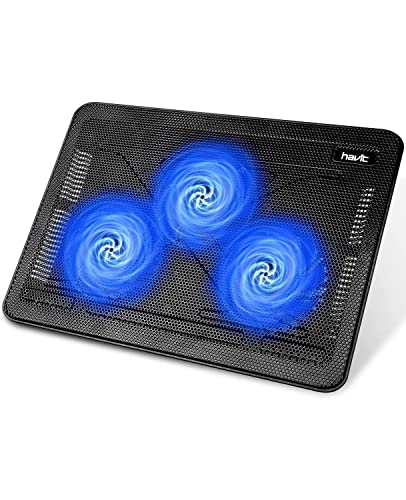
Ultra-Portable: Slim, portable, and light weight allowing you to protect your investment wherever you go

Whisper-Quiet Operation: Enjoy a noise-free and interference-free environment with super quiet fans, allowing you to focus on your work or entertainment without distractions.
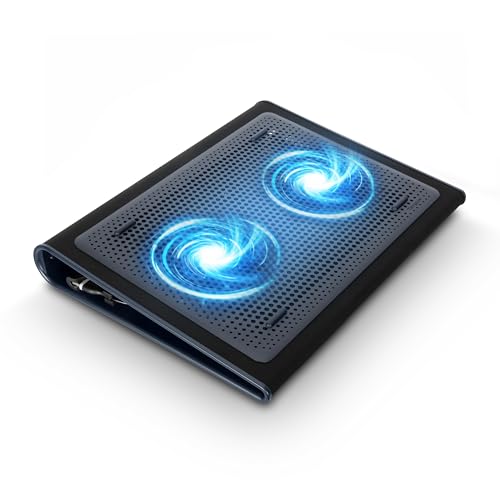
Keep Cool While Working: Targus 17" Dual Fan Chill Mat gives you a comfortable and ergonomic work surface that keeps both you and your laptop cool
What Do You Need to Use a MacBook in Clamshell Mode?

Setting up a MacBook in clamshell mode requires a few key components to guarantee smooth operation and a superior experience. Here’s what we need:
- External Display: Connect via HDMI or a VGA to USB-C adapter for newer models.
- AC Adapter: This is essential, as the MacBook must remain plugged in to work while the lid is closed.
- External Mouse and Keyboard: We need these for input since closing the lid disables built-in options.
- Display Settings: Adjust in System Preferences to optimize the resolution and arrangement of the external monitor.
- Ventilation: To prevent overheating, confirm adequate airflow and consider using a cooling pad, especially during high-performance tasks.
Using a cooling pad with multiple fans can significantly improve airflow and reduce temperatures during intensive use, so consider options with multiple fans for best results.
Recommended Products

👍【Triple Efficient Fans】TECKNET laptop cooling pad with 3 powerful fans works at 1200 RPM to pull in cool air from the bottom to prevent your laptop, notebook, netbook, Ultrabook, Apple MacBook Pro cool from overheating during extended use or intense gaming.

Whisper-Quiet Operation: Enjoy a noise-free and interference-free environment with super quiet fans, allowing you to focus on your work or entertainment without distractions.

SMART COOLING — From idle to full load, keep the laptop running smoothly with our first laptop cooling pad that changes fan speeds automatically to manage system temperatures based on the settings
How to Use Clamshell Mode on Your MacBook

Using your MacBook in clamshell mode can enhance productivity by maximizing screen space while minimizing desk clutter. To set this up, we need to connect our MacBook Air to an external monitor, keyboard, and mouse, ensuring we’re plugged into a power source.
- Configure Display Settings:
- Open System Settings.
- Select Displays.
- Arrange the external monitor for ideal use.
- Keep the MacBook in a well-ventilated area, especially since using a laptop closed can lead to overheating.
- Remember, if we disconnect from power, the MacBook will exit clamshell mode.
- Utilization of External Display: We can use an external display while keeping our MacBook closed, maintaining a clean workspace.
- Enhanced Graphics Performance: It offloads graphics tasks to the external monitor, reducing our laptop’s resource usage during demanding applications.
- Improved Ergonomics: With an external keyboard and mouse, our user experience is more comfortable, especially during long tasks like editing or gaming.
- Desktop-Like Setup: Clamshell mode gives us a more organized, desktop-like environment, ideal for remote work or dedicated workstations.
- Overheating Risks: Laptops, like the Framework Laptop 13, can reach temperatures of 80-90°C with the lid closed. This restricts airflow and causes heat to build up considerably.
- Hinge Design: Some laptops have design flaws that limit exhaust flow, worsening heat management in clamshell mode.
- Ventilation Solutions: Users often report cooler operation with the lid open, around 60°C. To combat overheating, we should make sure our laptops are in well-ventilated areas and consider external cooling solutions like laptop coolers or raised stands.
- Power Considerations: Always keep the laptop plugged in; disconnecting can cause it to exit clamshell mode and affect overall performance.
- Stay Plugged In: Keeping our MacBook connected to an AC adapter guarantees better performance and prevents sleep mode when the lid’s closed.
- Use Cooling Solutions: Implementing laptop stands or cooling pads boosts airflow, helping to dissipate heat during demanding tasks.
- Ventilation Matters: Always position the MacBook in well-ventilated areas; obstruction of air vents worsens heat issues.
- Limit Bluetooth Connections: We can configure system preferences to minimize unnecessary Bluetooth connections upon booting, reducing CPU strain.
- Monitor CPU Temperatures: Regularly check CPU temperatures using software; it helps prevent thermal throttling and maintain performance during prolonged usage.
- If your laptop consistently hits temperatures above 90°C in clamshell mode, despite cooling practices, it’s time to consult an expert.
- Excessively loud fans during regular use, especially in docked mode, may indicate inadequate cooling.
- Persistent overheating, even during idle states, should prompt an evaluation to rule out malfunctioning sensors or cooling components.
- If you notice throttling or performance drops due to overheating, extensive thermal management solutions are likely necessary.
- Consider checking peripheral devices like rechargeable wireless mice for poor ventilation or continuous activity that can contribute to heat buildup.
Also consider using an elevated laptop stand to improve airflow and reduce heat buildup around the device, which leverages ventilation features for better cooling.
Benefits of Using Clamshell Mode

Clamshell mode offers a range of advantages that can greatly enhance our workflow and comfort.
To keep everything running smoothly, remember that we need to use an AC adapter to prevent sleep mode while operating in clamshell mode. Many users also find that adding a small USB desk fan can improve airflow around the closed laptop and help prevent overheating.
Common Issues With Clamshell Mode and Their Solutions
When we engage in clamshell mode, we might encounter some common issues, particularly related to overheating.
Using an external silent cooling pad with fans around 25 dB can significantly reduce operating temperatures while keeping noise to a minimum.
Recommended Products

AICHESON S035 laptop cooler is special designed to cool down up to 17.3 inch laptop. Wave metal mesh, 1000-1500RPM 1 large computer fan and 2600-3000RPM 4 small fans, flip-up mat, 4 ergonomic stand height settings, 2 USB ports, adjustable air flow wind velocity

【9 Fans for 360° All-Around Cooling】This laptop cooler has 9 high-performance fans with stepless speed control up to 2600 RPM. Its 360° surround airflow quickly dissipates heat to avoid overheating and lag, keeping your laptop stable during long work and gaming sessions. The LED brightness automatically syncs with fan speed, delivering strong cooling while letting you check the operating status at a glance.

Targeted Cooling Design:Feel like the airflow directly above the fans isn’t as strong as expected? Don’t worry — simply move your hand between the two fans and you’ll notice a surprisingly cool. The TECKNET cooling pad for laptop features two large fans paired with an internal channel design. This cleverly draws air from the sides and bottom, directing a concentrated, cool flow right to the center of your laptop — CPU gets hottest — for efficient, targeted cooling.It's a great gift as a work or gaming computer cooling pad
Tips for Improving Mac Performance in Clamshell Mode
In clamshell mode, optimizing performance on our MacBook can greatly enhance our overall experience. Here are some practical tips:
High-speed scanning with an Auto Document Feeder can reduce the need for prolonged laptop use during document digitization, lowering heat buildup.
Recommended Products

【Adjustable & Ergonomic】:This laptop stand can be adjusted to a comfortable height and angle according to your actual needs, letting you fix posture and reduce your neck fatigue, back pain and eye strain. Very comfortable for working in home, office and outdoor.
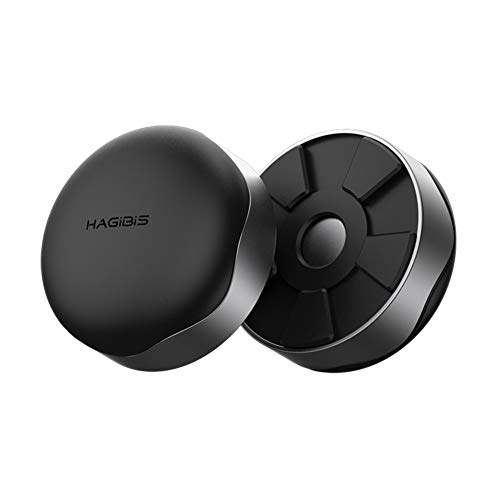
Designed In Line With Ergonomics: Elevate the laptop so that you can keep an appropriate angle, facilitate typing and operation, and use it more comfortabe

【Multi-function Cooler】 Making your console or laptop as an eye-catcher, not waiting to be sent into the next battle for gaming!
When to Seek Professional Assistance for Overheating Issues
Overheating issues can often escalate if left unaddressed, so it’s vital to recognize when to seek professional assistance. Here are some key signs that warrant a professional assessment:
Recommended Products

13 Ultra-Quiet Fans & Smart LCD Beat overheating with 13 high-speed fans (3 large + 10 small). Control speeds and monitor cooling via LCD screen—no blind operations!

New Upgraded Version-Coooling Gets Quiet and Quicker: Equipped with 5.5-inch large diameter turbo booster fan, combined sealed foam, ensures perfect cooling effect, 360 degrees all-round dynamic cooling, your laptop can reduce temperature by 44°C in 90 seconds (CPU+GPU), even during 4K rendering or AAA gaming, operating noise ≤70dB

Laptop Cooling Cooler Pad: ICE COOREL laptop Cooling Pad with the mesh design and One Big Fan (160mm) spinning at adjustable speed from 1000-1400 RPM, greatly dissipate the heat from the laptop, enable it in good working condition, and prolong the lifespan of your laptop.
Frequently Asked Questions
Will the Macbook Air Overheat in Clamshell Mode?
Using our MacBook Air in clamshell mode is like putting a sauna in a closet—its clamshell performance can lead to overheating. We need to pay attention to fan speed and heat management for smoother operation.
Why Does My Docking Station Get so Hot?
Our docking station gets hot due to its dock design, which may limit heat dissipation and effective temperature management. The combination of power demands from devices further exacerbates this issue, leading to elevated temperatures during use.
How Do I Cool My Macbook Pro in Clamshell Mode?
To cool our MacBook Pro in clamshell mode, let’s explore clamshell mode tips: using cooling solutions like pads, ensuring good airflow, and actively managing thermal performance can reduce temperatures considerably, enhancing efficiency during demanding tasks.
Does Mac Need to Be Plugged in for Clamshell Mode?
Yes, our MacBooks need to be plugged in for clamshell mode. This allows us to enjoy clamshell mode advantages, optimize power settings, and fully utilize external display benefits without experiencing performance issues or unexpected sleep interruptions.


