As an Amazon Associate, we earn from qualifying purchases. Some links on this site are affiliate links at no extra cost to you. Our recommendations are based on thorough research and editorial judgment.

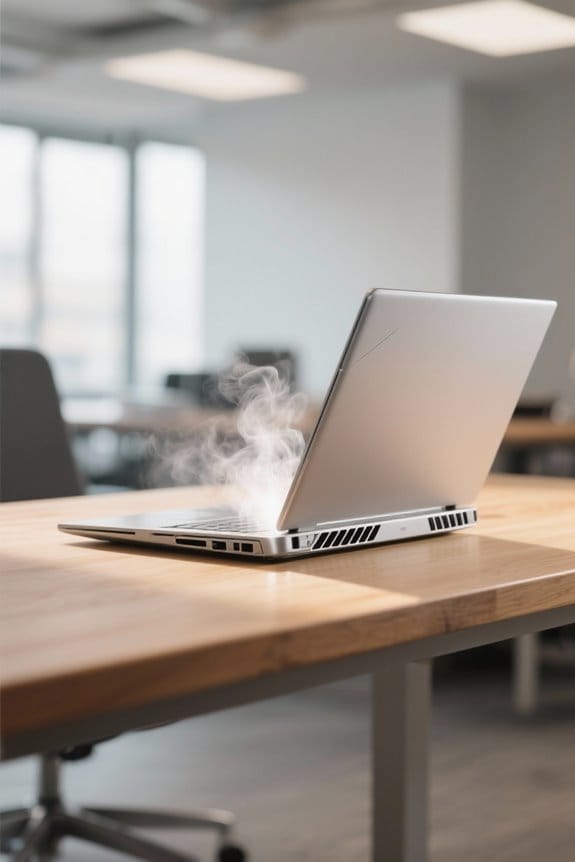
Laptop Cooling Explained: Why Temps Spike Under Load

Laptop cooling is essential for performance, especially when our devices are under heavy loads, like gaming. Common reasons for temperature spikes include high CPU usage, dust accumulation, and soft surfaces blocking vents. Environmental factors, such as heat and sunlight, can also contribute. To manage temperatures, we should clean vents regularly, use cooling pads, and monitor system temperatures. By understanding cooling mechanisms, we can prevent overheating and maintain efficient performance. There’s more to explore about keeping our laptops cool.
Key Takeaways
- High CPU and GPU utilization from gaming or intensive applications can raise temperatures to critical levels, often around 90°C.
- Dust accumulation can block airflow and reduce the efficacy of cooling systems, leading to overheating.
- Operating on soft surfaces obstructs cooling vents, impairing air circulation needed for effective heat dissipation.
- Increased ambient temperatures and direct sunlight can contribute to higher internal laptop temperatures.
- Regular maintenance, such as cleaning and applying fresh thermal paste, is essential for optimal cooling performance.
Understanding Laptop Cooling Mechanisms
When we consider how laptops manage heat, it’s important to understand the mechanisms at play. Laptop cooling systems are primarily designed to handle heat generated by the CPU and GPU. Here’s how they work:
- Cooling Components: Most laptops utilize fans and heat sinks to dissipate thermal energy effectively during heavy processing tasks.
- Thermal Design: They adjust fan speed and enhance performance in response to temperature spikes, ensuring safe operating temperatures.
- Advanced Solutions: High-performance laptops may have heat pipes or vapor chambers for better cooling efficiency.
- Maintenance Needs: Dust can accumulate in vents and fans, which affects airflow and cooling. Regular maintenance, like cleaning and thermal paste application, is essential for peak performance and preventing overheating issues.
Multiple-fan cooling pads can further reduce laptop temperatures by directing airflow to hot zones and improving overall heat dissipation for the system multiple fans.
Recommended Products

Powered by the NVIDIA Blackwell architecture and DLSS 4. OC Mode: 2610 MHz/ Default Mode: 2580 MHz (Boost Clock)


【POWERFUL PERFORMANCE & LIGHT GAMING】 Driven by the AMD Ryzen 7 7735HS processor (8C/16T, up to 4.75GHz) and high-speed DDR5 RAM. This Nimo laptop delivers elite-level speed for multitasking, complex coding, and light gaming. It’s perfect for professionals who need high performance for work and mainstream titles like League of Legends or Valorant for downtime.
Common Causes of Temperature Spikes
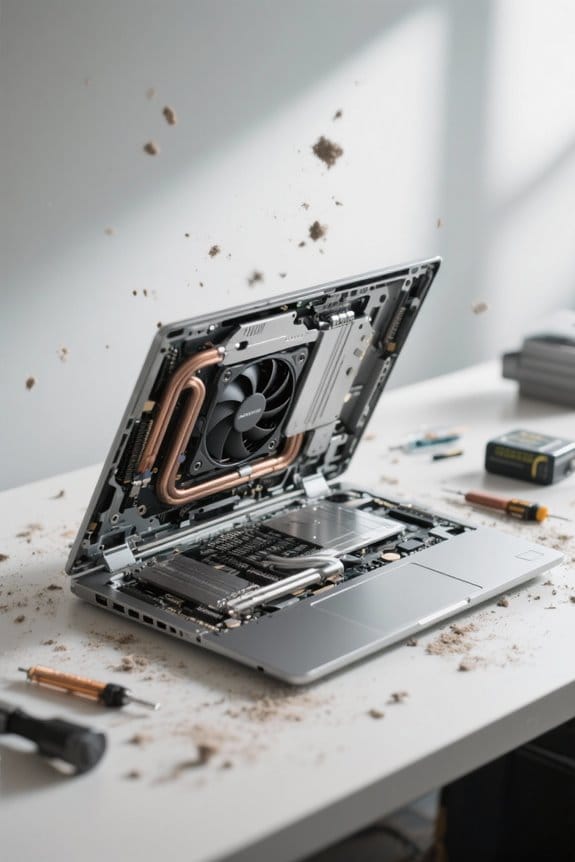
Temperature spikes in laptops can be troublesome, especially during resource-intensive activities. Here are common causes:
- High CPU Utilization: When we push our laptops with gaming or heavy software, CPU temps can soar, sometimes hitting critical levels around 90°C.
- Background Processes: Even when we think our laptops are idle, processes like system updates can increase demands, leading to unexpected temperature increases.
- Dust Accumulation: Over time, dust can build up inside the cooling system, obstructing airflow and cooling efficiency, which exacerbates overheating during high workloads.
- Inefficient Airflow: Using our laptops on soft surfaces can block vents, reducing airflow and cooling capability.
Monitoring temperatures with hardware software allows us to catch these spikes early and mitigate thermal throttling.
Using a quality cooling pad with adjustable height and strong fans can significantly improve cooling performance during heavy use.
Recommended Products
【POWERFUL PERFORMANCE & LIGHT GAMING】 Driven by the AMD Ryzen 7 7735HS processor (8C/16T, up to 4.75GHz) and high-speed DDR5 RAM. This Nimo laptop delivers elite-level speed for multitasking, complex coding, and light gaming. It’s perfect for professionals who need high performance for work and mainstream titles like League of Legends or Valorant for downtime.
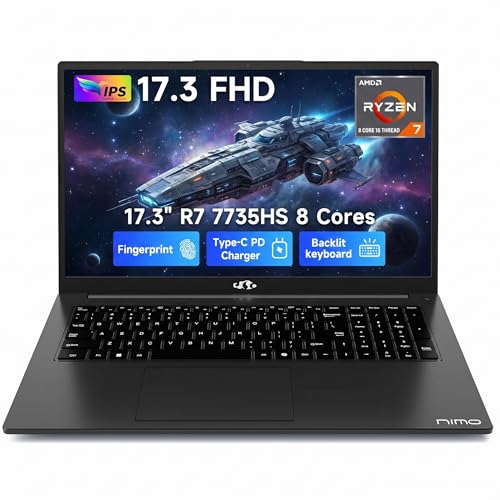
【POWERFUL PERFORMANCE & LIGHT GAMING】 Driven by the AMD Ryzen 7 7735HS processor (8 Cores/16 Threads, up to 4.75GHz) and high-speed DDR5 RAM. This Nimo laptop delivers elite-level speed for multitasking, complex coding, and light gaming. It’s the perfect choice for professionals who need a high-performance machine for work that can also handle mainstream titles like League of Legends or Valorant during downtime.

【POWERFUL PERFORMANCE & LIGHT GAMING】 Driven by the AMD Ryzen 7 7735HS processor (8C/16T, up to 4.75GHz) and high-speed DDR5 RAM. This Nimo laptop delivers elite-level speed for multitasking, complex coding, and light gaming. It’s perfect for professionals who need high performance for work and mainstream titles like League of Legends or Valorant for downtime.
Impact of Environmental Factors
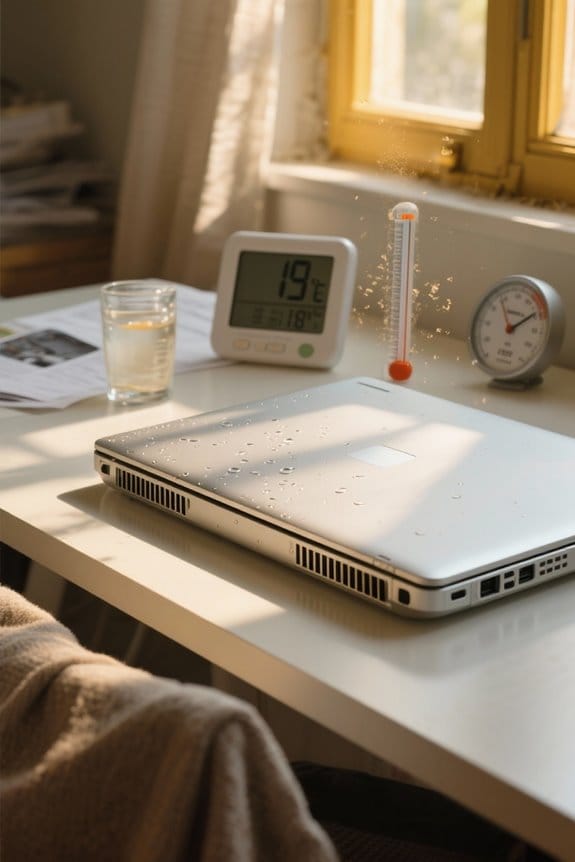
Environmental factors play a significant role in our laptop’s cooling performance. Here are some key aspects to take into account:
- Ambient Temperature: Higher room temperatures can elevate internal temperatures, making it challenging for the cooling system to expel heat effectively.
- Soft Surfaces: Operating laptops on soft surfaces, like beds or couches, can obstruct airflow to the cooling vents, resulting in inadequate heat dissipation.
- Direct Sunlight: Exposure to direct sunlight can cause laptops to absorb additional heat, worsening temperature issues.
- Airflow Maintenance: Keeping our workspace clean and free of dust enhances airflow around the laptop, improving cooling performance.
- Cooling Solutions: Using a lap desk or cooling pad can elevate the laptop, allowing for better ventilation and maintaining lower temperatures during demanding tasks.
Using a non-slip surface like an anti-fatigue mat can also help keep laptop vents unobstructed and improve overall ventilation.
Recommended Products

Designed with reservoir for Bitspower Dual/ single D5 top
Designed with reservoir for Bitspower Dual/ single D5 top

TOUGHLIQUID 240 ARGB features a rotational cap that allows users to rotate the cap easily even after installation, so the TT logo faces the right direction to present the overall aesthetic of the build.
Importance of Regular Maintenance
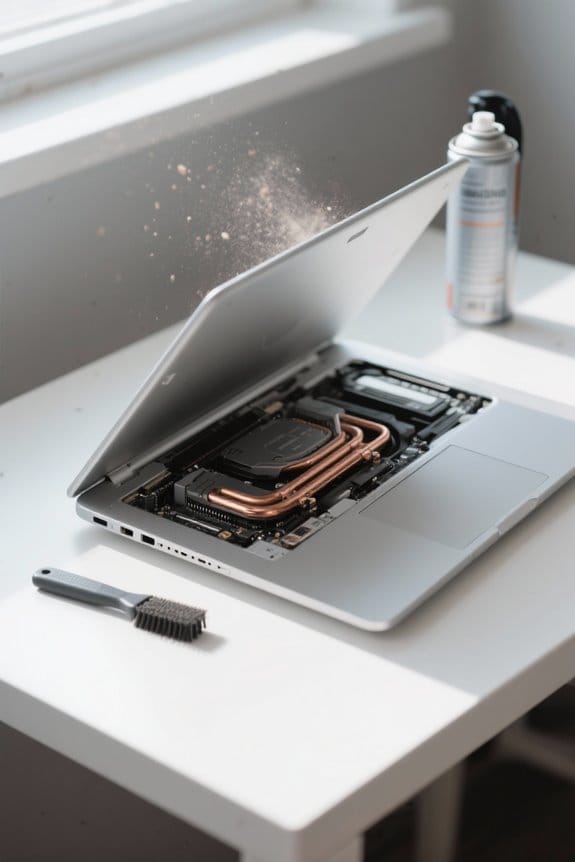
Regular maintenance is essential for keeping our laptops running smoothly and efficiently over time. Here’s why we should prioritize it:
- Cleaning: Regularly using compressed air to clean vents and fans prevents dust buildup, which obstructs airflow and can cause overheating during heavy usage.
- Thermal Paste: Applying fresh thermal paste on CPUs and GPUs guarantees effective heat transfer to the heatsink, enhancing overall cooling performance.
- Monitoring: Keeping an eye on system temperatures with hardware monitoring software helps identify potential overheating issues early.
- Driver Updates: Making sure our drivers are up to date can improve system performance and compatibility, contributing to better cooling.
- Additional Tools: Using laptop stands or cooling pads can further enhance airflow around our device during demanding tasks.
- Enclosure choice: Selecting an external drive enclosure with good heat dissipation can prevent added thermal load when using high-speed external SSDs.
Recommended Products

Designed with reservoir for Bitspower Dual/ single D5 top


Nickel-plated copper base connected with four highly efficient 8mm heat pipes and aluminium fins to dissipate up to 200W of heat from the CPU
Strategies for Effective Temperature Management
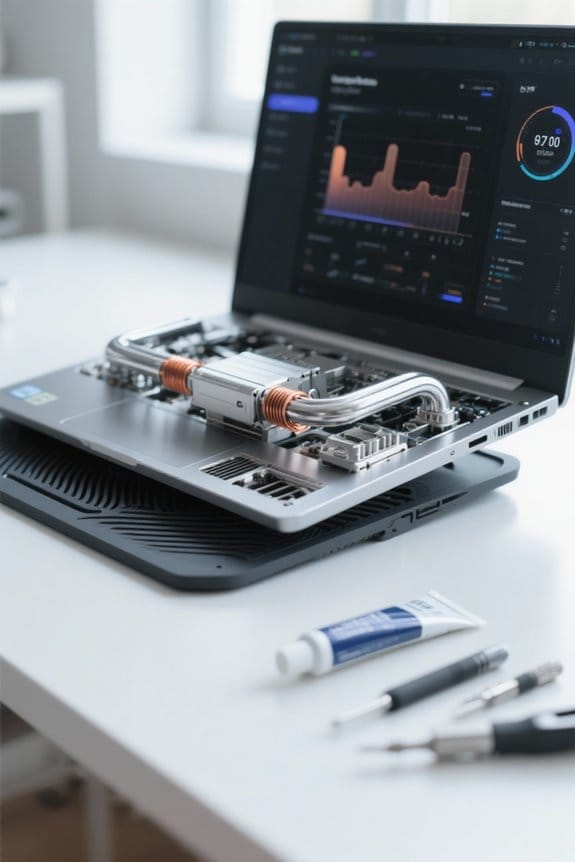
After addressing the importance of regular maintenance for our laptops, it’s time to explore effective temperature management strategies. Here are some practical methods:
- Cooling Pads & Stands: Elevate our laptops to enhance airflow, reducing temp spikes during heavy CPU usage.
- Regular Cleaning: Dust and pet hair can clog vents and fans, trapping heat. Clean these areas frequently to maintain proper airflow.
- Temperature Monitoring: Utilize software tools to keep an eye on system temps. This helps us spot overheating trends and act quickly to prevent damage.
- Fan Management: Adjust fan curves in the BIOS or through software to increase fan speed proactively as temps rise.
- Thermal Paste Application: Check the condition of thermal paste on CPUs. Ensuring it’s fresh improves heat transfer and keeps our laptops cooler.
- Consider using an adjustable stand to improve ergonomics and increase ventilation under the laptop.
Recommended Products

Intelligent AI Temperature Control with Myth.cool Software: Safeguard your laptop with our cutting-edge cooling technology! The llano V12 Ultra features three smart cooling modes (Low/Medium/High) that automatically adjust fan speed based on your laptop's workload. Experience efficient cooling with minimal noise—perfect for gaming, working, or streaming. Download the software from "llanolife.com/Download" for seamless control, or opt for manual operation with a simple scroller.

Ultimate Cooling with Turbo Power – Drop up to 38°C in Minutes: Engineered for serious gamers and power users, the llano V10 gaming laptop cooling pad features a powerful 4.72-inch turbo fan and high-efficiency pure copper motor that delivers up to 3500 RPM, drastically reducing laptop temperatures by up to 38°C (100°F) within minutes. Whether you're using a 13 inch laptop, 16 inch gaming laptop, or a 17 inch workstation, this pc cooling pad keeps your device cool under pressure—no thermal throttling, lag, or screen flickers. Ideal for high CFM laptop cooler seekers and those who need a cooling pad for laptop 17 inch

SMART COOLING — From idle to full load, keep the laptop running smoothly with our first laptop cooling pad that changes fan speeds automatically to manage system temperatures based on the settings
Recognizing Warning Signs of Overheating
How can we tell if our laptop is overheating? Recognizing the warning signs is vital to prevent damage. Here are some key indicators:
- High Temperatures: If the CPU temp spikes above 90°C during heavy tasks like gaming, it may lead to thermal throttling, causing performance drops.
- Frequent Shutdowns: Unexpected restarts could indicate the cooling system isn’t handling heat well, triggering thermal protection.
- Unusual Noise: Excessive fan activity or strange noises may signal the cooling system is struggling to cope with overheating.
- Heat Emission: Noticeable heat coming from the laptop body during use suggests internal components are overheating.
- Insufficient airflow around vents and components can worsen overheating, so ensure proper ventilation to help maintain safe operating temperatures.
Frequently Asked Questions
What Is a Good CPU Temperature While Under Load?
A good CPU temperature under load falls between 70°C to 85°C. To maintain that perfect temperature range, we should invest in effective cooling solutions and regularly check thermal paste to guarantee peak CPU performance.
What Causes CPU Temperature Spikes?
CPU temperature spikes happen due to thermal throttling effects, cooling system efficiency issues, and dust accumulation. We should also consider airflow optimization techniques to enhance our devices’ performance and mitigate these heat-related challenges effectively.
What Is the Average Temperature of a Laptop Under Load?
When we’re gaming or rendering videos, our laptops heat up like molten lava! Typically, under load, we see average temperatures ranging from 70°C to 85°C, depending on laptop design, thermal paste, cooling solutions, and fan noise.
Is 90C CPU Temperature Under Load?
Yes, 90°C is high for a CPU under load. To avoid thermal throttling effects, we should use cooling pads during hardware stress testing and follow ideal usage practices for better temperature management and laptop longevity.