As an Amazon Associate, we earn from qualifying purchases. Some links on this site are affiliate links at no extra cost to you. Our recommendations are based on thorough research and editorial judgment.

Smart Charging on Laptops: Limits, Rules, and Best Practices

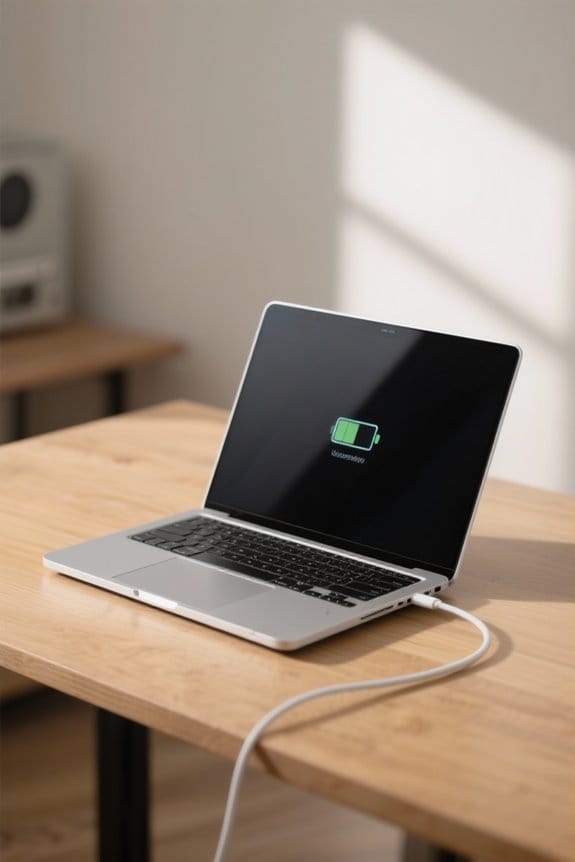
When it comes to smart charging on laptops, we should aim to keep our battery levels between 20% and 80% for ideal health. Using smart charging features can help us avoid overcharging, while higher-wattage chargers can speed up charging times. It’s wise to avoid using intensive applications while charging, as this can slow the process. Regular monitoring of battery performance will help us catch potential issues early, and there’s always more to explore about maintaining our laptop batteries effectively.
Key Takeaways
- Maintain charge levels between 20% and 80% to enhance lithium-ion battery health and lifespan.
- Use smart charging features to prevent overcharging and minimize battery wear.
- Avoid frequent full discharges; partial charge cycles are preferable for better battery performance.
- Monitor battery health regularly and look for signs such as erratic charge readings or unexpected shutdowns.
- Utilize the manufacturer’s recommended chargers and tools for optimal charging efficiency and safety.
Understanding Laptop Battery Types and Their Charging Needs
When it comes to understanding laptop battery types and their charging needs, there’s quite a bit to contemplate. Most modern laptops utilize lithium-ion batteries, which are designed for smart charging. Here are some essentials:
- Charge Cycles: It’s best to keep your battery between 20% and 80% to optimize battery lifespan.
- High Performance vs. Thin Models: High-performance laptops may need chargers over 140W, while ultra-thin models often require only 45W-60W.
- Battery Health: Smart charging features can limit charging to 80%, protecting battery health by reducing heat.
- Power Consumption: Running intensive applications while charging can slow the charging process considerably.
Replacement batteries often advertise capacities like 7200mAh which can extend runtime compared with older cells.
Factors Influencing Charging Speed and Efficiency
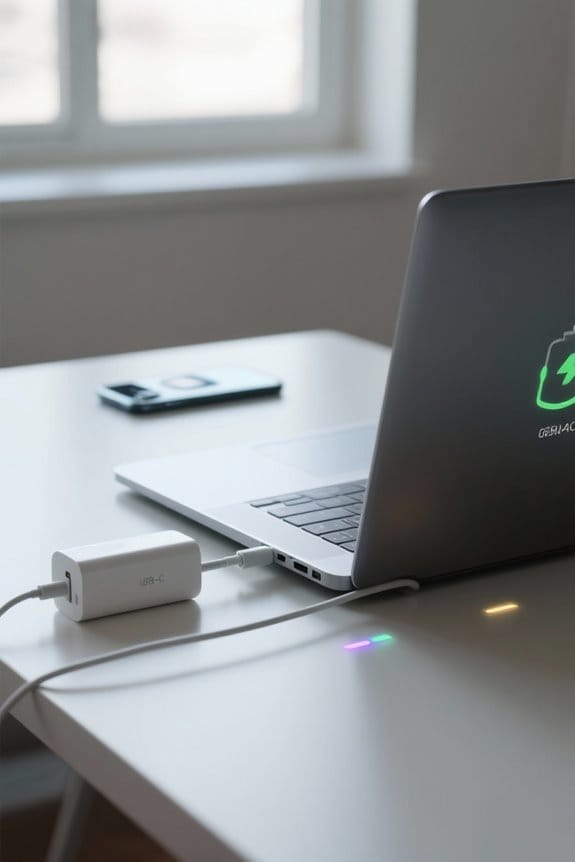
Charging speed and efficiency can greatly vary based on several factors.
- Charger Type: Higher wattage chargers deliver faster charging times for our laptops.
- Usage During Charging: If we use our laptop while charging, the charging speed slows down due to energy draw from applications.
- Battery Health: Lithium-ion batteries benefit from partial charge cycles; keeping charge levels between 20% and 80% enhances lifespan and energy density.
- Temperature: Ideal charging occurs at around 25°C; extreme temperatures can hinder charging speed.
- Power Settings: Utilizing battery saver mode and other power settings can improve charging efficiency and overall battery performance.
- Many portable chargers now offer high-power outputs (for example, up to 100W on some models) to support rapid laptop charging.
Recommended Products
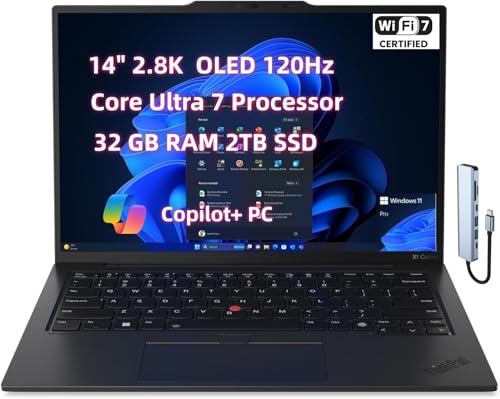
Processor: Inte.l Core Ultra 7 258V Processor (LPE-cores up to 3.70 GHz P-cores up to 4.80 GHz / 32 GB MOP)

Power. Anything. Anywhere. This portable backup power supply is versatile enough to keep things running off grid or during an emergency power outage. Power phones, electric barbecues, laptops, TVs and more; includes 1 power station, 1 wall charger and 1 user guide.

Economical and Powerful Home Generator: An ideal backup power supply, this easy-to-use house generator powers large appliances like freezers, as well as large power tools like bench grinders and circular saws in commercial settings
Recommended Charging Practices for Optimal Battery Life

To guarantee our laptops live a long and healthy life, we should adopt certain charging practices. Let’s consider these ideal practices for battery life:
- Maintain Charge Levels: Keep our charge level between 20% and 80%. This helps lithium-ion cells last longer and reduces capacity loss.
- Utilize Smart Charging: If possible, use features that limit charging to around 80% to avoid overcharging.
- Avoid Frequent Full Discharges: Repeatedly letting the battery drain to 0% can harm battery health.
- Monitor Battery Performance: Regularly check battery health using software tools to catch issues early.
- Storage Tip: If we’re not using our laptops for a while, store them with a charge of about 50% to minimize capacity loss.
Many powered USB hubs also include smart charging ports that help manage charging current for multiple devices.
Recommended Products

Processor: 13th Generation Intel Core i9-13980HX Processor (E-cores up to 4.00 GHz P-cores up to 5.60 GHz)

Processor: 13th Generation Core i9-13980HX Processor (E-cores up to 4.00 GHz P-cores up to 5.60 GHz)

Processor: Intel Core Ultra 7 165U vPro Processor (E-cores up to 3.80 GHz P-cores up to 4.90 GHz)
Best Practices for New Laptop Batteries

Caring for new laptop batteries is essential for guaranteeing they perform well over time. Here are some best practices:
- Initial Charge: Charge your battery for about 24 hours upon purchase to optimize battery capacity.
- Battery Level Management: Keep the battery level between 20% and 80% to enhance battery health and prevent frequent full discharges.
- Use the Original Charger: Always use the original charger to avoid harming the battery with incorrect voltage.
- Calibrate the Battery: Regularly calibrate the battery, especially after initial charges, to guarantee it accurately displays battery level.
- Monitor Charging Cycles: Track charging cycles and consider replacement when capacity considerably decreases, usually after 2 to 2.5 years, to extend battery life and maintain performance.
- Also consider using ergonomic accessories like lap cooling mats to reduce heat exposure and improve battery longevity.
Typical Charging Times for Different Laptop Models

After verifying that we follow best practices for our laptop batteries, understanding typical charging times for various models can help us maximize their performance.
- HP Laptops: Charging times vary by model and battery capacity.
- From 0% to 100%: Expect about 1.5 to 2.5 hours.
- First 80%: Often takes 1 to 1.5 hours from a complete dead battery.
- Initial Charge: A completely dead battery may need 15-30 minutes to power on.
It’s essential to take into account that charging times can be affected by usage during charging and the wattage of the power adapter. By being aware of these factors, we can enhance our smart charging experience and guarantee our laptops reach their maximum charge efficiently. Many modern laptop users also carry USB charging ports in backpacks to top up devices while traveling.
Signs Your Battery Might Need Replacement
Recognizing when it’s time to replace a laptop battery is essential for maintaining performance and reliability. Here are the key signs to watch for:
- Battery Health: If capacity drops below 80% after a year, it may be time to replace it.
- Charging Behavior: Erratic percentage readings or prolonged charging times indicate issues.
- Unexpected Shutdowns: If your laptop shuts down unexpectedly or won’t power on unplugged, the battery likely needs replacement.
- Full Charge Cycles: Exceeding 300-500 cycles typically means diminished performance.
- Signs of Physical Distress: Look for swelling, leakage, or excessive heat, which signal an urgent need for replacement.
- Consider replacing with a certified lithium-ion battery that offers overcharge protection and reliable longevity.
Recommended Products

𝐓𝐫𝐮𝐜𝐤 𝐏𝐚𝐥𝐥𝐞𝐭 𝐒𝐡𝐢𝐩𝐩𝐢𝐧𝐠 - 𝐏𝐥𝐞𝐚𝐬𝐞 𝐂𝐨𝐧𝐟𝐢𝐫𝐦 𝐀𝐝𝐝𝐫𝐞𝐬𝐬 𝐀𝐜𝐜𝐞𝐩𝐭𝐚𝐧𝐜𝐞: Due to the battery's weight of 130 kg and capacity of 15 kWh, it is shipped using a professional truck pallet. Please confirm your delivery address allows truck access and unloading before placing your order. This is not a regular courier package and cannot be placed at a collection point or parcel locker.

[Get Up to a 30% Tax Credit] You may be eligible for the Residential Clean Energy Credit on qualified solar electric property costs. Check with your utility provider to confirm your eligibility and understand the requirements for the program.

Version Update: As of June 4, 2026, the 12V 280Ah LiFePO4 Bluetooth battery has been upgraded to a metal case design, replacing the previous plastic enclosure. The metal housing provides improved durability and better thermal resistance for enhanced structural safety.The 280Ah metal case version is available in two exterior label styles shipped randomly; both versions have identical internal structure, capacity, and performance.
Managing Power Settings for Enhanced Battery Performance
When it comes to maximizing battery life on our laptops, managing power settings plays an essential role. Here are key strategies to optimize battery performance:
- Reduce Screen Brightness: Lowering brightness can greatly extend our usage time.
- Enable Battery Saver Mode: This feature helps limit background processes and reduces energy consumption during critical tasks.
- Use Sleep or Hibernate Mode: These modes minimize power drain when our laptop is inactive, helping to prolong overall battery health.
- Keep Charging Patterns In Check: It’s best to charge the battery between 20% and 80% to maintain its longevity.
- Regular Updates: Updating power management software guarantees we have the latest features for smart charging and power settings.
- Tools with adjustable impact settings and ergonomic designs are recommended for efficient and reliable performance.
Recommended Products

【AI-Driven Business Performance with Intel vPro】The ThinkPad T1g Gen 8 16-inch business laptop runs on Intel Core Ultra 9 285H processor integrated with dedicated NPU and Intel vPro platform, unlocking AI-driven efficiency for enterprise multitasking, local AI workloads, remote device management and heavy business software operations, delivering responsive performance with optimized power consumption for all-day corporate use.

PREMIUM ULTRA-PORTABLE DESIGN – Meet the Dell 16 Premium, the next-generation XPS 16 built for users who value performance, mobility, and premium craftsmanship. Its ultra-slim, lightweight design and refined Platinum finish deliver a sleek, high-end experience for work, travel, and everyday use. A precision haptic glass touchpad and streamlined touch function row provide smooth, intuitive control in a clean, minimalist design
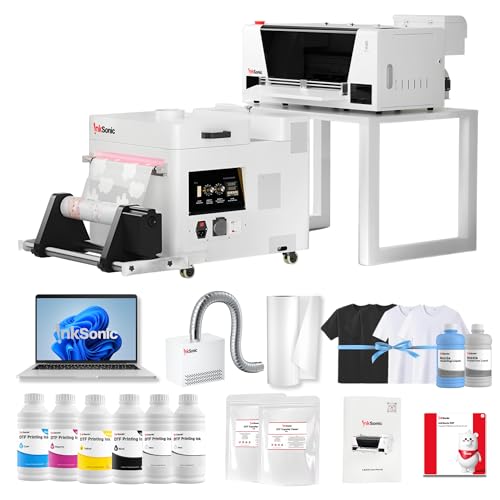
✅ [3-Min A3 Printing] Powered by the new F1080 low-temperature printhead, the InkSonic 2026 H13 delivers a full A3 print with fine color and a solid white underbase layer in just 3 minutes.That’s up to 200% faster than traditional L1800-based DTF printers.The upgraded InkSonic RIP software automatically optimizes layout to reduce film waste, with print data transfer completed in about 20 seconds, eliminating the long wait time before printing starts.
Maintaining Your Laptop During Charging
Maintaining our laptop during charging is just as important as managing power settings for battery performance. To keep our battery healthy, we should:
- Charge Wisely: Keep the battery charge between 20% and 80% for ideal lifespan.
- Environment Matters: Make sure our laptops are in a cool environment while plugged in, as overheating can degrade battery health.
- Ventilation: Avoid using our laptops on soft surfaces during charging; it can block ventilation and cause overheating.
- Clean Connections: Regularly check and clean the charging port and cables to prevent interruptions in charging.
- Power Management: Consider powering down our laptop or activating sleep mode while charging to reduce power consumption, boosting charging efficiency.
- Use surge-protected power strips with surge protection to guard against electrical spikes while charging.
Recommended Products
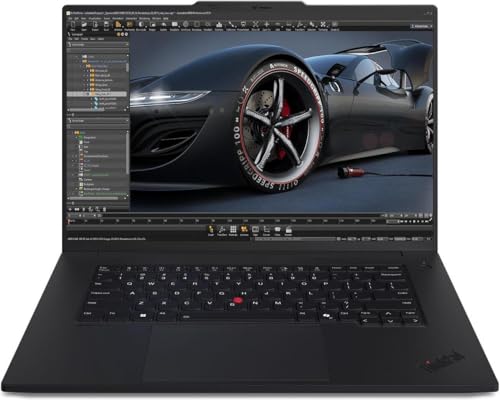
WiFi 7 ensures smooth data and video calls. ThinkShield and the Trusted Platform Module provide built-in security and data encryption, reducing hacking risks.
Processor: 13th Generation Intel Core i9-13980HX Processor (E-cores up to 4.00 GHz P-cores up to 5.60 GHz)

Processor: Inte.l Core Ultra 7 365 vPro Processor (LPE-cores up to 3.60 GHz P-cores up to 4.80 GHz)
Utilizing Manufacturer Resources for Battery Health Management
To guarantee we’re getting the most out of our laptop batteries, utilizing manufacturer resources is essential. Manufacturers often supply valuable software tools, such as HP Support Assistant and LG Control Center, to monitor battery health. These tools not only offer diagnostics but also help optimize performance.
Here are key practices to contemplate:
- Stay Updated: Regularly check for BIOS updates to enhance power management.
- Follow Guidelines: Manufacturers usually provide recommended charging practices and proper environmental conditions, extending battery life.
- Access Troubleshooting Resources: Utilize customer support for common battery issues.
- Refer to User Manuals: Look for best practices on charging cycles, battery calibration, and energy-saving settings.
Also consider using dedicated storage and organization solutions like an Acrylic Desk Organizer to keep charging accessories and manuals accessible and tidy.
Frequently Asked Questions
Which Is a Good Smart Charging or Charging Limit?
A good smart charging limit is around 80%. By adopting this, we enhance battery lifespan, improve energy efficiency, and reduce temperature effects, all while embracing user convenience and minimizing the environmental impact of our charging habits.
Should I Charge My Laptop to 100% or 80%?
We recommend charging our laptop to 80% for ideal battery health. This approach enhances energy efficiency, reduces charging cycles, and improves lifespan extension with smart technology, voltage regulation, and better temperature control based on our usage habits.
Can I Keep My Laptop Plugged in With Smart Charging?
Yes, we can keep our laptop plugged in with smart charging. It helps manage charging cycles, improves battery health, enhances energy efficiency, and supports long-term usage, but we should monitor performance impacts and maintain good charging habits.
Is It Better to Charge to 80% or 100%?
We believe it’s better to charge to 80% for ideal battery lifespan. This practice minimizes charging cycles, reduces heat generation, and enhances performance, aligning with manufacturer recommendations and yielding long-term user convenience and environmental benefits through smart technology advancements.