As an Amazon Associate, we earn from qualifying purchases. Some links on this site are affiliate links at no extra cost to you. Our recommendations are based on thorough research and editorial judgment.


Macos Sleep Guide: Power Nap, Wake Triggers, Fixes

To optimize our macOS sleep mode experience, we should manage Power Nap and wake triggers effectively. Power Nap allows background updates during sleep, enhancing efficiency but may cause battery drain. To minimize sleep issues:
- Disable unnecessary USB devices and Bluetooth.
- Set login items to a minimum.
- Reset the System Management Controller (SMC) if needed.
By adjusting these settings, we can improve battery life and sleep functionality. If you’re curious, there’s more to explore on troubleshooting techniques and energy efficiency.
Key Takeaways
- Power Nap allows background tasks during sleep but may cause battery drain; consider disabling it to conserve energy.
- Adjust sleep settings in System Settings to manage display and hard disk sleep based on inactivity for better energy efficiency.
- Turn off “Wake for network access” and disconnect USB devices to minimize unwanted wake events and battery consumption.
- Check Activity Monitor to identify and quit background applications consuming energy before putting your Mac to sleep.
- Reset the System Management Controller (SMC) to restore power settings and resolve sleep issues related to external displays.
Understanding Macos Sleep Mode
When we think about how macOS sleep mode works, it’s helpful to understand its primary function: conserving energy while keeping our documents and apps readily accessible. This energy-saving feature allows us to save power when we’re not actively using our Macs. We can even choose to Enable Power Nap, which lets our devices perform background tasks without fully waking. This keeps our emails updated or installs updates seamlessly, supporting our productivity without draining battery life too quickly. It’s important to manage wake triggers like USB connections or network access, as they can unexpectedly drain our battery if not handled properly. Regularly checking our power settings can help us troubleshoot and maintain ideal sleep functionality. For connections requiring high data throughput, consider using certified 48Gbps HDMI cables to ensure stable external display performance.
Setting Sleep and Wake Preferences

Setting sleep and wake preferences on our Macs can greatly impact how we manage power usage and maintain productivity. Here’s how we can optimize these settings:
- Access System Settings: Go to the Apple menu and select System Settings. Navigate to the Lock Screen or Battery sections.
- Display and Hard Disk Sleep: Adjust settings based on inactivity to control when displays and hard disks go to sleep.
- Power Nap: Enable this feature to allow our Macs to check for updates and emails while in sleep mode.
- Wake for Network Access: Enable this option to make sure our Macs can perform tasks during sleep, like updates and syncing.
- Many users prefer compact, USB-powered speakers for better desk setups and space-saving audio solutions.
Recommended Products


Dell Optiplex 7020 Tower Desktop PC, Intel Core i7-12700K, 12 Cores (8 Performance Cores 3.6 GHz - 5.0 GHz) + (4 Efficient Cores 2.7 GHz- 3.8 GHz)

18” QHD+ 240 Hz Display: Get the workspace you need to truly create with a high resolution QHD+ (2560x1600) display featuring 100% DCI-P3 color space, and play on another level with ultra-fast refresh rates for silky-smooth gameplay
Exploring Power Nap Functionality

Power Nap functionality enhances our Mac’s efficiency by allowing it to perform essential tasks while in sleep mode. This feature enables our Mac to check emails, sync calendar events, and install updates without fully waking up.
Recommended Products

High-Speed Charging: The 100W USB C port pumps out enough power to charge a wide range of devices in record time. Charge your MacBook Pro 16" (M1 Max, 2021) to 100% in 1 hour and 20 minutes, so you can stay productive all day.

High-efficiency Fast Charger: Sunveza 118W USB C macbook pro charger has a high charging efficiency of up to 96%, our charger can provide fast and stable energy inflow, the charger can fully charge the macbook pro 16inch in about 1H 25mins. It can charges most of the mobile phones from 0% to 80% in 20 minutes

Input: AC 100-240V, 50-60Hz; Output: DC 16.5V-3.65A;Second generation of power adapter,The T-Tip connector.
Key Benefits of Power Nap:
- Accessibility: Important information awaits us upon waking, especially for real-time notifications.
- Energy Settings: We can find the Power Nap option in Battery settings for laptops and Energy settings for desktops.
- Battery Considerations: Disabling Power Nap may be wise if we notice significant battery drain during sleep.
- Compatibility: Remember, Power Nap is available only on Intel-based Mac computers.
- Installation and updates: Some system maintenance and background tasks can be scheduled or occur automatically while the Mac is asleep.
Common Issues Leading to Battery Drain

Common issues can lead to unexpected battery drain during sleep mode, which we should be aware of to maintain our Mac’s efficiency. Here are some factors contributing to this problem:
- Power Nap: This feature syncs data during sleep, potentially causing unwanted battery drain.
- Wake Events: Background apps and login items can trigger wake events, leading to significant overnight battery loss.
- Sleep Issues with USB Devices: Poor driver support for USB peripherals often results in power consumption during sleep.
- Bluetooth: Keeping Bluetooth on can contribute to battery drain as it seeks connections.
To prevent these issues, we might consider disabling Power Nap and unplugging USB devices or disabling Bluetooth before sleep. These simple steps can greatly enhance our Mac’s battery life. Monitor arms and desk setups with good cable management can also help reduce wake events caused by connected peripherals.
Recommended Products

Enjoy superb sound quality with the S2415H's 2x3W integrated speakers for a crisp, full audio experience; Plus you can stream audio directly from your handheld device to the monitor for an immersive gaming/movie experience; Optimal Resolution : 1920 x 1080 at 60 Hertz
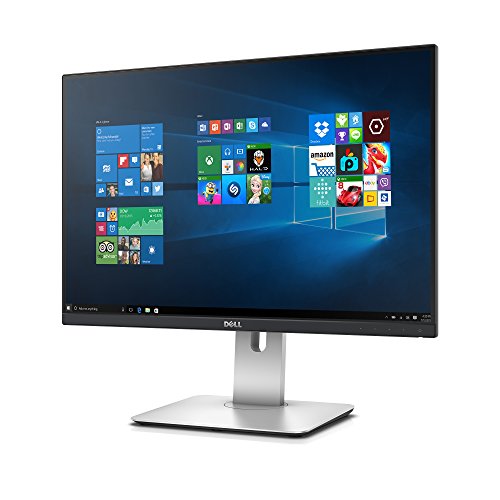
24-inch WUXGA Monitor (1920x1200) at 60Hz, 16:10 Aspect Ratio

SMALL EAR PLUGS - Designed about 20% smaller than Mack's standard-sized foam earplugs to provide maximum comfort for small or sensitive ear canals
Step-by-Step Solutions to Sleep Drain Problems

After identifying the common issues leading to battery drain during sleep mode, it’s time to explore step-by-step solutions. Here’s what we can do:
- Turn Off Power Nap: Disabling this feature prevents our Mac from waking for updates, saving battery life.
- Adjust Settings: Set “Wake for network access” to “Never” to minimize unnecessary wake events.
- Optimize Login Items: Removing unnecessary applications from the startup helps reduce processes running in the background.
- Disconnect Peripherals: Unplugging USB devices and turning off Bluetooth before we let our Mac sleep cuts down on power usage.
- Use pmset Tool: For advanced users, this command-line tool configures sleep settings and helps debug wake issues.
Implementing these steps can markedly reduce battery drain during sleep. Broadcast-style stability in hardware and tidy cable management can also help minimize wake-triggered issues caused by connected devices.
Recommended Products

AES256-XTS Encryption: Secure data with passwords up to 76 digits.

New generation 3D NAND technology

APC 1500 VA / 865W battery backup power supply
Managing Network Access During Sleep
When managing network access during sleep, it’s essential to strike a balance between functionality and battery conservation. Here are a few key considerations:
- Wake for Network Access: Enabling this option allows our Mac to respond to network requests, keeping shared services active. However, it may lead to unnecessary wake-ups that drain battery life.
- Power Nap: This feature lets our Mac perform tasks like checking emails while asleep, but it can consume extra energy.
- Energy Settings: We recommend disabling both Power Nap and “Wake for network access” to markedly reduce sleep drain, particularly on Intel and Apple-Silicon models.
Adjusting these settings carefully helps optimize our Mac’s battery performance and prevents unexpected battery drain during overnight sleep sessions. Many users also find using surge protection for connected peripherals helpful to protect devices that remain plugged in while the Mac sleeps.
Optimizing USB and Peripheral Device Settings
To further enhance our Mac’s efficiency during sleep, optimizing settings for USB and peripheral devices is essential. Here’s how we can do that:
- Disconnect External USB Devices: Before putting our Mac to sleep, it’s wise to disconnect unsupported USB devices. This helps minimize unexpected power consumption and prevents battery drain.
- Utilize Activity Monitor: We can identify energy-consuming processes related to USB devices. This will allow us to manage them effectively to prevent unwanted wake events.
- Power Nap Considerations: Enabling Power Nap may lead to wake events triggered by USB devices. Disconnecting those devices can optimize our Mac’s sleep and wake functionality.
Additionally, consider using a dedicated cable management box to organize and secure power strips and USB hubs to reduce accidental wakes from organized cables.
Recommended Products

【Modular & Scalable System】Easily configure secure single, dual, or triple-person office desk workstations using interlocking panels and reinforced frames, adapting perfectly to growing teams or changing layouts.

SPECS: 6.8” W x 2.6” H x 3.6” L | 3 x AC Power Outlets – 3 x USB-A & 1 x USB-C Charging Ports | 4.9 Ft Cord | Black | 200 Pcs

Tripp Lite SU5000RT4UHV 5000VA / 5kVA / 4500 watt on-line, double-conversion UPS system in a single 4U rack/tower compatible housing
Advanced Power Management Techniques
In order to maximize our Mac’s energy efficiency, employing advanced power management techniques can be incredibly beneficial. We can use the `pmset` utility to customize sleep and hibernation settings, which can effectively enhance Battery Health. For instance, using the command `sudo pmset -a hibernatemode 25` enforces deeper hibernation modes, reducing battery drain during sleep periods.
Additionally, we should consider disabling excessive wake triggers like “Wake for network access.” This simple action can keep our Mac in a low-power state longer. To keep track of wake events, we can monitor sleep logs through `pmset -g log | grep -e Sleep -e Wake`. Ultimately, for those comfortable with advanced settings, implementing SSDTs can further optimize CPU power management. The use of high-density memory foam in ergonomic support products can improve comfort during long maintenance sessions or workstation use, as seen with high-density memory foam designs.
Troubleshooting Sleep-Wake Failures
Sleep-wake failures can be frustrating, especially after we’ve taken steps to optimize our Mac’s power management. Here’s how we can troubleshoot these issues effectively:
- Resetting: Start with an SMC reset to restore power management and settings.
- Power Nap: Consider disabling Power Nap and “Wake for network access” in System Preferences to reduce unnecessary wake triggers.
- Connectivity: Confirm our Mac is correctly connected to power sources and check external display connections, as they can cause sleep-wake failures.
- Monitor Activity: Use Activity Monitor to find background processes consuming energy. Quitting these can help our Mac sleep properly.
- Third-party applications: If we encounter a black screen after sleep, verify that no third-party applications are interfering with sleep-wake cycles.
Also check material and build quality of any accessories, since durable materials can affect connectivity and stability.
Additional Tips for Energy Efficiency
While we might not always think about it, optimizing our Mac for energy efficiency can lead to a noticeably extended battery life. Here are some practical tips:
- Enable Power Nap: Allow your Mac to check for emails and updates while in sleep mode, using minimal energy.
- Disconnect Peripherals: Unplug USB devices and turn off Bluetooth to reduce power drain during sleep.
- Adjust Wake Settings: Prevent your Mac from waking for network access, reducing unnecessary wake events.
- Monitor Login Items: Manage background processes that might interfere with sleep mode and improve battery efficiency.
- Turn Display Off: If your Mac desktop is plugged into a power source, dim or turn display off when not in use.
Many durable accessories and backpacks for everyday use also include features that protect and organize your tech, such as water-repellent ballistic fabrics that help keep devices safe during travel.
Frequently Asked Questions
Can I Schedule Specific Sleep Times for My Mac?
We can definitely customize sleep preferences on our Mac! By utilizing scheduled sleep settings and sleep schedule apps, we’re able to create an automated sleep timer that helps in managing our energy consumption effectively. Exciting, right?
How Does Sleep Mode Impact My Mac’s Performance?
Sleep mode generally enhances our Mac’s performance, offering significant energy savings and better user experience. It helps optimize wake times, allowing us to enjoy the benefits of reduced energy consumption while maintaining system efficiency.
Will My Mac Still Receive Updates While in Sleep Mode?
No, our Mac won’t receive updates in sleep mode due to power management settings. It needs network connectivity for background tasks. For update frequency, we can adjust settings in system preferences to guarantee updates occur regularly.
What Are the Differences Between Sleep and Hibernate Modes?
Think of sleep as a quick power nap—our device resumes faster, saving energy. Hibernate, like a long hibernation, conserves even more but takes longer to wake. User preferences determine which system state fits best.
Can I Use External Monitors With My Mac in Sleep Mode?
Yes, we can use external monitors with our Mac in sleep mode. We should check external displays compatibility and monitor power settings to guarantee ideal external device behavior in a dual monitor setup, enhancing our experience.