As an Amazon Associate, we earn from qualifying purchases. Some links on this site are affiliate links at no extra cost to you. Our recommendations are based on thorough research and editorial judgment.


Ipad Usb‑C Accessories: Power, Audio, and Displays

iPad USB-C accessories enhance our devices with versatile connectivity options. They support power delivery up to 100W, allowing us to charge while using HDMI and USB ports. For audio, we can route sound through a 3.5mm jack or an HDMI connection. Video output supports resolutions up to 3840×2160 at 60Hz, ensuring compatibility with various displays. Using reliable cables is essential for peak performance. Let’s explore the technical specifications and potential troubleshooting strategies for these accessories.
Key Takeaways
- USB-C accessories enable HDMI display connections, supporting resolutions up to 3840×2160 at 60Hz for enhanced mirroring and extension.
- They often include multiport functionality, like USB 3.0 and audio jacks, for comprehensive connectivity options.
- Pass-through charging allows devices to receive up to 100W of power while using other ports simultaneously.
- A 3.5 mm audio jack connects headphones or speakers, with HDMI also providing audio output through compatible displays.
- Compatibility with macOS Mojave or later and iPadOS ensures seamless operation with USB-C or Thunderbolt 3 ports.
Overview
When it comes to maximizing the potential of our iPads, USB-C accessories play a crucial role. These accessories enable seamless connections to HDMI displays, allowing screen mirroring or extension with impressive resolutions up to 3840×2160 at 60Hz.
Here’s what we can expect from these USB-C accessories:
- HDMI Support: They provide HDMI audio and video output, needing a compatible HDMI cable for connecting to TVs or projectors.
- Multiport Functionality: Many include additional ports like USB 3.0 and audio jacks for further connectivity.
- Pass-Through Charging: Users can charge the iPad while connecting external devices, supporting power delivery up to 100W.
- Enhanced App Use: iPadOS makes multitasking easier, letting us group and drag apps between our iPad and external displays effortlessly.
- USB-C hubs often include 4K@60Hz support to ensure high-resolution output to external monitors.
What’s in the Box

Inside the box, we find an Apple USB-C Digital AV Multiport Adapter, a key accessory for connecting USB-C devices to HDMI displays. This compact adapter features the following:
- Compatibility: It works with various Apple devices, including newer Mac models, iPads, and iPhones.
- Output: The adapter supports audio and video output via HDMI, pairing with a separate HDMI cable for connection to TVs or projectors.
- Resolution: It enables high-definition output, supporting resolutions up to 3840×2160 at 60Hz.
- Design: Its portable design makes it perfect for travel, while the robust build guarantees durability.
With this adapter, we can easily connect our devices to larger screens, enhancing our viewing experience considerably. A popular alternative that also supports 4K@60Hz and durable construction is the Anker USB-C to HDMI Adapter.
Recommended Products

WIRELESS USB-C TO HDMI EXTENDER: Transmits 4K video and audio up to 65 ft. from a USB-C source to an HDMI display with zero latency. Package includes wireless USB-C transmitter and HDMI receiver. Ideal for home theaters, offices, and live events.

4K HDBaseT HDMI EXTENDER: Extends HDMI 2.0/1.4 audio and video signal from your HDMI source to a remote HDMI display up to 330ft (100m) away at Full HD 1080p, or 230ft (70m) at 4K (3840x2160) @60Hz (YUV 4:4:4 8bit/HDR10 4:2:0 10bit) through a single premium quality CAT5e/6 cable. NOTE! Does not support HDMI 1.2 and earlier

[Integrated 960GB SSD External Storage]- Features built-in solid-state storage with sustained read speeds up to 520 MB/s and write speeds up to 456 MB/s. This 2-in-1 design provides a high-speed data backup and file management solution without the need for a separate external drive.
Tech Specs

The Apple USB-C Digital AV Multiport Adapter is built with impressive specifications that cater to a variety of user needs.
- Resolution Support: It offers video output up to 3840×2160 at 60Hz, guaranteeing high-quality displays on your HDMI devices.
- Connectivity: The adapter features HDMI, USB, and USB-C ports, allowing for versatile audio and video connections.
- Cable Requirements: To connect to a TV or projector, an HDMI cable is necessary but not included.
- Compatibility: Ascertain your devices support USB-C Power Delivery and DisplayPort Alt Mode to utilize charging and video functionalities effectively.
This adapter is ideal for travelers and commuters who need reliable on-the-go connectivity and charging with compact designs.
System Requirements

Understanding the system requirements for the Apple USB-C Digital AV Multiport Adapter is essential for guaranteeing compatibility with your devices. Here’s what we need to know:
- Operating System: It requires macOS Mojave 10.14.6 or later, and for iPhone or iPad, it needs iOS 12.4 or later.
- Connection Type: A USB-C or Thunderbolt 3 port is necessary for the adapter to function properly.
- HDMI Output: To connect to an HDMI-enabled TV or projector, don’t forget an HDMI cable, as it’s sold separately.
- Video Resolution: The adapter supports video output resolutions up to 3840×2160 at 60Hz.
Designed specifically for compatibility with various Apple devices, it guarantees peak performance and functionality. This adapter is also commonly used alongside high-performance cables that support 4K@60Hz video and fast charging.
Get Started

Getting started with your iPad’s USB-C accessories is straightforward and rewarding. Here’s how we can connect and utilize them effectively:
- Connect the Hub: Plug the hub into your iPad’s USB-C port to enable power, audio, and video connections.
- Charging Setup: Make sure to connect a USB-C power adapter for charging. For HDMI output, verify that your mobile device supports USB-C Power Delivery and Alt Mode.
- HDMI Connection: Use an HDMI cable to link the dock’s HDMI port to a compatible display. Don’t forget to adjust the display settings to the correct HDMI input.
- Accessories Limitations: Remember, some apps might not allow audio routing through your accessories, defaulting to built-in speakers or Bluetooth.
With this, we’re ready to enhance our iPad experience! For best video quality, choose adapters that support 4K@60Hz when connecting to modern displays.
Recommended Products

SIZE DOWN. POWER UP — The far mightier, way tinier Mac mini desktop computer is five by five inches of pure power. Built for Apple Intelligence.* Redesigned around Apple silicon to unleash the full speed and capabilities of the spectacular M4 chip. With ports at your convenience, on the front and back.

Studio quality grading & resolution: The ALOGIC Pro Touch CLARITY 27” UHD 4K Monitor is a business grade monitor that brings your digital media to life, it provides an immersing viewing experience making every detail more enhanced & enriched.
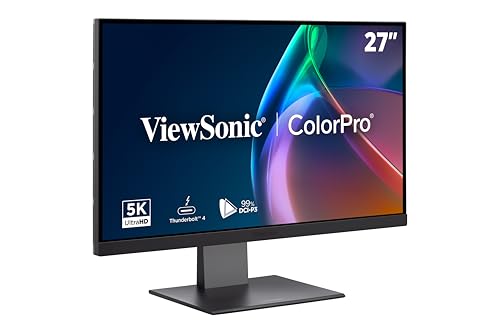
PREMIUM MONITOR: 27 Inch 5K (5120x2880p) IPS Mac-ready monitor with 75Hz refresh rate
Route Audio Through the 3.5 Mm Audio Jack
Routing audio through the 3.5 mm audio jack on compatible USB-C accessories opens up new possibilities for enjoying audio on our iPad. Here’s how we can do it effectively:
- Connect Power: Plug the iPad’s USB-C power adapter into the dock’s USB-C port.
- Establish Connection: Connect the iPad to the dock’s To Host USB-C port.
- Use the Audio Jack: Employ a 3.5 mm combo audio jack to hook up our headphones or speakers.
- Select Audio Output: Access the Control Center and choose the USB Audio Device option to route audio correctly.
Keep in mind that some communication apps may default to the iPad’s built-in speakers or Bluetooth devices instead of the audio jack. High-quality USB-C headphones often include a built-in DAC that can improve sound when using USB-C audio accessories.
Recommended Products

FAST 16” OLED QHD+ 240Hz DISPLAY — Truly designed for the competitive gamer with 0.2 ms response time, featuring a VESA ClearMR 11000 rating and DisplayHDR 500 certified to ensure minimal blurring and vivid colors (1M:1 contrast ration and 100% DCI-P3)

COMPATIBILITY WITHOUT CONSTRAINTS - Designed with universal compatibility in mind, this dock works with both HP and non-HP USB-C and Thunderbolt-enabled laptops.
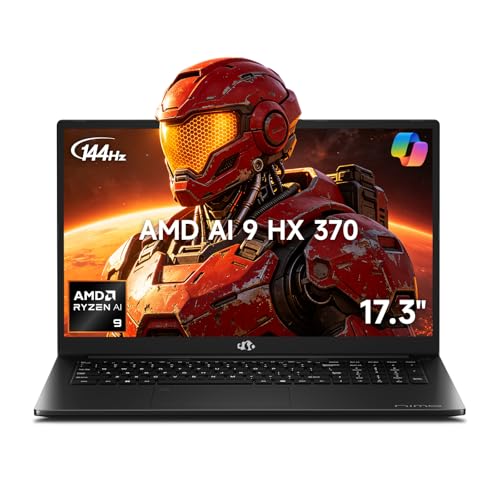
【Copilot+ & Next-Gen 50 TOPS AI Performance】Powered by the groundbreaking AMD Ryzen AI 9 HX 370 processor and an integrated NPU delivering 50 TOPS of XDNA-accelerated AI power, this laptop effortlessly handles local AI workloads, complex coding, and seamless multitasking. It is the ultimate high-performance workspace designed for forward-thinking creators, developers, and professionals.
Route Audio Through the HDMI Port
When we want to enhance our audio experience on the iPad, using the HDMI port of a USB-C accessory can be a great option. Here’s how to route audio effectively:
- Connection: First, connect your iPad or USB-C device to a docking station, like the Plugable USB-C Tablet Stand with Docking Station.
- Select Input: Verify the correct HDMI input is chosen on your display.
- Audio Source: Access the Control Center on the iPad to select the HDMI display as the output source for audio.
This allows sound to play directly through speakers or a TV. For the best results, the device should support USB-C Power Delivery and DisplayPort Alt Mode, enabling smooth audio and video transmission through the HDMI port. High-resolution audio is possible when using a hub with a built-in 3.5mm AUX port, but quality depends on the hub’s DAC and connection.
Recommended Products

18” UHD+ 4K 200Hz DISPLAY — Enjoy ultra-sharp 4K quality for creative work and high refresh rates for silky-smooth gameplay, backed by 100% DCI-P3 color accuracy that’s Calman Verified for the most lifelike visual

Processor: 13th Generation Intel Core i9-13980HX Processor (E-cores up to 4.00 GHz P-cores up to 5.60 GHz)

Powered by Intel Core Ultra 9 285K – Up to 5.7GHz Performance Dominate demanding games, creative workloads, and livestreaming with the Intel Ultra 9 285K, featuring AI-enhanced multitasking, fast response times, and overclocking potential. Enjoy smooth gameplay, intelligent performance, and next-gen processing speed. For more demanding experiences, the new Ultra K-Series processors are unlocked and can be overclocked.
Known Limitations
While many users appreciate the versatility of iPad USB-C accessories, there are some notable limitations to be aware of.
- Audio Output Issues: Communication apps might bypass the 3.5 mm audio output, defaulting to built-in speakers or Bluetooth devices, which may impact call clarity.
- Microphone Compatibility: The 3.5 mm port supports only CTIA-standard headsets, limiting microphone recognition across certain apps.
- Single Audio Output: iPadOS allows only one audio output at a time. This can complicate using multiple audio sources, such as when connecting a flash drive alongside a pair of headphones.
- Storage Device Restrictions: While using SD cards, some users may experience challenges with reading files reliably.
Cardioid microphones often help reduce background noise in noisy environments, making them a useful choice when connecting external mics to an iPad cardioid pickup.
Troubleshooting
Knowing the limitations of iPad USB-C accessories can help us better troubleshoot common issues we might face. Here’s how we can deal with them:
- No audio output: Check the Control Center for the correct audio device. Sometimes, communication apps won’t recognize the attached microphone.
- Video output issues: Confirm the HDMI cable is secure. The display needs to be set to the right HDMI input.
- Volume problems: Double-check audio settings in the Control Center and make sure all physical connections are secure.
- Charging and HDMI issues: Use a USB-C power adapter that supports USB-C Power Delivery and Alt Mode.
- Connection failures: Verify all cables are functional and compatible, and check for software updates to improve device connectivity.
For the most reliable wired network performance, consider using an adapter that supports 1Gbps Ethernet to ensure stable high-speed connectivity.
Recommended Products


Frequently Asked Questions
Does the Ipad Support USB-C Audio?
Yes, the iPad supports USB-C audio nicely! We can connect USB-C microphones and utilize audio adapters. It’s great how these features enhance our audio experiences without missing a beat, keeping our sound quality exceptional!
Can You Connect an Ipad to a Monitor Through USB-C?
Yes, we can connect our iPad to a monitor via USB-C! This gives us fantastic iPad connectivity, allowing us to enjoy the USB-C advantages like mirroring and multitasking on a bigger screen.
How to Enable USB Accessories on Ipad?
To enable USB accessories on our iPad, let’s go to Settings, select Face ID & Passcode or Touch ID & Passcode, and toggle on the USB settings for seamless connectivity while the device is locked.
How to Charge an Ipad While Using an Audio Interface?
Did you know that 80% of musicians struggle with charging while recording? We can charge our iPad seamlessly with an audio interface by using a USB-C hub that supports power delivery and ensuring compatibility.


