As an Amazon Associate, we earn from qualifying purchases. Some links on this site are affiliate links at no extra cost to you. Our recommendations are based on thorough research and editorial judgment.


Monitor SSD Health: SMART Data and Write Endurance

To monitor SSD health effectively, we should focus on SMART data and write endurance. SMART attributes like Power-On Hours and Write Endurance (TBW) inform us about the drive’s lifespan. We can use tools like CrystalDiskInfo or manufacturer-specific options such as Samsung Magician to track these metrics. Maintaining at least 20% free space is vital for performance. Regular checks can prevent data loss and guarantee reliability. There’s more to explore regarding best practices and signs of a failing SSD.
Key Takeaways
- Regularly check SMART attributes to assess SSD health and detect potential issues before they lead to failure.
- Monitor Write Endurance (TBW) to estimate the remaining lifespan of your SSD and inform replacement timing.
- Use tools like CrystalDiskInfo and manufacturer-specific applications to easily track and interpret SMART data.
- Keep a minimum of 20% of SSD capacity free to optimize performance and prolong longevity.
- Enable TRIM functionality to maintain optimal performance by managing unused storage blocks effectively.
Understanding SMART Monitoring
When we think about our SSDs, understanding SMART monitoring can really help guarantee their longevity. SMART, or Self-Monitoring, Analysis, and Reporting Technology, is built into most modern SSDs to report essential drive health metrics. Key SMART attributes include:
- Power-On Hours: Total time the SSD has been operational.
- Power Cycles: The number of times the SSD has turned on and off.
- Internal Temperature: Monitoring heat levels within the drive.
Regular monitoring of these attributes can help predict failures and plan replacements, and using residue-free cleaning products on surrounding connectors can reduce electrical issues that might affect drive reliability.
Importance of Monitoring SSD Health

Monitoring SSD health is essential for guaranteeing both performance and longevity, especially since these drives have a limited lifespan determined by their write cycles. Regular checks using SMART data allow us to track SSD health effectively. By focusing on key attributes, we can identify potential issues early, which can prevent data loss and extend our drives’ lives.
- Write Endurance: Understanding TeraBytes Written (TBW) helps gauge how much life remains.
- Performance Degradation: Signs like slow file transfers may indicate SSD failure.
- Monitoring Tools: Utilizing tools for SSD health checks guarantees we’re proactive.
Firmware updates and features like TRIM can improve overall SSD health, making it critical to stay informed about best practices for maintenance. By doing so, we safeguard our data and investments. High-performance enclosures with effective heat dissipation can also help prevent throttling and prolong SSD lifespan.
Key SMART Attributes to Watch

Understanding key SMART attributes is essential for evaluating the health of our SSDs. Here are some key attributes to monitor:
- SMART status: This tells us if our SSD is healthy or failing.
- Power Loss: We need to track unexpected power loss data to understand the SSD’s reliability.
- Cycle Count (SMART 12): This shows how often the SSD has been powered on and off, indicating usage.
- Wear Leveling (SMART 173 and 174): This is vital for gauging durability, as it reflects drive wear.
- Remaining Lifetime Percentage: Western Digital uses SMART 169, while Crucial uses SMART 202 to provide an estimation of SSD longevity.
Cable testers can also help validate physical network connectivity when diagnosing remote storage access issues, especially with POE testing and loop-back features.
Tools for Checking SSD Health

Keeping our SSDs in ideal condition is essential for performance and longevity. To monitor SSD health effectively, we can use various tools that check SMART data. Here are some recommended options:
- CrystalDiskInfo: A user-friendly interface for tracking metrics like Power On Hours and total writes.
- AIDA64 Extreme: Offers extensive SSD health insights, making it simple to assess performance.
- Samsung Magician & Western Digital Dashboard: Manufacturer-specific tools that provide tailored health monitoring and firmware updates.
- Drive Sentinel: Advanced software that interprets SSD SMART data for detailed performance insights.
Regularly using these tools helps us manage our SSD’s endurance and health by tracking remaining drive life and cumulative write counts efficiently. A common practice is also to monitor total writes and compatibility with cable and connector standards mentioned in hardware guides.
Recommended Products

Eight universal 2.5 or 3.5-inch SSDs/HDDs drive bays w/ Dual Thunderbolt 3 ports (Thunderbolt 2/Thunderbolt backward compatible)

FOR VET USE ONLY. At just 6.5 cm thick, N60 Veterinary ultrasound machine is designed for easy transport, portable and upgradeable, with Various Veterinary Ultrasound Probe making it ideal for use in various veterinary clinical settings and home visits
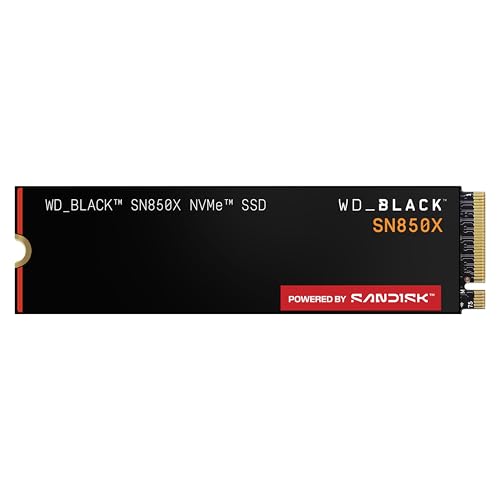
TRANFORM YOUR PC: Insane speeds up to 7,300MB/s (1TB - 4TB models) deliver top-tier performance with ridiculously short load times for your gaming PC or workstation — for the elite experience you’ve been waiting for.
Using Command Line for Health Checks

While third-party tools provide detailed insights into our SSDs, many users might prefer quick and simple methods for checking drive health. We can easily check SSD health using Command Prompt in Windows. Here’s how:
- Open the Command Prompt by typing “CMD” into the Taskbar search bar.
- Enter the command `WMIC diskdrive get status`.
This command displays the drive’s status. If it shows “OK,” our SSD is functioning normally. If it says “Pred Fail,” we might need to act quickly to avoid unexpected power loss or data loss. Many users also monitor write endurance metrics to track how much life their SSD has remaining.
Recommended Products

HPE SMART CHOICE PROLIANT MODEL P83316-005: Factory-tested and preconfigured for reliability, this HPE ProLiant ML30 Gen11 Smart Choice model includes Intel Xeon 6333P (6 cores, 3.10 GHz), 32GB DDR5 ECC memory, 2 x 480GB SATA SSDs, dual 500W Flex Slot power supplies, Intel VROC SATA storage controller, and an embedded 1GbE 4-Port Ethernet adapter—ready for immediate deployment

【Desktop-Class Performance with AMD Ryzen 7 8745HS】 Powered by the AMD Ryzen 7 8745HS processor featuring 8 cores, 16 threads, and boost speeds up to 4.9GHz, this compact mini PC delivers exceptional responsiveness for office work, programming, photo and video editing, content creation, multitasking, media streaming, and light gaming. Built on AMD's advanced Zen 4 architecture with integrated Radeon graphics, it offers desktop-level performance while saving valuable workspace.

PCIe Gen 4x4 interface with read speeds up to 7,000MB/s and write speeds up to 6,500MB/s
Manufacturer-Specific Tools for SSD Management
When it comes to monitoring SSD health, manufacturer-specific tools can be invaluable. These programs are tailored to assess SSDs’ health using SMART attributes effectively. Here are some remarkable options:
- Seagate’s SeaTools: Offers SMART readings and diagnostic tests to identify potential failures early.
- Samsung’s Magician Software: Provides a user-friendly interface for health monitoring, benchmarks, and firmware updates specifically for Samsung SSDs.
- Western Digital’s Dashboard: Enables users to check health and SMART status while monitoring drive temperature.
- Kingston SSD Manager: Allows monitoring of health and status, exporting detailed reports, and performing secure data erasure operations.
High-quality tools often provide detailed reports and allow users to track long-term drive health and endurance.
Recommended Products

BREAKTHROUGH PCIe 5.0 PERFORMANCE: Supercharge your workflow and gaming with PCIe 5.0, boasting up to 14,800/13,400 MB/s* sequential read/write speeds. Tackle massive files and power up your gaming with Gen5—twice as fast as the 990 PRO SSD.

MEET THE NEXT GEN: Consider this a cheat code; Our Samsung 990 PRO Gen4 SSD helps you reach near max performance* with lightning-fast speeds; Whether you’re a hardcore gamer or a tech guru, you’ll get power efficiency built for the final boss

Ultra-fast: over 2x faster than Thunderbolt portable enclosures with up to 3836MB/s real-world performance
Best Practices for SSD Maintenance
To guarantee our SSDs perform at their best and last as long as possible, adopting best practices for maintenance is essential. Here are some key steps:
- Regularly check your SSD health using SSD SMART tools to monitor attributes like remaining lifespan and power-on hours.
- Keep at least 20% of SSD capacity free for peak performance and to reduce wear since SSDs operate best with available space.
- Enable TRIM functionality which optimizes storage blocks and automatically clears deleted files, enhancing performance.
- Monitor temperatures to avoid overheating, a major risk factor for component degradation.
- Update firmware periodically with manufacturer tools to benefit from performance and reliability improvements that can extend the life of your SSD.
- Consider using USB-C support where available to ensure future compatibility and optimal transfer performance.
Signs of a Failing SSD
Recognizing the signs of a failing SSD is just as important as maintaining its health. Here are some key indicators to keep an eye on:
- Slow file transfer speeds: If you’re noticing significant delays, especially during intensive write operations, your SSD may be struggling.
- Frequent crashes or freezes: These issues, particularly when accessing files, can signal serious health problems with the SSD.
- Corrupted files: Files that won’t open or have glitches often point to a failing SSD.
- Missing drives: If your system doesn’t recognize the SSD, it could be compromised.
- SMART warnings: Keep track of any significant drops in health percentage or increases in bad sectors, as these proactive alerts can indicate potential failures ahead.
Top models can reach write speeds of 900MB/s, so sudden drops from expected performance may be an early warning sign.
Recommended Products

🚀[Good News!] The FOXWELL Scanner NT726 (2026) is now upgraded with full-system bi-directional control! Parking Brake, Fuel Pump, Radiator, Fan, Injectors…More functions are waiting for you to explore! Bi-directional scan tool to help you with the safety partner, anytime and anywhere a comprehensive understanding of your car.At the same time, more features, same p-rice! Get a $400–$600 v-alue for just over $300 after dis-counts. Already p-urchased the NT726 Code Reader? No worries—just open the upgrade module, and the Active Test feature will be waiting for you!

Performance internal Solid State Drive: 2TB, 1TB, 500GB

Always Evolving SSD: The 970 EVO Plus is powered by the latest V-NAND technology and firmware optimization, maximizing the potential of NVMe bandwidth; Comes in storage capacities of up to 2TB, with reliability of up to 1,200 TBW.Computer Platform:PC.Internal Storage : Samsung V-NAND 3-bit MLC. Voltage : 3.3 V 5 % Allowable voltage.Allowable Voltage : 3.3 V 5 % Allowable voltage.
When to Replace Your SSD
Knowing when to replace our SSD can prevent frustrating data loss and maintain our system’s performance. Here are key indicators:
- Drive Health Percentage: Replace your SSD when this hits 0%, signaling that it can no longer operate effectively.
- Total Bytes Written (TBW): Monitor this metric closely. Exceeding the manufacturer’s specified TBW usually means it’s time for a replacement.
- Power-On Hours: Extended usage can indicate wear. If the warranty has expired and performance drops, consider a new SSD.
- Error Rates: Frequent errors during read/write operations or file corruption are clear signs that we need to replace our SSD.
Regular assessments with SMART data tools can help us identify these trends and make informed decisions about replacement. Many users also consider enclosure and cooling options—like aluminum alloy designs or active fans—to help manage drive temperatures and prolong lifespan effective heat dissipation.
Recommended Products


8th Generation Intel Core i7-8559U processor

Available in capacities ranging from 1-14TB with support for up to 8 bays.Data Transfer Rate:6Gbps.Specific uses: Business
Frequently Asked Questions
How Often Should I Check My Ssd’s SMART Data?
We should check our SSD’s SMART data at least once a month. Using monitoring tools helps us with data analysis while tracking performance benchmarks. Proactive measures like these can greatly extend the lifespan of our drives.
What Is a Normal Range for Reallocated Sectors Count?
For SSD health, a normal range for reallocated sectors count is typically below 10. If it exceeds the error threshold, we should monitor data reliability closely to prevent potential issues with our drives.
Can SSDS Fail Without Warning Indicators?
SSDs can indeed fail without warning signs, like a storm suddenly breaking overhead. We should always monitor usage patterns, stay on top of firmware updates, and consider predictive analytics for potential failures. Data recovery options exist, but prevention’s key.
Do Different Manufacturers Have Varying SMART Attributes?
Yes, different manufacturers indeed show SMART attribute variability. Their design differences, firmware effects, and interpretation methods can lead to inconsistencies. We should consider brand reliability comparison when evaluating SSD health based on these factors.
How Does Temperature Affect SSD Health and Performance?
Remember the days of floppy disks? We’ve come a long way! Temperature fluctuations can severely impact SSD health and performance, causing thermal throttling. Maintaining ideal operating conditions guarantees better heat dissipation and minimizes the environmental impact.


