As an Amazon Associate, we earn from qualifying purchases. Some links on this site are affiliate links at no extra cost to you. Our recommendations are based on thorough research and editorial judgment.


USB‑C Alt Mode: Why Some Cables Fail Displays

USB-C Alt Mode enhances display capabilities, but many cables lack the necessary specifications for effective performance. To guarantee display success, we should use cables labeled with “DP Alt Mode” and verify that both our devices and monitors support this feature. A minimum bandwidth of 10Gbps is essential, while longer cables may introduce issues. Using charge-only cables or having incorrect monitor settings often leads to failures, but we can uncover more about troubleshooting these connections for better results.
Key Takeaways
- Not all USB-C cables support DisplayPort Alt Mode, leading to poor display capabilities.
- Cables must have compatibility labels like “DP Alt Mode” or “4K” to ensure video signal transmission.
- Lengthy cables may degrade bandwidth, causing display failures if they exceed specifications.
- User errors, such as using non-video supporting cables, can result in a lack of display output.
- Both source devices and monitors must support DP Alt Mode for successful connection to external displays.
Understanding USB-C and Its Capabilities
When we explore USB-C and its capabilities, it’s vital to recognize its versatility. USB-C connections not only allow for power and data transfer, but they also provide video output, which is fundamental for connecting to external monitors.
Here are key points to take into account:
- DisplayPort Alt Mode: Not every USB-C port supports this feature, which is required for video signals.
- Cable Compatibility: To guarantee video functionality, the cable must specifically indicate DP Alt Mode support. Standard USB-C cables often do not provide this capability.
- Device Variability: Popular devices like MacBooks typically support USB-C video output, while Windows laptops may vary, so it’s always a good idea to test your ports.
Understanding these factors helps us maximize our USB-C experience. A common checklist to ensure proper operation is to verify the device supports 4K@60Hz and that the cable and adapter explicitly list DisplayPort Alternate Mode.
The Importance of DisplayPort Alt Mode

The significance of DisplayPort Alt Mode (DP Alt Mode) extends beyond mere video transmission; it enhances our overall connectivity options. DP Alt Mode allows USB-C ports to transmit video signals effectively, enabling compatibility with external monitors.
However, not all USB-C cables support this mode. To guarantee proper functionality, it’s essential we choose a cable that supports DP Alt Mode, typically identified with features like 4K or Thunderbolt certification.
Many modern devices, like MacBooks, support DP Alt Mode, but we should always check the official specifications before purchasing. Both our source device and monitor need to support DP Alt Mode for a successful connection. Otherwise, we risk only getting charging capabilities without video output. Anker USB-C adapters often support 4K@60Hz output and are reliable options for ensuring DP Alt Mode functionality.
Recommended Products
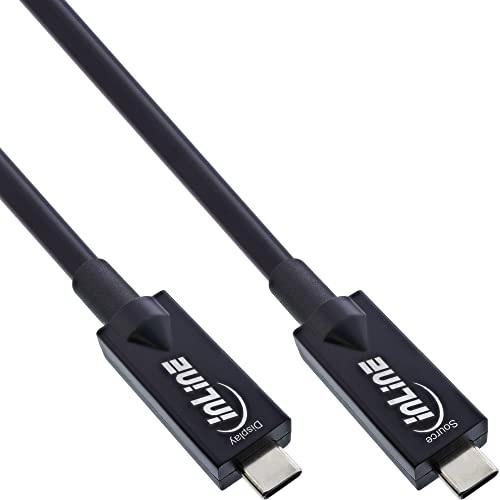
InLine USB-C AOC Cable 7.5 m, USB 3.2 Gen.2, 10 Gb/s, DisplayPort Alt Mode, HDR, 60 W, Black, 35797A
Active fiber technology for demanding video applications: Transmits USB-C signals without loss of power - ideal for 4K monitors, VR glasses and professional setups.

Single-Cable Bring-Your-Own-Device: Leverages DisplayPort Alt Mode, which facilitates single-cable BYOD connection from a laptop to the Logitech MeetUp 2 video conferencing camera
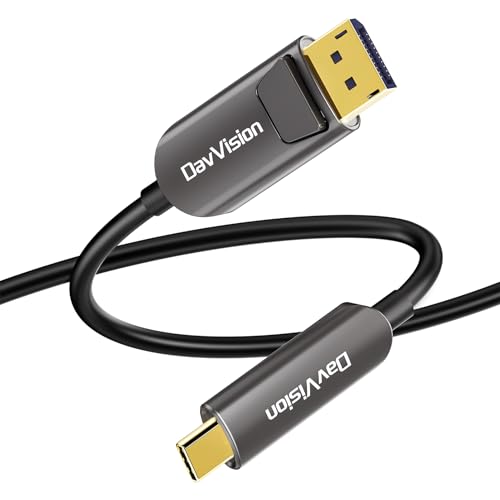
Fiber USB C to DisplayPort Cable: Idea for USB-C laptop computer/tablet/Android phone to a DisplayPort port monitor/projector at resolutions up to 4K@60Hz with no additional drivers, just plug and play.Fiber transmission for zero data loss & zero EMI/RFI.
Identifying Compatible USB-C Cables

To successfully use DisplayPort Alt Mode for video output, identifying the right USB-C cables is fundamental. Not all USB-C cables support this mode, so we must check specifications before making a purchase. Here are key features to look for:
- Compatibility Labels: Verify cables are marked with “DP Alt Mode,” “4K,” or “Thunderbolt.”
- Data Support: Cables must support at least 10Gbps to transmit video signals effectively.
- Length Considerations: Longer cables may result in bandwidth drops, affecting performance.
Many high-quality cables also include durability testing that rates them for tens of thousands of bends to ensure long-term reliability.
Recommended Products
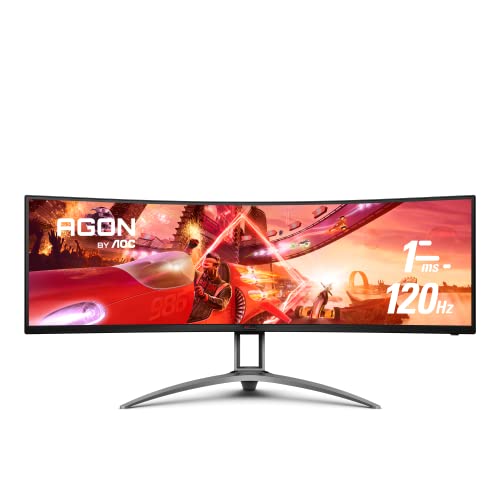
49" class AGON Professional grade curved gaming monitor with Dual QHD 5120x1440 resolution (It is like having 2x QHD monitors side-by-side).Mounting Type: Wall Mount

49-Inch Class (48. 8-Inch viewable) Super wide 32: 9 LED monitor with dual QHD (5120x1440) resolution
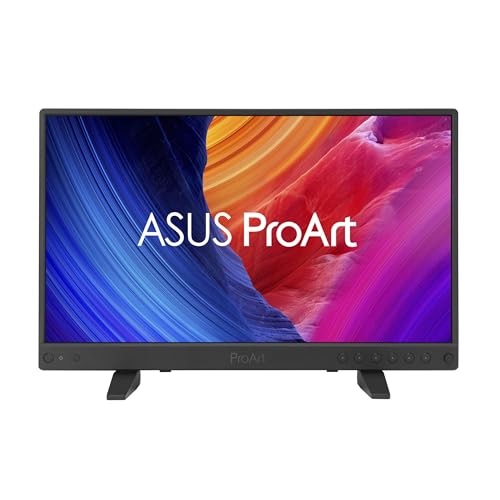
15.6-inch 4K HDR (3840 x 2160) IPS panel with 400 nits peak brightness
Common Issues With USB-C Display Connections

Even though USB-C cables are widely used, many users encounter common issues when trying to connect their devices for display purposes.
Recommended Products

Supports a top data transfer speed of 40Gbps and 100W of charging when connected to Thunderbolt 3 or Thunderbolt 4 devices

HIGH PERFORMANCE: 2m (6.6ft) Active Thunderbolt 4 cable with integrated chipset delivers consistent 40 Gbps and 100W charging; Connect a Thunderbolt 4 / 3, or USB-C laptop to a docking station or UHD monitor over longer distances

USB-C cable with universal connectors: This data/charging cable with its Type-C connectors (male to male) is ideal for your PC, laptop/Macbook, smartphone, tablet/iPad Air/iPad Pro, gamepad, Switch, power bank, graphics card/monitor, and more
Key Issues
- Cable Compatibility: Not every USB-C cable supports DisplayPort Alt Mode, which is vital for video transmission.
- Device Support: Both the laptop and monitor must support DisplayPort to function properly.
- Specifications: For effective data transfer, cables should be at least USB 3.1 or higher.
- Connection Problems: Sometimes, users mistakenly use charge-only cables or have improper connections, leading to display failures.
- Setting Adjustments: Ensuring monitor settings are correct is also important for outputting video.
- Many USB-C cables also differ in build and features, with some offering USB-C Alt Mode support, multiple connection modes, or enhanced durability that affect display performance.
Troubleshooting Display Problems

When troubleshooting display problems with USB-C connections, we often encounter several common issues that can disrupt our experience. First, we should confirm our USB-C cable explicitly supports DisplayPort Alt Mode for proper display output. If it doesn’t, video signals can fail to transmit to monitors. Additionally, it’s crucial to check that both our monitor and device support DP Alt Mode; mismatched capabilities might prevent display detection.
Next, we must verify the monitor’s input source is correctly set. If problems persist, testing with a known good USB-C to HDMI or USB-C to DisplayPort adapter can help. This way, we can determine whether the cable or the devices are causing issues, especially in setups involving daisy chaining and Power Delivery usage. Many adapters may only support 4K@30Hz on dual outputs, which can limit resolution and refresh rates in multi-monitor setups.
Recommended Products

Intel Core Ultra 7 155U, 12C (2P + 8E + 2LPE) / 14T, Max Turbo up to 4.8GHz, 12MB. This new Intel Core Ultra processor delivers the next generation of hybrid architecture for supercharged computing. Thanks to a three tier multi-processing unit, business users can manage complex workloads by sending the right task to the right engine at the right time. A CPU manages lightweight low-latency AI tasks, a GPU manages media and visual AI rendering, and an NPU, manages sustained AI and AI offload.
Intel Core Ultra 7 155U, 12C (2P + 8E + 2LPE) / 14T, Max Turbo up to 4.8GHz, 12MB. This new Intel Core Ultra processor delivers the next generation of hybrid architecture for supercharged computing. Thanks to a three tier multi-processing unit, business users can manage complex workloads by sending the right task to the right engine at the right time. A CPU manages lightweight low-latency AI tasks, a GPU manages media and visual AI rendering, and an NPU, manages sustained AI and AI offload.
Intel Core Ultra 7 155U, 12C (2P + 8E + 2LPE) / 14T, Max Turbo up to 4.8GHz, 12MB. This new Intel Core Ultra processor delivers the next generation of hybrid architecture for supercharged computing. Thanks to a three tier multi-processing unit, business users can manage complex workloads by sending the right task to the right engine at the right time. A CPU manages lightweight low-latency AI tasks, a GPU manages media and visual AI rendering, and an NPU, manages sustained AI and AI offload.
Future Considerations for USB-C Connectivity
As we look ahead to the future of USB-C connectivity, it’s clear that significant advancements are on the horizon. We’re likely to see a unification of Thunderbolt and USB4 specifications. This merging will simplify cable selection, making it easier for us to choose the right USB-C cables.
Key advancements include:
- Enhanced support for DP Alt Mode, improving compatibility with USB-C monitors and DisplayPort (DP) displays.
- Higher data transfer rates and better power delivery, meeting the demands of power-hungry devices.
- Greater reliability to reduce connectivity issues, ensuring a smoother experience across all USB-C connected devices.
Ultimately, as USB-C standards evolve, we can expect seamless operation and improved performance for everyone. Expect wider adoption of hubs with 10Gbps transfer and robust Power Delivery to support varied devices.
Frequently Asked Questions
Do All USB-C Cables Support Displayport Alt Mode?
Not all USB-C cables support DisplayPort Alt Mode, and we should consider USB C compatibility issues, cable quality impact, and vendor specifications differences to guarantee peak performance across devices, avoiding signal integrity challenges and adapter functionality concerns.
Why Do USB-C Cables Fail?
USB-C cables can fail due to poor cable quality, bandwidth limitations, and connector compatibility issues. Additionally, signal interference, device compatibility, and certification problems often arise, complicating our search for reliable connections and ideal performance.
Why Is My USB-C Not Working as a Display?
If our USB-C isn’t working as a display, it could be due to compatibility issues, cable quality, connector differences, or firmware updates. We should troubleshoot thoroughly to address any performance problems or adapter limitations we encounter.
How Do I Know if My USB-C Supports Displayport Alternate Mode?
Over 60% of USB-C cables don’t support video. To know if ours supports DisplayPort Alternate Mode, let’s check the USB-C specifications, test cable quality, and guarantee device compatibility while understanding bandwidth requirements and troubleshooting methods.


