As an Amazon Associate, we earn from qualifying purchases. Some links on this site are affiliate links at no extra cost to you. Our recommendations are based on thorough research and editorial judgment.


Fix Your USB‑C Dock: Cable, Port, and Power Gotchas

To fix your USB-C dock, we need to address cable, port, and power issues. First, use the right Thunderbolt/USB4 cable and connect it to the upstream USB-C port, marked with a laptop icon. Always plug in the power adapter before the dock for effective functionality. If you’re facing display problems, make sure the monitor is powered and set to the correct input. Misconceptions about compatibility can lead to issues too. Stick around to explore more on optimizing your setup.
Key Takeaways
- Always connect the dock’s power adapter before plugging in the host device for optimal functionality.
- Ensure the USB-C cable is securely connected to the upstream port marked with a laptop icon.
- Use certified Thunderbolt or USB4 cables to avoid compatibility issues and ensure full dock functionality.
- Verify that your monitor is powered on and set to the correct input source for proper display output.
- Test with high-wattage chargers to ensure adequate Power Delivery for multi-device setups and peripheral performance.
Common Cable Issues and How to Resolve Them
When we encounter issues with our USB-C dock, it’s often linked to cable problems. To guarantee everything works perfectly, we should always use the supplied cable or a certified Thunderbolt/USB4 cable. Here’s how to resolve common cable issues:
- Host Connection: Connect the host cable to the USB-C port with the laptop icon. A downstream port may cause the dock to malfunction.
- Power Delivery: Verify the external power adapter is connected first, as many full-feature docks rely on it.
- Display Issues: Check the integrity of HDMI or DisplayPort cables if there are visual problems. Testing different cables or monitors can help pinpoint the issue.
Also consider using a high-wattage charger to ensure proper Power Delivery for multi-device docks.
Recommended Products

High-capacity desktop RAID, ideal for PC, iPad USB-C, and MAC users with a massive 48TB storage

Supremely Fast: Over 6000MB/s peak real-world speed
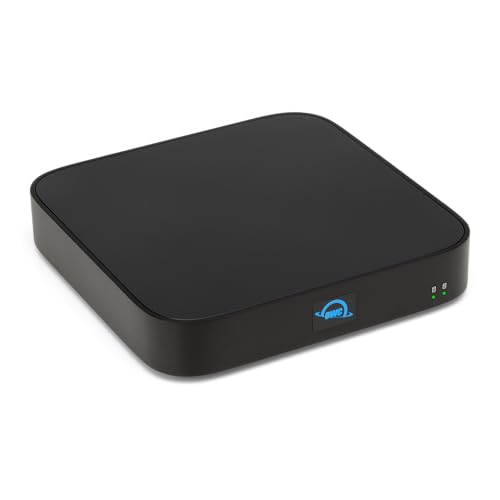
First Thunderbolt-Certified THUNDERBOLT 4 Storage Solution; 3 Thunderbolt 4 (USB-C) Ports 40 Gb/s; Dual Drive bays: 1 bay supporting: 3.5-inch SATA drives, 2.5-inch SATA drives, 1 bay supporting: M.2 drives (NVMe M.2 SSDs with 2280 form factor and "M Key" connector type); Edit 4K video with up to 770MB/s speed
Identifying the Correct USB-C Port on Your Dock

Identifying the correct USB-C port on your dock is essential for ensuring it functions as intended. Most USB-C docks feature multiple ports, but only one serves as the upstream port. This port is typically marked with a laptop icon to make it easily identifiable.
Here are some tips to help you find the correct port:
- Always connect to the upstream port first.
- If you mistakenly connect your laptop to a downstream port, the dock won’t work.
- Consult the quick start guide that came with your dock for specific port assignments.
- Misidentifying the connection point can lead to unnecessary troubleshooting time.
Also check whether the upstream port supports Power Delivery so your laptop can charge while connected.
Recommended Products

16:9 widescreen resolution perfect for watching movies, playing video games and getting on with office work. Screen Coating : Anti-glare, 3H Hard Coating. Pixel Pitch : 0.1554 mm. Pixel Per Inch : 163.18.Specific uses for product - Gaming, Desktop

【EXCLUSIVELY FOR MAC: DUAL CHIP ARCHITECTURE】 Engineered specifically for the Mac ecosystem, this is the world's first docking station utilizing Dual 80/120Gpbs Silicon. By bypassing traditional bandwidth limits, it delivers a staggering 80-120Gbps, providing the massive throughput required for high-end macOS workflows without lag or flicker.

More Productivity: Logi Dock connects and charges up to five USB peripherals and two monitors, eliminates desktop clutter and streamlines your home office to optimize productivity
Importance of the Power Adapter for Dock Functionality

While identifying the correct USB-C port on our dock is important, the power adapter‘s role can’t be overlooked. Many full-feature USB-C docks rely on an external power adapter for adequate power supply, ensuring functionality across all connected devices.
- Connect the Power Adapter First: Always plug in the power adapter before connecting the host device. This helps prevent the dock from becoming non-operational or experiencing limited functionality.
- Check Wattage Requirements: Make sure the adapter meets the dock’s specified wattage. An inadequate power supply can lead to performance issues, affecting everything from charging speeds to peripheral functionality.
- Regular Testing: Routinely verify that the power adapter works correctly. Any problems with it can directly impact our dock’s performance, keeping us from a smooth experience.
For best results, use an adapter with sufficient wattage and fast charging capabilities to ensure the dock and high-draw peripherals operate reliably.
Recommended Products

Device Ports: (1) Host Port - Thunderbolt 3 (USB-C) up to 40 Gb/s (5000 MB/s), (1) Thunderbolt 3 (USB-C) Port, (2) USB 3.2 Gen 2 Type-A Ports up to 10Gb/s (1250MB/s) - USB 2.0/3.0 backwards compatible, (1) HDMI Port, (1) 2.5 Gigabit Ethernet (2.5GbE) RJ-45 Port, (1) SD 4.0/UHS-II Media Slot; Host Port Requirements: Thunderbolt (USB-C) port (backward compatible with Thunderbolt 2/Thunderbolt)
Power Connections – HP Quick Connect wakes your devices before you even take a seat. Stay in your flow all day with up to 280W of power delivery and 40 Gbps of data transfer speeds via Thunderbolt 4 technology and all the ports you need to connect your setup.
Power Connections – HP Quick Connect wakes your devices before you even take a seat. Stay in your flow all day with up to 180W of power delivery and 40 Gbps of data transfer speeds via Thunderbolt 4 technology and all the ports you need to connect your setup.
Troubleshooting Display Issues With Your Dock

Troubleshooting display issues with our USB-C dock can be a straightforward process if we follow some essential steps.
- Check Connections: Confirm that the USB-C cable is securely connected to the upstream port, marked with a laptop icon. A connection to a downstream port won’t output display.
- Monitor Settings: Verify that the monitor is powered on and set to the correct input source to avoid flickering or blank screens.
- Test Cables: If problems persist, use a known-good HDMI or DisplayPort cable directly to rule out issues with the original cable or adapter.
- Adjust Display Settings: Check those display settings in our operating system, as inappropriate settings can lead to resolution problems, especially with laptops plugged into the docking station.
Ensure the cable and adapter support 4K@60Hz output to avoid unexpected resolution or refresh rate limitations.
Recommended Products

27-inch wide gamut LCD with 3840x2160 resolution for the finest details.

LED Monitor offers maximum productivity with added dependability

Vibrant Productivity: Immerse yourself in productivity like never before with the world's first 40-inch WUHD monitor featuring IPS Black panel technology. The curved screen enhances your field of view while reducing reflections and eye fatigue, ensuring a comfortable and immersive experience.
Compatibility Considerations for Your USB-C Setup

When setting up our USB-C devices, it’s vital to keep compatibility in mind, as not all USB-C connections operate the same way. Here are a few considerations to guarantee seamless operation:
- Power Delivery Standards: Not all USB-C devices follow USB Power Delivery (USB-PD) specifications. This can lead to compatibility issues when different devices negotiate power levels.
- Cable Quality: Use the dock’s included or certified 40Gbps cable for better video and performance compatibility.
- Mac Limitations: Base M1/M2 Macs support only a single external display via USB-C Alt Mode.
- Design Limitations: Double-check specifications to verify devices and USB-C ports can reliably deliver power.
- Consider hubs with 100W Power Delivery when you need reliable laptop charging and multiple connected peripherals.
Recommended Products

Powerful Processing: AMD 8-core Ryzen 7 8745HX Processor (Base Clock 3.6GHz, Max Boost Clock up to 5.1GHz, 32MB L3 Cache, 16 Threads).

6K IPS Panel with 99% DCI-P3:500-Nit Brightness,delivers deeper blacks, brighter highlights, and balanced visuals for immersive gaming, HDR content, and professional editing. The advanced IPS panel enhances dark scenes while maintaining 99% sRGB and DCI-P3 color accuracy (ΔE<2), ensuring lifelike details and vibrant colors.

Tested and Certified – This Renewed product is tested and certified to look and work like new, with limited to no signs of wear. The refurbishing process includes functionality testing, inspection, and repackaging. The product comes with 90-day warranty.
Frequently Asked Questions
How Do I Fix My USB-C Port Not Working?
To fix our USB-C port not working, we should check compatibility, troubleshoot adapters, inspect for power delivery problems, ascertain cable quality, and verify all device connections. These steps will help us resolve potential issues effectively.
How to Fix a Loose USB-C Charging Port?
To fix a loose USB-C charging port, we should check cable compatibility, maintain the port, and upgrade to quality USB C adapters. This’ll enhance charging speed and, importantly, guarantee our device’s safety remains intact.
How Do I Reset My USB-C Docking Station?
To reset our USB-C docking station, we should unplug the power for 30 seconds, disconnect peripherals, and press the reset button if available. This can help with power delivery issues and device recognition problems.
How to Fix Docking Station Not Working?
To fix our docking station not working, we should check for compatibility issues, guarantee the power supply’s functioning, confirm cable quality, and perform software driver updates. Following these troubleshooting steps will likely resolve our problems.


