As an Amazon Associate, we earn from qualifying purchases. Some links on this site are affiliate links at no extra cost to you. Our recommendations are based on thorough research and editorial judgment.


Dual‑Monitor Failures on Windows/macOS: Quick Fix Playbook

When we encounter dual-monitor failures on Windows or macOS, we can troubleshoot the issue systematically. First, let’s check cable connections; verify everything’s secure and inspect for damage. Next, use the “Detect Displays” option in system preferences to locate the missing monitor. Adjust display settings to uncheck ‘Mirror Displays’ and arrange the screens correctly. Don’t forget to update drivers for compatibility. If problems persist, we can explore additional troubleshooting methods for better insights.
Key Takeaways
- Check all cable connections for secure attachment and inspect for any visible damage to avoid monitor detection issues.
- Use the “Detect Displays” feature in System Preferences or Display Settings to refresh monitor recognition.
- Ensure external monitors are powered on and set to the correct input source to facilitate detection.
- Adjust display settings by unchecking ‘Mirror Displays’ to extend your desktop across multiple monitors.
- Update your software and drivers to resolve any compatibility issues that may hinder dual-monitor setup.
Common Causes for One Monitor Detection
When we’re setting up dual monitors, it can be frustrating to find that only one is detected. Several common causes might lead to this issue:
- Outdated software: Both macOS and Windows need updating. Compatibility may hinder external monitors from being recognized.
- Misconfigured display settings: If “Mirror Displays” is enabled, we might only see one monitor, leading to confusion.
- Damaged cables: USB-C, HDMI, or DisplayPort connections can be problematic; if they’re faulty, monitor connection issues arise.
- System limitations: Our specific device may not support multiple external displays, capping what we can connect.
- Driver conflicts: Incompatible or outdated software can prevent our system from detecting all monitors effectively.
Awareness of these factors can save us time and frustration. Bundles that include an audio interface and microphones significantly enhance peripheral compatibility and overall setup reliability.
Checking Cable Connections

Checking cable connections is essential for ensuring that both our monitors are detected properly. We should start by confirming that all cables connecting our Mac and external displays are securely plugged in. Loose connections can prevent displays from being recognized.
Next, let’s inspect the cables for any signs of wear or damage, as faulty cables can lead to intermittent connection issues. It’s crucial to use high-quality, compatible cables for our monitor and Mac models—substandard cables may not support the required resolution.
Reconnecting the cables can help confirm a firm connection because sometimes reseating them resolves detection problems. If issues persist, we could test the setup with alternate cables or different ports to rule out hardware issues with connectors or ports. Consider also using certified high-speed cables that support UHS-I speed to ensure reliable high-resolution output.
Recommended Products

STUNNING VIDEO QUALITY – The Canon CR-N500 Remote PTZ camera delivers advanced performance and outstanding 4K 30p and Full HD 60p video output thanks to a 1" CMOS sensor, DIGIC DV 6 image processor, and Dual Pixel CMOS AF for fast, reliable, and precise auto focus

64 CHANNEL VANDAL-PROOF SECURITY CAMERA SYSTEM: It has 48pcs 5MP 2.8mm fixed lens (Not PTZ) camera produced with IK10 vandal-proof and built-in microphone. The 4K 64CH NVR of this system comes with 2X 8TB hard drive. it has 8 SATA port to expand to total 80TB storage space

64 CHANNEL SECURITY CAMERA SYSTEM: This system has 48pcs 5MP 2.8mm fixed lens PoE IP cameras with built-in microphone, IP67-rated waterproof for indoor and outdoor use. The 4K 64CH NVR of this system comes with 2X 8TB hard drive. it has 8 SATA port to expand to total 80TB storage space.
Utilizing Detect Displays Feature

To guarantee our external monitors are recognized, utilizing the “Detect Displays” feature in macOS can be quite helpful. Here’s how we can do it:
- Access “Detect Displays”: Open System Preferences and go to Displays. While there, hold down the Option key. This will change the “Gather Windows” button to “Detect Displays.”
- Troubleshoot Display Issues: Click “Detect Displays” to manually search for our second monitor. It may take a moment for macOS to identify it, so let’s be patient.
- Next Steps: If the external monitor doesn’t appear, double-check our cable connections and verify the monitor is powered on.
- Consider also checking the monitor’s input selection or trying a different cable or port to rule out connection issues.
Recommended Products

Based on TitanRidge Intel’s latest Thunderbolt chip Pegasus32 has great new features expanding your connectivity

49 inches ultrawide 32: 9 dual QHD (5120 X 1440) Display

38" Curved UltraWide (21:9) QHD+ (3840 x 1600) IPS Display
Adjusting Display Settings

After confirming that our external monitors are recognized, adjusting display settings becomes the next important step. On a Mac, we can navigate to System Preferences and select Displays. Here, we want to uncheck the ‘Mirror Displays’ option, which allows us to extend our desktop across these external displays. We can also arrange displays by dragging their icons for a better workflow.
For Windows users, right-click on the desktop and choose ‘Display settings’ to configure the setup and identify active displays. We should verify the desired display is set as our primary screen. Don’t forget to check the resolution and refresh rate settings for compatibility. Finally, we can always use the ‘Detect Displays’ feature if any monitors aren’t recognized automatically. Many Thunderbolt 4 docks provide dual 4K@60Hz support, which can influence optimal resolution and refresh rate choices.
Recommended Products

FAST 16” OLED QHD+ 240Hz DISPLAY — Truly designed for the competitive gamer with 0.2 ms response time, featuring a VESA ClearMR 11000 rating and DisplayHDR 500 certified to ensure minimal blurring and vivid colors (1M:1 contrast ration and 100% DCI-P3)

Unopened retail packaging, sold as configured by Lenovo. US Version. One Year Premier Onsite Support Lenovo Warranty. Add up to 5 years of Lenovo Premier Support when you register your computer with Lenovo.
Unopened retail packaging, sold as configured by Lenovo. US Version. One Year Premier Onsite Support Lenovo Warranty. Add up to 5 years of Lenovo Premier Support when you register your computer with Lenovo.
Software Updates and Compatibility

When we keep our operating systems updated, we can greatly enhance the performance of our dual-monitor setups. Regular software updates from macOS and Windows often include compatibility fixes that improve support for external displays. This guarantees they work correctly with the latest hardware configurations.
To maintain peak performance, we should regularly check for updates in Systems Preferences (macOS) or Settings (Windows). Additionally, installing the latest drivers for our graphics cards can considerably boost dual-monitor efficiency and help prevent connection failures.
Upgrading to newer operating system versions often introduces enhanced features for seamless multi-display functionality, making it essential to prioritize these updates for the best experience with our dual monitors. Many docking stations also offer multi-display support and firmware updates that further improve compatibility and stability.
Recommended Products

【Advanced Gaming PC】Powered by the AMD Ryzen 7 8845HS processor with 8 C/ 16T, up to 5.1GHz, and featuring a 16MB L3 cache. This powerful CPU excels in gaming, video editing, and multitasking. With its 35-54W TDP range, it ensures efficient power consumption without compromising on performance. NPU (AI Engine) Only in 8845HS Improved over 8745HS (No NPU) – Dedicated Neural Processing Unit for faster AI workloads (Windows Studio Effects, Copilot+, local AI tasks).

PREMIUM GAMING PC MINI COMPUTER - The Nucbox K16 Mini PC is a small form factor Desktop Micro Mini Computer with an AMD Ryzen 7 7735HS (8C/16T up to 4.75Ghz) processor. The GPU is integrated with a powerful AMD Radeon 680M 12 Cores Graphics Card; performance is almost close to that of a full NVIDIA GTX 1050 Ti. Coupled with the support of FSR 3.0+ technology, the computer can handle heavy computing tasks and AAA gaming.

【Excellent Performance & System】➨The Mini PC is equipped with 4 cores 10th Gen Core i5-10210U Processors(up to 4.2GHz). Come with Win 11 Pro(preinstalled), supports Linux and Ubuntu systems. Excellent CPU Performance can easily control various complex work procedures. Energy-saving design, perfect for office work, streaming video, web browsing, distance learning, and home entertainment.
Advanced Troubleshooting Techniques
Troubleshooting dual-monitor issues can sometimes feel overwhelming; however, with the right approach, we can effectively resolve many common problems.
- Check Software Compatibility: Verify your operating system is compatible with the connected monitors. Outdated drivers can disrupt functionality.
- Detect Displays: Use the “Detect Displays” feature in System Preferences on Mac or Display Settings on Windows to identify second monitors connected.
- Inspect Cables: Verify all display cables are in good condition and securely connected, as loose connections may cause failures.
- Restart the System: Restarting your Mac or Windows computer after adjusting settings can reset the monitoring system.
- Adjust Display Arrangement: Confirm the monitor set is configured according to the physical layout in display preferences for peak performance.
- When choosing a replacement or additional monitor, consider IPS technology for better color rendering and wider viewing angles.
Using Third-Party Tools for Enhanced Management
- DisplayBuddy and Vivid: These tools allow us to adjust brightness, resolution, and more, all from the menu bar.
- Multimonitortool: We can save and recall specific screen layouts, eliminating the need to reconfigure after disruptions like sleep or disconnections.
- Setapp: This subscription service provides access to various productivity apps, enhancing our dual-monitor experience by simplifying configurations.
These tools also let us manage brightness and layouts quickly without diving into system settings.
Recommended Products

【Dual OPS Slot for Seamless System Switching】Switch effortlessly between Android and Windows with the dual OPS slot. Ideal for classrooms and offices, this 98-inch smart board offers plug-and-play upgrades and ensuring long-term performance and value in your digital teaching or business workspace.

CPU: AMD Ryzen 9 9900X 5.0GHz 12-Core (5.6GHz Max Turbo) 24-Thread CPU, perfect for demanding games and applications, future proof for years. | 64GB DDR5 5600MHz RAM dual channel, heat spreaders | 240mm Liquid Cooler AIO with dual fans
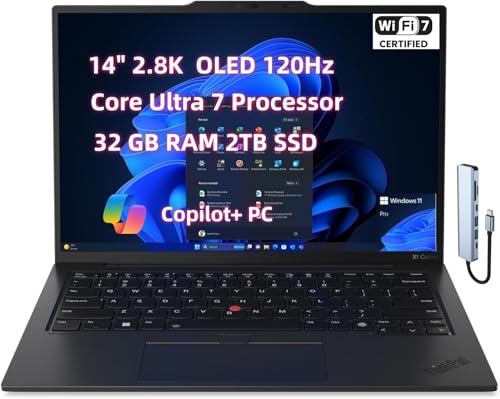
Processor: Inte.l Core Ultra 7 258V Processor (LPE-cores up to 3.70 GHz P-cores up to 4.80 GHz / 32 GB MOP)
Frequently Asked Questions
How to Fix Dual Monitor Display Issues?
To fix dual monitor display issues, let’s check the monitor cables and verify our screen resolution matches. We should also update our graphics driver, adjust system settings, and confirm our display arrangement is correct.
How to Fix Dual Monitor Display on Mac?
To fix dual monitor display on our Mac, let’s check hardware connections and adjust display settings. We should verify proper resolution, confirm mac compatibility, and troubleshoot any display detection issues for an ideal setup.
Why Does One of My Dual Monitors Keep Flickering?
Our monitor flicker causes might include cable connection problems, display driver issues, or mismatched refresh rate settings. Let’s also check graphics card compatibility to guarantee everything’s set up correctly for a smooth experience.
How Do I Get Citrix to Recognize My Second Monitor?
In today’s tech world, we’ve gotta make sure our Citrix settings are on point. Let’s check monitor compatibility, adjust display resolution, and update our graphics drivers to resolve any connection issues with the second monitor.


