As an Amazon Associate, we earn from qualifying purchases. Some links on this site are affiliate links at no extra cost to you. Our recommendations are based on thorough research and editorial judgment.


Macos External Displays: Scaling Artifacts and How to Avoid Them

To avoid scaling artifacts on macOS external displays, we should optimize our settings for clarity. First, use the Option key to access additional scaled resolutions—specifically, 2048×1152 is ideal for 4K displays. We recommend using tools like BetterDisplay to enable HiDPI modes, which enhance sharpness. Additionally, make certain we’re using quality active HDMI or USB-C to DisplayPort cables to support higher resolutions and refresh rates. With this setup, we can improve our display experience markedly. More insights follow.
Key Takeaways
- Use the Option key while selecting “Scaled” in Displays settings to access additional resolution options for better clarity.
- Consider third-party tools like BetterDisplay or SwitchResX to fine-tune resolutions and minimize pixelation on high-resolution displays.
- Ensure connections utilize active HDMI adapters or quality USB-C to DisplayPort cables for optimal 4K output and reduced scaling artifacts.
- Regularly update macOS to enhance compatibility and performance related to external display scaling issues.
- Aim for a native or HiDPI resolution, like 2048×1152, to maintain sharpness and clarity on high-resolution external monitors.
Understanding Display Scaling on Macos
When we connect external displays to our Mac, understanding display scaling becomes essential for achieving the best visual experience. macOS often renders these displays at a higher virtual resolution than their actual physical resolution. This can lead to blurry images if we aren’t careful.
Here are some ways to optimize display scaling:
- Use the Option Key: While in the Displays section, holding the Option key gives us access to additional scaled resolutions, enhancing clarity.
- Consider BetterDisplay: This tool allows us to override default resolution settings, enabling HiDPI modes for sharper text and images.
- Choose Specific Resolutions: Setting resolutions like 2048×1152 can help maintain pixel quality.
- Check Connection Methods: Always use active HDMI adapters to prevent restrictions on resolution options.
Thunderbolt 4 docks also provide high-speed data transfer and multiple ports that can improve multi-display setups and reduce connection-related scaling issues.
Why Scaling Matters for External Displays

Scaling matters for external displays because it directly affects how we experience visual content on our Macs. Proper scaling guarantees sharpness and clarity, especially on high-resolution external monitors like 4K and 5K. Without proper adjustments, UI elements may appear too small, impacting usability.
- MacOS can render at virtual resolutions, which may lead to blurriness if scaling isn’t configured correctly.
- Selecting a native or HiDPI resolution is vital to avoid degrading visual quality.
- Tools like BetterDisplay and SwitchResX provide better access to scaling options, minimizing pixelation or softening.
Additionally, holding the Option key while adjusting display settings reveals more resolution choices, helping us achieve ideal scaling for improved visibility on our external monitors.
For particularly demanding setups, consider mounts and positioning that reduce glare and vibration to maintain mounting stability and visual clarity.
Common Scaling Issues Users Encounter

Many users find themselves grappling with clarity issues on their external displays, especially when using high-resolution monitors. These scaling problems often stem from macOS rendering at a lower virtual resolution, causing softened visuals and pixelation.
Here are some common scaling issues we encounter:
- Limited Scaling Options: Users may find that selecting 1080p can worsen pixelation instead of enhancing clarity.
- Resolution Mismatches: Confusion can arise when the On-Screen Display (OSD) shows a different resolution than what macOS reports.
- Hidden Options: Holding the Option key while selecting “Scaled” in System Preferences reveals additional resolution choices that can help.
- Third-Party Tools: Utilizing tools such as BetterDisplay or SwitchResX offers advanced scaling options that aren’t available natively with macOS.
Addressing these issues can greatly enhance our external display experience. Newer adapters and technologies that support Enhanced Data Rate can also reduce latency and improve overall connection stability when using external displays.
Optimal Resolution Settings for 4K Displays

Achieving the best visual experience on 4K displays requires careful attention to resolution settings. To optimize our external monitor, we should consider the following:
- Effective Resolution: The recommended effective resolution for 4K displays is 2048×1152. This setting enhances text clarity compared to lower resolutions like 1080p.
- Scaled Resolution Access: By holding the Option key while selecting “Scaled” in macOS System Preferences, we can reveal hidden resolution options that suit our display better.
- Utilize BetterDisplay: Tools like BetterDisplay allow for advanced scaling options. We can set custom resolutions, like 3840×2160 with HiDPI quality, to further improve visual clarity.
For users who need multiple peripherals while using an external monitor, consider a high-quality USB-C hub with 100W Power Delivery to ensure both charging and connectivity without compromise.
Recommended Products

Powerful Processing: AMD 8-core Ryzen 7 8745HX Processor (Base Clock 3.6GHz, Max Boost Clock up to 5.1GHz, 32MB L3 Cache, 16 Threads).

6K IPS Panel with 99% DCI-P3:500-Nit Brightness,delivers deeper blacks, brighter highlights, and balanced visuals for immersive gaming, HDR content, and professional editing. The advanced IPS panel enhances dark scenes while maintaining 99% sRGB and DCI-P3 color accuracy (ΔE<2), ensuring lifelike details and vibrant colors.

Tested and Certified – This Renewed product is tested and certified to look and work like new, with limited to no signs of wear. The refurbishing process includes functionality testing, inspection, and repackaging. The product comes with 90-day warranty.
Tools to Enhance Display Scaling Experience

When using external displays, it’s important to equip ourselves with the right tools that enhance our display experience. Here are some recommendations:
- BetterDisplay: This tool offers advanced scaling options, allowing Mac users to set custom resolutions and HiDPI modes for sharper text on 4K monitors.
- SwitchResX: It reveals hidden resolutions and provides custom scaling options, which can improve usability across different display setups.
- RDM: This application simplifies resolution management, enabling us to quickly switch between various display settings without the hassle of traversing menus.
Additionally, using active HDMI adapters like the ANKER USB-C-to-HDMI adapter helps avoid scaling issues. Finally, regularly checking for macOS updates can resolve known scaling problems, ensuring compatibility with external displays. Consider also choosing displays and adapters that match in resolution and refresh rate to minimize scaling artifacts and compatibility problems.
Recommended Products

PACK FLAT WITH STAND - SOTSU portable monitor for laptop features a base stand that seamlessly magnetizes onto the back of the screen when collapsed. With a folded unit thickness of just half an inch, packing and traveling have never been more convenient.
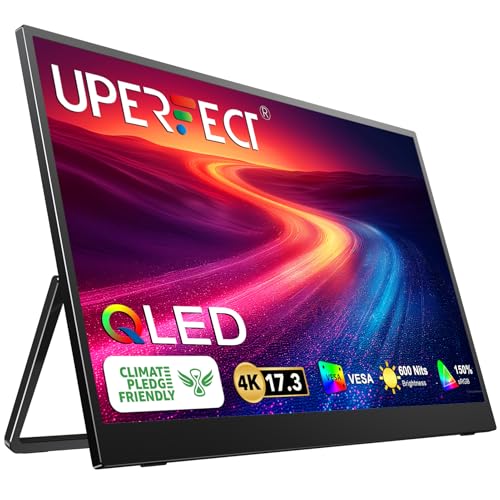
UPERFECT 17.3’’ Larger Screen Bigger Wold: 17.3” UHD portable display deliver a boarder vision than those normal 15.6”. The virtually bezel-less screen shows you the full picture and looks almost gapless when used in a dual-monitor setup; See more at once with no distractions in your way, and get through larger sections of your to-do list during screen time

Quad Display at a Glance: The incredibly compatible, TAA-compliant, travel-ready Plugable DisplayLink Adapter (USBC-7400H4) connects 4x 4K 60Hz HDMI displays to a USB-C port. It offers 100W pass-through Power Delivery charging, but it can also be powered by the host computer
Adjusting Resolutions in System Preferences
Adjusting resolutions for our external displays can greatly enhance our viewing experience on macOS. To get started, we’ll navigate to System Preferences and select “Displays” to access our display settings. Here, we can see the default resolutions, but by holding the Option key and clicking “Scaled,” we reveal additional options.
To strike a balance between clarity and screen space, we recommend setting our external display to a resolution like 2048×1152. After making any adjustments, it is important to verify the changes through the On-Screen Display (OSD) of our monitor. Finally, testing different resolutions is key, especially since using quality connections such as HDMI or DisplayPort can influence our scaling options for the best visual outcome. Many users also find that confirming their port supports DisplayPort Alt Mode helps ensure higher-resolution and multi-monitor compatibility.
Recommended Products

【4-Port Triple Monitor KVM with 2 Display Modes】Seamlessly control 4 computers (1 USB-C laptop + 3 desktops) using a single keyboard, mouse, and up to 3 monitors. Choose from extended mode, mirror mode, or display different PCs on each monitor

Ultimate Laptop Screen Extender: Transform your workspace with the Triple Aero 15.6 Pro Max, designed as a portable 3 display Type C laptop monitor that effortlessly expands your laptop's capabilities, allowing for triple monitors in one seamless setup

【Multi-Camera Solution】 Integrate up to four video conferencing cameras at once, enabling image and audio capture throughout a wider area. The NexiGo Meeting Studio app instantly detects all participants in the meeting room, making it easy to share the spotlight. Switch freely between multiple conference modes to find the best view of your conference room. Perfect for long-table meeting rooms, U-shaped meeting rooms, and lecture halls.
The Role of HiDPI Modes in Display Quality
HiDPI modes play an essential role in enhancing display quality on macOS, particularly for high-resolution screens. Here’s how they impact our visual experience:
- Sharper Images: HiDPI settings display higher virtual resolutions, making fonts and graphics clearer on 4K and 5K monitors.
- Better Clarity: Increased pixel density reduces the blurriness often seen with standard scaling, improving text legibility.
- Pixel-Perfect Quality: When utilizing native resolutions, like 3840 x 2160 or 5120 x 2880, images appear crisp without softness.
- Extended Options: Tools like BetterDisplay let us enable HiDPI modes on external monitors for an upgraded display experience.
- Configuration Needed: Activating HiDPI settings may require accessing specific resolution options in macOS’s Display settings for best performance.
Many users also pair HiDPI with pass-through charging solutions when using external monitors and power banks for extended portable setups.
Impact of Connection Type on Display Performance
The connection type we choose can greatly influence how our external displays perform. For instance, passive HDMI adapters often fall short in supporting higher resolutions, resulting in scaling issues.
To achieve ideal 4K output at 60Hz, we should use active HDMI adapters or high-quality USB-C to DisplayPort connections, especially if we’re using a MacBook Pro with Thunderbolt 3 ports. When working with external monitors like the Samsung LU32J590UQNXZA, we must be careful with ports; the HDMI 1.4 port restricts refresh rates to just 30Hz at 4K resolution.
Using DisplayPort cables through a compatible docking station can give us better bandwidth, making multiple monitor setups function more effectively. Always test different cables and ports to verify compatibility and performance. High-quality USB-C to DisplayPort cables that support 32.4Gbps and DP 1.4 can enable features like 8K@60Hz or 4K@144Hz for demanding workflows.
Recommended Products

1big Dock is an external hard drive and laptop docking station for filmmakers looking to centralize their desktop peripherals and store a massive portfolio of work with high-performance Thunderbolt 4 compatible technology
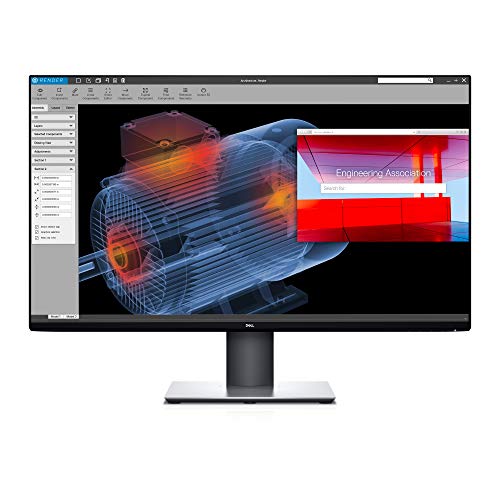
Experience four times more detail than Full HD with 3840x2160 Ultra HD 4K resolution.

Sporting a compact and lightweight design, the Lenovo 16" ThinkPad E16 Gen 2 Laptop enables users to complete their busy work at home, in the office, and even out and about without compromising power. At the heart of the ThinkPad is an AMD Ryzen 7 7735HS processor (8C / 16T, 3.2 / 4.75GHz, 4MB L2 / 16MB L3) that boosts performance across your system, allowing you to complete a variety of tasks with ease.
User Experiences and Troubleshooting Tips
When using external displays with MacBooks, users frequently encounter scaling issues that can affect visual clarity. Here are some tips to address those challenges:
Check Resolution Settings****
– Holding the Option key while selecting “Scaled” in System Preferences can reveal more resolution options. This helps in optimizing the monitor’s clarity.
Utilize BetterDisplay****
– Apps like BetterDisplay enable fine-tuning of resolution and HiDPI modes, helping reduce blurriness on high-DPI monitors considerably.
Ensure Quality Connections****
– Using active adapters or high-quality DisplayPort cables prevents limitations in resolution and refresh rates, minimizing scaling artifacts.
Stay Updated
– Regularly checking for macOS updates may resolve existing scaling and recognition issues, improving overall display performance.
Additionally, using a capable USB-C hub with 4K HDMI support and pass-through charging can simplify connections and maintain optimal display performance.
Comparing Default Macos Scaling to Third-Party Tools
Many users struggle with the default macOS scaling for external displays, often finding it lacking in flexibility and clarity. The limitations often become apparent when using a MacBook with a Pro Display XDR, as the native scaling doesn’t support resolutions above 1080p. This can lead to pixelation and reduced sharpness. Gel mouse pads provide comfort and support to alleviate wrist strain while working at a desk.
Recommended Products

PACK FLAT WITH STAND - This monitor's base stand seamlessly magnetizes onto the back of the screen when collapsed. With a folded unit thickness of just half an inch, packing and traveling have never been more convenient. Experience versatile usage as the monitor functions effortlessly as a stand-alone unit in both landscape and portrait modes, utilizing only the sleek kickstand. Elevate your on-the-go computing with this compact and adaptable monitor.

Ultra-High Resolution Capture – Accepts HDMI input up to 4096×2160 (4K DCI) and supports capture up to 4096×2160p at 30 fps, depending on system bandwidth.

REUSABLE TEMPERATURE DATA LOGGER. Wide temperature measuring range -22℉~158℉(Defult Fahrenheit℉). Highly temperature accuracy (±0.9℉). Perfect for the transportation and storage of pharmaceuticals, frozen food, fresh food, vegetable, fish, and so on.
Future Trends in Display Technology and User Needs
As we look ahead, the landscape of display technology is evolving to meet the increasing demands of users. We’re seeing a trend toward larger screens, like 32” 5K options, that provide greater visual clarity. This shift aligns with user preferences for enhanced resolution fidelity and ideal screen real estate.
To address common issues, future displays will likely feature improved scaling mechanisms, minimizing artifacts in multi-display setups. These advancements support users more effectively, especially in creative and remote work environments. As we adapt our display arrangement for comfort and productivity, maintaining readability at varying distances will become essential. Ultimately, our goal is a seamless experience that balances aesthetics and functionality, ensuring that technology meets our diverse needs.
Frequently Asked Questions
How to Change Scaling on Mac External Monitor?
To change scaling on our Mac’s external monitor, let’s explore System Preferences. We can investigate various display resolution options, adjusting our external monitor settings for ideal clarity using the Mac scaling features available to us.
Why Is My Second Monitor Pixelated on My Mac?
Our second monitor’s pixelation often stems from incorrect resolution settings, display compatibility issues, or refresh rates. It’s crucial we check connection types and verify settings align for a crisp, clear visual experience.
How to Fix Scaling on Monitor?
To fix scaling on our monitor, we should adjust scaling settings in screen preferences. By selecting the right display resolution and making necessary monitor adjustments, we can enhance our viewing experience considerably.
Why Does My Second Monitor Look Stretched?
Our second monitor looks stretched because incorrect monitor resolution settings mismatch the display aspect ratio. Let’s check the external monitor configuration and ascertain graphics driver updates are current to resolve this issue effectively.


