As an Amazon Associate, we earn from qualifying purchases. Some links on this site are affiliate links at no extra cost to you. Our recommendations are based on thorough research and editorial judgment.


Daisy‑Chaining Displays: MST Vs SST and Macos Limits

When considering daisy-chaining displays, understanding MST (Multi-Stream Transport) and SST (Single Stream Transport) is essential. SST limits users to one mirrored display, particularly on macOS, which is less suitable for multitasking. In contrast, MST allows multiple independent displays via daisy chaining, enhancing workspace efficiency. MacBook users often face limitations due to the lack of MST support, making setups challenging. For effective installations, we must consider compatibility and connection quality. Let’s explore these aspects further.
Key Takeaways
- SST (Single Stream Transport) supports one mirrored display on macOS, limiting multitasking capabilities for users.
- MST (Multi-Stream Transport) allows multiple independent displays via daisy chaining, ideal for Windows users.
- MacBooks, particularly M1 and M2 models, are restricted to SST mode, supporting only one external display.
- Alternatives like DisplayLink docking stations can enhance multi-monitor setups for MacBook users despite native limitations.
- Future advancements, such as Thunderbolt 5, may improve multi-monitor support but current macOS constraints persist.
What Is SST (Single Stream Transport Mode)?
Single Stream Transport Mode (SST) is a method that mainly limits users to one external display at a time. With SST, we can connect only one device, which restricts our display configuration options. This mode supports mirroring, meaning the same image is displayed across multiple screens, rather than allowing us to extend our desktop workspace. SST is mainly compatible with macOS platforms; for instance, MacBooks only support SST through USB-C docks. While it helps mirror displays, it confines us to a maximum of two screens. If we desire an extended mode with distinct content on each monitor, we might need to explore alternative solutions like DisplayLink docking stations to enhance our setup. Many users choose devices with dual-channel operation when they need to power multiple peripherals or microphones simultaneously.
What Is MST (Multi-Stream Transport Mode)?
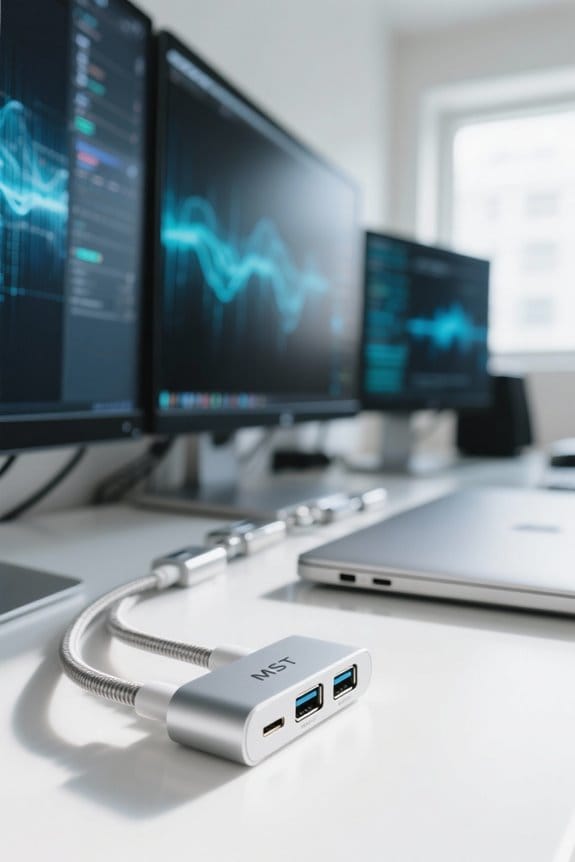
Multi-Stream Transport (MST) mode expands our display options considerably compared to Single Stream Transport. Introduced with the DisplayPort 1.2 standard in 2010, MST allows a single host device to support multiple displays simultaneously.
Here are some key features of MST:
- Daisy Chaining: We can connect several monitors in a series, starting with one cable from the host to the first display.
- Extended Mode: Each display operates independently, allowing us to show different content. This is especially helpful for multitasking.
- MST Hubs: These act as splitters but require our system to support DisplayPort 1.2 or higher for peak performance.
- Display Stream Compression: MST transmits ultra-high resolutions without losing image quality.
With MST, we can enhance our productivity easily. Many users pair MST setups with space-saving hardware like vertical laptop stands to keep desks organized and maximize workspace efficiency.
Key Differences Between SST and MST

When considering display options, understanding the differences between SST and MST can greatly impact our productivity and setup choices.
- SST Mode: This mode allows only one external display at a time, typically supporting mirrored displays. It’s mainly compatible with macOS systems, limiting our options and making multi-monitor setups less flexible.
- MST Mode: In contrast, MST mode enables daisy chaining of multiple monitors. This flexibility allows us to extend our desktop workspace from a single output, making it ideal for users on Windows systems.
With macOS limits, we find that SST mode restricts us to mirroring displays, which can be a significant drawback, especially for high-resolution setups. Ultimately, choosing the right mode can enhance our workspace efficiency. A number of users also pair MST setups with 4K@60Hz support to maintain high-resolution output across multiple displays.
Recommended Products

31.5-inch 4K (3840 x 2160) LED backlight HDR display with 178° wide-view IPS panel

Ideal for Graphic Designers and Professionals: 25 Inch QHD 1440p IPS QHD C edge-to-edge computer monitor is factory calibrated for color accuracy and comes with a report straight from the manufacturer.

VERSATILE TOUCH MONITOR: 24 Inch Full HD (1920x1080p) IPS touch monitor with thin bezels and 60Hz refresh rate
Understanding Daisy Chaining Requirements

To successfully set up daisy chaining, we must first guarantee our equipment meets specific requirements. Here’s a concise breakdown:
- Compatible Outputs: We need a PC with DisplayPort (version 1.2 or higher), USB-C with DisplayPort Alternate Mode, or Thunderbolt (version 3+).
- Monitor Support: Our monitors must support daisy chaining, ideally with DisplayPort (version 1.2 and MST) or USB-C functionalities.
- Quality Cables: Using high-quality DisplayPort cables is essential, as HDMI won’t work for daisy chaining.
- Driver Updates: Installing the latest video or GPU drivers enhances compatibility and performance.
- Connection Order: Connect the primary monitor first; it helps in recognizing settings and improving display quality.
- Ensure power delivery needs are considered when choosing adapters or power banks, since many portable chargers provide 65W output suitable for powering laptops while daisy chaining.
Steps to Set Up Daisy Chaining for Monitors

In setting up our daisy chaining for monitors, we begin with the primary display, which serves as the starting point for the entire setup. Here’s how we do it:
- Connect the Primary Display: We connect monitor 1 to our PC using a DisplayPort cable that supports version 1.2 or higher.
- Enable MST Feature: If needed, we enable the MST (Multi-Stream) feature on older monitors through their on-screen menus.
- Connect Additional Monitors: We then connect monitor 2 to monitor 1 using another DisplayPort cable. We verify all monitors are MST-capable.
- Continue the Chain: We repeat this process for any additional monitors, verifying each supports daisy chaining.
- Configure Settings: Finally, we access our display settings to arrange and configure the layout correctly.
Make sure to check monitor portability and design as lightweight, ultra-thin models often include protective cases or stands that simplify travel and setup.
Recommended Products

With 99% sRGB color coverage, and a factory color calibration report to certify that each monitor arrives at a deltaE of <3, youcan be sure that colors are as accurate as they can be

ACCURATE & CONSISTENT COLORS: 95% P3, 100% sRGB/Rec.709 with an average Delta E ≤ 2 for factory-calibrated color accuracy and intuitive color matching across displays.

DAISY CHAIN SIX TB3 DEVICES - Maximize your workflow by daisy chaining up to 6 devices to the Thunderbolt 3 dock station for up to 40Gbps data transfer speeds. The upstream port provides 85W to the host computer, while the downstream port provides 15W power for peripherals and DP 1.4 video.
Supported Display Modes in Windows and Macos
Supported display modes vary greatly between Windows and macOS, impacting how we can utilize multiple monitors in our setups.
- Windows: Supports both Extended and Mirror display modes through DisplayPort. It allows us to use MST for versatile multi-display environments, even achieving dual 4K displays at 60Hz without needing extra software.
- macOS: Primarily supports only Mirror mode on MacBooks when connecting external displays. This means we can’t independently configure multiple monitors easily. Macs with M1 and M2 chips lack MST support, and Thunderbolt capabilities only offer extended mode in specific setups. The lack of MST support on many Macs affects how users choose adapters and hubs to connect multiple displays and can limit multi-device connectivity options.
Compatibility Issues for MacBook Users
Compatibility can be a significant issue for MacBook users trying to set up multiple monitors.
- Single Stream Transport (SST): MacBooks primarily use SST, limiting users to mirrored displays rather than extended configurations.
- External Display Limitations: With Apple M1 and M2 models, we can only connect to a single external display, as macOS doesn’t support dual 4K via one Thunderbolt connection.
- MST Support: Unlike Windows laptops that utilize Multi-Stream Transport (MST) for multiple independent displays, our MacBooks lack this capability.
- Third Monitor Challenges: Adding a third monitor is often impossible, further constraining our workspace.
Apple’s adapters and cables that support 4K@60Hz output can help ensure the best possible single-display experience.
Recommended Products

🚀Performance: Features an Intel Core Ultra 5 processor with an integrated AI Boost NPU, enabling smooth multitasking, fast calculations, and enhanced video meetings with AI features like noise suppression.
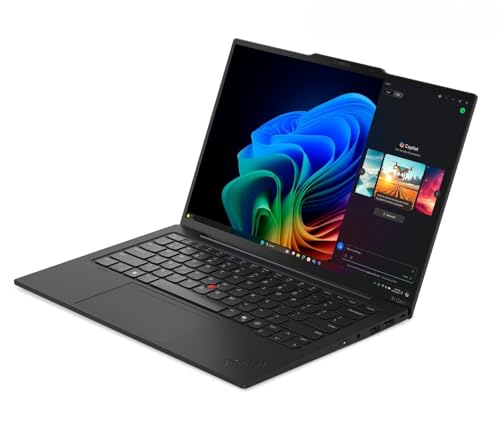
Unopened retail packaging, sold as configured by Lenovo. One Year Onsite Lenovo Warranty. Add up to 5 years of coverage when you register your computer with Lenovo.

[ELITE GAMING PERFORMANCE] Powered by the debut NVIDIA GeForce RTX 5070 with 8GB GDDR7 VRAM and an Intel Ultra 9 Core 275HX processor (24 cores, up to 5.4GHz). This powerhouse is optimized for 3A titles and complex AI model training with dedicated hardware-level AI engine acceleration.
Clever Solutions for Macbook Users With MST Needs
While working with multiple displays on our MacBooks can be a challenge, several clever solutions can help us achieve the extended functionality we need.
Recommended Products

The First DisplayLink MacBook KVM Switch– Solve macOS multi-display limits: DisplayLink lets M-series MacBooks drive three independent 4K@60Hz external monitors for real workstation productivity

18 Ports of Extreme Connectivity - Featuring an impressive 18 ports, the TS4 has enough connectivity for even the most demanding of workflows. This includes a built-in DisplayPort 1.4 connector, a total of 8x USB ports with full 10Gb/s performance, SD & microSD 4.0 UHS-II Card Readers, 3x Thunderbolt 4 (40Gb/s) ports, 3x Audio ports, 2.5GbE, and a security slot.

Professional 5-Display Dock: The TobenONE DL-7400 docking station seamlessly supports up to five high-resolution displays simultaneously (8K + 4x 4K @ 120Hz) for a crystal-clear workflow, it includes a robust 150W power supply and offers up to 45W USB-C charging, eliminating the need for an additional charger. Armed with lightning-fast 2.5Gbps wired Ethernet for secure, lag-free internet and 7 USB ports for peripherals, it seamlessly organizes your workspace into a highly efficient workstation
Options for Extended Displays:
- DisplayLink Docking Stations: These devices allow us to connect multiple independent monitors, circumventing macOS’s inherent limitations. They are a go-to for our MST needs.
- Kensington Docking Solutions: Specifically designed for Mac systems, these docks enhance productivity. They effectively support M-series models while considering their single external display output limitations.
- Thunderbolt Solutions for MacBook M1 and M2: While they support extended mode, they’re still restricted when it comes to earlier models.
Additionally, choosing a hub with 100W Power Delivery can ensure laptops stay charged while driving multiple displays.
Factors Affecting Daisy Chaining Success
When we plunge into the world of daisy chaining displays, several key factors influence our success.
1. GPU Capability****
Integrated graphics may manage basic tasks, but powerful discrete graphics are essential for complex workloads.
2. Connection Quality****
The output port compatibility and cable quality greatly affect the number of daisy-chained monitors and performance.
3. Resolutions and Refresh Rates****
Higher resolutions, like 4K, or increased refresh rates can limit how many monitors connect in a daisy chain, depending on the GPU’s output capabilities.
4. Driver Updates****
Regularly updating video and graphics drivers enhances the daisy chaining experience.
5. Power Management****
Each monitor requires individual power supplies, as DisplayPort connections don’t supply power between them.
Considering these factors helps us achieve successful daisy chaining with MST (Multi-Stream). A high‑wattage, efficient adapter such as the MacBook Pro 120W can be helpful for power-hungry setups and travel with multiple devices 120W efficiency.
Troubleshooting Tips for Daisy Chaining Monitors
- Check Display Cables: Confirm all display cables are securely connected. Look for issues between the primary and secondary monitors.
- Verify Output Ports: Make sure your computer has compatible output ports, such as DisplayPort 1.2 or higher, USB-C with DisplayPort Alternate Mode, or Thunderbolt 3+.
- Update Drivers: Regularly update your video or graphics drivers to avoid issues caused by outdated drivers affecting the daisy chain configuration.
- Power Cycling: If problems persist, restart both the computer and monitors to refresh connections.
- Power Supply: Remember that each display needs its separate power supply since DisplayPort doesn’t convey power through the daisy chain.
Also ensure your cables and adapters support 1Gbps speeds when using hubs or adapters to maintain full bandwidth across the chain.
Recommended Products

Eight Universal 3.5/2.5-inch Drive Bays Use SATA/SAS1 and U.2/M.22 NVMe drives for up to 144TB of capacity and real-world speeds up to 2750MB/s. The top four bays can utilize U.2 SSDs

Eight universal 2.5 or 3.5-inch SSDs/HDDs drive bays w/ Dual Thunderbolt 3 ports (Thunderbolt 2/Thunderbolt backward compatible)

High-capacity desktop RAID, ideal for PC, iPad USB-C, and MAC users with a massive 48TB storage
Impact of Operating Systems on Multi-Display Setups
The choice of operating system considerably impacts multi-display setups and the overall user experience.
- MST (Multi-Stream) vs. SST Mode:
- Windows laptops universally support MST, enabling users to connect multiple independent displays.
- In contrast, macOS operates in SST mode, limiting users to mirroring displays.
- External Monitor Connection:
- Windows users can utilize MST hubs and daisy-chained monitors for increased productivity.
- MacBook users can typically connect only one external monitor in extended mode via Thunderbolt, due to hardware restrictions.
- Performance Limitations:
- macOS struggles with dual 4K support through a single Thunderbolt connection.
- Windows systems usually provide better support for high-resolution multi-display tasks.
Thus, the operating system’s capabilities greatly affect user flexibility with external monitors.
Future Trends in Display Technology and MacBook Limitations
As advancements in display technology continue to emerge, we must consider how these innovations affect MacBook users and their multi-display capabilities.
- Multi-Stream Transport (MST): Current MacBook models, especially those with M1 and M2 chips, don’t support MST, which limits configurations for multiple monitors.
- SST Mode: We’re left relying on SST mode, only offering mirrored displays, rather than an extended desktop experience.
- Display Limits: Current capabilities don’t support dual 4K monitors on a single Thunderbolt connection, creating frustration for users.
- Future Trends: Upcoming technologies like Thunderbolt 5 and display stream compression (DSC) hold promise for improved multi-display environments, but challenges from current MacBook limitations persist.
We’re enthusiastic for advances that enhance our usage without restrictions.
Frequently Asked Questions
What Is the Difference Between MST and SST Display?
MST advantages allow multiple independent displays, showcasing performance comparisons against SST limitations, which offer only mirrored images. We should explore compatible standards and connection methods to maximize our display experience effectively.
Does Macos Support Daisy-Chaining?
No, macOS doesn’t support daisy-chaining. We face limitations in monitor compatibility and display resolutions with its current capabilities, needing specific hardware requirements and connection types to avoid performance issues in multi-monitor setups.
Does Macos Support MST?
No, macOS doesn’t support MST technology for multi-display setups. We’re limited to SST technology, which restricts us to specific monitor configurations and display resolution, hindering our ability to utilize multiple monitors effectively.
How Many Monitors Can Be Daisy Chained?
Can you imagine a seamless multi-monitor setup? We can daisy-chain up to four monitors, depending on our display configurations, video bandwidth, and cable requirements, while managing resolution limits and operating system compatibility.


