As an Amazon Associate, we earn from qualifying purchases. Some links on this site are affiliate links at no extra cost to you. Our recommendations are based on thorough research and editorial judgment.


Exfat Vs APFS Vs NTFS: Cross‑Platform Workflows

When we consider exFAT, APFS, and NTFS for cross-platform workflows, each has strengths. APFS works best for Mac users, offering speed and security but lacks compatibility with Windows. NTFS is ideal for Windows, providing robust security features, yet is read-only on Macs without extra software. exFAT, however, is our go-to for seamless compatibility between macOS and Windows, especially for large file transfers. Choosing wisely can streamline our workflows, and exploring these formats further enhances our understanding.
Key Takeaways
- exFAT is ideal for cross-platform workflows, facilitating seamless large file transfers between macOS and Windows users without file size limitations.
- APFS offers speed and security features for macOS users but restricts collaboration due to its lack of support on Windows.
- NTFS provides advanced security features for Windows but only allows read-only access on macOS, complicating cross-platform file sharing.
- exFAT lacks built-in encryption and journaling, increasing risks of corruption but maintains high compatibility across various operating systems.
- Choosing the right drive format based on specific use cases enhances collaboration efficiency, particularly in mixed environments involving both macOS and Windows.
Understanding Drive Formats for Cross-Platform Workflows
You may be interested



When we aim to streamline our workflows across different platforms, understanding drive formats becomes essential. Here’s a breakdown of three primary formats:
- exFAT: Ideal for cross-platform use, it supports large file sizes over 4GB and is compatible with both macOS and Windows. However, it lacks journaling, which can risk data integrity during unexpected disconnections.
- APFS: Optimized for macOS, it excels with solid-state drives but isn’t natively supported on Windows, making it less suitable for cross-platform workflows without extra software.
- NTFS: This is Windows’ default format, featuring advanced data protection like journaling. Still, macOS can only read it, complicating compatibility.
In choosing a format, we must balance compatibility, data integrity, and file size considerations for effective external drives management. The choice of enclosure and RAID configuration can also affect performance and redundancy, especially with high-capacity or multi-bay units like the TERRAMASTER D2-320 which supports RAID options for data protection.
APFS: Best for Mac Users

For those of us who use Macs, the Apple File System (APFS) proves to be the most fitting choice. Tailored for solid-state drives, APFS enhances data management and performance in macOS from High Sierra onwards. Here are the key benefits of APFS for Mac users:
- Improved Performance: APFS boosts file operations, making access quicker and more efficient.
- Space-Saving Features: It shares data between files and duplicates large files instantly, optimizing storage use.
- Security through Encryption: Full-disk encryption is built into APFS, ensuring our data remains private.
- Not Compatible with Windows: We should note that APFS isn’t compatible with Windows without third-party software.
Migrating to APFS balances speed, efficiency, and security, especially for newer Macs. It also offers better management for modern storage with space-saving features that help reduce clutter on drives.
NTFS: The Windows Preferred Format

NTFS, or New Technology File System, stands as the go-to choice for Windows users. This file system has been optimized for Windows environments since 1993 and supports advanced features such as:
- File permissions and encryption for security.
- Journaling that protects data integrity and prevents corruption.
- The ability to handle large file sizes and disks over 2TB.
While Mac users can access NTFS drives, they’re limited to read-only access without additional software. This restriction can hinder cross-platform sharing. Additionally, NTFS isn’t compatible with certain devices like Android phones or media players, complicating file transfers outside of Windows systems. For those primarily in a Windows environment, NTFS remains the ideal choice for external hard drives. Newer Li-ion batteries often offer improved charging efficiency and longer life spans for laptops, which is relevant when choosing storage and power solutions for mobile Windows systems with longer warranty coverage.
Exfat: a Versatile Option for Compatibility

ExFAT offers a versatile solution for file storage, especially when we need compatibility across different operating systems. This exFAT format is specifically designed for cross-platform compatibility, enabling seamless file sharing between Windows and macOS.
Key features include:
- Larger Files: Unlike FAT32, exFAT removes the 4GB file size limit, making it easy to transfer larger files.
- Drive Volumes: It supports drive volumes greater than 8TB, perfect for modern storage needs.
- Compatibility: Optimized for USB flash drives and SD cards, exFAT simplifies data transfer between devices.
However, we should note that exFAT lacks journaling capabilities, which increases the risk of data corruption if drives aren’t ejected properly after use. This means extra care is needed when using the format. A number of modern adapters and cables support high-speed transfers like 32.4Gbps to ensure fast data movement between devices.
Recommended Uses for Each Format

When choosing a file system, understanding the specific uses for each format can help us make informed decisions tailored to our needs. Here’s a quick guide to the recommended uses for exFAT, APFS, and NTFS:
- exFAT: Ideal for cross-platform file sharing, especially between macOS and Windows. It supports large files over 4GB but lacks protective journaling, increasing the risk of data loss.
- APFS: Best suited for internal drives on modern Macs and SSDs due to its fast performance, robust features like snapshots, and automatic encryption. However, it doesn’t offer Mac compatibility with Windows.
- NTFS: The go-to file system for Windows, perfect for large files and data protection but limited write capabilities on Macs without extra software.
Understanding these differences aids our workflow efficiently. High-speed adapters and readers can further improve cross-platform workflows by ensuring reliable high-speed transfers across devices.
Recommended Products

【Ultra-Fast Data Transfer】Experience blazing-fast 5Gbps data transfer with this USB 3.0 SD Card Reader, ensuring quick and efficient file transfers for photos, videos, and other media. Backward-compatible with USB 2.0 for added flexibility. Easily review and transfer data from security cameras, wildlife monitors, or car cameras, gopro without hassle(📌Note:only reads and transfers data from the SD and TF card, not directly connect to the camera)

DUAL SLOT DESIGN: Supports both SD and MicroSD cards simultaneously, letting you transfer files from two cards at once.

【3-in-1 Card Reader】The USB C SD Card Reader features dual card slots and a USB 3.0 port, enabling simultaneous data transfer from SD, microSD, and USB devices at up to 5Gbps. Transfer photos, videos, and files fast—no need to swap devices(📌Note:Thick cases may prevent full insertion)
Performance Comparison: APFS Vs NTFS Vs Exfat
In the domain of file systems, performance can markedly influence our user experience and data management. When we compare APFS, NTFS, and exFAT, each format has its strengths and weaknesses.
- APFS: Optimized for SSDs, offering fast performance with features like snapshots and cloning, ideal for macOS environments.
- NTFS: Provides robust data protection through journaling and encryption, making it the top choice for Windows users concerned with data integrity.
- exFAT: Designed for cross-platform compatibility, it supports large files, but lacks journaling, which raises corruption risks during disruptions.
Many cross-platform workflows also rely on high-speed external connectivity like multi-display support to maintain productivity.
Recommended Products

Capacity Reminder: Display capacity of 1TB SSD often appears as around 931GB on Windows. MacOS typically shows full 1TB. This display capacity reduction of 7% to 10% from SSD actual capacity is from algorithms differences in which 1GB is interpreted as 1024MB on Windows and 1000MB on SSDs
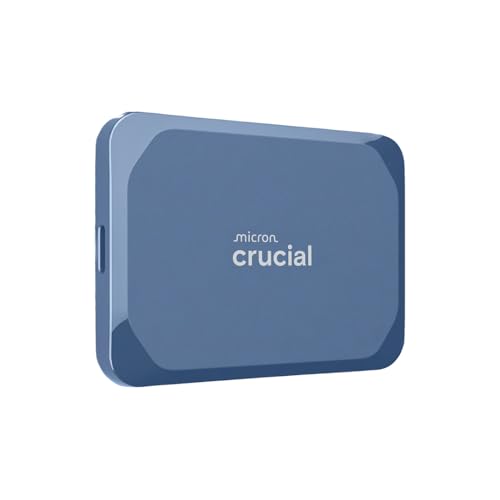
Ultra-fast Speeds: Designed for creators, students and PC gamers, this matte blue external SSD delivers fast data access with up to 2,100MB/s read speeds. Unlike a hard drive, SSDs offer significantly faster performance
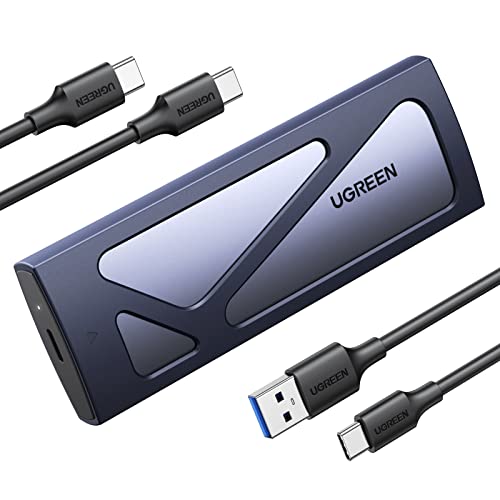
10Gbps NVMe Enclosure: With the latest USB 3.2 Gen2, this M.2 enclosure can achieve a data transfer rate of 10Gbps. Backward compatible with USB 3.1 and USB 3.0. Note: 10G speeds need to be matched with a USB C 3.2 GEN2 data cable
Security Features of File Systems
Security is a key aspect of any file system, influencing how we manage and protect our data.
- APFS: It supports strong encryption options, offering full-disk encryption with single or multi-key capabilities, which greatly secures data at rest. Checksums enhance data integrity by protecting against corruption.
- NTFS: This file system includes advanced security features like file permissions and encryption (EFS). Its journaling support helps prevent data loss during unexpected shutdowns and protects against unauthorized access.
- ExFAT: Unfortunately, it lacks built-in encryption and journaling features, making it more vulnerable to data corruption and unauthorized access.
Many users choose file systems based on comfort and long-term durability and maintenance considerations, such as waterproof materials and non-slip bases that enhance longevity and ease of cleaning.
Recommended Products

Utilizes Military Grade FIPS PUB 197 Validated Encryption Algorithm

Easily store and access 2TB to content on the go with the Seagate Portable Drive, a USB external hard drive
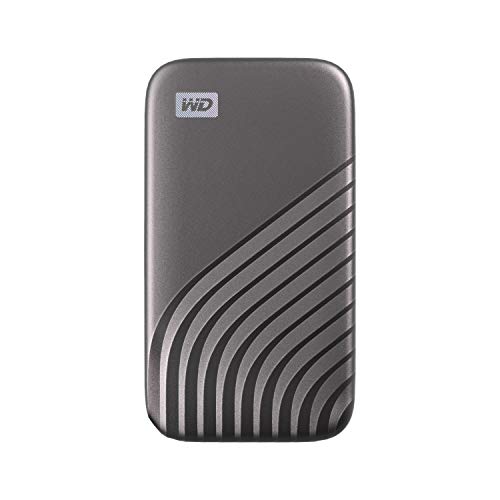
Blazing fast NVMe technology with speeds of up to 1050MB/s and write speeds of up to 1000MB/s. | Based on reading speed unless otherwise stated. As used for transfer rate, 1 MB/s = one million bytes per second. Based on internal testing; performance may vary depending upon host device, usage conditions, drive capacity, and other factors
Common Compatibility Issues
Compatibility issues can complicate our efforts to share and manage files across different systems. Here’s a breakdown of common problems we face:
- ExFAT: Designed for cross-platform use, yet it may cause mounting issues on Mac computers, particularly when transferring larger files.
- APFS: While optimized for macOS, it isn’t supported natively by Windows, creating hurdles for file sharing.
- NTFS: This Windows default format can be read on macOS, but users only get read-only access unless they use third-party software.
- Mac OS Extended (HFS+): Drives formatted this way are unreadable on Windows without third-party software, complicating transfers in mixed-OS environments.
Sturdy all-metal construction in boom arms can improve reliability when recording on different systems, and is an often overlooked factor for cross-platform workflows involving audio files when using boom arms.
Recommended Products

[Low Profile Style] Sleek and space-saving design ensures the boom arm mic stand fits seamlessly into recording or podcasting environment. The microphone arm stand extends from the bottom of screen, maintaining a clean and unobstructed workspace.

Cable Management Channels: The upgraded mic arms are optimized with built-in channels as cable management for you to put your cables in by simply removing the rubber cable covers, bringing a clean and neat look without getting your setups and cables tangled while recording or live streaming. The thoughtful design frees the whole look of being a mess and provides a shelter for cables.

[Sturdy Metal] The all metal microphone arm stand provides stability and sturdy protection for your podcast microphone whether you're gaming, podcasting, recording or streaming. The C-clamp can stay attached to a flat desktop and will not slip, making it less likely to scratch your desktop. Even if you vigorously collide with the arm stand or extend it fully to a certain height, the boom arm won't wobble and still remain stable and sturdy. (The microphone is not included)
Tips for Choosing the Right Format
- Use exFAT for external drives if we frequently transfer large files between macOS and Windows, as it handles files larger than 4GB without issues.
- Evaluate APFS for macOS-only environments, but remember it can’t be read by Windows systems, limiting compatibility.
- Choose NTFS when working on Windows; however, its read-only access on macOS makes it less suitable for cross-platform collaboration.
- For drives used across devices and for long periods, consider durable materials and maintain them regularly to preserve performance and hygiene.
Recommended Products

STRICT QUALITY CONTROL: Our exFAT32 USB 3.0 flash drives 64GB are made of original and stable A+ chip and have been double-tested by our H5 quality-checking device before shipping, with a lifetime of up to 100,000 cycles

【Expanded Data Storage】KAISLE USB Flash Drives can help you easy keep contents separate from another. Flash Drive is commonly used for storage, data backup and computer file transfer, flashdrive will meet your needs of daily use on work, school, home, and traveling for photos, music, videos, files storage.
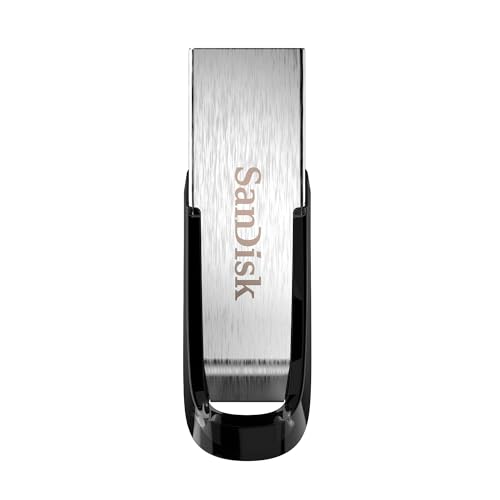
High-speed USB 3.0 performance of up to 150MB/s(1) [(1) Write to drive up to 15x faster than standard USB 2.0 drives (4MB/s); varies by drive capacity. Up to 150MB/s read speed. USB 3.0 port required. Based on internal testing; performance may be lower depending on host device, usage conditions, and other factors; 1MB=1,000,000 bytes]
Final Thoughts on Drive Format Selection
When it comes to selecting a drive format, it’s essential to evaluate our specific needs and environments carefully, as the right choice can considerably enhance our workflow.
Here are key considerations:
- APFS is ideal for Mac systems, offering speed and encryption for SSDs.
- NTFS is the standard for Windows systems, excelling in file protection and security features.
- exFAT shines in compatibility, allowing file transfers over 4GB between Mac and Windows, making it suitable for external drives.
- Consider drive type and interface compatibility, as USB-C support can enhance transfer speeds and future-proof external storage.
Frequently Asked Questions
What Is the Best Format for Cross-Platform Hard Drive?
For ideal hard drive compatibility across platforms, we recommend exFAT—balancing file transfer speeds, operating system support, and storage efficiency. It’s versatile, though we should consider its lack of encryption and data recovery features for essential scenarios.
Is APFS Better Than Exfat?
We believe APFS has advantages in speed and security for Mac users, but its drawbacks include limited compatibility. exFAT excels in cross-platform performance and compatibility, making it ideal for file transfers, despite some limitations.
Is Exfat or NTFS Better for Mac?
When maneuvering the digital landscape, we find exFAT reigns supreme for Mac file management. Its advantages in performance and compatibility overshadow NTFS’s security features, especially amidst data transfer speeds and potential read issues on macOS.
Is Exfat Cross-Platform?
Yes, exFAT is cross-platform, offering better compatibility compared to FAT32. While it allows larger file sizes and fast transfer speeds, we should consider exFAT’s performance comparison and potential compatibility issues for our specific use cases, like photography.


