As an Amazon Associate, we earn from qualifying purchases. Some links on this site are affiliate links at no extra cost to you. Our recommendations are based on thorough research and editorial judgment.


Display Protocols: HDMI, DisplayPort, DisplayLink

When exploring display protocols like HDMI, DisplayPort, and DisplayLink, we note each has unique strengths. HDMI is great for high-definition audio and video, simplifying setups with a single cable. DisplayPort offers higher bandwidth, supports daisy-chaining multiple displays, and has an Adaptive Sync for gaming. DisplayLink connects multiple monitors through USB, enhancing productivity. Each technology serves distinct needs, and understanding their differences lets us choose the best setup. Learn more about their benefits and applications below.
Key Takeaways
- HDMI transmits high-definition video and audio, supporting up to 10K resolutions, making it popular for consumer electronics.
- DisplayPort offers higher bandwidth, supporting 8K at 60Hz, and allows daisy-chaining multiple displays without quality loss.
- DisplayLink enables multiple displays through a single USB connection, improving multitasking and supporting high-resolution outputs.
- Adaptive Sync in DisplayPort reduces screen tearing, making it ideal for gaming and high-performance applications.
- HDMI cables are simpler for setups, while DisplayPort’s locking mechanism ensures secure connections, minimizing accidental disconnections.
Overview of HDMI Technology
HDMI, or High-Definition Multimedia Interface, is a key technology that facilitates the seamless transmission of high-definition video and audio signals. It’s widely used in consumer electronics, connecting devices like TVs, monitors, and gaming consoles.
- High-Definition Video & Audio Signals: HDMI supports impressive video resolutions, including 4K, 8K, and even 10K with HDMI 2.1. This means clearer and more detailed displays.
- Versatile Connectivity: HDMI cables carry both video and audio through one cable, simplifying our setup.
- HDCP Security: With HDCP (High-bandwidth Digital Content Protection), HDMI helps safeguard our digital content from unauthorized copying.
Many users also choose HDMI switchers that support 4K@60Hz or 8K@60Hz to connect multiple devices to a single display.
Advantages of DisplayPort Connectivity

While many people may not be aware, DisplayPort offers several advantages that make it a strong choice for connecting monitors and other devices. Here are some key benefits:
- Higher Bandwidth: DisplayPort supports resolutions up to 8K at 60Hz, which is great for high-quality visuals.
- Multiple Displays: With its daisy chaining feature, we can connect up to four 4K external displays from a single DisplayPort output without losing quality.
- Audio Support: It delivers both audio and video through one cable, ensuring a seamless multimedia experience.
- Adaptive Sync Technology: This feature reduces screen tearing and stuttering, making it ideal for gaming.
- Secure Connection: DisplayPort includes a locking mechanism that minimizes the chances of accidental disconnection, ensuring a reliable link during use.
Many modern USB-C hubs also include DisplayPort or DisplayPort-capable USB-C ports that offer high data transfer and power delivery for multi-device setups.
Recommended Products

Unopened retail packaging, sold as configured by Lenovo. US Version. One Year Premier Onsite Support Lenovo Warranty. Add up to 5 years of Lenovo Premier Support when you register your computer with Lenovo.
Unopened retail packaging, sold as configured by Lenovo. US Version. One Year Premier Onsite Support Lenovo Warranty. Add up to 5 years of Lenovo Premier Support when you register your computer with Lenovo.

NVIDIA Ada Lovelace Streaming Multiprocessors: Up to 2x performance and power efficiency
How DisplayLink Technology Works

DisplayLink technology simplifies the connection of multiple displays using a single USB connection, which is particularly beneficial for users looking to expand their setup without complicated hardware requirements.
This technology enables the use of USB graphics adapters to connect several external displays, maximizing bandwidth while keeping setups neat. It supports various operating systems, making it versatile across devices.
By installing the necessary software driver, we can achieve high-resolution display outputs, allowing for up to four 4K external monitors, all without specialized graphics hardware.
Additionally, DisplayLink’s plug-and-play functionality guarantees easy installation, perfect for those using a USB-C docking station or a dual monitor docking station. This efficiency promotes a seamless multitasking experience in any environment. Many users pair DisplayLink docks with 10Gbps data transfer capable hubs to speed large file workflows.
Recommended Products

The First DisplayLink MacBook KVM Switch– Solve macOS multi-display limits: DisplayLink lets M-series MacBooks drive three independent 4K@60Hz external monitors for real workstation productivity

CONFERENCE TABLE BOX FOR DOCKING & POWER: Setup an in-desk/in-table conference room docking station w/ USB-C or USB-A host connectivity to connect all your boardroom or workstation peripherals; Easy one-cable docking; Integrated USB charging & AC power

【KVM Switch 4 Computers 4 Montors】The KVM docking station seamlessly integrates 4 computers with four monitors, while also combining network connections, headphones, microphones, mouse, keyboards, webcams, portable hard drives, and other devices into a complete office and entertainment system
Comparing HDMI and DisplayPort
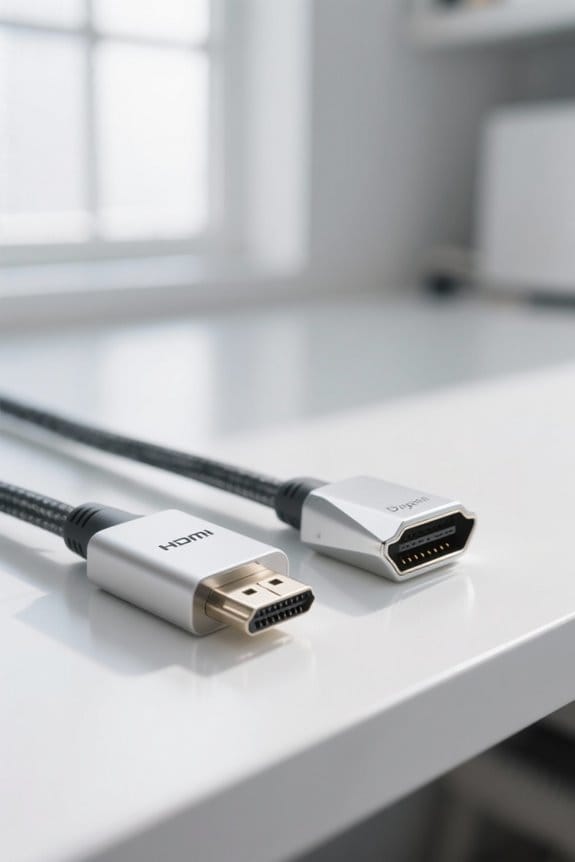
When expanding our display options, we often need to assess which connection type is best for our setup. HDMI excels in consumer electronics, providing 8-channel audio. However, for high-performance computing, DisplayPort is often the preferred choice.
Key Comparisons:
- Resolution & Refresh Rates: DisplayPort 1.4 supports up to 8K at 60Hz, similar to HDMI 2.1, but generally offers more flexibility.
- Gaming: DisplayPort’s Adaptive Sync reduces screen tearing, making it ideal for gamers.
- Daisy-Chaining: DisplayPort allows for multiple displays through daisy-chaining, a feature HDMI lacks.
- Connectors: DisplayPort’s locking mechanism guarantees a secure connection, while HDMI is more prone to accidental disconnections.
Additionally, choosing cables that support 48Gbps bandwidth helps ensure features like 4K@120Hz and 8K@60Hz work reliably.
Recommended Products

NVIDIA Ada Lovelace Streaming Multiprocessors: Up to 2x performance and power efficiency

[Powerful Performance]: Thdeukoty MV10 mini gaming pc is equipped with core i9-14900F processor, 24 cores/32 threads, 36MB smart cache and frequency up to 5.8 GHz, as same time powered by NVIDIA RTX5060Ti 16GB graphics, so MV10 delivers exceptional multitasking and computing power for demanding tasks from 4K content creation to AAA gaming.

First Thunderbolt-Certified THUNDERBOLT 4 Storage Solution; 3 Thunderbolt 4 (USB-C) Ports 40 Gb/s; Dual Drive bays: 1 bay supporting: 3.5-inch SATA drives, 2.5-inch SATA drives, 1 bay supporting: M.2 drives (NVMe M.2 SSDs with 2280 form factor and "M Key" connector type); Edit 4K video with up to 770MB/s speed
Use Cases for DisplayLink Solutions

In today’s versatile workspace, using DisplayLink solutions offers an effective way to expand our display options without needing advanced hardware.
Recommended Products

[High Performance] Mini PC equipped with AMD Ryzen 9 7940HS, 8 cores 16 threads, 16M smart L3 Cache, base frequency: 4.0GHz, max 5.2GHz. The process rule has improved from the previous generation of 7nm to 4nm, with "Zen 4" architecture, Pre-installed with Windows 11 Pro (64bit) OS, the computer can handle heavy computing tasks smoothly and better for multitasking. Built-in WiFi6E, Bluetooth 5.3. Mini PC is ideal for such as Programming, Design, Office, Education, Gaming, etc.

[High Performance] Mini PC equipped with Core i9-13900H processor, 14 cores 20 threads, 24M smart Cache, Max Turbo Frequency: 5.4GHz. This mini-computer is Pre-installed with Windows 11 Pro (64bit) OS, Built-in Intel AX210 WiFi6E, Bluetooth 5.3, Compared to wifi6, the 6GHz band has been added for better anti-interference capability and faster transmission rate. Mini PC is ideal for such as Home Entertainment, Design, Office, Online Education, Industry, etc.

Tested and Certified – This Renewed product is tested and certified to look and work like new, with limited to no signs of wear. The refurbishing process includes functionality testing, inspection, and repackaging. The product comes with 90-day warranty.
Key Use Cases:
- Multiple Displays: We can connect up to five external monitors, including a Triple Display Docking Station for triple 4K displays, enhancing our productivity.
- Simplified Connections: By utilizing a single USB cable, we streamline our workspace, reducing cable clutter.
- Compatibility: DisplayLink solutions are compatible with Windows and various USB-C devices, making it easy for everyone.
- Plug and Play: These solutions support easy plug and play setups, ensuring that we can quickly set up our workstations across different operating systems, such as macOS and ChromeOS.
DisplayLink-enabled docks often include Ethernet ports and multiple USB-A and USB-C connectors to improve connectivity and performance, which can be especially helpful for remote work and peripheral support 1000Mbps Ethernet.
Benefits of Multi-Display Setups
Utilizing multi-display setups can markedly enhance our productivity, as they allow us to manage multiple applications concurrently. With a dual-monitor setup, we can boost our efficiency by up to 30%, making tasks like graphic design and coding smoother.
Key benefits of multi-display setups include:
- Increased collaboration: Teams can share visuals without crowding around one screen.
- Advanced tasks: Multi-display configurations improve experiences in video editing and gaming with broader visual workspaces.
- High-resolution outputs: Many USB-C docks, like the Minisopuru DisplayLink Triple Display Docking Station, support up to 4K@60Hz.
Incorporating external displays into our workspaces enables us to get more done in less time, ultimately enhancing our overall productivity. An added advantage is that many adapters and docks support 4K@60Hz output for crisp, smooth visuals even when charging connected devices.
Setting Up Your DisplayLink Docking Station
Setting up your DisplayLink docking station can be straightforward, especially if we follow a few simple steps to confirm everything functions correctly.
- Connect Power: Start by plugging the docking station into a power source using the supplied 36W DC power adapter.
- Install Driver: We need to install the DisplayLink driver on our device. It’s essential for media display functionality on systems like macOS and Windows.
- Make Connections: Use the 2 HDMI and 2 DisplayPort options to connect our external displays. If we have a full-featured USB-C host port, we can achieve dual display capabilities, while USB-A laptops should use DisplayPort, avoiding HDMI simultaneously.
- Check Settings: Confirm all connections are secure and verify recognition of displays in our operating system’s settings.
For best results with high-resolution setups, ensure your cables and adapters support 4K@60Hz where required.
Recommended Products

Triple 4K@60Hz Extended Display Support for Mac & PC: Delivers crystal-clear triple 3840*2160@60Hz extended display output for MacOS (including MacBook, MacBook Air/Pro, and Mac Mini with M1/M2/M3/M4 chips) and Windows computers. Delivering stable, reliable visuals for efficient work and entertainment—experience crystal-clear detail far surpassing 1080p or 1440p.Note: For optimal 4K@60Hz performance, use a high-quality HDMI 2.1-compliant cable (ideally no longer than 3 feet/1 meter).

Universal Compatibility - An ideal solution for Thunderbolt 4, Thunderbolt 3, USB4, and USB-C devices running Windows (10 or later), macOS (11 or later), and ChromeOS (114 or later)

【KVM Switch 4 Monitors 2 Computers】This USB A/C docking station breaks through MacOS limitations. Supports MacBooks/other laptops/desktops (with USB-C or USB-A 3.0+ ports) to expand to 4 displays. Shares full configuration: Connect multiple peripherals via 2 USB-A 2.0 ports, 3 USB-A 3.0 ports, and 1 USB-C port. Features Gigabit Ethernet and audio interfaces. Supports remote control switching to create a complete all-in-one office or entertainment hub.
Troubleshooting DisplayLink Issues
When we encounter issues with our DisplayLink docking station, troubleshooting can often resolve the problem without much hassle. Let’s consider these steps:
- Check the DisplayLink driver: Verify it’s properly installed on your device for maximum performance.
- Power source: Confirm that our docking station is connected to a compatible power source using the 36W DC power adapter.
- Update firmware: Look for any updates for the DisplayLink device to address potential connectivity issues.
- Reconnect the docking station: Unplugging and reconnecting can reset the connection and restore functionality.
- Adjust display settings: Verify that the correct output protocols, like HDMI or DisplayPort, are configured in our device’s video output settings for the desired setup.
Following these steps often leads to a smoother display experience! Many USB-C adapters and docks also rely on DisplayPort Alt Mode for multi-monitor support, so confirm your device’s port capabilities.
Future of Display Technologies
As we look ahead, the future of display technologies promises remarkable advancements that will enhance our viewing experiences. Key trends include:
- Higher Resolutions: HDMI 2.1 supports up to 10K at 120Hz, while DisplayPort 2.0 aims for 16K.
- DisplayLink Technology: This innovation allows us to connect multiple displays via a single USB connection, perfect for flexible workspaces.
- USB-C Standardization: As more devices adopt USB-C, we’ll enjoy integrated power delivery and data transfer, reducing cable clutter.
- Docking Stations: These will feature Gigabit Ethernet ports, enhancing connectivity options for users.
- Quad Display Setups: We can anticipate robust multi-display configurations, perfect for both professional use and immersive gaming.
- HDR Support: Enhanced color accuracy and contrast will soon be essential in new displays.
- HDMI matrix switchers will remain important for routing multiple sources to multiple displays in complex setups, especially when 4K@60Hz compatibility and advanced audio formats are required.
Frequently Asked Questions
What Is Displaylink Vs Displayport?
DisplayLink technology offers advantages like supporting multiple displays through USB, while DisplayPort features high performance for direct connections. Both have HDMI compatibility, serving different applications and ensuring versatile usage for our display needs.
What Is HDMI Displaylink?
HDMI DisplayLink lets us connect multiple displays easily, using HDMI cables for high resolutions and great audio. Unlike DisplayPort, we enjoy wider compatibility, overcoming any setup worries with plug-and-play simplicity and seamless configurations.
What Are the Downsides of Displaylink?
DisplayLink has performance limitations and latency concerns, along with compatibility issues and software dependencies. We can face resolution constraints and increased power consumption, making it less ideal for high-demand setups and multi-display configurations.
What Does a Displaylink Do?
Oh, we’re just here juggling multiple screens like circus pros! DisplayLink devices let’s us connect high-res displays without breaking a sweat. With excellent performance, compatibility, and easy installation, who wouldn’t love those applications?


