As an Amazon Associate, we earn from qualifying purchases. Some links on this site are affiliate links at no extra cost to you. Our recommendations are based on thorough research and editorial judgment.


Dual‑Monitor Troubleshooting on Macos & Windows

Troubleshooting dual-monitor setups on macOS and Windows involves several key steps. First, check cable connections for security and damage. Next, use the “Detect Displays” feature to guarantee recognition. Adjust resolution and refresh rate settings to match each monitor’s specifications. On M1 Macs, consider using DisplayLink technology for multiple displays. Finally, keep your operating system updated for compatibility and performance. If issues persist, explore additional strategies for effective setup.
Key Takeaways
- Verify all cable connections are secure and functioning properly to prevent display issues.
- For M1 Macs, consider using DisplayLink technology for connecting multiple monitors.
- Ensure correct display settings, selecting “Extend desktop” and adjusting resolution for each monitor.
- Regularly update macOS or Windows to maintain compatibility with hardware and fix bugs.
- Utilize the “Detect Displays” feature to troubleshoot recognition problems in both operating systems.
Common Causes of Dual-Monitor Detection Issues
You may be interested
When we set up dual monitors, we often run into detection issues that can be frustrating. Several common causes can lead to this scenario:
- Connection Issues: Loose or damaged HDMI cables can prevent our Mac from detecting displays properly.
- Incorrect Configuration: If we forget to select the “Extend desktop” option, our system might default to mirroring displays.
- Software Updates: Outdated software may cause compatibility issues, so ensuring our operating system is up to date is essential.
- Hardware Limitations: For M1 Macs, we must remember that some models support only one external monitor.
- Compatible Docking Stations: Using certified docking stations can enable additional monitors beyond native GPU limits, which improves functionality.
- Consider using a 1Gbps Ethernet adapter or hub to ensure stable wired network access when troubleshooting display issues.
Recommended Products

The Anker Advantage: Join the 50 million+ powered by our leading technology.

【9-in-1 USB-C Docking Station】This Acer laptop docking station includes 2 HDMI(4K@60Hz), 3 USB-A (5Gbps), 1 USB-C (5Gbps), 100W PD charging, and SD/MicroSD slots (104Mbps). 📌Note: 𝐏𝐥𝐞𝐚𝐬𝐞 𝐞𝐧𝐬𝐮𝐫𝐞 𝐲𝐨𝐮𝐫 𝐥𝐚𝐩𝐭𝐨𝐩 𝐡𝐚𝐬 𝐚 𝐔𝐒𝐁-𝐂 𝐩𝐨𝐫𝐭 𝐰𝐢𝐭𝐡 𝐯𝐢𝐝𝐞𝐨 𝐨𝐮𝐭𝐩𝐮𝐭 (𝐃𝐢𝐬𝐩𝐥𝐚𝐲𝐏𝐨𝐫𝐭 𝐀𝐥𝐭 𝐌𝐨𝐝𝐞) 𝐬𝐮𝐩𝐩𝐨𝐫𝐭.

[8 in 1 USB C Hub Dual HDMI] Transform your laptop with this latest upgrade Selore 8-in-1 dual monitor docking station with dual 4K@60Hz HDMI ports, a 100W PD charging port, a USB-C port up to 5Gbps, two USB 3.0 ports up to 5Gbps and SD/microSD card slot up to 104 Mbps. Versatile and all-in-one hdmi adapter for dual monitors,suitable for home and office use for effective work (Docking stations require a Thunderbolt or full-featured USB-C port)
Essential Troubleshooting Steps

After identifying common causes of dual-monitor detection issues, it’s time to take a systematic approach to troubleshoot. Here are the essential steps:
- Check Cable Connections: Verify all cables are securely connected, compatible, and free from damage to avoid connection issues.
- Detect Displays: Use the “Detect Displays” feature in macOS. Hold the Option key and click “Detect Displays” in the Displays settings to prompt your system.
- System Preferences: Review resolution and refresh rate settings for each display. Mismatch can lead to display malfunctions.
- Update macOS: Keep your system updated to guarantee compatibility and fix potential software bugs affecting dual-monitor functionality.
- Use a USB plug-and-play microphone as an audio test source to confirm the system recognizes connected USB devices and their drivers.
Recommended Products

Reborn USB to HDMI adapter : The Reborn USB to HDMI adapter, a powerful device, converts USB to HDMI, facilitating connections to HDMI displays. Vital for laptop screen output and multimedia, its compactness ensures convenient carrying and instant connection. Note: This adapter cannot be used in BIOS mode, and the driver needs to be installed. If other drivers (e.g., for USB-to-VGA adapters) are installed, uninstall them first to avoid conflicts.

Dual 2K multi-tasking display: Through a single USB3.0 connection to the host, this HDMI adapter offers you a dual monitor solution. Extend or mirror screens as desired. Supports resolutions up to 1920x1080@60Hz or 1x2560x1440@60Hz+ 1x1920x1080@60Hz. Android devices support mirror mode Only with resolution up to 1080P

COMPATIBILITY: This adapter is only compatible with Windows and does not support macOS, ChromeOS or Linux; Works with all Windows X86/X64/ARM platforms: Intel, AMD, and Snapdragon X Copilot+ PC; Administrator rights are required to install the drivers
Optimizing Display Settings for Dual Monitors

To optimize our dual-monitor setup effectively, we need to verify that each display is configured for peak performance. Here are some steps we can take:
- Check Connectivity: Confirm both monitors are securely connected to our devices and visible in System Settings under Displays.
- Adjust Resolution: Modify the resolution and refresh rate settings for each monitor according to their specifications, preventing display issues.
- Use Arrangement: In the Displays settings, use the “Arrange” tab to position the monitor icons according to their physical layout. This allows for smooth window shifts.
- Regular Updates: Keep an eye on macOS updates, as they can enhance connectivity and performance for our dual monitor setups.
Many adapters offer dual HDMI support to simplify connecting two external displays.
Recommended Products
![avedio links HDMI Splitter 1 in 2 Out [with 4 Ft Hdmi Cable], Mirror Only](https://m.media-amazon.com/images/I/412VNL8UP8L._SL500_.jpg)
1x2 HDMI Splitter Duplicate/Mirror Only(Not Support Extend): avedio links HDMI Splitter can only duplicate same content from one HDMI input signal to two HDMI displays, transmit video and audio simultaneously, two displays can work at the same time. Note: This splitter not support dual-screen extension. Due to HDMI standards, it only mirrors one signal to two displays simultaneously.

HDMI Switching Simplified: Dive directly into your chosen media with a single button for hassle-free transitions between your game or movie without unplugging cables. Note: Manual button switching is supported. Automatic signal detection is not supported.

✅USBC to Dual HDMI Monitor adapter(2 IN 1): This dual monitor adapter expend your laptop’s usb c port into 2 hdmi port 4K@60Hz. Use this usb c dual hdmi donlge extend your 1 monitors to two external multiple monitors(support different image 2*4K 30Hz on your monitors) and it allows you to do different project on differnet monitors. Boost your work productivity and efficiency. It is an ideal usb c accessories for photography,programmer, data analysis, etc.
Addressing Software and Compatibility Challenges
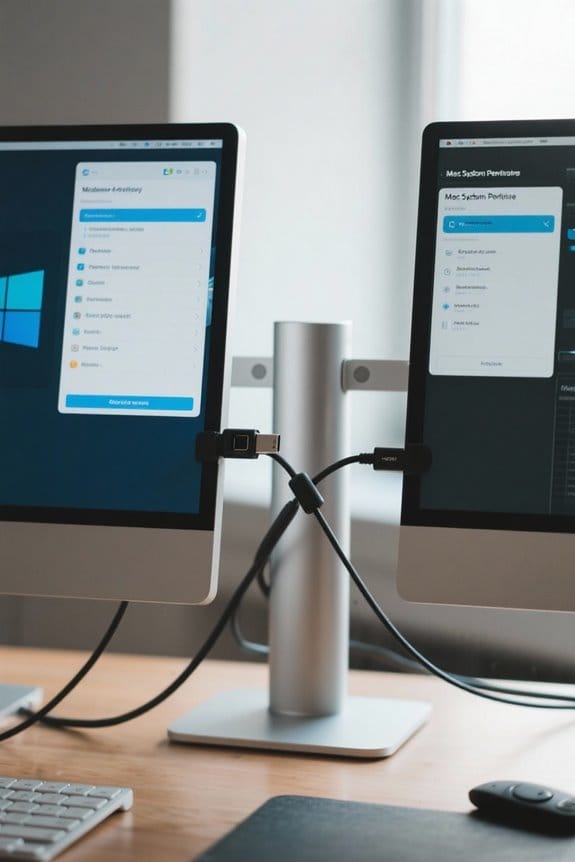
Addressing software and compatibility challenges can be imperative for maximizing our dual-monitor experience, especially when different operating systems and hardware are involved.
- Monitor Issues: macOS supports a limited number of external displays on M1 Macs without DisplayLink technology. Software updates are essential for both macOS and Windows, keeping hardware compatibility intact.
- Hardware Compatibility: We must guarantee our docking stations, like the Dell WD22TB4, support DisplayLink for independent dual-monitor functionality.
- Cable Quality: Using high-quality cables is critical to avoid monitor issues like display mirroring. This is especially important when using Thunderbolt ports or HDMI connections.
Energy-efficient designs that comply with IEEE 802.3az standards can reduce power costs and improve device reliability.
Recommended Products

【Dual 4K@60Hz Extended Displays】Transform your laptop into a productivity powerhouse! This USB-to-HDMI adapter adds two crystal-clear 4K monitors (up to 60Hz) via a single USB-C/USB-A port. Perfect for multitasking, office work, or coding—seamlessly compatible with Mac M1/M2/M3/M4/M5/Neo and Windows PCs. (Note: This displaylink adapter Not for gaming/HDCP content.)

Flexible Expandability: Featuring a hybrid 2-in-1 USB 3.0 and USB-C cable, a single connection from a host PC to this USB dock provides: 2x HDMI video outputs, wired Gigabit Ethernet, 3.5 mm Headphone and Microphone jacks, 2x USB 3.0 ports, 4x USB 2.0 ports. TAA-compliant.

Dual 4K@60Hz Simultaneous Output: The HDMI Splitter for dual monitors delivers dual 4K 60Hz displays from a single Thunderbolt, USB4, USB-C or USB A 3.0 port. Designed for seamless compatibility, this DisplayLink adapter adds two extended screens to all M1, M2, M3, M4 and M5 Macs and Macbook Neo.
User Experiences and Community Solutions

User experiences highlight common challenges and solutions for dual-monitor setups, particularly for M1 Mac users. Many report issues with persistent dual-monitor rearrangement when waking from sleep in macOS Sonoma 14.6.1, impacting workflow. Here are some community solutions:
- Detect Displays: Engage this feature in System Settings to troubleshoot recognition problems with external displays.
- Adjust Mission Control Settings: Tweak the “Displays have separate Spaces” option for better management.
- DisplayLink Technology: Use compatible docking stations to connect multiple monitors beyond the M1’s hardware limitations.
- Adapter Configuration: For M1 MacBook Pro users, employing one DisplayPort and one USB-C to HDMI adapter can enhance independent display functionality.
- Pop filters can help reduce microphone plosives for clearer audio when recording tutorials or streaming from dual-monitor setups, especially using a double-layer design.
Frequently Asked Questions
Why Is My Mac Not Detecting Dual Monitors?
Our Mac might not detect dual monitors due to hardware limitations, cable quality concerns, or monitor compatibility issues. Checking display settings, restarting preferences, and ensuring system updates can help resolve potential conflicts affecting external display connections.
Can You Dual Monitor Mac and Windows?
Yes, we can dual monitor Mac and Windows! We’ll optimize our dual display setup, tackle Mac compatibility issues, explore Windows monitor configuration, adjust screen resolution settings, and enhance multi monitor productivity through effective graphics card management.
Why Are My Two Screens Showing the Same Thing?
If our two screens are showing the same thing, we should check display settings adjustments, monitor connection types, and graphics card compatibility. Updated drivers and cable quality impacts can also help resolve these screen mirroring issues effectively.
Why Is My Dual Monitor Only Showing One Screen?
We’re often puzzled when our dual monitors only show one screen. Let’s check display settings, cable connections, refresh rates, and monitor compatibility; sometimes, operating systems have hardware limitations affecting video output and screen resolution!


