As an Amazon Associate, we earn from qualifying purchases. Some links on this site are affiliate links at no extra cost to you. Our recommendations are based on thorough research and editorial judgment.


Encrypt Portable Drives: FileVault, BitLocker, Cross‑Use

To encrypt portable drives, we can use FileVault for macOS and BitLocker for Windows. FileVault encrypts the entire drive in the background, ensuring data is secured without hindering performance. BitLocker, available on Windows Professional and Enterprise editions, also protects drives using AES encryption. Both tools allow easy setup and provide recovery options. For cross-use, we recommend ensuring drives are formatted correctly. Understanding these methods helps keep our data safe, so let’s explore more about their functionalities.
Key Takeaways
- FileVault encrypts Mac portable drives using AES-XTS, allowing continued use during the background encryption process via macOS settings.
- BitLocker secures Windows portable drives by implementing AES encryption with easy setup through the Control Panel, ideal for professional and enterprise users.
- For cross-platform use, format drives as exFAT to ensure compatibility between macOS and Windows operating systems.
- Regularly back up data stored on encrypted drives to prevent data loss and ensure recovery in case of forgotten passwords.
- Monitor the encryption status with Disk Utility on macOS or system tools on Windows to maintain secure data protection.
Understanding FileVault Disk Encryption
You may be interested

When it comes to securing our data, understanding FileVault disk encryption is essential. FileVault is a full-disk encryption feature on macOS that helps us protect the information on our Mac devices. It uses the AES-XTS encryption standard to encrypt our entire hard drive, ensuring our data remains unreadable without the correct user password or encryption key.
Key features of FileVault include:
- Authorized Access: Users can gain entry to their devices during startup, allowing multiple users while maintaining security.
- Recovery Options: Generating a recovery key secures our access if we forget passwords.
- Seamless Performance: FileVault encrypts data in the background, letting us use our Macs normally without impacting performance.
- Many users pair FileVault with external solutions like USB-C adapters to manage peripherals and backups more securely with 24bit/96kHz audio devices.
Overview of BitLocker for Windows

BitLocker offers a robust solution for securing data on Windows devices, particularly in Professional and Enterprise editions. It employs full-disk encryption to protect your entire drive, effectively preventing unauthorized access.
Key features include:
- AES Encryption: BitLocker uses advanced encryption standards to enhance security.
- Trusted Platform Module (TPM): This hardware component stores encryption keys, guarding against tampering.
- Ease of Use: We can enable BitLocker through the Control Panel or Settings app, which also helps us set a recovery key for access if needed.
- Compatibility: BitLocker works on both internal and external drives; however, encrypted drives may need special tools for use on other operating systems. UGREEN’s 40Gbps enclosure highlights the importance of heat dissipation in preventing performance throttling under heavy use.
How Filevault Works on Macos
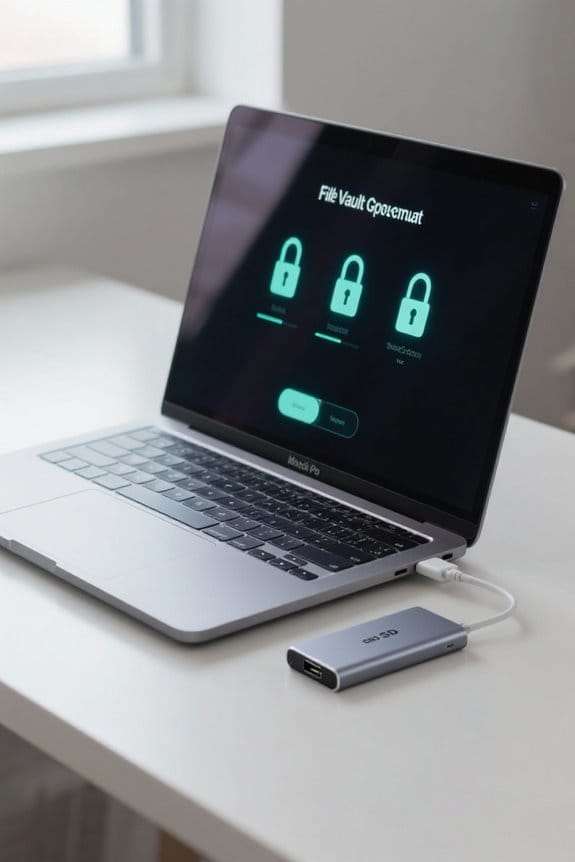
FileVault is a powerful encryption tool built into macOS, designed to protect our data by ensuring that it remains secure and inaccessible to unauthorized users. It encrypts the entire disk using the advanced AES-XTS encryption standard, keeping our sensitive information safe.
Key features include:
- Encryption Process: This occurs seamlessly in the background, allowing us to use our Mac without noticeable performance issues.
- Access: Users can gain entry to FileVault at startup to access the encrypted volume.
- Recovery Keys: We can generate recovery keys in case we forget our passwords, providing an important backup option.
Dual-layer protection for sensitive data can be complemented by external accessories like foam windscreens to protect audio devices used with encrypted systems.
Setting Up FileVault for Portable Drives
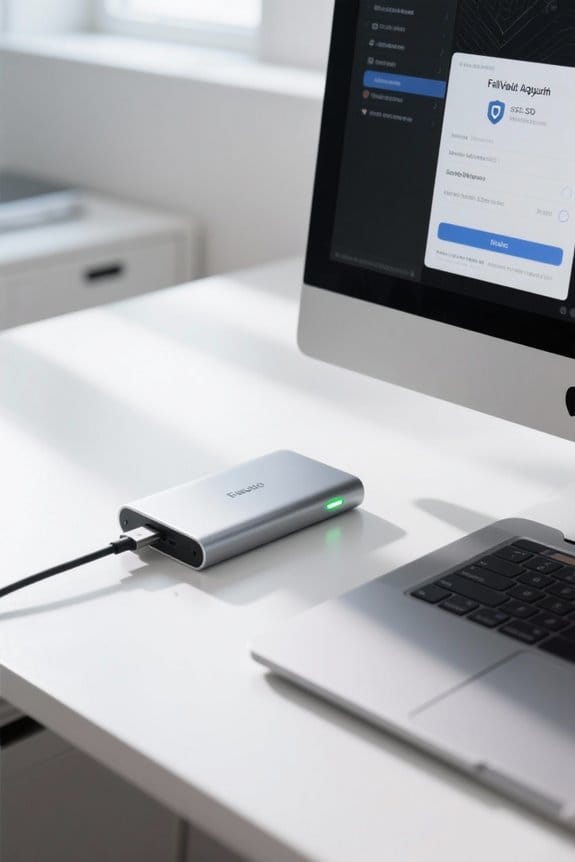
Portable drives are a convenient way to store and transport our data, but ensuring that this information is secure is important. To set up FileVault for our external drives, we need to start by formatting the drive in an encrypted format, either Mac OS Extended (Journaled, Encrypted) or APFS (Encrypted).
Next, we can activate FileVault by proceeding to System Settings > Privacy & Security > FileVault and selecting the Encrypt option next to the connected drive. It’s crucial to create and securely store a recovery key, as losing access to our password without it could mean permanent data loss. While the encryption process runs in the background, we can continue using our Mac, keeping our information safe throughout the process. For additional cable and accessory organization during encryption setups, consider using reusable cable ties to keep cords tidy and reduce clutter.
Recommended Products

Utilizes Military Grade FIPS PUB 197 Validated Encryption Algorithm

🛡️Absolutely Secure Confidentiality🛡️ Uses military-grade full-disk 256-bit AES XTS hardware encryption to protect your important files. All of your data is safeguarded by hardware encryption, and no one can access your data without the password, even if you accidentally lose the USB drive. If an incorrect password is entered 10 times, the USB drive will be restored to factory settings and all data will be completely erased. You don't have to worry about data loss or theft.
BitLocker Setup Guide for External Drives

During setup, we choose a strong password to access the drive whenever we connect it to a computer. It’s also wise to save a recovery key in a secure location, giving us backup recovery options if we forget our password. Once encryption begins, BitLocker will encrypt our data, and the time taken will depend on our drive’s size and stored data. This guarantees our information remains protected. Many users also prefer portable, compact solutions when working on the go, such as compact designs that balance portability and functionality.
Recommended Products
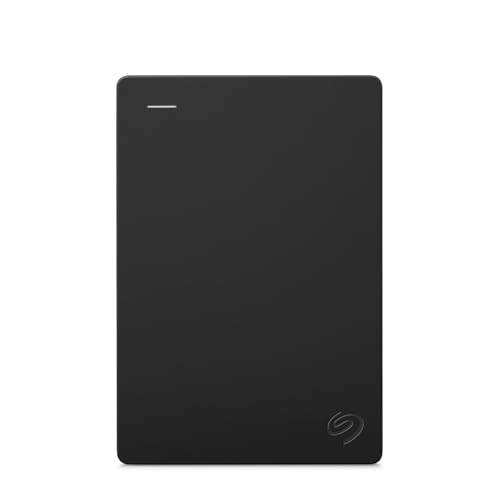
Easily store and access 2TB to content on the go with the Seagate Portable Drive, a USB external hard drive
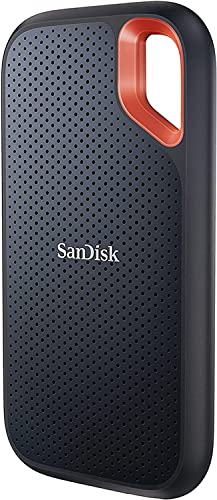
Get NVMe solid state performance with up to 1050MB/s read and 1000MB/s write speeds in a portable, high-capacity drive(1) (Based on internal testing; performance may be lower depending on host device & other factors. 1MB=1,000,000 bytes.)

【Versatile Storage Expansion – For Gaming, Work & Everyday Use】 Running out of space on your PS5 or Xbox Series X/S? This external hard drive lets you store and play PS4 / Xbox One games directly, instantly freeing up your console’s internal storage for next‑gen titles. At the same time, it handles work file backups, media libraries, and cross‑device data transfers with ease. One drive, all your needs. *(Note: PS5 / Xbox Series X|S games cannot be run or stored directly from the external hard drive. However, by offloading your PS4 / Xbox One games, you can free up valuable space for newer titles.)*
Performance Impact of Encryption on Macos and Windows
When we consider the performance impact of encryption on macOS and Windows, it’s important to note that modern systems have been designed to handle these security measures effectively. Both FileVault on Macs and BitLocker on Windows utilize advanced encryption methods that have been optimized over time.
- Mac Users: FileVault employs AES-XTS encryption, minimizing noticeable slowdowns during regular use. The powerful processors in modern Macs further help reduce any performance impact.
- Windows Users: BitLocker also benefits from hardware advancements, typically leading to negligible effects on read and write speeds.
Benchmarking tools like Blackmagic Disk Test or Amorphous DiskMark can provide insights into the performance of encrypted drives, confirming that encryption doesn’t greatly hinder performance for everyday tasks.
Compatibility and File Systems for Cross-Use
Ensuring proper compatibility across different operating systems is essential for effective use of encrypted drives. For cross-platform use, we recommend the exFAT file system. It allows read and write access on macOS, Windows, and Linux without the limitations of FAT32.
When encrypting an external drive, macOS users should use Mac OS Extended (Journaled, Encrypted) or APFS (Encrypted). Windows users need NTFS for BitLocker encryption.
It’s vital to format drives using a GUID Partition Table (GPT), as those formatted with Master Boot Record (MBR) won’t support macOS encryption tools. Maintaining consistent file system options enhances our experience with encrypted data across devices, simplifying accessibility and ensuring security in multi-platform environments. Fast charging and portability are additional considerations when choosing companion hardware like portable power stations, which can affect field workflows and device availability for encryption tasks, especially with models offering fast charging capabilities.
Recommended Products

Design for 5.25" Blu-Ray/CD/DVD drive; Fit any Depth Optical Drive (fit any drive depth upto 185mm); TAA compliant; Plug and Ready; No drivers needed, Comes with 12V, 3A AC adapter to power any optical drive
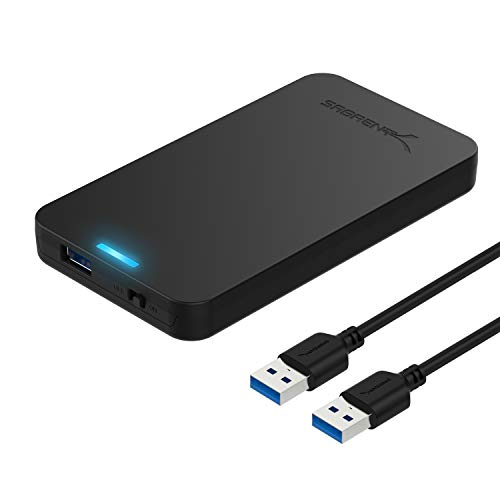
Tool free design, easy to install,Transfer Rates Up to 480 Mbps when connected to a USB 2.0 port,Transfer Rates Up to 5 Gbps when connected to a USB 3.0 port.
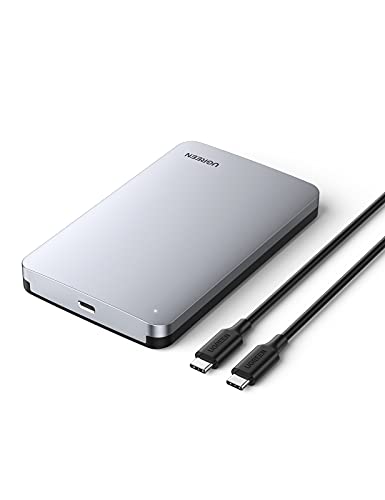
6Gbps High-Speed SSD Enclosure: UGREEN hard drive reader supports 6Gbps max transfer speed and UASP accelerated transmission protocol, 70% Faster than traditional USB 3.0. The USB-C port is standard USB 3.1 Gen 2 which supports 10Gbps and (7+15)Pin SATA III supports max 6Gbps. (USB-C to USB-C Cable included)
Best Practices for Managing Encrypted Portable Drives
Managing encrypted portable drives requires following some best practices to confirm both security and accessibility. Here are our top recommendations:
- Regular Backups: Always back up important data stored on your encrypted drives. This prevents data loss from forgotten passwords or device failures.
- Strong Passwords: Use memorable, strong passwords for your device encryption. Keeping these secure enhances data protection against unauthorized access.
- Correct Formatting: Make sure to format your drive properly. For BitLocker, use NTFS; for FileVault, choose macOS Extended (Journaled, Encrypted).
- Cross-Platform Formatting: Use exFAT for drives intended for use across various operating systems; it offers full compatibility without limitations.
- Check Encryption Status: Regularly verify with Disk Utility or other system tools to confirm your drive’s encryption remains intact and reliable.
Many powered USB hubs include individual on/off switches and LED indicators that can help manage power to external drives and peripherals.
Recommended Products
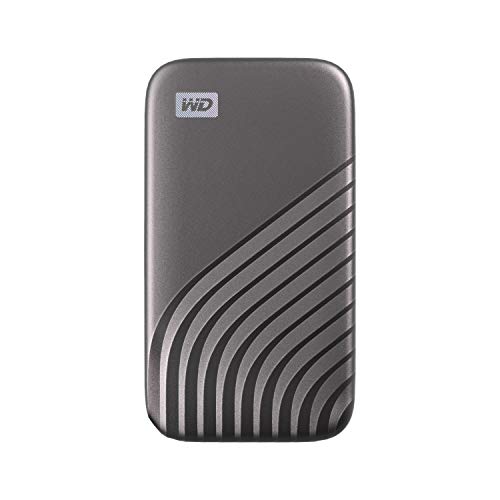
Blazing fast NVMe technology with speeds of up to 1050MB/s and write speeds of up to 1000MB/s. | Based on reading speed unless otherwise stated. As used for transfer rate, 1 MB/s = one million bytes per second. Based on internal testing; performance may vary depending upon host device, usage conditions, drive capacity, and other factors
Utilizes Military Grade FIPS PUB 197 Validated Encryption Algorithm
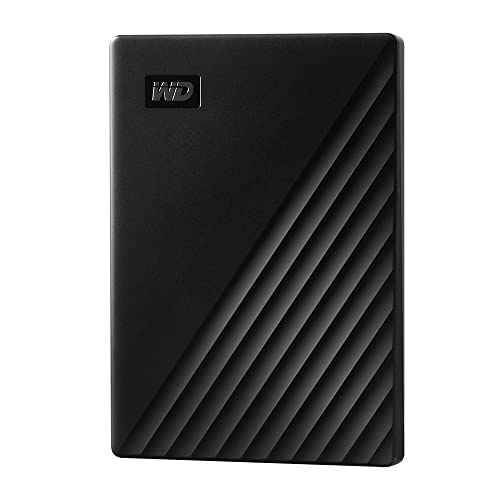
Slim durable design to help take your important files with you
Alternatives to FileVault and BitLocker
While FileVault and BitLocker are popular choices for encrypting drives, there are several effective alternatives that can meet our needs just as well. Here are some options to evaluate:
- Disk Utility on macOS: It allows us to create encrypted disk images or format drives as Mac OS Extended (Journaled, Encrypted) or APFS (Encrypted), ensuring secure storage.
- LUKS on Linux: This provides strong encryption for external drives through cryptsetup, securing our data with a passphrase.
- VeraCrypt: A third-party encryption tool that supports full disk encryption and secure containers across different platforms.
- OpenSSL: A versatile tool that can encrypt files or entire partitions with strong algorithms like AES-128 or AES-256 for added flexibility.
Each of these options can effectively help us protect our sensitive data. Many users also value the clear visibility and organization of storage offered by clear design acrylic desk organizers when arranging their physical workspace.
Recommended Products
Slim durable design to help take your important files with you

Store and access photos and files with Seagate One Touch, an on-the-go USB drive for Windows and Mac (reformatting may be required for use with Time Machine)

256-Bit AES XTS hardware encryption
Importance of Encrypting External Drives in Today’s Digital Landscape
In today’s digital landscape, the need for encrypting external drives can’t be overlooked. Protecting sensitive data from unauthorized access is essential, especially with increasing incidents of data theft. By using full-disk encryption methods like FileVault and BitLocker, we can reduce the risk of those breaches by over 90%. Moreover, complying with regulatory requirements like GDPR and CCPA is critical for businesses to avoid costly fines. Encrypting portable drives secures valuable information such as financial records and personal files, enhancing trust with customers. Modern encryption methods are effective without greatly impacting device performance, allowing us to encrypt drives seamlessly. In short, prioritizing encryption is not just a best practice; it’s imperative in safeguarding our digital assets. REBEL Dual 65W chargers also illustrate how modern portable devices can deliver high power output for efficient on-the-go use.
Frequently Asked Questions
What Is the Difference Between Filevault and Bitlocker?
FileVault offers strong encryption performance with a user-friendly interface for Mac users, while BitLocker features broader compatibility across Windows versions and versatile security options. We should choose based on our specific device needs and preferences.
How Do I Encrypt a Portable Hard Drive With Bitlocker?
To encrypt a portable hard drive with BitLocker, we’ll start the BitLocker setup, verify portable drive compatibility, evaluate security features, monitor encryption speed comparison, and save data recovery options carefully for future access.
What Are the Disadvantages of Filevault on Mac?
Maneuvering the maze of FileVault reveals pitfalls like performance impact and compatibility issues. Our user experience can falter if passwords are forgotten, and encryption speed may frustrate, leaving recovery options as our only lifeline.
Can Filevault Encrypt an External Drive?
Yes, FileVault can encrypt external drives, providing significant data security benefits. We should consider macOS encryption methods carefully, ensuring encrypted drive compatibility and properly backing up data before using FileVault effectively.