As an Amazon Associate, we earn from qualifying purchases. Some links on this site are affiliate links at no extra cost to you. Our recommendations are based on thorough research and editorial judgment.


Fixing MacBook Bluetooth & Wi‑Fi Issues in Offices

To fix Bluetooth and Wi-Fi issues on MacBooks in office settings, we should start by checking device compatibility, ensuring devices use matching Bluetooth versions. Next, assess Wi-Fi signal strength and adjust router settings to minimize interference. Performing basic troubleshooting steps, like resetting connections and prioritizing Wi-Fi over Bluetooth in preferences, can improve performance. For persistent concerns, exploring hardware diagnostics or seeking professional assistance is wise. Keep going to gain additional insights and tips for a smoother experience.
Key Takeaways
- Turn off Bluetooth when not in use to minimize Wi-Fi interference and improve network performance in busy office environments.
- Ensure all devices, including peripherals and routers, have the latest firmware updates to enhance compatibility and reduce connectivity issues.
- Assess Wi-Fi signal strength and switch channels or use a Wi-Fi extender to boost coverage in areas with weak signals.
- Toggling Wi-Fi and Bluetooth settings in System Preferences can refresh connections and resolve any glitches affecting performance.
- Prioritize Wi-Fi over Bluetooth in Network Preferences to ensure a stable connection, especially when multiple devices are active.
Understanding Bluetooth and Wi-Fi Interference
When we consider the relationship between Bluetooth and Wi-Fi signals, it’s essential to understand how they can interfere with each other. Bluetooth devices, particularly when many are active, can cause significant Wi-Fi connectivity issues. Users often report slower Wi-Fi speeds, and simply turning off Bluetooth tends to restore normal performance. The primary interference stems from Bluetooth Classic and 802.11g Wi-Fi standards, so upgrading to 802.11n can help alleviate these conflicts. Furthermore, continuous Bluetooth scanning may worsen Wi-Fi disconnections, highlighting the importance of managing Bluetooth settings. To further mitigate interference, we can adjust router settings by changing Wi-Fi channels or prioritizing Wi-Fi over Bluetooth in our network configurations. Taking these steps can enhance both Bluetooth and Wi-Fi performance. Many modern office setups also benefit from using upgraded networking equipment with surge protection to protect devices and maintain stable connections.
Checking Device Compatibility

Ensuring device compatibility is essential for a smooth MacBook experience, as it can prevent many connectivity issues. To enhance Bluetooth and Wi-Fi performance, we should consider these steps:
- Verify Bluetooth Versions: Check that our Bluetooth devices support the same version as our MacBook. Discrepancies can cause connection failures.
- Update Firmware: Regularly check for firmware updates on Bluetooth peripherals and Wi-Fi routers to boost compatibility.
- Upgrade Older Accessories: Devices using older Bluetooth standards can conflict with newer Wi-Fi protocols, so it’s wise to upgrade to newer options.
- Consult Manufacturer Resources: For compatibility specifics, visit manufacturer websites to look up details regarding our MacBook and connected devices.
USB and XLR connectivity options and included accessories can also impact overall device interoperability and performance.
Recommended Products

SUPERCHARGED BY M2 PRO OR M2 MAX — Take on demanding projects with the M2 Pro or M2 Max chip. M2 Pro has up to 12 CPU cores, up to 19 GPU cores, and up to 32GB unified memory. M2 Max has 12 CPU cores, up to 38 GPU cores, and up to 96GB unified memory.

SUPERCHARGED BY M2 PRO OR M2 MAX — Take on demanding projects with the M2 Pro or M2 Max chip. M2 Pro has 12 CPU cores, 19 GPU cores, and up to 32GB unified memory. M2 Max has 12 CPU cores, up to 38 GPU cores, and up to 96GB unified memory.
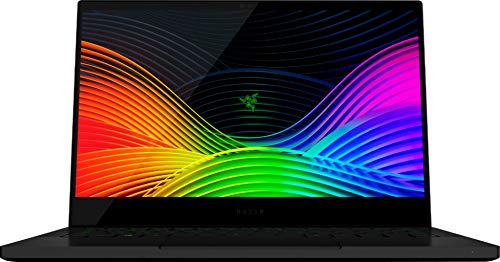
Designed for mobility: Built for performance with an ultra thin, light, and durable CNC anybody, anodized aluminum frame
Assessing Wi-Fi Signal Strength

To accurately assess Wi-Fi signal strength on our MacBook, we can start by checking the Wi-Fi icon in the menu bar. A full bar represents excellent performance, while fewer bars indicate potential issues. If we notice weak signal strength, moving closer to the Wi-Fi router can improve our connection. Walls and distance often interfere with quality.
We should also check available networks in System Preferences > Network > Wi-Fi. This helps us identify if other networks might be causing interference. If the signal remains low, using a Wi-Fi extender can boost coverage in hard-to-reach areas. Finally, let’s verify we’re connected to the correct Wi-Fi network and rule out any hardware problems with the Wi-Fi card or antenna before troubleshooting further. A mesh system like the TP-Link Deco X55 can provide extensive coverage to eliminate dead zones and improve reliability.
Recommended Products

4/3 CMOS Hasselblad Camera - The legendary Swedish brand Hasselblad customized the L2D-20c aerial camera for the Mavic 3 Series, embedding a professional-grade 4/3 CMOS into an incredibly compact space.

ScreenPad Plus: 12.6 inch matte touchscreen, giving your endless way to optimize your multitasking experience by extending the screen or split windows and apps on both displays

BUILT FOR COLLEGE. AND BEYOND — MacBook Air with the M5 chip packs blazing speed and powerful AI capabilities into an incredibly portable design. And with up to 18 hours of battery life,* this thin and light powerhouse is ready to take on almost any major, just about anywhere.
Configuring Router Settings

Configuring router settings can greatly enhance our MacBook’s Wi-Fi and Bluetooth performance. Here are some key adjustments we can make:
- Change Wi-Fi Channel: Switching to Channel 5 often reduces interference better than Channel 12.
- Switch Wi-Fi Modes: If our router is on mixed mode, consider changing it to a g Wi-Fi mode to help fix connectivity problems.
- Create New Network Location: In System Preferences, setting up a new network location helps us prioritize Wi-Fi over Bluetooth.
- Upgrade Access Points: Using 802.11n instead of older standards like 802.11g can minimize conflicts with Bluetooth signals.
- Consider updating access point firmware or replacing older units with 802.11n access points to reduce interference and improve overall wireless reliability.
Recommended Products


This Certified Refurbished product has been tested and certified to work and look like new, with minimal to no signs of wear, by a specialized third-party approved seller. The product is backed by a 90-day warranty, and may arrive in a generic brown box.

World’s first AI Router - Unleash demanding network applications with a powerhouse quad-core 2.6GHz CPU, plus an NPU, 4GB DDR4 RAM and 32GB eMMC Flash.
Performing Basic Troubleshooting Steps

When troubleshooting Bluetooth and Wi-Fi issues on our MacBook, we can start with some simple yet effective steps.
- Toggle Wi-Fi and Bluetooth: In System Preferences, turn off both Wi-Fi and Bluetooth, then turn them back on. This often refreshes connections and resolves temporary glitches.
- Restart Devices: Restarting both our MacBook and Wi-Fi router can clear any caching issues, helping restore a stable connection.
- Check Wi-Fi Networks: Click the Wi-Fi icon in the menu bar to verify we’re connected to the correct network and see if others offer better connectivity.
- Update macOS: Regularly updating our MacBook through System Preferences > Software Update provides performance enhancements that can help with wifi connection issues.
Implementing these troubleshooting steps can lead us to reliable connectivity.
Resetting the System Management Controller (SMC)
Resetting the System Management Controller (SMC) can be a helpful step in resolving Bluetooth and Wi‑Fi issues on our MacBook. The SMC manages critical hardware functions, including power management and connectivity. If we’re using an Intel-based MacBook, we can reset the SMC by following these steps:
- Shut down our MacBook.
- Hold the Shift-Control-Option keys and the power button for 10 seconds.
- Release all keys and turn the device back on.
If we have a MacBook with Apple silicon, we just need to shut down, wait a few seconds, and power it back on.
Many users find that this process helps fix Wi‑Fi and Bluetooth issues effectively, restoring proper functionality to our devices. Also, using high-quality accessories made from durable materials like ABS material can help prevent connectivity problems caused by worn or faulty peripherals.
Resetting NVRAM and PRAM
After we’ve reset the SMC, another helpful step to troubleshoot Bluetooth and Wi-Fi issues is resetting the NVRAM and PRAM. NVRAM (non-volatile random-access memory) stores vital settings like display resolution and audio volume, impacting our network settings.
To reset the NVRAM, we should shut down the Mac and then hold the Option, Command, P, and R keys simultaneously while starting it up. We’ll need to keep holding these keys until we hear the startup sound a second time.
Doing so may help resolve issues with our WiFi settings that could be causing connectivity problems. Remember, we may have to reconfigure some system preferences afterward, like our date and time settings, for peak performance. High-density foams are often recommended for superior sound absorption and may be useful when setting up office spaces to reduce wireless interference from acoustic foam panels.
Updating Macos and Applications
To maintain ideal Bluetooth and Wi-Fi performance, we should prioritize updating macOS and our applications regularly. Regularly updating macOS not only gives us access to stability improvements and bug fixes, but it can also resolve connectivity issues we might encounter.
Here’s how to check for updates:
- Navigate to System Preferences > Software Update.
- Install any available updates for peak device performance.
We should remember that keeping our software updated enhances compatibility with newer hardware, making it easier to connect to modern Bluetooth devices and Wi-Fi networks.
Lastly, by consistently applying software updates, we can boost the performance of our Bluetooth accessories while stabilizing our Wi-Fi connection. This simple step can lead to a significant improvement in our connectivity experience. Additionally, using high-quality cables and peripherals can reduce interference and improve overall network and device reliability.
Prioritizing Wi-Fi Over Bluetooth in Preferences
Prioritizing Wi-Fi over Bluetooth can greatly enhance our connectivity experience, especially when we’re maneuvering busy environments. To achieve this, let’s follow these steps in System Preferences:
- Open Network Preferences: Navigate to System Preferences and select Network.
- Adjust Service Order: Drag Wi-Fi above Bluetooth in the list of network services. This change guarantees Wi-Fi is prioritized.
- Disable Bluetooth Temporarily: If Wi-Fi speeds are slow, disabling Bluetooth can reduce interference.
- Create a New Network Location: This can help us manage and prioritize network settings more effectively.
- Utilize Terminal Commands: For advanced users, entering a specific command can improve Bluetooth coexistence with Wi-Fi. Devices with multi‑display support often rely on stable Wi‑Fi connections for features like AirPlay and screen sharing.
Exploring Hardware Diagnostics
When connectivity issues persist despite prioritizing Wi-Fi over Bluetooth, it’s time to explore hardware diagnostics. We can start by conducting a System Report. Navigate to “About This Mac” and select “System Report” to verify if the Wi-Fi card is detected.
Next, we need to check for hardware issues. Look for loose antenna cables or improperly seated Wi-Fi cards, as they can hinder connections. If there’s a new Wi-Fi card installed, verify it’s secure and all cables are connected properly.
We can also utilize Apple Diagnostics by holding the D key during startup. This tool identifies potential hardware-related issues affecting Wi-Fi and Bluetooth. If problems persist, consulting an Apple technician may be necessary to evaluate for deeper hardware malfunctions. High-quality replacement parts, such as clear acrylic organizers for workspace components, can help keep internal screws and small modules sorted during repairs.
Seeking Professional Assistance
Experiencing ongoing Bluetooth and Wi-Fi issues can be frustrating, so seeking professional assistance may be our best option. Here’s why contacting certified tech support is vital:
- Expert Diagnostics: Certified technicians can perform detailed tests on our MacBooks, identifying hardware conflicts that cause connectivity problems.
- Specialized Tools: Apple authorized service providers use specific tools and software to accurately diagnose issues in our devices.
- Office Challenges: Technicians are familiar with the unique challenges of office environments, such as multiple competing devices, allowing them to offer tailored solutions.
- Warranty Compliance: Professional consultations help ascertain any repairs meet warranty standards, protecting our devices.
For effective troubleshooting and speedy solutions, don’t hesitate to contact us for expert assistance. Many technicians also evaluate surrounding device interference and dual connectivity setups to recommend the best fixes.
Recommended Products

[Pro OBD2 Scanner] - BlueDriver is the easiest way to scan and understand your vehicle like a professional mechanic. Read and clear your car’s trouble codes and check engine light.

【Comprehensive Performance Testing】V011 OBD2 Scanner provides a complete diagnostic solution, giving you a thorough understanding of your vehicle's condition. It supports a variety of performance tests, including fast reading of DTCs, access to electronic emission readiness, turning off CEL or MIL, resetting monitors, reading live data and retrieving the vehicle's VIN, battery health check, freeze frame, sensor data, data streaming, diagnostic reports, onboard monitoring, live data streaming, and more. With these features, you can monitor your car's performance in real time and discover potential problems before they become major issues.
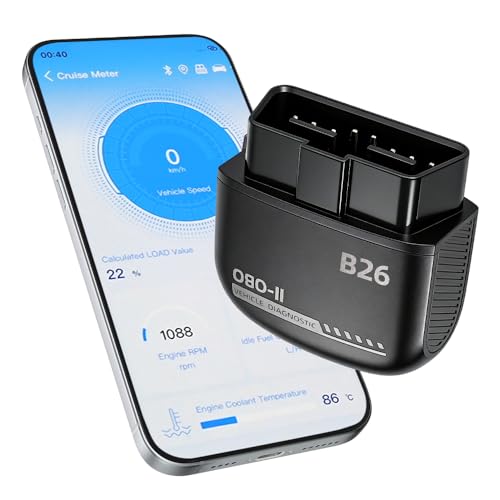
Feronix B26 Bluetooth 5.1 Seamless Connectivity | Wireless DIY Engine Code Scanner The Feronix B26 OBD2 scanner features upgraded Bluetooth 5.1 technology for instant, stable pairing with all iOS and Android devices, no extra cables or complicated equipment required. Enjoy lag-free real-time engine data transmission, even in garages or basements with weak signal. Its ultra-low power design ensures it will never drain your car battery, so you can leave it plugged in for 24/7 engine health monitoring, and access full diagnostic functions of this engine code reader for OBD2 directly from your smartphone anytime, anywhere.
Community Tips and Shared Experiences
To navigate the common Bluetooth and Wi-Fi issues we face with our MacBooks, it’s beneficial to share tips and experiences from the community. Here are some practical suggestions:
- Adjust WiFi Channel Settings: Switching to Channel 5 can enhance your WiFi network’s performance by reducing interference from Bluetooth devices.
- Prioritize WiFi: In your network settings, make WiFi priority over Bluetooth to improve connectivity.
- Use Bluetooth Classic: Many users report better stability with Bluetooth Classic devices in environments filled with low-bandwidth peripherals.
- Limit Bluetooth Scanning: Continuous scanning for Bluetooth devices can disrupt WiFi signals, especially in busy offices.
Recommended Products

This product is sourced from an authorized Soundcraft North American dealer and includes the official Soundcraft manufacturer’s warranty. The warranty is valid only for products purchased from authorized Soundcraft North American dealers within the United States.

【Next-Gen Power for Work & Play】Driven by the AMD Ryzen 5 6600H CPU (6 Cores / 12 Threads, 19MB total cache, up to 4.5GHz), this high-performance gaming laptop beats i7-1165G7 in speed. It's the ultimate video editing laptop for creators, a responsive tool for any laptop gamer, and an all-around reliable laptop.

【Intel Core i3-1215U Processor】Experience next-level efficiency with the 12th Gen Intel Core i3-1215U—a 6-core, 8-thread powerhouse (1.2GHz base, up to 4.4GHz Turbo Boost). Engineered for responsive multitasking and smooth productivity, this processor outperforms Ryzen 7320U, Ryzen 7520U, Anker Lake N150, N200, N305,N97, Celeron 4120, Pentium 5095 and even the I5-1135G7 in speed and efficiency.
Frequently Asked Questions
How to Fix Wi-Fi Issues in Macbook?
When we faced Wi-Fi issues on our MacBook, we started with Wi-Fi troubleshooting steps like checking network settings reset and performing hardware checks. Restarting the router often resolved connectivity issues. We’re always learning more solutions together!
How to Fix Bluetooth Problems in Mac?
To fix Bluetooth problems in our Mac, let’s check the Bluetooth settings, try resetting Bluetooth, and ascertain device compatibility. If issues persist, re-pair devices and consider updating macOS for potential bug fixes.
Why Are Bluetooth and Wi-Fi Not Working?
We often find Bluetooth and Wi-Fi battling like rival siblings, right? It’s a mess of Wi-Fi interference sources. We should try Bluetooth hardware troubleshooting and remember the importance of software updates to resolve their sibling rivalry.
Why Does Mac Keep Losing Wi-Fi Connection?
Mac keeps losing Wi-Fi connection due to interference sources, like Bluetooth devices. We should check our network settings and consider driver updates to eliminate disruptions and guarantee a more stable connection for our Macs.


