As an Amazon Associate, we earn from qualifying purchases. Some links on this site are affiliate links at no extra cost to you. Our recommendations are based on thorough research and editorial judgment.


Fixing USB & Thunderbolt on Macos: a Troubleshooting Guide

We can help you fix USB and Thunderbolt issues on macOS effectively. First, reboot your Mac, as this often resolves minor connectivity problems. Next, inspect your USB-C ports for dust or damage. If you suspect malware, run a virus scan with tools like CleanMyMac. Assure all devices are powered on and use compatible cables. Remember, certified Thunderbolt cables provide the best performance. By following these steps, you’ll enhance your device’s functionality and prevent future issues with ease. Discover more helpful tips ahead!
Key Takeaways
- Reboot your Mac to resolve common USB and Thunderbolt connection issues effectively.
- Inspect ports for dust or damage and clean them using compressed air if needed.
- Ensure all external devices are powered on and securely connected for proper recognition.
- Reset SMC and PRAM/NVRAM to address connectivity problems with USB and Thunderbolt devices.
- Use certified Thunderbolt or USB4 cables for optimal performance and compatibility with accessories.
Understanding USB & Thunderbolt Technology
You may be interested
To kick off our discussion on USB and Thunderbolt technology, it’s crucial to grasp their fundamental differences and similarities. USB technology has evolved, with USB-C ports being the latest standard. These ports support faster data transfer and power delivery compared to older USB-A types.
On the other hand, Thunderbolt, developed by Intel, offers even higher data transfer rates—up to 40 Gbps with Thunderbolt 3 and 4. Both Thunderbolt ports and USB-C ports can facilitate power delivery, allowing us to charge devices while transferring data.
However, it’s vital to use compatible cables; certified Thunderbolt cables achieve full performance, while standard USB-C cables may not provide the same speed or power levels. Understanding these distinctions helps us maximize our technology’s capabilities. Top USB-C drives now reach 1,000MB/s read speeds, which highlights how fast modern flash storage can be.
Initial Steps for Troubleshooting
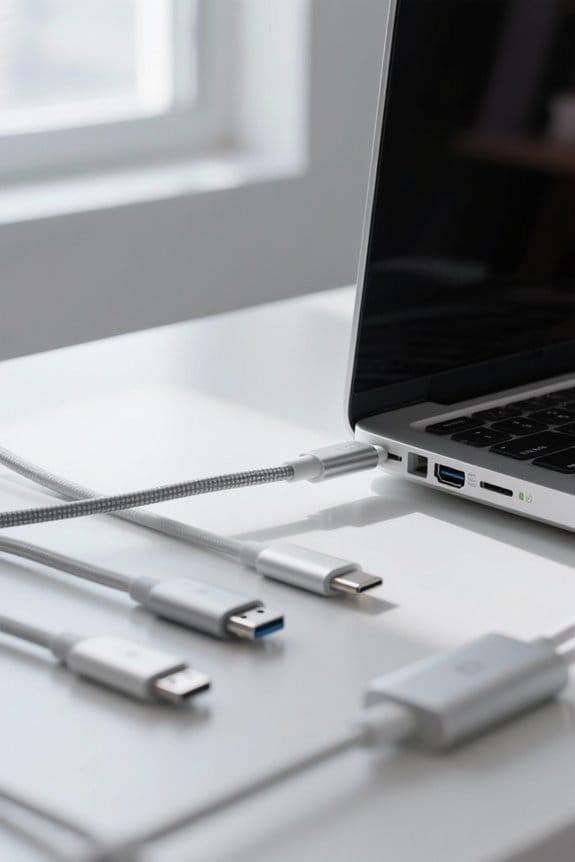
When we encounter issues with USB or Thunderbolt connections on our Macs, the initial steps can make a significant difference. Here’s what we can do:
- Reboot the Mac: Many users find a simple restart resolves connection issues.
- Inspect Ports: Check the USB-C ports for dust or debris. Use compressed air and look for signs of damage, such as discoloration.
- Run a Virus Scan: Utilize tools like CleanMyMac to detect any malware that could corrupt USB drivers.
- Use Apple Diagnostics: Holding the power button and pressing Command-D for Apple silicon, or D key during startup for Intel Macs can identify hardware problems.
- Reset SMC and PRAM/NVRAM: If issues persist, resetting these can help fix USB and Thunderbolt connectivity problems.
- Consider using anti-static cleaning wipes to remove dust without increasing static that attracts more debris.
Rebooting Your Mac for Quick Fixes
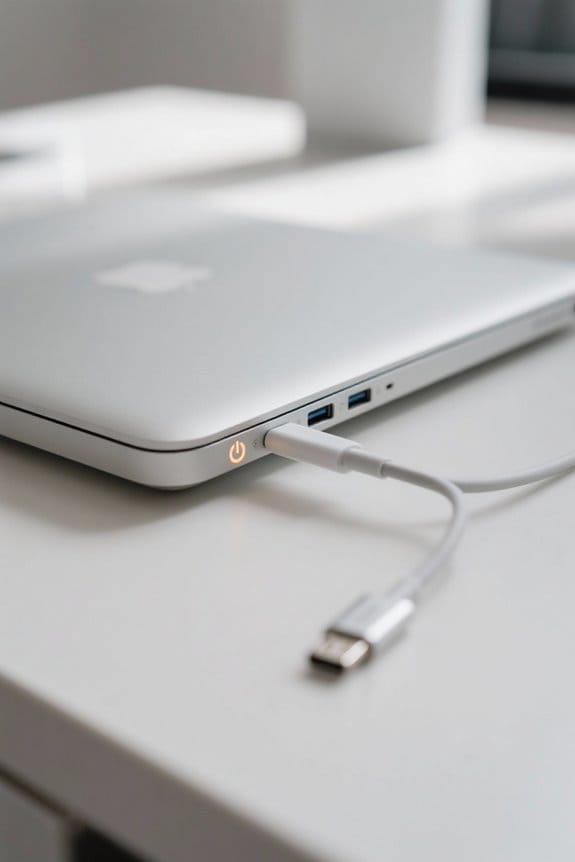
Rebooting our Mac can often serve as a simple yet effective solution for resolving USB and Thunderbolt connectivity issues. When we restart our Mac, it refreshes the system, clearing any temporary glitches or software conflicts that might affect the USB-C port functionality.
Here’s a quick overview of the process:
- Power Off: Completely shut down your Mac.
- Wait a Moment: Allow a brief pause—this helps reset any active settings.
- Power Back On: Turn your Mac back on and check the USB-C port.
Many users report a noticeable improvement in port performance post-reboot. It’s always smart to verify the functionality of the ports again after rebooting your Mac to see if the issues persist. Fast charging support for newer devices, such as Series 7 and later Apple Watches, can also depend on using a compatible USB‑C charger fast charging.
Inspecting Your USB-C Ports for Damage
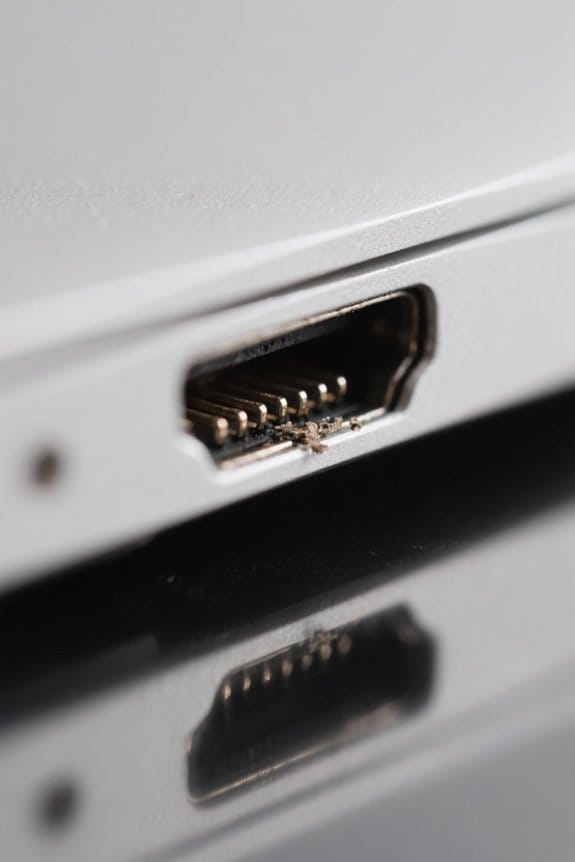
After rebooting our Mac, inspecting the USB-C ports for damage is the next logical step if we’re still facing connectivity issues. Here’s what to check:
- Clean the Ports: Use compressed air to remove dust or debris, ensuring proper connectivity with USB-C cables.
- Look for Damage: Inspect the ports for signs like discoloration or charring. These can indicate malfunction and potential issues with the logic board.
- Test Devices: Try different USB devices on various ports. This helps determine if the issue is with a specific port or a particular device.
- Assess Port Wear: Regularly check for wear and tear, as frequent use can lead to degradation, affecting performance. If issues persist, consider professional repair for potentially wider hardware problems.
Consider also evaluating the charger or cable quality, since using low-quality or incompatible USB-C accessories can affect charging and connectivity.
Recommended Products

Phone Cleaning Kit: Designed as a top-tier iPhone cleaning kit and charging port cleaning kit, Also compatible with Android and Samsung cell phones. Equipped with specialized tools to clean USB-C/Type-C/Lightning charging ports, speakers, lenses, etc. Comes with a dedicated cleaner and brush for the screen

CLEAN & REPAIR CHARGING PORT - Compatible with iPhone cleaning kit tool won't get stuck inside and is easy to plug and use. Use the port pick, U-shaped brushes, and port brushes to clean the dirt out of your Phone, Pad, and Type-c port, and keep your phone looking brand new. Charging port cleaners can effectively clean lint, hair, fluff, and dust from your personal device ports
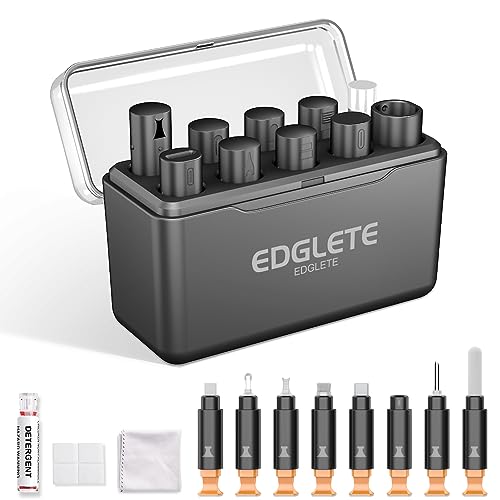
Iphone Cleaning Kit For Charging Port - The port hook, steel "U" brush and port wipe in the iPhone cleaning kit effectively clean compatible with iPhone, Android, iPad and tablet USB C port! Easily clean stains, hair, dust, fuzz, rust, oxidization and other contaminants from charging ports. Extend the life of your cell phone and electronic devices with our iPhone charging port cleaning tool
Checking Your Mac for Malware
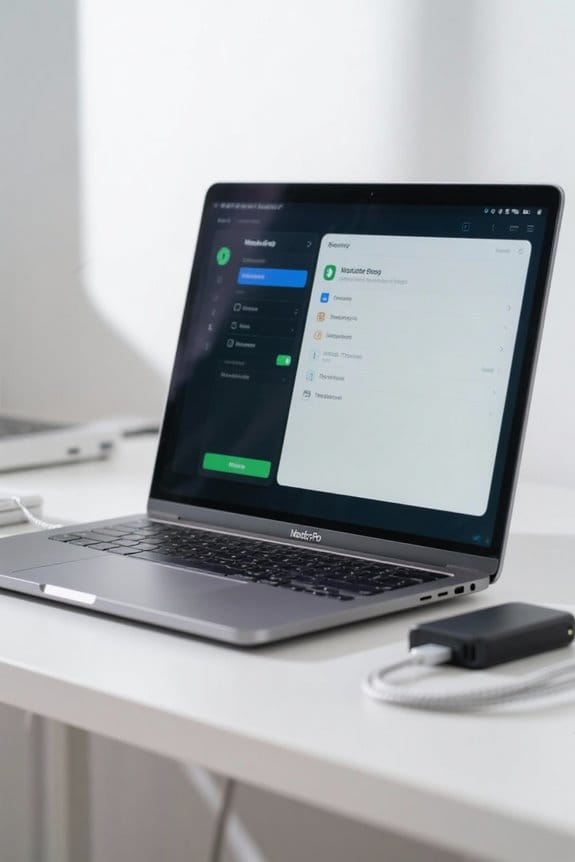
While it might not be the first thing that comes to mind, checking our Mac for malware is an essential step in resolving USB and Thunderbolt issues. Malware can corrupt USB drivers, leading to malfunctioning connections. Here’s how we can protect our devices:
- Regular Scans: Conduct virus scans frequently. Tools like CleanMyMac help identify and eliminate potential malware threats efficiently.
- Manual Inspection: Check Applications and Activity Monitor for unusual activity. This might take some time, but it can reveal hidden malware issues.
- Real-Time Protection: Use security software with real-time monitoring features, providing ongoing protection against malware that affects USB devices.
- Updates: Keep macOS and firmware updated to patch vulnerabilities and reduce the risk of malware infections.
Consider also using a wrinkle-resistant polyester green screen for content creation setups to minimize troubleshooting variables related to lighting and reflections.
Running Apple Diagnostics to Identify Issues
To troubleshoot USB and Thunderbolt issues effectively, we can utilize Apple Diagnostics, a built-in tool that identifies potential hardware problems. Here’s how to run it, depending on your Mac type:
- For Apple silicon Macs: Hold the power button and press Command-D during startup.
- For Intel-based Macs: Press and hold the D key immediately after turning on your device.
Apple Diagnostics will run a series of tests and provide reference codes. These codes help us understand specific issues and guide us in seeking further assistance if necessary. To guarantee accurate results, it’s recommended to perform this diagnostic while connected to a power source. This minimizes interruptions and helps us get the most reliable information for troubleshooting our USB-C or Thunderbolt ports. Replacement batteries may affect some hardware diagnostics, so consider using an Apple-certified battery to avoid complicating test results.
Recommended Products

The USB-C digital AV multiport adapter lets you connect your USB-C enabled Mac or iPad to an HDMI display, while also connecting a standard USB device and a USB-C charging cable. This adapter allows you to mirror your Mac Display to your HDMI-enabled TV or display.
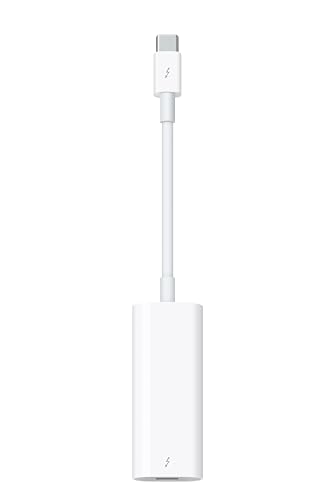
The Thunderbolt 3 (USB-C) to Thunderbolt 2 Adapter lets you connect Thunderbolt and Thunderbolt 2 devices — such as external hard drives and Thunderbolt docks — to any of the Thunderbolt 3 (USB-C) / USB 4 ports on your Mac.

Universal USB-C Compatibility - This SD card reader has a USB type C connector, which is effortlessly connect to iPhone 15/16 Pro, iPad Pro/Air, MacBook, Chromebook, Windows laptops, and more—any device with a USB-C port. Perfect for photographers, videographers who need fast photos videos transfers. Compatible with iPhone 15 / 15 Plus / 15 Pro / 15 Pro Max / 16 / 16 Plus / 16 Pro / 16 Pro Max. Compatible with MacBook Pro/Air, Mac. Compatible with iPad Pro 12.9-inch 6th Gen/5th Gen/4th Gen/3th Gen, 11-inch 3th Gen/2th Gen/1th Gen. Compatible with iPad Air 11-inch 5th Gen/4th Gen. Compatible with iPad 10.9-inch 10th Gen. Compatible with iPad mini 8.3-inch 6th Gen.
Resetting the SMC on Your Mac
Resetting the System Management Controller (SMC) can be an essential step in resolving USB and Thunderbolt issues on your Mac. Here’s how we can do it for different models:
For Intel-based MacBooks:
- Shut down your Mac.
- Press and hold Shift-Control-Option on the left side of the keyboard while pressing the power button.
- Release all keys and power back on.
For Intel Mac desktops (iMac, Mac mini, Mac Pro):
- Unplug the power cord and wait for 15 seconds.
- Plug it back in, wait another 5 seconds, and start your Mac.
Apple silicon Macs don’t need a separate SMC reset; simply restarting resolves related functions, including USB port activity. Doing this may restore USB port functionality, especially when devices aren’t connecting or getting power. Many users also find adding an ultra-thin webcam cover can help maintain device integrity and prevent accidental damage during troubleshooting.
Resetting PRAM/NVRAM to Address Hardware Problems
After resetting the SMC, another effective method to tackle USB and Thunderbolt issues involves resetting the PRAM/NVRAM on our Intel-based Macs. Here’s how we can do it:
- Shut down the Mac.
- Power it on and immediately hold down the Command-Option-P-R keys.
- Keep holding these keys until we hear the startup sound a second time.
Resetting the PRAM/NVRAM is beneficial for restoring default settings that control important hardware preferences. This can improve device detection and overall performance, especially after updating macOS or when dealing with connectivity issues. Remember, Apple silicon Macs don’t require this reset—simply restarting them refreshes the system settings. Let’s use this method for a smoother experience with our devices. For cases where USB-C or Thunderbolt ports are still unreliable, also consider testing with a 1Gbps Ethernet adapter to rule out adapter or cabling issues.
Connecting Accessories: What You Need to Know
Connecting accessories to our Macs can enhance productivity and streamline our workflow. Here are some key points to keep in mind:
- Device Approval: New USB and Thunderbolt devices require us to select “Allow” on Apple silicon Macs for full functionality, including power and data transmission.
- Power and Connection: Make certain the external device is powered on and securely connected to the correct port. This helps avoid connection issues.
- Cables and Adapters: It’s essential to use compatible cables and adapters. Using the wrong connector can lead to malfunction or failure to detect devices.
- Privacy Settings: We should review the Privacy & Security settings in System Settings. This guarantees our Mac recognizes all peripherals properly for seamless operation.
- Consider using a high-quality USB-C hub with 100W Power Delivery if you need reliable charging and multiple ports for peripherals.
Recommended Products

Ultra-Fast 10Gbps: 5-in-1 USB C Hub with 4 USB-C 3.2 Gen 2 ports, offering 10Gbps high-speed data transfer which can transfer 1GB of files in 1 second. As a USB-C hub for laptops it effortlessly transfers large files, quickly uploads and edits videos, and backs up data with ease.📌📌𝐍𝐎𝐓𝐄: 𝐅𝐨𝐫 𝐟𝐮𝐥𝐥 𝟏𝟎𝐆𝐛𝐩𝐬 𝐬𝐩𝐞𝐞𝐝, 𝐩𝐥𝐞𝐚𝐬𝐞 𝐜𝐨𝐧𝐧𝐞𝐜𝐭 𝐭𝐨 𝐚 𝟏𝟎𝐆𝐛𝐩𝐬-𝐜𝐚𝐩𝐚𝐛𝐥𝐞 𝐩𝐨𝐫𝐭 𝐚𝐧𝐝 𝐮𝐬𝐞 𝐚 𝐡𝐢𝐠𝐡-𝐬𝐩𝐞𝐞𝐝 𝐝𝐞𝐯𝐢𝐜𝐞.
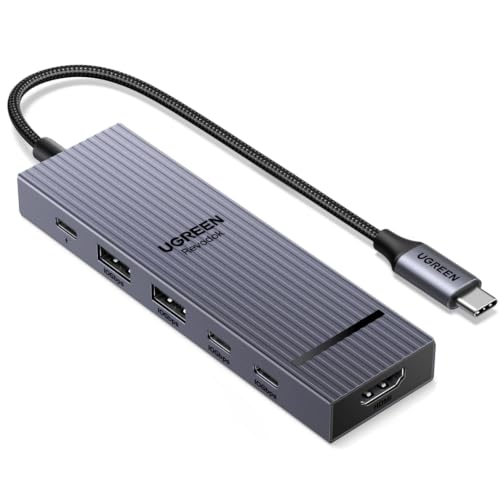
6-in-1 10Gbps USB C Hub: Inspire more potential of your laptop’s USB-C port with two 10 Gbps USB-C 3.2 Gen 2 port, two 10 Gbps USB-A 3.2 Gen 2 ports, 4K 60Hz HDMI and 100W Power Delivery. Ultimate all-in-one dock, works on multiple ports simultaneously

5-in-1 Connectivity: Equipped with a 4K HDMI port, a 5 Gbps USB-C data port, two 5 Gbps USB-A ports, and a USB C 100W PD-IN port. Note: The USB C 100W PD-IN port supports only charging and does not support data transfer devices such as headphones or speakers.
Compatibility Issues When Connecting Devices
When we connect devices to our Macs, it’s important to recognize that compatibility issues can emerge, especially with older models. Here are some key points to keep in mind:
- Port Types: Older Macs may use Mini DisplayPort instead of Thunderbolt. This can affect functionality with certain devices.
- Cable Certification: Always use certified Thunderbolt/USB4 cables. Thinner cables might only support power and USB 2.0, leading to non-functionality.
- Correct Ports: Use the USB-C or Thunderbolt port labeled with a laptop icon for upstream connections, as downstream ports may cause device failure.
- Firmware Updates: Confirm all devices and the Mac are running the latest firmware for maximum performance.
- Alt Mode Support: Check if USB-C ports support Alt Mode or Thunderbolt for video output when connecting external displays.
- Use high-quality cables that support the required data transfer speeds and power delivery for your devices.
Recommended Products
![Cable Matters [Intel Certified] 40Gbps Thunderbolt 4 Cable, 3.3ft / 1m](https://m.media-amazon.com/images/I/41lpiJCsNCL._SL500_.jpg)
Advanced Thunderbolt 4: The Cable Matters Thunderbolt 4 cable combines the newest Thunderbolt cable and USB 4 cable standards in one versatile solution. Take advantage of the 40Gbps Thunderbolt 4 connector with this all-in-one Thunderbolt 4 cable and USB4 cable, ideal for professional and home setups.
![Cable Matters [Intel Certified] 40Gbps Active Thunderbolt 4 Cable, 6.6ft](https://m.media-amazon.com/images/I/411y0Q68plL._SL500_.jpg)
Advanced Thunderbolt 4 Cable: The Cable Matters Active Thunderbolt 4 cable features the latest Thunderbolt 4 and USB4 standards and is the longest certified active cable on the market that does it all. Take full advantage of the Thunderbolt 4 40Gbps connector with this long Thunderbolt 4 cable and USB4 cable—ideal for extended setups in professional or home environments.
Advanced Thunderbolt 4: The Cable Matters Thunderbolt 4 cable combines the newest Thunderbolt cable and USB 4 cable standards in one versatile solution. Take advantage of the 40Gbps Thunderbolt 4 connector with this all-in-one Thunderbolt 4 cable and USB4 cable, ideal for professional and home setups.
Common Problems With Thunderbolt and USB-C Devices
Though it can be frustrating, many users encounter issues with Thunderbolt and USB-C devices that stem from a few common problems. To help tackle these:
- Cables and Ports: Always use a certified Thunderbolt or USB4 cable. Confirm you’re connecting to the correct dock port; using a downstream port can cause devices to not function.
- Power Connections: Check that your full-feature dock’s power adapter is connected before linking the host cable. Without it, operational issues often arise.
- Compatibility Checks: Older Mac models may need firmware updates for Thunderbolt functionality. Always verify if the connected devices are powered on and recognized in System Information, as this can clarify connectivity problems. By following these steps, we can minimize frustration and improve device performance.
Recommended Products

Move Files Fast: Transfer music, movies, or entire seasons of TV shows in seconds at 40 Gbps.
![Silkland USB 4 for Thunderbolt 4 Cable 4FT, 40Gbps Data Sync, 8K/6K@60Hz, 240W Charging [USB-IF Certified],Braided USB C to USB C Data Cable Compatible for MacBook, iPhone 17, Mac mini, SSD, Docking](https://m.media-amazon.com/images/I/41mXccKGFWL._SL500_.jpg)
【Up to 40Gbps Data Sync】Delivers up to 40Gbps high speed transaltion, 4x faster than USB 3.2 cable, 2x faster than previous generation USB4 cable. It can copy 10GB files in seconds, avoid waiting, and effortlessly get everything you want. Plug and play, no drive needed.*The final performance depends on whether your device supports USB4, Thunderbolt 4/3.

240W SuperCharge: This 240W USB C to USB C Cable can Power your devices with superior 240W PD 3.1 charging technology, charging a 16-inch MacBook Pro to 50% in 30 minutes and an iPhone 16 to 56% in 30 minutes. Backwards compatibility with 140W, 100W and 65W devices
Additional Resources for Ongoing Support
After addressing some common issues with Thunderbolt and USB-C devices, it’s important to know where to find ongoing support and resources for more complex problems. Here are some helpful options:
- Apple Support Articles: These provide detailed guidance on troubleshooting USB and Thunderbolt issues specific to your MacBook Pro.
- Community Forums: Engaging with other users can offer valuable insights and shared solutions.
- Firmware Updates: Regularly check for updates from Apple to fix compatibility problems.
- Mac User Guide: This resource offers thorough instructions for setting up and troubleshooting accessories.
- Third-Party Applications: Tools like CleanMyMac can help scan for malware that might disrupt USB drivers.
Frequently Asked Questions
How to Fix a Corrupted and Unreadable USB Flash Drive on a Mac?
When we encounter a corrupted drive, we can breathe life back into it by using Disk Utility’s “First Aid.” If that fails, we’ll pursue flash recovery methods, aiming to restore our valuable data.
How to Fix a Thunderbolt Device Not Working or Connecting?
To fix Thunderbolt device connectivity issues, let’s check compatibility first. If everything’s properly connected, we should try a Thunderbolt device reset, and don’t forget to update firmware to guarantee smooth operation.
How Do I Fix My USB Ports Not Working on a Mac?
To fix our USB ports not working on Mac, let’s inspect for hardware issues and verify USB power connections are secure. A quick reboot and cleaning dust from ports can often do the trick, too!
Why Is My Thunderbolt Connection Not Working on My Mac?
Our Thunderbolt connection might not be working due to cable quality or compatibility issues. Let’s guarantee we’re using a certified Thunderbolt cable and that our accessories are properly connected and powered on.


