As an Amazon Associate, we earn from qualifying purchases. Some links on this site are affiliate links at no extra cost to you. Our recommendations are based on thorough research and editorial judgment.


Hubs Vs Docks Vs KVMS: the Differences Explained

When we compare hubs, docking stations, and KVM switches, each plays a unique role. Hubs expand one USB port into multiple ones but lack power support and complex functionality. Docking stations enhance connectivity with various ports, allow power delivery, and support high-resolution displays, making them great for laptops. KVM switches let us seamlessly control multiple computers with one set of peripherals, reducing clutter. Understanding these differences helps us choose the right device for our needs. There’s more to explore on each option.
Key Takeaways
- USB hubs expand a single USB port into multiple ports but offer limited functionality for complex setups.
- Docking stations provide extensive connectivity options and power delivery for high-demand devices, ideal for laptops.
- KVM switches allow seamless control of multiple computers using a single keyboard, mouse, and monitor, perfect for collaborative workspaces.
- Hubs may struggle with power supply, while docking stations are powered and support charging during use.
- KVM switches manage multiple devices, reducing cable clutter, whereas docks enhance single-device connectivity without switching.
Understanding USB Hubs
When we think about enhancing our device connectivity, USB hubs often come to mind as a practical solution. A USB hub allows us to expand a single USB port into multiple ports, connecting several peripherals like keyboards and mice. There are two main types: powered and non-powered. Powered USB hubs provide additional power, suitable for high-demand devices, while non-powered ones may struggle with power supply.
Typically, these hubs include several USB-A ports and sometimes USB-C, offering various connectivity options. However, they often require additional adapters for video and data transfer. While USB hubs enable connections for multiple devices, they don’t support seamless device switching between computers, and they can contribute to workspace clutter from the cables used. Many multiport hubs now offer 10Gbps data transfer options for faster file movement.
Limitations of USB Hubs

While USB hubs offer a quick way to expand connectivity, they come with several notable limitations that can hinder their effectiveness in multi-device environments.
Common Limitations:
- Cable Clutter: As we connect multiple devices, the number of cables can become overwhelming, creating a messy workspace.
- Performance Issues: Non-powered USB hubs may not provide enough power, affecting device functionality and leading to performance issues.
- Limited Video Outputs: Hubs often require additional adapters to support video outputs, which can restrict high-definition display setups.
- Inefficiency for Multiple Computers: For managing multiple computers, USB hubs lack the advanced features found in KVM switches or docking stations, making seamless switching difficult.
Additionally, many hubs do not offer dual 4K display support, which limits high-resolution multi-monitor setups.
The Role of Docking Stations

Docking stations play an essential role in boosting the functionality of our laptops, allowing us to connect a wider range of devices. They notably enhance connectivity by offering multiple ports, including USB-A, USB-C, HDMI, and Ethernet. This capability expands functionality, enabling us to work with multiple devices seamlessly.
Additionally, many docking stations support power delivery, charging our devices while facilitating data transfer. They also support various video outputs, allowing the connection of external displays—often achieving resolutions up to triple 4K at 60Hz.
Compared to hubs, docking stations offer a superior option for high-demand peripherals, as they typically plug into a power source. This distinction enhances our overall desktop experience, making our workstations more efficient and versatile. Modern Thunderbolt 4 docks also provide 40Gbps data transfer speeds for high-performance workflows.
Recommended Products
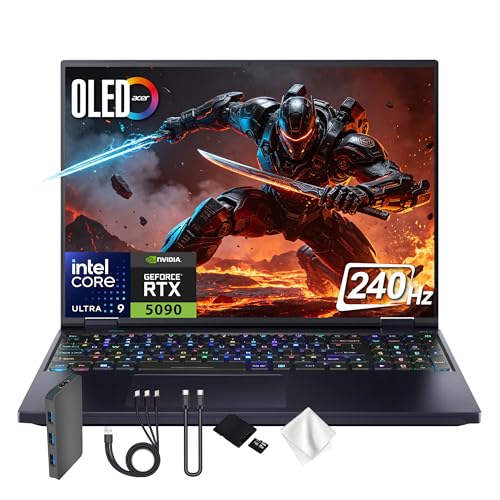
Spectacular Visual Delights--【Upgraded】Seal is opened for upgrade only, 1-Year warranty on Upgraded RAM/SSD, and original 1-Year Manufacture warranty on remaining components.【16" WQXGA 240Hz Gaming Display】Experience stunning clarity and buttery-smooth motion on a 16-inch 2560×1600 display, designed for vivid visuals and seamless gameplay.
Spectacular Visual Delights--【Upgraded】Seal is opened for upgrade only, 1-Year warranty on Upgraded RAM/SSD, and original 1-Year Manufacture warranty on remaining components.【16" WQXGA 240Hz Gaming Display】Experience stunning clarity and buttery-smooth motion on a 16-inch 2560×1600 display, designed for vivid visuals and seamless gameplay.
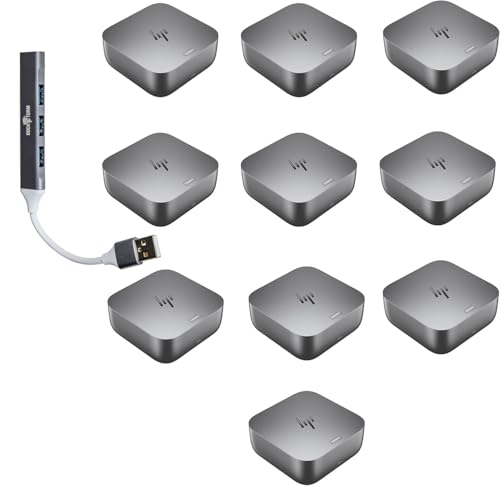
Power Connections – HP Quick Connect wakes your devices before you even take a seat. Stay in your flow all day with up to 280W of power delivery and 40 Gbps of data transfer speeds via Thunderbolt 4 technology and all the ports you need to connect your setup.
Benefits of Docking Stations

Although many of us rely on laptops for our daily tasks, the benefits of using docking stations can greatly enhance our productivity.
Improved Connectivity
Docking stations expand our connectivity options. They typically offer four to eight USB-A ports, plus multiple USB-C ports for fast charging.
Enhanced Display Options
Many docking stations support video outputs, allowing us to connect up to three 4K displays, which is ideal for multitasking.
Streamlined Power Supply
By delivering up to 100W of power, docking stations eliminate the need for multiple power adapters, simplifying our workspace.
Comprehensive Solutions
Features like Gigabit Ethernet round out the experience, providing a robust all-in-one tool for our desktop setups. These advantages make docking stations essential for handling multiple devices and high-demand applications. Docking stations often include 4K@60Hz support to ensure smooth, high-resolution video output.
Recommended Products

18” UHD+ 4K 200Hz DISPLAY — Enjoy ultra-sharp 4K quality for creative work and high refresh rates for silky-smooth gameplay, backed by 100% DCI-P3 color accuracy that’s Calman Verified for the most lifelike visual
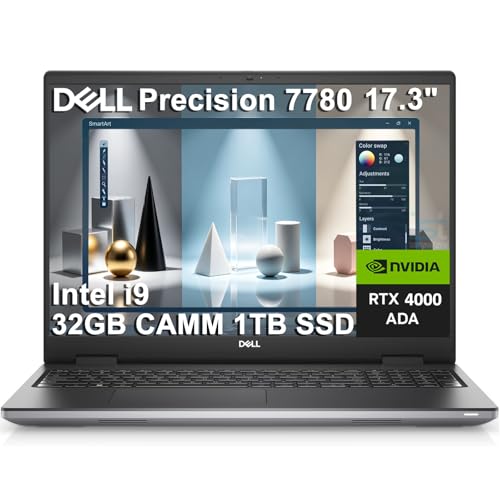
POWERFUL FOR CREATIVITY - The Dell Precision 7000 series stand at the top of the Precision lineup, delivering higher performance and expandability than the 3000 and 5000 series for demanding professional workloads. As a flagship model, the Precision 7780 showcases Dell’s high‑end workstation design with powerful, scalable capabilities, aligned with the evolution of the Dell Pro Max series. Equipped with an NVIDIA RTX 4000 Ada 12GB GPU, it delivers the performance and stability required for professionals in design, architecture and photography.

POWERFUL FOR CREATIVITY - The Dell Precision 7000 series, positioned at the apex of the Precision lineup, surpasses the 3000 and 5000 series and aligns closely with the evolving direction of the Dell Pro Max series. This top-tier 7680 features the NVIDIA RTX 2000 Ada 8GB GPU to deliver robust performance for professionals in design, architecture, photography, video editing, and engineering. Furthermore, the series' intelligent design for data science leverages AI to optimize system performance for key applications, enabling accelerated workflow efficiency.
Key Features of KVM Switches

When managing multiple computers, KVM switches offer a practical solution that complements the features of docking stations. Here are key features that highlight their functionality:
- Seamless Switching: KVM switches allow us to easily control multiple computers using a single keyboard, mouse, and monitor.
- USB Ports: They typically include multiple USB-A input ports for connecting peripherals.
- Video Output: Many models support high-resolution video output, ensuring clear visuals across connected systems.
- Dedicated Chips: Equipped with dedicated chips, KVM switches manage USB and audio/video data streams separately, providing stable performance.
- Input Ports: Various output connectors like HDMI, VGA, and DP support diverse device connections.
- User-Friendly Features: Options like front panel buttons, LED indicators, and remote controls simplify shifts between systems.
With these features, KVM switches enhance our multi-computer experience. They can also help reduce desk clutter and improve workflow by consolidating peripherals and displays into a single setup.
Recommended Products

Controls up to 504 computers/servers from one console in 1U

KVM EXTENDER: Delivers seamless KVM control while moving computing assets away from the workspace to secure, climate-controlled environments.

1U rackmount console with built-in 8-Port KVM switch, 19 LCD screen, keyboard, and touchpad
Advantages of KVM Switches
KVM switches offer several advantages that can greatly enhance our computing experience, especially in multi-device setups.
- Control Multiple Computers: They allow us to control multiple computers using a single keyboard and mouse, greatly reducing workspace clutter.
- Seamless Changes: With just a button press, we can switch seamlessly between devices.
- Input Ports: Typically featuring multiple USB-A 3.0 input ports, they accommodate various peripherals easily.
- High-Definition Video Outputs: Many support HDMI and DisplayPort, providing extensive functionalities for professionals and gamers.
- User Convenience: Advanced features like remote control switching and LED indicators enhance our convenience.
- Streamline Workflows: By accessing multiple computers without switching peripherals, we save both time and effort, making KVM switches a practical choice.
They can also integrate with high-quality materials to provide durable, stable platforms that withstand heavy daily use.
Recommended Products

HDMI2.1 kvm Switch 2 Monitor 2 Computers 4k 144hz COMPATABILITY: the Kvm switch 2 monitors 2 computers hdmi 5k 144hz supports most major operation systems like Windows, Linux, Mac and more; also support switch between devices without keyboard and mouse like DVR and NVR; Support webcam, speaker / headphone and microphone;
HDMI2.1 kvm Switch 2 Monitor 2 Computers 4k 144hz COMPATABILITY: the Kvm switch 2 monitors 2 computers hdmi 5k 144hz supports most major operation systems like Windows, Linux, Mac and more; also support switch between devices without keyboard and mouse like DVR and NVR; Support webcam, speaker / headphone and microphone;

CONTROL 2 COMPUTERS: Instantaneously access and control 2 computers using a single keyboard, monitor, and mouse at the push of a button.
Comparing KVM Switches and Docking Stations
Choosing between KVM switches and docking stations can greatly impact our computing efficiency, especially in multi-device environments.
KVM Switches:
- Allow seamless switching between multiple computers using a single set of peripherals.
- Typically feature dedicated chips for USB data and HDMI output for stable performance.
- Reduce cable clutter by managing multiple devices from a single station.
- Many KVM switches also support Power over Ethernet to simplify installations and reduce cable runs.
Docking Stations:
- Primarily enhance connectivity for a single device, providing extra ports like HDMI and USB.
- Enable users to expand connectivity for laptops, making them ideal for remote work.
- May lack the multi-system management that KVM switches offer.
Recommended Products
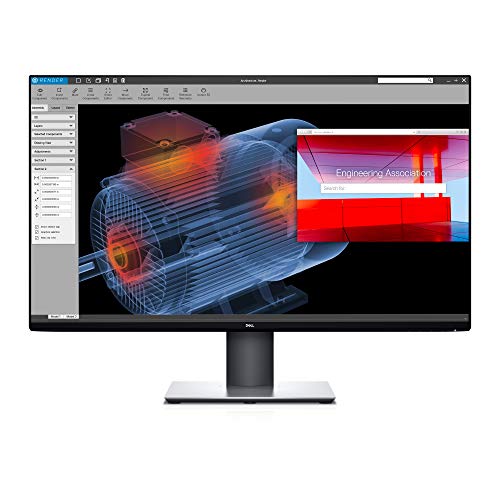
Experience four times more detail than Full HD with 3840x2160 Ultra HD 4K resolution.

hdmi displayport kvm Switch 2 Monitors 2 Computer 240Hz :the dp kvm switch support hotkey switching , you can use hotkey to switch between 2 computers,Right Control two times and number 1 and Enter(Right Ctrl+Right ctrl+1+Enter),you will switch to PC-A, and (Right Ctrl+Right ctrl+2+Enter) you will switch to PC-B. You can use Keyboard Hotkey (Right Ctrl+Right ctrl+B+Enter) to turn off or turn on the Beep for the dual monitor kvm switch.

USB3.0 KVM Switch 2 Port HDMI 1 Monitors 2 Computers edid compatibility: This kvm switch 1 monitor 2 computers hdmi edid simulator can help you connect 2 computers to share a set of keyboard and mouse, with three modes: video wall, dual expansion or mirrored display, with 1 additional high-speed USB 3.0 hub port for sharing USB peripheral; Suitable for IT experts, gaming (high frame), and other multitasking tasks,
Use Cases for Each Device
Understanding the use cases for each device helps us select the right solution for our needs.
- Hubs are ideal for casual users who want to connect peripherals like keyboards and mice to a single device. They offer a compact way to meet basic connectivity needs.
- Docking stations cater to remote workers looking for a full desktop setup. They expand connectivity with multiple ports and support for charging and monitors.
- KVM switches are perfect for IT professionals and gamers. They allow seamless switching between multiple devices while managing peripherals from one workstation.
- In shared workspaces, KVM switches aid collaboration, while docking stations help individual users connect USB devices and screens for varied tasks. Together, these solutions meet diverse needs effectively.
- When choosing a device, consider factors like 10Gbps data transfer to ensure it meets your performance and connectivity requirements.
Selecting the Right Solution for Your Needs
How do we determine the best connectivity solution for our specific needs? It starts with identifying our requirements:
- Docking Stations: Ideal for laptops, these devices expand ports and often provide power delivery while supporting multiple external monitors.
- KVM Switches: Perfect for those of us managing multiple computers, KVM switches allow seamless switching between systems using one set of peripherals, reducing cable clutter.
- USB Hubs: A cost-effective choice for simple port expansion. However, they don’t offer advanced functions for complex workspace setups.
In selecting the right solution, we should consider our workspace’s demands. If we need power delivery and extensive connections, docking stations might be best. If we frequently switch between devices, a KVM switch is recommended. Many users also choose USB-C hubs when they specifically need expanded connectivity for devices like iPads and laptops.
Frequently Asked Questions
What Is the Difference Between a Hub and a Dock?
Hubs offer simple USB port expansion with limited connectivity options, while docks provide extensive peripheral support and power delivery, enhancing our laptop experience through versatile device compatibility and improved data transfer for a more efficient setup.
What Is the Difference Between a Docking Station and a KVM Switch?
When we compare docking capabilities and KVM functionality, we see multi-device support shines in KVM switches, while docks enhance peripheral connections and video output. User experiences vary, impacting price comparisons and data transfer rates.
Do KVM Switches Work With Docks?
Yes, KVM switches work with docks. They enhance KVM functionality, allowing multi-device setups with improved peripheral compatibility. We should explore docking station types and their advantages to maximize our switching technology experience and performance benchmarks effectively.
What Is the Difference Between Anker Hub and Dock?
Ever wished for more ports? Anker hubs offer great device compatibility and portability with basic connection options, while docks shine with power delivery and extensive port availability, perfect for robust performance in stationary setups.


