As an Amazon Associate, we earn from qualifying purchases. Some links on this site are affiliate links at no extra cost to you. Our recommendations are based on thorough research and editorial judgment.


Laptop Ports Explained: PD, Alt Mode, Hub Vs Dock

When it comes to laptop ports, understanding Power Delivery (PD) and USB-C Alt Mode is essential. PD allows us to charge devices efficiently up to 100W, while Alt Mode enables video transmission via USB-C for high resolutions. We often use USB hubs for adding multiple data connections, but docking stations provide extensive features like video output and charging capabilities. Knowing the differences helps us choose the right solution for our needs. Let’s explore these topics further.
Key Takeaways
- Power Delivery (PD) enables rapid charging and device compatibility, supporting up to 100W through USB-C connections.
- USB-C Alt Mode allows simultaneous video signal transmission and power delivery, supporting high resolutions via DisplayPort.
- USB hubs connect multiple devices to one USB port, primarily for data transfer, without video output or charging.
- Docking stations transform a single laptop connection into a multifunctional workspace, supporting high-resolution displays and providing Power Delivery.
- Key differences: hubs are portable and data-focused, while docking stations offer comprehensive connectivity and stationary use.
Understanding Power Delivery (PD)
You may be interested
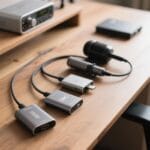
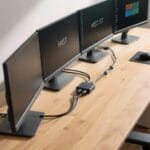
When we plunge into the concept of Power Delivery (PD), it’s important to understand its significant advantages. PD enhances USB-C connectivity by allowing devices to charge quickly and efficiently, delivering up to 100W of power. This means we can power larger devices like laptops and monitors while still using high-speed peripherals on the same cable.
Key benefits of PD include:
- Fast Charging: Devices can negotiate their power needs, enhancing charging times.
- Multiple Device Support: Power can be delivered to several devices through one connection.
- Efficiency: It guarantees ideal power usage, promoting longevity of our devices.
However, not all USB-C ports support PD, so we should always verify compatibility before making connections. Devices with 100W PD capability are commonly found in modern docking stations and high-powered hubs.
Exploring USB-C Alt Mode

USB-C Alt Mode enriches our experience with USB-C connections by enabling video signal transmission. This feature allows us to connect external monitors using the DisplayPort protocol, which supports higher resolutions and refresh rates. However, not all USB-C ports support Alt Mode, so it’s essential to check each device’s official specifications for compatibility.
When a device supports USB-C Alt Mode, we can enjoy video output alongside data transfer and power delivery, thanks to a single cable. Most modern laptops, particularly MacBooks, tend to support this functionality, though some Windows laptops may differ in compatibility. For the best results, we must also use compatible cables that can handle both video and power, ensuring peak functionality when connecting to displays. Additionally, choosing cables and adapters that support 4K@60Hz output helps ensure high-resolution video performance.
What Is a USB Hub?

A USB hub offers a practical solution for those of us needing to connect multiple devices to a single USB port. It allows us to connect multiple peripherals—like keyboards, mice, and flash drives—simultaneously.
Key Features:
- Plug-and-Play: Most USB hubs require no additional software, making setup easy.
- Data Connections: They focus solely on data connections, lacking video output and charging capabilities.
- Compact Size: Their lightweight design makes them ideal for travel.
- USB 3.0 Transfer Speeds: Most support transfer speeds up to 5 Gbps.
- Bandwidth Sharing: Performance may vary as bandwidth is shared among devices.
Many users also choose hubs based on support for EDR technology to improve connection stability and lower latency.
What Is a Docking Station?

Docking stations serve as essential hubs that transform a single laptop connection into a versatile workstation, enhancing our productivity. With a connection via USB-C or Thunderbolt, they expand our setup possibilities considerably.
Key Features:
- Multiple Displays: Support for high-resolution monitors through various video outputs like HDMI and DisplayPort.
- Power Delivery: Charge laptops while connecting to peripherals, offering up to 100W power output.
- Connectivity Options: Include Ethernet ports, audio jacks, and multiple USB ports, ensuring easy integration of external peripherals.
For professionals needing extensive setups, docking stations streamline multiple connections, supporting efficient workflows with reliable performances. They are ideal for environments where high-speed data transfer and wired internet access are prioritized. Many modern docks also support 100W fast charging and high-resolution video outputs for demanding workflows.
Key Differences Between Hubs and Docking Stations

Docking Stations:
- Thorough workstations designed for stationary use.
- Support multiple high-resolution external displays.
- Typically include a dedicated power adapter with USB Power Delivery up to 100W.
- Offer a wider range of port types (Ethernet, USB-A, USB-C, HDMI, DisplayPort).
- Can exceed 40 Gbps data transfer rates, ideal for data-intensive tasks.
Multiport Hubs:
- Compact and lightweight, perfect for on-the-go users.
- Focus on essential connectivity and USB expansion.
- Generally use pass-through charging without a power adapter.
- Limited to around 5 Gbps data transfer rates, suitable for basic tasks.
Hubs often include features like SD card slots and HDMI ports for basic media and display needs, making them useful for travel and quick setups with portable devices.
Recommended Products

5-in-1 Connectivity: Equipped with a 4K HDMI port, a 5 Gbps USB-C data port, two 5 Gbps USB-A ports, and a USB C 100W PD-IN port. Note: The USB C 100W PD-IN port supports only charging and does not support data transfer devices such as headphones or speakers.

【9-in-1 USB-C Docking Station】This Acer laptop docking station includes 2 HDMI(4K@60Hz), 3 USB-A (5Gbps), 1 USB-C (5Gbps), 100W PD charging, and SD/MicroSD slots (104Mbps). 📌Note: 𝐏𝐥𝐞𝐚𝐬𝐞 𝐞𝐧𝐬𝐮𝐫𝐞 𝐲𝐨𝐮𝐫 𝐥𝐚𝐩𝐭𝐨𝐩 𝐡𝐚𝐬 𝐚 𝐔𝐒𝐁-𝐂 𝐩𝐨𝐫𝐭 𝐰𝐢𝐭𝐡 𝐯𝐢𝐝𝐞𝐨 𝐨𝐮𝐭𝐩𝐮𝐭 (𝐃𝐢𝐬𝐩𝐥𝐚𝐲𝐏𝐨𝐫𝐭 𝐀𝐥𝐭 𝐌𝐨𝐝𝐞) 𝐬𝐮𝐩𝐩𝐨𝐫𝐭.

Powerful Performance: Achieve more with 7 expertly engineered ports - 2 for dual 4K displays that transform your workspace into a visual powerhouse. The DP and HDMI ports that keep entertainment at your fingertips, and the super-fast USB and ethernet ports redefine connectivity
Connectivity Options: Hubs Vs Docking Stations
Understanding the connectivity options available in hubs and docking stations can help us choose the best solution for our needs.
Docking Stations:
- Offer a wide range of connectivity options, including USB, HDMI, and Ethernet.
- Support multiple high-resolution external displays and Power Delivery (PD) up to 100W.
- Ideal for fixed setups, providing numerous USB ports and video outputs for multiple devices.
Multiport Hubs:
- Primarily expand USB connections with limited video outputs.
- Lightweight and portable, perfect for on-the-go use.
- May support pass-through charging but often lack dedicated power adapters.
- Many hubs include a 1Gbps Ethernet port for reliable wired network connections.
Recommended Products

The Anker Advantage: Join the 50 million+ powered by our leading technology.

10-in-1 USB C Docking Station: Inspire more potential of your laptop's USB-C port with 2xHDMI ports, a 100W USB-C PD port, a 5Gbps USB-C port, a USB A 3.0, 2xUSB A 2.0, RJ45 and SD/Micro SD card reader

12-IN-1 USB C Docking Station - This USB C docking station is equipped with one HDMI and dual DP ports, 85W PD, 2xUSB3.0, 2x USB2.0(For wireless keyboard and mouse), Gigabit Ethernet, SD/TF Slots(104MB/s), 2-in-1 Audio/Mic, offering enormous peripheral connections, upgrading your workstation through one single USB-C port, greatly improving productive efficiency
Power and Performance Comparisons
As we continue exploring our connectivity options, it’s important to evaluate how power delivery and performance differ between docking stations and multiport hubs.
Docking Stations:
- Power Delivery: Typically offers 60W to 100W+, providing robust charging while maintaining high performance.
- Performance: Supports data transfer rates over 40 Gbps, perfect for large files and multiple peripherals.
- Display Capabilities: With DisplayPort Alt Mode, can handle multiple high-resolution displays.
Multiport Hubs:
- Power Delivery: Usually rely on pass-through charging, drawing power from the laptop.
- Performance: Limit data transfer rates to a maximum of 5 Gbps, which isn’t ideal for extensive tasks.
- Display Capabilities: Generally support only a single display, restricting advanced setups.
Docks often include additional 2.5GbE networking options that improve connectivity for demanding workflows.
Recommended Products

Docking Station 14 in 1:This usb c docking station could extend your laptop from one usb c/thunderbolt 3/4/type c port into 14 ports:2 HDMI port(4K),Display Port(4K),100W USB C Power Delivery port,Ethernet(1Gbps), 1 USB C port and 2 USB A 3.1 ports(10Gbps), 1 USB C 2.0 and 2 USB 2.0(480Mbps),SD/Micro SD card reader,and 3.5mm Mic/audio.NOTE: Not all USB-C device is compatible with the hub,the incompatible device cannot use theHDMI orDP of this usb c dock

Detachable 2-in-1 Design for Desk & Travel — Features a 13-in-1 desktop docking station with a detachable 6-in-1 portable hub that snaps off for on-the-go use. One docking station replaces two, covering both your home office setup and mobile work needs without buying separate devices.

Adjustable Stand for Tailor-Made Comfort: The docking station has a stand composed of two foldable panels. Therefore, the back panel no longer blocks the heat dissipation outlet of the gaming consoles, greatly enhancing the heat dissipation effect.
Portability Considerations
Choosing the right connectivity solution often depends on portability needs, especially for those of us who frequently travel.
Multiport Hubs vs. Docking Stations
- Multiport Hubs:
- Lightweight and compact, ideal for on-the-go use.
- Often support USB-C with pass-through charging to streamline devices.
- Suitable for essential connectivity without a dedicated power adapter.
- Docking Stations:
- Bulkier, intended for fixed setups at desks or offices.
- Offer extensive connectivity with high-wattage power delivery up to 100W.
- Require a dedicated power adapter, making them less portable.
Many users prioritize portability considerations when choosing between hubs and docks, balancing weight, power delivery, and available ports.
When to Choose a Hub or Docking Station
For anyone steering through the world of laptop accessories, knowing when to choose a hub or docking station can greatly impact your setup.
- Docking Station: We should pick a docking station for extensive connectivity options. It’s perfect if we require support for multiple displays and need dedicated power delivery for a fixed workstation. A docking station often provides a single cable solution for connecting peripherals.
- Multiport Hub: Conversely, a multiport hub is our go-to when we need a portable, budget-friendly solution. It’s lightweight, and ideal for essential ports like USB and HDMI, especially when we’re on the go. Pass-through charging may limit power availability, so keep that in mind for our devices. Many high-quality hubs now offer 100W Power Delivery to better support charging while connected.
Recommended Products

Huge Expansion: Equipped with an 85W laptop-charging USB-C port, an 18W Power Delivery USB-C port, a USB-C data port, 3 USB-A ports, 2 HDMI ports, a DisplayPort, an Ethernet port, SD/microSD card slots, a 3.5 mm AUX port, and a DC input.

USB C Docking Station 8 IN 1: HoDo USB C Docking Station with Dual HDMI 4K (1*60HZ & 1* 30HZ), 1*4K@60HZ DisplayPort, 1*1080P VGA,3* USB 2.0,USB C Power Charging Port (max 100W). Please Note: on MacOS system, the screens of external monitors are the same, no matter they are displayed in mirror mode or extended mode
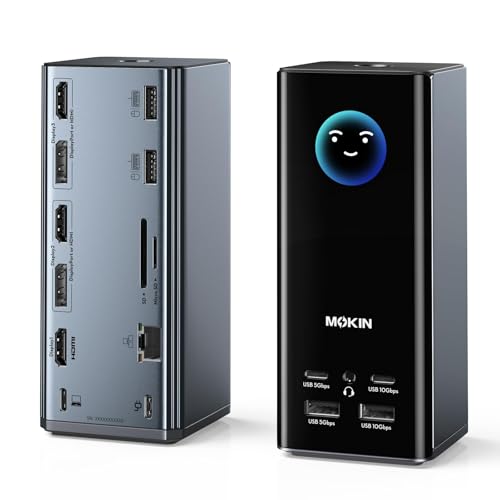
【17-in-1 USB C Docking Station 3 Display】This all-in-one Laptop docking station features 3 HDMI and 2 DisplayPort outputs, 2×10Gbps USB-C/A ports, 2×5Gbps USB-C/A ports, 2×USB 2.0 ports, 1Gbps Gigabit Ethernet, a 104MB/s SD/microSD card reader and a 3.5mm Audio jack
Best Use Cases for Hubs and Docking Stations
Understanding the best use cases for hubs and docking stations can help us select the right tool for our needs.
Multiport Hubs
- Ideal for travelers
- Compact design
- Essential connectivity options (USB, HDMI, Ethernet)
- Budget-friendly, convenient for on-the-go users
Docking Stations
- Suited for stationary work environments
- Extensive connectivity options with multiple USB ports
- Supports high-resolution displays
- Easier connections for external drives and peripherals
- Fast data transfer rates up to 40 Gbps
- Essential for ultra-thin laptops needing more ports
Anker USB C Hub models also add features like 4K HDMI support and pass-through charging to boost portability and productivity.
Recommended Products
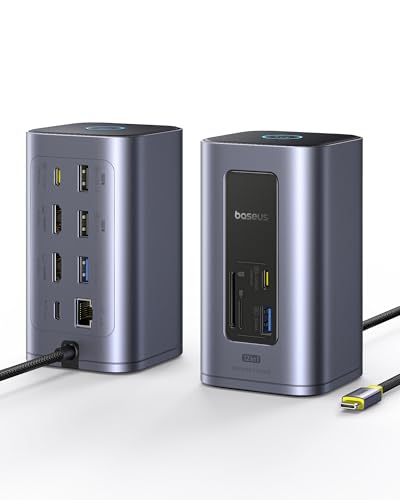
12 in 1 Docking Station: Say goodbye to cable clutter and embrace simplicity with our all-in-one usb c docking station! Featuring dual 4K outputs, 6 USB ports, and more, this powerhouse consolidates your workspace while unlocking seamless connectivity for all your devices

[8 in 1 USB C Hub Dual HDMI] Transform your laptop with this latest upgrade Selore 8-in-1 dual monitor docking station with dual 4K@60Hz HDMI ports, a 100W PD charging port, a USB-C port up to 5Gbps, two USB 3.0 ports up to 5Gbps and SD/microSD card slot up to 104 Mbps. Versatile and all-in-one hdmi adapter for dual monitors,suitable for home and office use for effective work (Docking stations require a Thunderbolt or full-featured USB-C port)
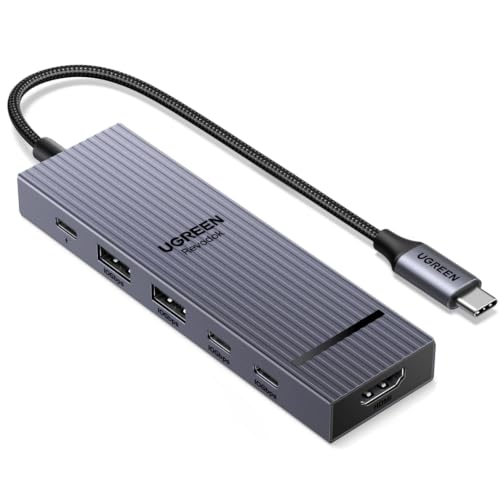
6-in-1 10Gbps USB C Hub: Inspire more potential of your laptop’s USB-C port with two 10 Gbps USB-C 3.2 Gen 2 port, two 10 Gbps USB-A 3.2 Gen 2 ports, 4K 60Hz HDMI and 100W Power Delivery. Ultimate all-in-one dock, works on multiple ports simultaneously
Frequently Asked Questions
What Is the Difference Between a Laptop Hub and a Docking Station?
When we compare a laptop hub and a docking station, we see hubs offer basic hub functionality, while docks provide advanced dock advantages. Performance differences, connection options, and power delivery highlight their distinct usage scenarios and pricing comparisons.
What Is Alt Mode on a Docking Station?
Alt Mode on a docking station lets us utilize USB-C for video output and data transfer, supporting protocols like HDMI and DisplayPort. It enhances charging capabilities, device compatibility, and multiple monitor connections, accommodating various use cases efficiently.
Do I Need a Dock or Hub?
With 70% of remote workers preferring Docking Stations for setup simplicity, we should choose one for extensive device expansion and better Power Delivery. However, for travel considerations and Hub compatibility, a Multiport Hub might work.
What Does PD Stand for on a Docking Station?
PD stands for Power Delivery, which enhances our user experience by optimizing charging capacity and data transfer. However, we should consider port compatibility, device support, cable length, power requirements, performance impact, and heat dissipation before choosing.


