As an Amazon Associate, we earn from qualifying purchases. Some links on this site are affiliate links at no extra cost to you. Our recommendations are based on thorough research and editorial judgment.


Turn an Ipad Into a Second Monitor: Protocols & Latency

To turn an iPad into a second monitor, we should consider both connection protocols and latency. Wired connections, like USB-C, provide stability and low latency (1-4 ms), making them ideal for precise work. Wireless options, such as Duet Display, offer flexibility but can face higher latency (7-25 ms) based on network conditions. By choosing the right connection method, we enhance our productivity. If we explore user experiences and future solutions, we’ll find even more valuable insights.
Key Takeaways
- Utilize wired connections, such as USB-C or Lightning, for reduced latency (1-4 ms) and stable performance when using an iPad as a second monitor.
- Wireless connections, while flexible, may introduce lag (7-25 ms) due to network congestion, impacting tasks requiring precision.
- Software like Duet Display provides compatibility across platforms but may face performance issues; prioritizing wired solutions enhances user experience.
- Future advancements in low-latency protocols and Wi-Fi technology are expected to improve wireless performance for secondary displays.
- Ensuring compatibility between iPad and computer is crucial for optimal setup, minimizing lag and maximizing productivity.
Understanding the Need for a Second Monitor
Understanding the need for a second monitor is essential, especially in today’s fast-paced work environment.
- Enhanced Productivity: We can boost our productivity by multitasking with a second monitor. Instead of constantly switching windows, we can have multiple applications open simultaneously.
- Efficient Workspaces: A second monitor, like an iPad, allows us to organize our workspace better. This extra screen real estate keeps critical tools visible and accessible.
- Portability and Flexibility: As remote work rises, using an iPad as a wireless second monitor provides significant advantages. We can easily extend our workspace anywhere.
- Cost-Effective Solution: High-resolution iPads are versatile for various tasks and eliminate the need for costly physical monitors, making them a smart choice for many professionals.
Wireless connectivity options like dual-mode mice illustrate how versatile Bluetooth and USB receivers can make device switching smoother across workflows.
Advantages of Using an Ipad as a Secondary Display

As we explore our options for enhancing workspace efficiency, using an iPad as a secondary display presents numerous advantages.
- Increased Screen Space: Having an iPad as a monitor allows us to work on multiple tasks simultaneously, reducing the need for constant window switching.
- Independent Operation: Each screen operates independently, helping us organize our workspace more effectively. We can easily access tools and references while working.
- High-Resolution Display: The iPad’s display is high-resolution, making it suitable for design work and productivity tasks.
- Cost-Effective Solution: By utilizing an existing iPad, we save on additional hardware costs and reduce clutter in our workspace.
This setup is especially beneficial for home office workers and students, boosting productivity overall. High-density foam panels can similarly improve home workspaces by reducing echo and improving audio clarity for calls and recordings, as they are often made from high-density polyurethane foam.
Common Connection Methods for Ipads

When we consider using an iPad as a second monitor, it is vital to explore the various connection methods available. Here are the most common options:
Wired Connections:
- Using a USB-C or Lightning cable offers stability and zero-lag performance, supporting resolutions up to 4K.
- This method is ideal for high-performance tasks needing clear visuals.
Wireless Connections:
- Software like Duet Display allows us to utilize a wireless setup, connecting the iPad via the same Wi-Fi network, preferably on a 5GHz band.
- This method typically experiences a latency range of 7-25ms.
- Verify compatibility between the iPad and computer for best performance.
- Consider material quality and durability when choosing accessories for sustained use.
Challenges With Latency and Video Signal

While exploring the various connection methods for using an iPad as a second monitor, we must address the challenges that come with latency and video signal.
Understanding Latency
- Latency, or the delay in transmitting video signals, can vary considerably.
- For USB cable connections, it typically ranges from 1-4ms, while wireless options can experience delays of 7-25ms.
Impact of Latency
- High latency affects tasks requiring precision, like gaming or video editing.
- A congested Wi-Fi network can exacerbate latency issues compared to wired connections.
To achieve the best performance, we should prioritize USB cable connections and adjust our device settings to reduce latency, ensuring a smoother experience with our second monitor setup. A wired connection also often provides stable internet connections which can improve overall responsiveness.
Duet Display: A Viable Solution

Duet Display stands out as a practical solution for anyone looking to use their iPad as a second monitor. Developed by former Apple engineers, it offers zero-lag responsiveness and supports resolutions up to 4K. Here’s why we find Duet Display to be an excellent choice:
- Wide Compatibility: It works across macOS, Windows, and Android, ensuring most users can take advantage.
- Stable Connection: A wired connection via USB-C or Lightning cable boosts performance, reducing lag.
- Customizable Settings: We can adjust resolution and frame rate to optimize our multitasking experience.
- Cost-Effective: With a one-time purchase, we can leverage our existing iPad instead of buying a new monitor.
All these features make Duet Display a solid option for enhancing productivity. It also benefits from high-speed scanning and workflow efficiencies found in modern devices.
Recommended Products
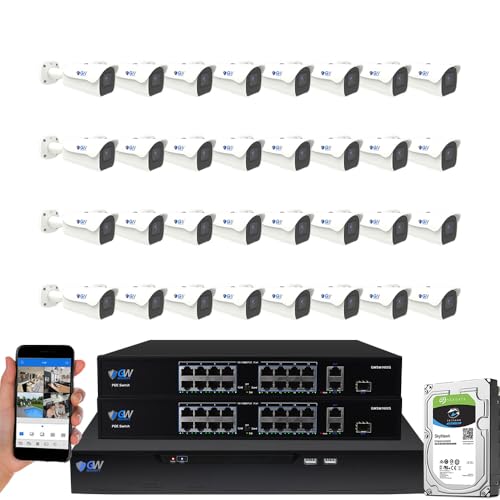
8-Megapixel with 3840x2160 Ultra High Resolution 4K Video & Audio 32 Channel 6K 12MP NVR Security Camera System with (32) 4K (8MP) Weatherproof 2.8-12mm Motorized Zoom H.265+ PoE IP Bullet Camera

Ultra High Definition 4K (3840x2160) FOUR TIMES the resolution of 1080P! 32 Channel 6K 12MP NVR 4K Security Camera System with (32) H.265+ 4K (8MP) @20FPS Weatherproof 2.8mm Wide Angle PoE IP Dome Cameras (Built-in Microphone)

12.0 Megapixel Full HD Realtime Recording 32 Channel 12MP 6K NVR with (32) 8MP 4K Weatherproof Outdoor/Indoor 24/7 Day Night Vision POE IP Bullet Cameras (Built-in microphone and 2.8mm 135° wide angle lens)
Setting Up Duet Display for Optimal Performance
To achieve ideal performance with Duet Display, we need to start by ensuring a strong and reliable connection between our iPad and computer. Using a USB-C or Lightning cable is recommended for a wired connection, as this typically minimizes latency to just 1-4ms.
If we opt for wireless connectivity, we should connect to a local 5GHz Wi-Fi network. Keeping our devices near the router can reduce interference and enhance performance.
Additionally, it’s essential to have the latest version of the Duet Display app on both devices. We should also adjust the performance settings by fine-tuning resolution and frame rate to optimize our experience and reduce any potential lag. Avoiding unnecessary background applications can further enhance responsiveness.
For reliable on-the-go setups, consider a compact inverter with dual AC sockets and high-speed USB ports to keep devices charged and running, especially models with built-in safety features like dual AC sockets and fast charging.
Recommended Products

1 x LG 27MD5KL-B UltraFine 27" 16:9 5K Monitor | 1 x Deluxe Clean and Care Kit

1big Dock is an external hard drive and laptop docking station for filmmakers looking to centralize their desktop peripherals and store a massive portfolio of work with high-performance Thunderbolt 4 compatible technology

World's first 6k touchscreen monitor – Experience breathtaking 6016×3384 resolution on a massive 32” display with ultra-precise touch control. Navigate your Mac or PC like a 32" iPad, or create detailed artwork on this expansive digital canvas using the pressure-sensitive Alogic Active Stylus.
Comparing Protocols: Duet Display vs. Other Applications
Having established the ideal setup for Duet Display, we can now look at how it stacks up against other applications in the market.
- Latency: Duet Display boasts zero-lag responsiveness with latency as low as 1-4 ms when wired, while competitors like Luna Display show 7-25 ms over Wi-Fi.
- Performance: Many free alternatives often disappoint, featuring latencies over 30 ms, which can disrupt tasks like video editing or gaming.
- Resolution: Duet Display supports customizable resolutions up to 4K, ensuring a high-quality experience, unlike some apps that only provide lower resolutions.
- Connection Reliability: While Duet Display works seamlessly with both wired and wireless setups, other applications struggle with lag and connection issues in wireless mode.
The compact tenkeyless design of many peripherals can help create a clutter-free workspace that complements a dual-monitor setup.
Recommended Products
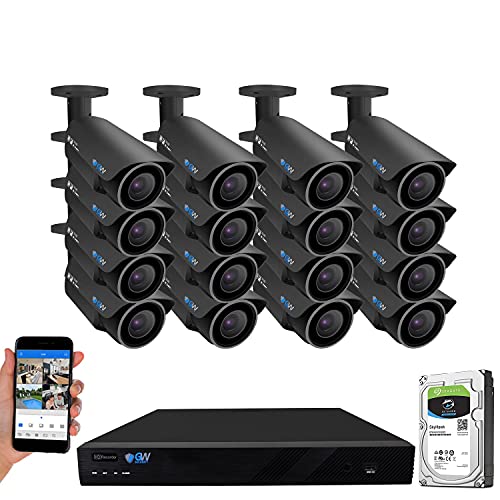
5.0 Megapixel super 1920p HD --- Capture crisp high quality HD 2592x1920p resolution video, it gives you even higher resolution than standard HD 1080p/720p cameras. Power over Ethernet setup is clean and simple with a single network cable, built-P2P service and support any Onvif H.265/H.264 IP cameras

Max 8.0 Megapixel Full HD Realtime Recording 16 Channel H.265 4K NVR Security Camera System with (12) 5MP 1920P Weatherproof POE H.265 IP Bullet Cameras (Built-in microphone and wide angle lens)

Ultra High Definition 4K (3840x2160) FOUR TIMES the resolution of 1080P! 8 Channel H.265 4K NVR Security Camera System with (4) H.265 4K (8MP) @20FPS Weatherproof 2.8-12mm Varifocal Lens PoE IP Dome Cameras (Built-in Microphone)
Exploring Wired Connection Options
When considering the best way to connect an iPad as a second monitor, a wired connection emerges as a highly effective option. Using a USB-C or Lightning cable facilitates a low latency experience, offering better stability than wireless methods.
Recommended Products

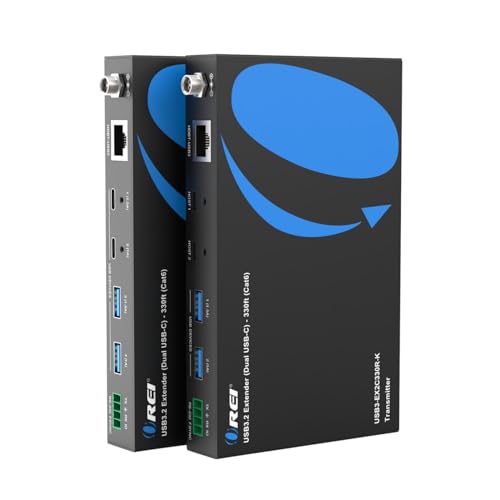
Long-Range USB 3.2 Over Cat6 (Powered Balun): Send a USB-C or USB-A connection up to 330 ft (100 m) over one Cat6 cable while preserving up to 5 Gbps throughput for fast file transfers, cameras, and capture devices. The powered design delivers reliable power/data to peripherals and works seamlessly with legacy gear thanks to backward compatibility with USB 3.0/2.0/1.1—ideal for conference rooms, classrooms, kiosks, and pro AV installs.
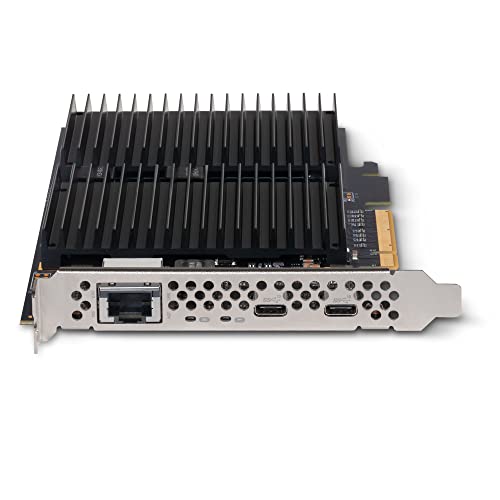
Adapter card with dual M.2 NVMe SSD slots, 10Gb Ethernet, and two 10Gbps USB-C Ports, NVMe storage on one PCIe 3.0 card.
Key Benefits:
- Minimal Latency: Wired connections typically achieve latency between 1 to 4 ms, ideal for tasks requiring quick responses.
- High-Resolution Support: With applications like Duet Display, we can enjoy resolutions up to 4K without lag.
- Setup Ease: We can assign static IP addresses (e.g., 192.168.69.1 for the laptop and 192.168.69.2 for the iPad) to optimize our connection.
- Ethernet Advantage: A USB-C to RJ45 adapter allows a wired Ethernet connection, enhancing performance beyond standard Wi-Fi setups.
These steps guarantee a reliable external monitor setup. The choice of a durable, water-resistant material like PU leather can be important for protecting cables and adapters during travel and daily use.
Examining User Experiences and Issues
While wired connections provide a robust solution for using an iPad as a second monitor, many users encounter various experiences and challenges that can impact their overall satisfaction.
Common Issues:
- Latency Issues: Wireless connections can cause delays ranging from 7 to 25 milliseconds, affecting performance.
- Performance of Applications: Although Duet Display is praised for its zero-lag performance, users occasionally face compatibility challenges, especially with free versions.
- Resolution Concerns: Wireless connections may not always deliver the expected visual quality, leading to frustration.
User Preferences:
- Many users prefer wired connections, such as USB-C, which can reduce latency to just 1-4 milliseconds.
- There’s a clear desire for more reliable wired options and alternatives to remote desktop applications for a seamless experience.
- Some users also value keyboards with smart illumination and multi-device connectivity to improve productivity.
Future Innovations in Dual Monitor Setups
As we look toward the future of dual monitor setups, innovations promise to enhance our experience considerably. Here are some key developments:
- Advanced Low-Latency Protocols: These protocols aim to reduce lag times to just 1-4 ms for wired connections and 7-25 ms for Wi-Fi networks. This improvement will streamline our workflow.
- USB-C Technology: Future advancements in USB-C may allow iPads and similar devices to function seamlessly as displays for your Mac, eliminating common limitations.
- Dedicated Software Solutions: Applications like Duet Display and Luna Display will optimize screen sharing, enhancing compatibility across different operating systems.
- Enhanced Wireless Technologies: Wi-Fi 6 and future upgrades promise increased bandwidth, making wireless dual monitor setups more efficient.
- Additionally, higher-quality adapters and cables that support 4K@60Hz and robust power delivery will further improve display fidelity and reliability.
Frequently Asked Questions
How to Use Ipad as Second Monitor No Lag?
To use our iPad as a second monitor with no lag, we should choose compatible apps, connect via USB-C or Lightning, and adjust display settings for ideal performance. Let’s follow these tips for the best experience!
Is Using an Ipad as Monitor Laggy?
Using an iPad as a monitor can be laggy, especially with wireless connectivity. If we consider iPad performance, display resolution, and app compatibility, opting for a wired connection greatly enhances our experience.
How to Reduce Latency on a Second Monitor?
To reduce latency on a second monitor, we should prioritize a wired connection, optimize our network by placing devices near the router, adjust software settings for display resolution, and keep everything updated for the best performance.
Can I Make My Ipad a Second Monitor?
Sure, we can turn our iPad into a second monitor! Using apps and a wireless connection, we’ll tweak our display settings for serious productivity benefits—because who needs a fancy dual setup when we’ve got our iPad?


