As an Amazon Associate, we earn from qualifying purchases. Some links on this site are affiliate links at no extra cost to you. Our recommendations are based on thorough research and editorial judgment.


Ipados File Management: External Drives & Network Shares

Managing files on iPadOS with external drives and network shares is easy. We can connect USB drives via the Files app, granting access to quickly browse and transfer files. Plus, we can format external storage using common formats like exFAT or APFS by selecting the “Erase” option. For network shares, we enter server details to connect and access files securely. There’s more to explore about efficient file management and how to best utilize all available tools.
Key Takeaways
- Connect external drives to your iPad via compatible adapters and access them through the Files app under “Browse” for file management.
- Ensure proper format compatibility (APFS, exFAT, FAT32) when using external storage for seamless integration with iPadOS.
- Use the Files app to connect to network shares by entering the server address and accessing files stored on it seamlessly under the “Browse” section.
- File creation on network drives is restricted; use external drives to work around limitations on iPadOS when managing files.
- Utilize the Quick Look feature in the Files app for quick previews, enhancing the file management experience and improving document identification.
Transfer Files With an External Storage Device
When it comes to transferring files with an external storage device, we’ve got a straightforward process that can make our lives easier.
- Connect the Device: Plug in a compatible adapter, like a Lightning to USB Camera Adapter or USB-C to SD Card Reader, to our iPad.
- Trust the Device: If a prompt appears, we need to trust the device to access files.
- Manage Files: Using the Files app, we can copy, move, or delete files from the external storage directly.
- Safely Disconnect: Remember, after transferring files, we should safely remove the USB drive to prevent data loss.
The iPad supports various formats, allowing us to use a range of USB drives and SD cards seamlessly. Many users also secure their portable storage with tamper-resistant cables and locks for added physical protection.
Recommended Products

VectoTech 16TB External SSD USB-C Portable Solid State Drive (USB 3.1 Gen 2) | 3D NAND Flash | Rapid
PERFORMANCE – Ultra fast read/write speeds of up to 540MB/s, lets you transfer conveniently large files, 4K videos, high end gaming in seconds. With USB 3.1 Gen 2 interface (Type-C connection) and 3D NAND technology VectoTech portable SSD provides transfer speeds 5x faster than conventional hard drives

Ultra High Definition 4K (3840x2160) FOUR TIMES the resolution of 1080P! 16 Channel H.265 4K NVR Security Camera System with (16) H.265 4K (8MP) @15FPS Weatherproof 2.8-12mm Varifocal Lens Color Night Vision PoE IP Bullet Cameras (Built-in Microphone)

Supremely Fast: Over 6000MB/s peak real-world speed
Access an External Storage Device

Accessing an external storage device on our iPad is straightforward and user-friendly. To start, we’ll open the Files app and tap “Browse” at the bottom of the screen. We’ll see “Locations,” where we can find our connected external storage device. If it isn’t visible, let’s verify it’s properly connected via an adapter and that we trust the device if prompted.
Once we find the external storage device, we can touch and hold its name. This reveals options like “Open in New Window,” which allows us to access files directly beside other files. The Files app even lets us copy files to and from the external device, provided it’s formatted in a compatible file system, like APFS, exFAT, or FAT32. Many users expand their iPad’s connectivity further with a USB-C hub to add extra ports and card readers.
Change the Formatting of an External Storage Device

Changing the formatting of an external storage device on our iPad is a straightforward process, allowing us to customize it for our specific needs. Here’s how we can do it using the Files app:
- Open the Files app and tap the top of the screen for options.
- Touch and hold the name of the external storage device under Locations.
- Select the “Erase” option to initiate formatting.
- Choose a format, such as APFS, ExFAT, or MS-DOS, based on our requirements.
- Confirm by tapping “Erase” again, noting that this will erase all data on the device.
It’s essential to back up any important files beforehand, as reformatting will delete everything currently stored on the drive. Top USB-C drives now offer capacities up to 2TB which can influence how you choose to format and use external storage.
Recommended Products

Up to 48TB (1) of max capacity on two 7200RPM Ultrastar Enterprise-class hard drives inside

High-capacity desktop RAID, ideal for PC, iPad USB-C, and MAC users with a massive 48TB storage

Ideal for photographers, indie filmmakers, and YouTubers, 2big RAID is an external desktop storage solution offering massive space and powerful speeds of up to 550MB/s
Connect to a Computer or File Server

Connecting our iPad to a computer or file server can greatly enhance our file management capabilities. To get started, we’ll open the Files app, tap the ellipsis icon, and select “Connect to Server.” Here, we’ll enter the hostname or network address of the file server. We have options to connect as a Guest or a Registered User, just entering the needed credentials. Once connected, we can easily access files stored on the server, which will appear under the “Browse” section. It’s essential to guarantee that the SMB protocol is enabled on the network server for this process to work smoothly. When we’re done, we can disconnect from the server by selecting it in the sidebar and tapping “Disconnect.” Many users find that using a wired Ethernet connection to their network can improve reliability when transferring large files.
Recommended Products

Max 8.0 Megapixel Full HD Realtime Recording 16 Channel H.265 4K NVR Security Camera System with (12) 5MP 1920P Weatherproof POE H.265 IP Bullet Cameras (Built-in microphone and wide angle lens)

Max 8.0 Megapixel Full HD Realtime Recording 8 Channel H.265 4K NVR with (8) 5MP 1920P Weatherproof 24/7 Day Night Vision POE H.265 IP Bullet Cameras (Built-in microphone and wide angle lens)

Ultra High Definition 4K (3840x2160) FOUR TIMES the resolution of 1080P! 8 Channel H.265+ 12MP NVR Security Camera System with (4) H.265+ 4K (8MP) Weatherproof 2.8mm Wide Angle Microphone Audio & Video PoE IP Bullet Cameras
Transfer Files With a Cloud Storage Service

When we want to transfer files using a cloud storage service on our iPad, it’s important to follow specific steps to secure success. Here’s how we can do it:
- Choose the Service: Decide on a cloud storage service, like Google Drive or Dropbox.
- Upload Files: Follow the upload instructions from the service to make sure your files are accessible for future retrieval.
- Access to Files: Open the Files app, tap the top of the screen, and select the storage service for easy access.
- Check Guidelines: Verify file formats and size limits to guarantee compatibility with iPad applications.
Energy-efficient designs that comply with IEEE 802.3az standards can reduce power consumption when syncing files across networked storage.
Recommended Products

16 Channel 12-Megapixel NVR with (16) UltraHD 4K 8MP 2.7~13.5mm Varifocal 5X Optical Manual Zoom H.265+ Outdoor/Indoor Waterproof Microphone Audio&Video PoE IP Dome Cameras
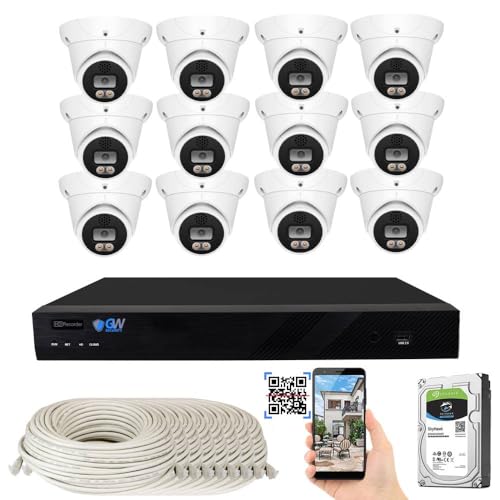
12.0 Megapixel Full HD Realtime Recording 16 Channel 6K NVR with (12) 8MP Weatherproof POE H.265 4K Full-time Color Two-Way Audio IP Dome Cameras (Built-in 2.8mm 8MP HD Lens for 130° wide view angle and Built-in Microphone & Speaker for 2-Way Audio))

8 Channel Full UltraHD 6K / 12.0 Megapixel NVR Security Camera System with (8) 8MP 4K 2.7~13.5mm Motorized 5x Optical Zoom H.265+ Smart AI Human & Vehicle Detection Color Night Vision POE IP Cameras (Record and Playback at UltraHD 4K Resolution)
Keep Selected Files Downloaded
To keep our selected files downloaded on our iPad, we can take advantage of a few straightforward steps. First, any files downloaded through Safari go directly to the Downloads folder in the Files app, so we can access them easily. To store files locally, we should move them from cloud storage to the “On My iPad” section within the Files app. This allows for offline access anytime. We can also mark files for offline access in supported cloud storage services, ensuring we have important documents even without an internet connection. Finally, we can manage our downloaded files by checking their size and type to confirm they’re stored properly in our local storage. Efficient organization is key! For added device protection and organization, consider using a lightweight, vented hard shell case to prevent scratches while maintaining airflow.
Connect External Storage Devices to Ipad
How can we easily expand our iPad’s storage capabilities? We can connect external storage devices, like a USB drive or SD card, with the right adapters. For instance, using the Lightning to USB Camera Adapter or the USB-C to SD Card Reader allows seamless access. Once we connect the storage, we can open the Files app and select the device below “Locations” at the bottom of the screen. Supported file formats include APFS, HFS+, exFAT, and FAT32, letting us modify files and folders as needed. To transfer files from our iPad, we simply copy or move them using the Files app. Finally, remember to disconnect the external device properly to avoid any data loss. Many users also prefer slim protective sleeves to organize and protect cards and small accessories when traveling.
Connect a USB Drive or an SD Card Reader
Connecting a USB drive or an SD card reader to our iPad simplifies file transfers and expands storage options. To connect a USB drive, we need a compatible adapter like the Lightning to USB Camera Adapter or USB-C to SD Card Camera Reader. Once connected, we should trust the computer on our iPad to guarantee proper file management. We can access files from the external storage devices through the Files app, where they’ll appear under the “Locations” section. Supported file formats include APFS, HFS+, exFAT, FAT32, and FAT. Finally, remember to disconnect the drive or card reader properly by using the ejection procedures in the Files app to prevent any data loss. High-bandwidth cables and adapters that support 48Gbps bandwidth help ensure reliable, high-speed transfers between devices.
Recommended Products

First Thunderbolt-Certified THUNDERBOLT 4 Storage Solution; 3 Thunderbolt 4 (USB-C) Ports 40 Gb/s; Dual Drive bays: 1 bay supporting: 3.5-inch SATA drives, 2.5-inch SATA drives, 1 bay supporting: M.2 drives (NVMe M.2 SSDs with 2280 form factor and "M Key" connector type); Edit 4K video with up to 770MB/s speed

Device Ports and Speed - One USB 3.2 Gen 2 Type-C port supporting up to 10Gb/s (1250MB/s) with backwards compatibility to USB 2.0 and 3.0. This 4TB SSD is compatible with USB-C, USB-A, and Thunderbolt ports. A USB-C to USB-A adapter is included for universal portable SSD connectivity.
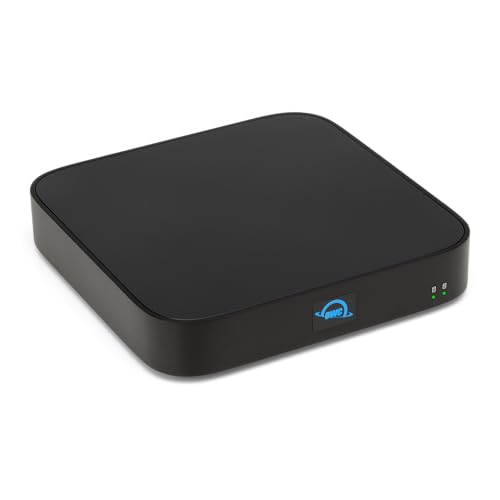
First Thunderbolt-Certified THUNDERBOLT 4 Storage Solution; 3 Thunderbolt 4 (USB-C) Ports 40 Gb/s; Dual Drive bays: 1 bay supporting: 3.5-inch SATA drives, 2.5-inch SATA drives, 1 bay supporting: M.2 drives (NVMe M.2 SSDs with 2280 form factor and "M Key" connector type); Edit 4K video with up to 770MB/s speed
Create Files on SMB Share
After we’ve explored how to connect external devices like USB drives and SD card readers, it’s worth noting that managing files on SMB shares introduces different challenges. When we try to create a new file directly on an SMB server using the Files app, we often encounter an “Operation canceled” error due to compatibility issues. While we can edit and delete existing files without problems, creating new files is restricted.
Dragging or copy-pasting files into network drives can trigger errors, reflecting limitations in iPadOS. Even attempting to create a new directory might cause the Files app to crash, despite successful creation on our Linux machine. The sandboxing nature of iPadOS limits how apps create files in external locations like SMB shares. Consider using external drives or alternative storage workflows to work around these restrictions.
Authenticate Services in the Files App
When we initially access added services in the Files app, authentication is vital for secure file management. Here’s what we need to know about this process:
- Open the App: Often, we must first open the mobile version of the service app to start the authentication process.
- Sign-In Requirements: Each integrated service requires us to sign in properly to access all items within its respective folder.
- Varied Options: Authentication options can differ across services, including alternative sign-in methods tailored for various platforms.
- Access Essentials: Successful authentication is necessary for managing files across our connected storage devices within the Files app.
- Battery capacity is an important consideration when choosing portable charging solutions, such as a 10,000mAh power bank, which can affect how long you can work while using external drives or network shares.
Manage and View Your Files
Managing and viewing files on iPadOS is both intuitive and efficient, making it easier for us to stay organized. Within the Files app, we can manage our files across local and external drives seamlessly through actions like copying, moving, and deleting. The Quick Look feature allows us to preview files, helping us identify the right documents quickly. By tapping on individual files, we can view essential details like type, size, and creation date, which enhances our organization efforts. We also benefit from the Recently Deleted section, enabling us to restore mistakenly deleted files. Importantly, the app supports both single and multiple file operations, optimizing our workflows and simplifying the management of large datasets stored on network shares.
Frequently Asked Questions
How to View External Drive Files on Ipad?
To view external drive files on iPad, we’ll connect compatible external storage. Then, we’ll open the Files app, check for drive compatibility, and organize our files for better file management and access.
How to Access Shared Network Drive on Ipad?
Accessing a shared network drive on our iPad’s like opening a treasure chest. Using network drive setup, we’ll connect via the Files app, enabling file sharing and cloud storage integration for seamless access to FTP servers.
Can an Ipad Access NAS Storage?
Yes, we can access NAS storage with our iPads, though we should consider compatibility issues. Following NAS setup tutorials and understanding file sharing protocols will help, as will being mindful of network speed considerations.
Can an External Hard Drive Be Connected to an Ipad?
Yes, we can connect external hard drives to our iPads, considering compatibility issues, formatting requirements, and proper power supply. We should explore various file transfer methods and app support limitations for effective data backup solutions.


