As an Amazon Associate, we earn from qualifying purchases. Some links on this site are affiliate links at no extra cost to you. Our recommendations are based on thorough research and editorial judgment.


Ipad Multitasking: Stage Manager, Split View, Slide Over

To enhance our multitasking on iPads, we can utilize Stage Manager, Split View, and Slide Over features. Stage Manager allows for quick app switching and customized app groups. Split View lets us run two apps side-by-side, while Slide Over provides a small, floating app for easy access. We can resize windows, use keyboard shortcuts, and employ gestures for a smoother experience. By exploring these functionalities, we can maximize our productivity and learn effective strategies for app management.
Key Takeaways
- Stage Manager on M-series iPads enhances multitasking by allowing you to group and access multiple app windows quickly.
- Split View enables simultaneous use of two apps side-by-side, adjustable in size by dragging the central divider.
- Slide Over provides a floating app alongside a fullscreen app for quick access to secondary tools.
- Utilize keyboard shortcuts and external keyboards to improve efficiency when multitasking with these features.
- Master touch gestures for faster app switching; swipe with four or five fingers to navigate between open apps seamlessly.
How to Use Stage Manager on Ipad
You may be interested



To get started with Stage Manager on our iPads, we can enhance our multitasking experience considerably. This feature is available on iPads equipped with M-series chips.
Recommended Products

5-in-1 Connectivity: Equipped with a 4K HDMI port, a 5 Gbps USB-C data port, two 5 Gbps USB-A ports, and a USB C 100W PD-IN port. Note: The USB C 100W PD-IN port supports only charging and does not support data transfer devices such as headphones or speakers.
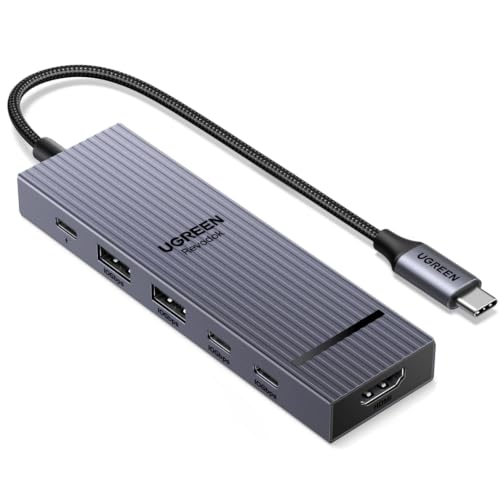
6-in-1 10Gbps USB C Hub: Inspire more potential of your laptop’s USB-C port with two 10 Gbps USB-C 3.2 Gen 2 port, two 10 Gbps USB-A 3.2 Gen 2 ports, 4K 60Hz HDMI and 100W Power Delivery. Ultimate all-in-one dock, works on multiple ports simultaneously

Sleek 7-in-1 USB-C Hub: Features an HDMI port, two USB-A 3.0 ports, and a USB-C data port, each providing 5Gbps transfer speeds. It also includes a USB-C PD input port for charging up to 100W and dual SD and TF card slots, all in a compact design.
Enabling Stage Manager
- Open the Settings app.
- Head to Multitasking & Gestures.
- Check the box to enable Stage Manager.
Using Stage Manager
- To switch between apps, tap on an app in the Recent apps list on the left or use the Dock.
- We can organize apps into groups by dragging windows into the middle of the screen, allowing tailored workflows.
Accessing Recent Apps
– To quickly access the Recent apps list, swipe from the left edge of the screen.
With Stage Manager, we can effectively multitask and improve productivity while managing our tasks seamlessly. Many users pair Stage Manager with USB-C hubs to add external displays and extra ports for a more desktop-like workflow, especially when using 4K HDMI outputs.
Exploring Split View Functionality

Split View enhances our ability to multitask effectively on iPads, allowing us to use two apps side-by-side. To activate Split View, we tap the multitasking button, which is represented by three dots, at the top of any open app. This lets us select a second app from the Dock or App Library easily.
We can customize our experience by resizing app windows; just drag the central divider. The default options are half and half, or one app taking a quarter of the screen while the other uses three quarters. Switching between the two apps is straightforward too—we just drag an app icon from the Dock into one of the Split View sections, making multitasking both intuitive and flexible. Many users find that using an external keyboard with Split View further improves productivity by enabling quicker typing and shortcuts external keyboard.
Recommended Products

【Compatibility】For iPad (A16) 11th generation 11-inch 2025 (Model: A3354/A3355/A3356), For iPad 10th generation 10.9-inch 2022 (Model: A2696/A2757/A2777). Not for any other models. Please check the model number No. "AXXXX" the bottom of the back of your tablet to confirm correct size before purchasing

Compatibility: iPad (10th gen & A16). Models: A2696, A2757, A2777, A3162, A3354, A3355, A3356

⌨【Model compatibility】This keyboard case compatible with iPad 9th / 8th / 7th Generation 10.2 inch 2021/2020/2019 (Model Number:A2602/A2603/A2604/A2605/A2430/A2270/A2428/A2429/A2197/A2198/A2200), compatible with iPad Air 3rd Generation 2019 (Model Number:A2154/A2152/A2153/A2123), compatible with iPad Pro 10.5 inch 2017 (Model Number:A1701 /A1709 /A1852). Not compatible with other models. Please check the model number starting with "A" on the back of your tablet before purchasing
Utilizing Slide Over for Multitasking

Utilizing Slide Over for multitasking can considerably boost our productivity when using an iPad. This feature lets us run a smaller, floating app alongside a fullscreen app, keeping key tasks accessible without interruption.
To activate the Slide Over app, we swipe up to reveal the Dock and then drag an app to the side of the screen. This app will rest at the bottom, allowing us to open a second app easily.
We can reposition the Slide Over app by dragging it left or right. If we need to hide it, a simple swipe off the edge does the trick. Plus, we can have multiple Slide Over apps open, which helps streamline our workflow efficiently. Many musicians also find it useful to combine Slide Over with a sturdy tablet stand to keep their iPad visible and stable during performances.
Recommended Products
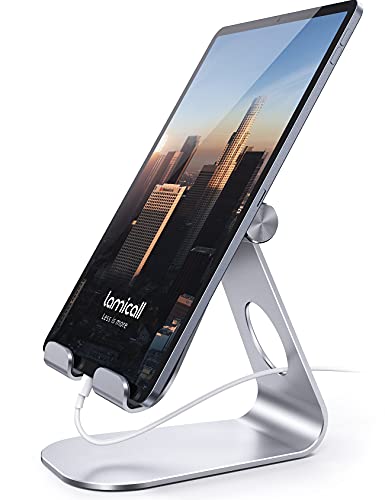
【 COMPATIBILITY 】 This tablet stand applies to 4 - 13 inch tablet and phone, such as new 2025 / 2024 / 2022 / 2021 iPad Pro 11 / 12.9 / 13 inch, iPad 10.9, iPad Air 5 / 6, iPad mini 6, iPad Pro 9.7 / 10.5, Kindle, Surface Pro, Galaxy Tab, iPhone Air 17 Pro Max, iPhone 16 , iPhone 15 Pro Max, iPhone 14 Pro Max, iPhone 13, iPhone 12. If you use a tablet larger than 12”and found it's not stable to use, you can set it horizontally, which helps maintain more stability.

Tabletop Use Only: This tablet stand is designed for flat, stable surfaces such as desks or tables. The anti-slip base keeps your device steady, and the joint can be tightened with the included wrench for extra stability. Avoid using it on headboards to prevent wobbling or slipping. Please check product completeness upon receipt

Wide Compatibility : Our tablet floor stand is compatible with all Phones and tablets between 4.7-13 inch-screen.(Any cases with a width between 4.3"-9.8" (11cm-24.8cm) and thickness within 0.63" (1.6cm) are suitable.)
Tips for Effective App Management
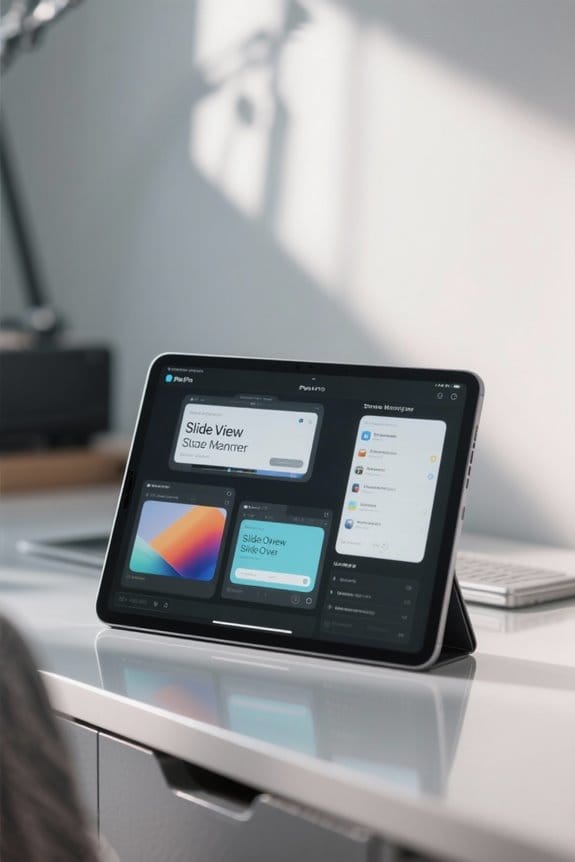
Effective app management on the iPad can greatly improve our multitasking capabilities. Here are some strategies to optimize our experience:
- Utilize Stage Manager: Swipe from the left edge of the screen to access the Recent apps list, making it easy to switch between apps.
- Organize with Grouping: In Stage Manager, we can improve our workflow by dragging app windows from the Recent apps list into groups that suit our tasks.
- Adjust in Split View: Resize app windows with the central handle to prioritize one app over another, tailoring our workspace accordingly.
- Employ Slide Over: Use this feature for a smaller, floating app atop a fullscreen app, allowing quick access to secondary tools.
- Master Gestures: Swiping with four or five fingers enables swift app switching, enhancing our overall multitasking efficiency.
Also consider keeping frequently used tools in dedicated compartments—like a pen holder—to streamline access and reduce clutter.
Recommended Products
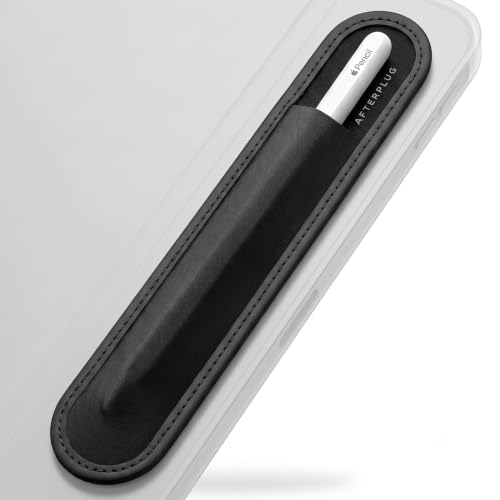
Sleek All-Black Design: Features a black center and matching vegan leather edge for a minimalist, sophisticated look
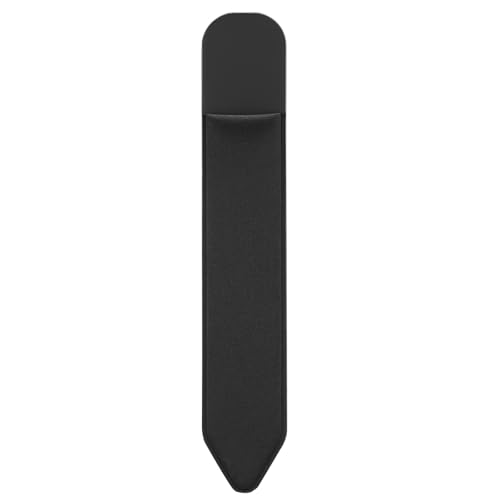
COMPATIBILITY: Specially designed for your precious Apple Pencil Pro/USB-C/2nd/1st,as well as other similarly sized styluses, which compatible with all sizes iPad/iPad Air/iPad Mini/iPad Pro.

Broad Compatibility: Compatible with Apple Pencil Pro, Apple Pencil (USB-C), Apple Pencil(2nd generation), Apple Pencil(1st generation), and other similarly sized styluses. The Pencil Pocket's size is: 19.2 x 2.8cm(7.6 x 1.1inch)
Advanced Features and Pro Tricks

As we explore advanced features and pro tricks on the iPad, it’s important to recognize how these tools can greatly enhance our productivity.
Stage Manager allows us to group multiple app windows, making it easy to switch tasks. We can quickly access apps in the Recent apps list or the Dock.
Split View is another powerful feature. It lets us run two apps side-by-side with adjustable sizes. Activating it is simple; just tap the multitasking button at the top of an app.
With Slide Over, we can keep a floating app on top of a fullscreen app. This provides swift access to tools without interrupting our main work.
For pro users, maximizing keyboard shortcuts releases even greater multitasking efficiency. The right keyboard case with a full-area trackpad can further streamline navigation and control.
Recommended Products

【Compatibility】For iPad (A16) 11th generation 11-inch 2025 (Model: A3354/A3355/A3356), For iPad 10th generation 10.9-inch 2022 (Model: A2696/A2757/A2777). Not for any other models. Please check the model number No. "AXXXX" the bottom of the back of your tablet to confirm correct size before purchasing

【 Compatibility】SPECIALLY and ONLY designed for iPad (A16) 11th generation 11-inch 2025 (Model: A3354, A3355, A3356), iPad 10th generation 10.9-inch 2022 (Model: A2696, A2757, A2777). Including 1 x iPad 11th/10th generation case, 1 x wireless 7-color backlit touchpad keyboard, 1x USB-C charging cord, 1 x user guide. NOT compatible with any other iPad models

Compatibility: This keyboard case is only compatible with iPad 10.9 inch 10th Generation (models A2696, A2757, A2777) and iPad 11th 2025 A16 Chip (models A3354, A3355, A3356).
Frequently Asked Questions
How to Use Slide Over and Split View on the Ipad?
To boost our iPad productivity, we can swipe up to drag an app for Slide Over or tap the multitasking button to set up Split View. These multitasking techniques enhance our app management strategies seamlessly!
What Is the Difference Between Split View and Slide Over?
Split View’s a splendid tapestry, weaving two apps side-by-side, while Slide Over’s a delicate breeze, floating softly above. Both enhance our app functionalities, enriching multitasking benefits and simplifying the user interface we cherish.
How to Split Screen With Stage Manager?
We can split the screen using iPad gestures by enabling Stage Manager. Opening an app first, we enjoy multitasking benefits and check for app compatibility, making it easy to swipe and drag for a seamless experience.
Can You Split View Horizontally on an Ipad?
“Don’t count your chickens before they hatch.” Unfortunately, we can’t split view horizontally on an iPad. Exploring app organization techniques still allows effective vertical multitasking, maximizing the iPad screen layout for productivity.


